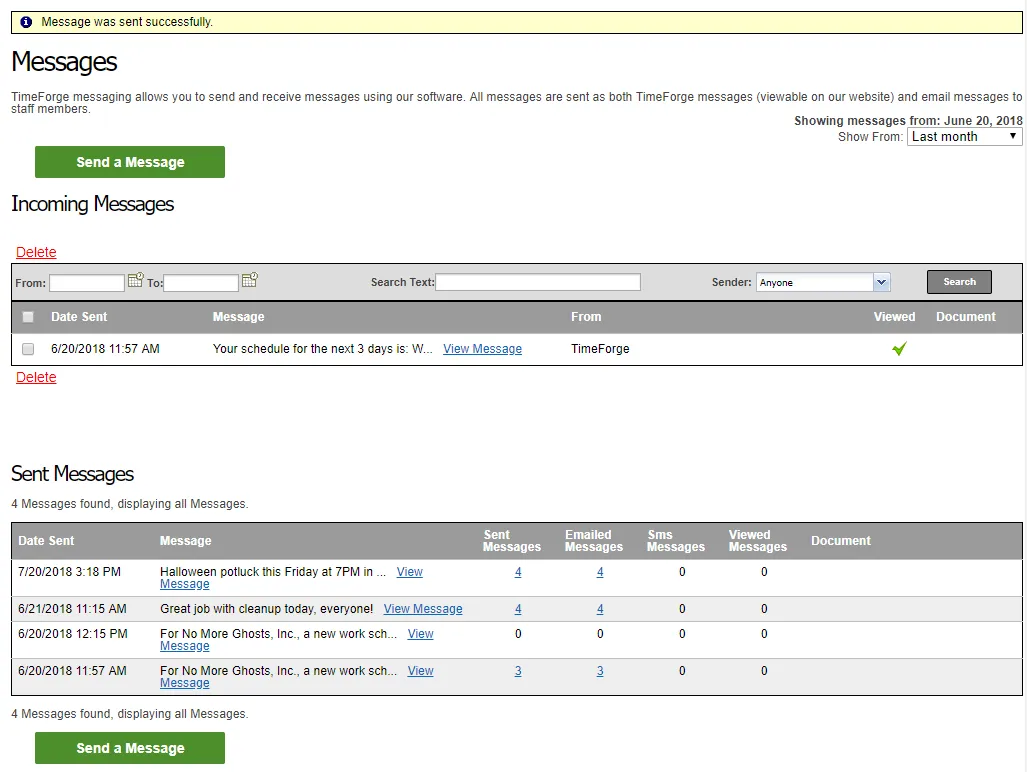
Send a message to all employees at a location
By default, TimeForge allows both Managers and Supervisors to send messages to employees. (Though, this setting can be customized for Supervisors on per-location basis.) This article will teach you how to send a message to all employees at a given location, which can be handy for sending out reminders, announcing upcoming events or requirements, or providing important alerts about the store.
You can also view and send messages at any time by opening the Schedules tab and selecting Messages from the sub-menu.
Navigate to your Employee list
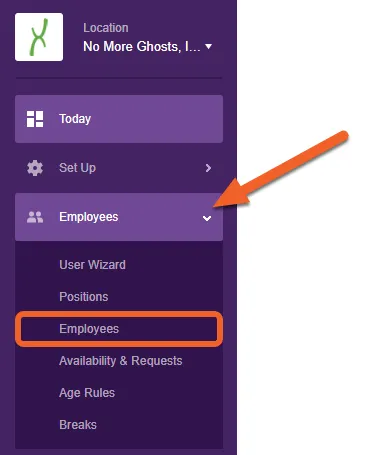
Section titled “Navigate to your Employee list”While at the Location level, open the Employees tab and select Employees from the sub-menu.
Click the “Message All Employees” link in the upper right
Section titled “Click the “Message All Employees” link in the upper right”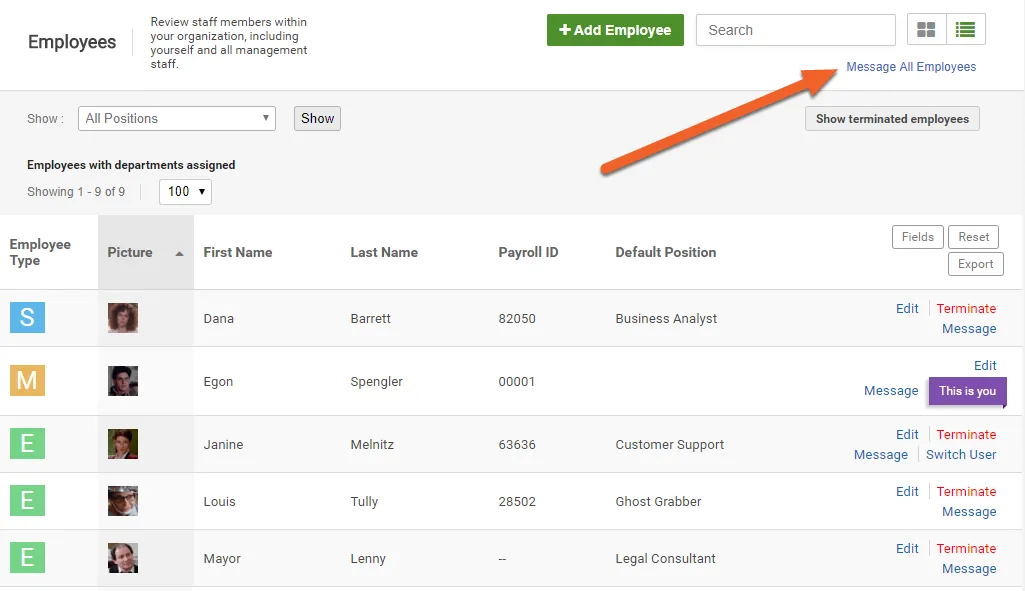
Enter your message
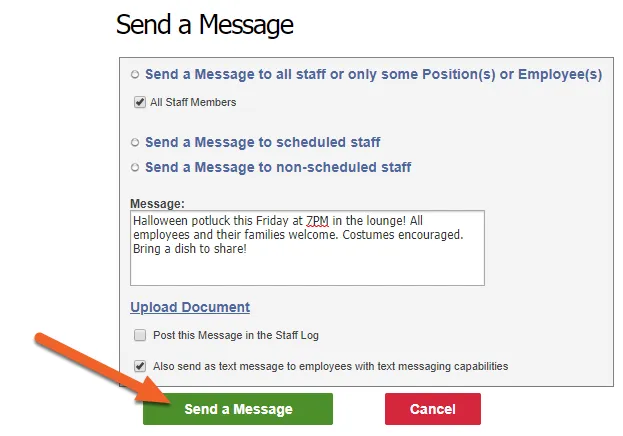
Section titled “Enter your message”Enter your message into the text box. You can also customize the recipient list at this time, if you do not want to send the message to literally all of your staff members. Simply click on one of the available options (e.g. “Send a Message to scheduled staff”).
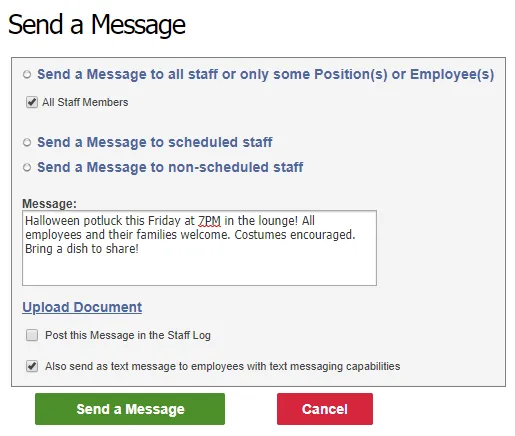
Other options include the ability to attach a document to the message, post the message to the Staff Log, and send the message as a text message to employees who can receive them (requires the message to be 140 characters or less).
Click the Send button to send your message
Section titled “Click the Send button to send your message”When you’re satisfied with your message, click the Send a Message button to send it to your employees!
You’ll then be taken to your Messages page under the Schedules tab, where you can review the message in your Sent Messages list or send another one.