Print a monthly work schedule
With TimeForge, you have access to the most flexible and powerful labor management system available. TimeForge gives you the ability to quickly and easily create, view, and print work schedules for staff members.
There are many different options for you to print the work schedule for your staff, as well as several types of schedule reports that can be printed.
Printing the monthly layout of your employee schedule is easy, and here is how it’s done.
Navigate to the Schedules page under the Schedules tab
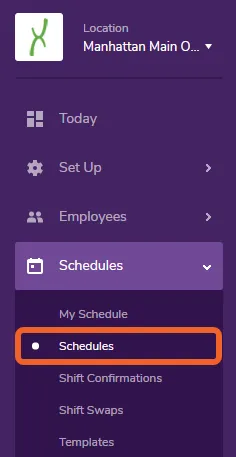
Section titled “Navigate to the Schedules page under the Schedules tab”To print out a monthly schedule, open up the Schedules tab, then select Schedules.
Printing from the Schedules page
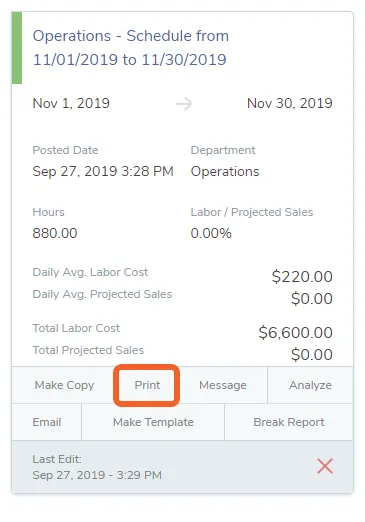
Section titled “Printing from the Schedules page”Simply click the Print button/link for the schedule you wish to print:
Printing from inside the schedule
Section titled “Printing from inside the schedule”You can also print a schedule from the Actions pop-up while editing/viewing the schedule. This allows you to see a visual representation in calendar view before you print.
Select the schedule you want to print
Section titled “Select the schedule you want to print”Open up/edit the work schedule that needs to be printed.
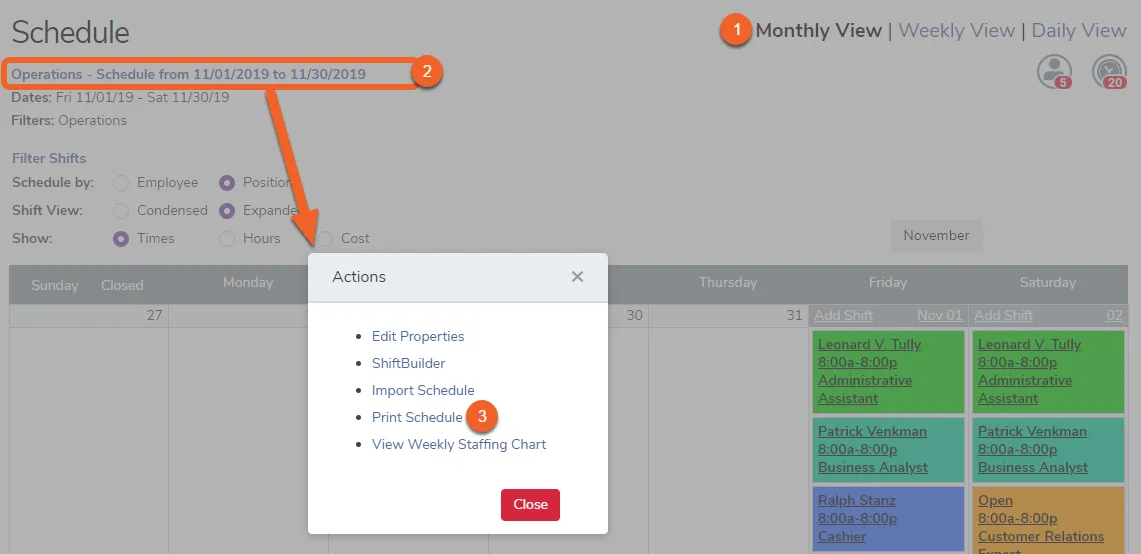
Click the schedule name in the Monthly View
Section titled “Click the schedule name in the Monthly View”- Make sure you are viewing the monthly calender by clicking Monthly View.
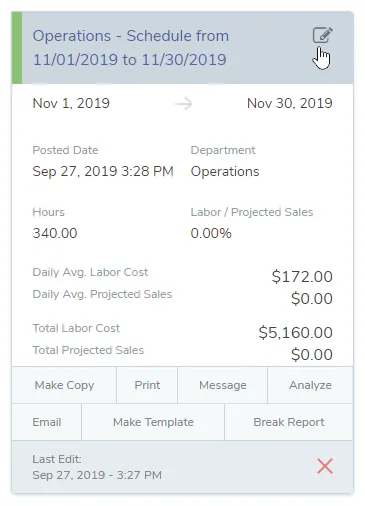
- Then, click on the the link that appears in the name of the schedule.
- When the pop-up appears, select Print Schedule to view and print your monthly schedule.
View and print your report
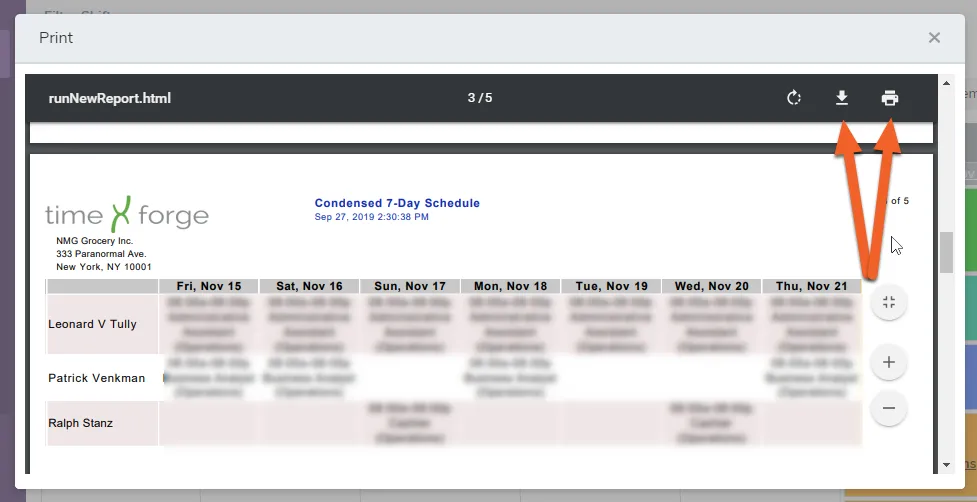
Section titled “View and print your report”Once you click Print (using either of the above methods), your schedule will appear as a printable PDF on screen, broken up into condensed 7-day segments. If your schedule spans a full month, for example, the PDF will include a condensed 7-day schedule for each week in the month.
Use your browser’s normal download and print methods to save and/or print a copy of the report.