Calculate labor costs for salaried employees
This guide will walk you through the process of setting up your salaried employees in TimeForge.
Overview
To set up salaried employees, navigate to your Employees list
Section titled “To set up salaried employees, navigate to your Employees list”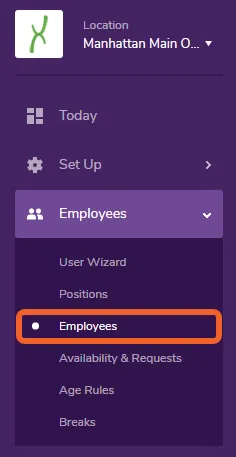
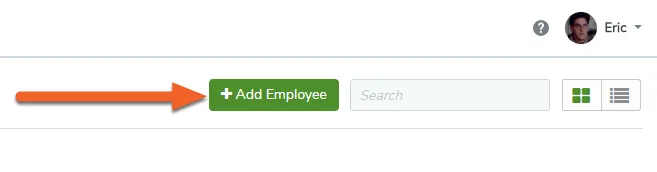
Add or edit an employee
Section titled “Add or edit an employee”Click the +Add Employee button to add a new salaried employee (shown below), or click a card (Grid view) or Edit link (List view) to edit an existing employee.
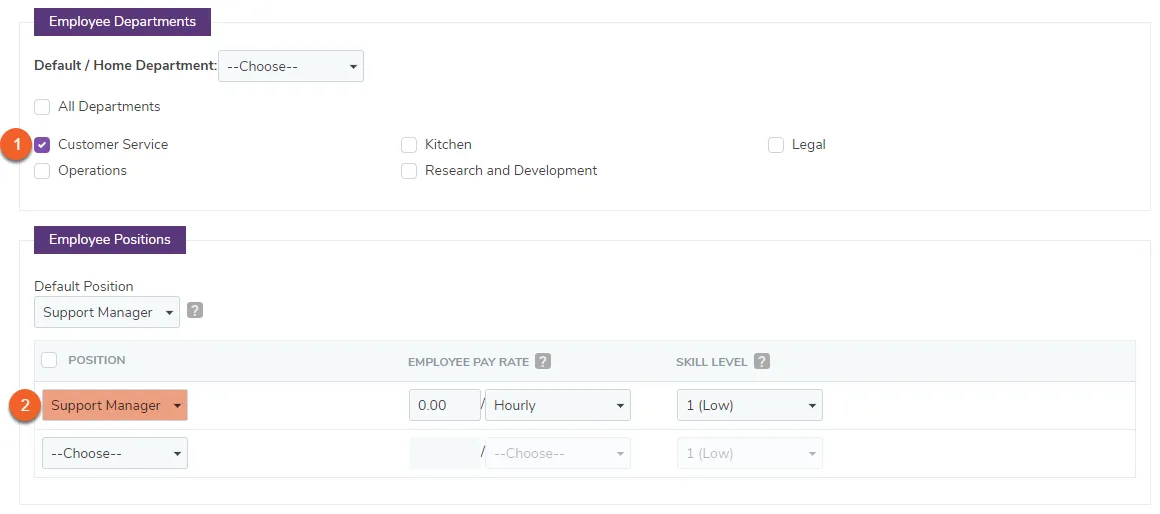
Locate the “Employee Positions” box
Section titled “Locate the “Employee Positions” box”Select the appropriate position(s) for the salaried employee. If your business uses Departments in TimeForge, you may first need to select an applicable Department before you can choose a Position.
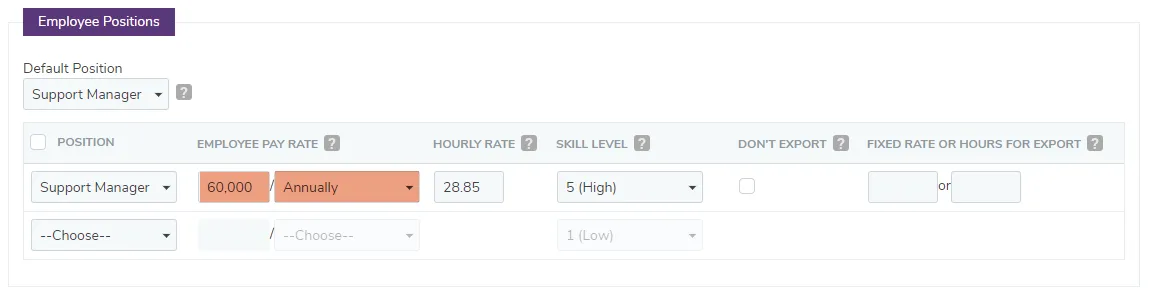
Input the salaried pay rate
Section titled “Input the salaried pay rate”Input the employee’s salary and select the frequency of payment.
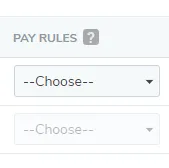
Select the account type and pay rules (if applicable)
Section titled “Select the account type and pay rules (if applicable)”If your TimeForge configuration supports it, you may also select an established account type if you wish to group the cost of the position’s attendance. You may also need to select the established pay rules you would like to apply to the employee’s position.
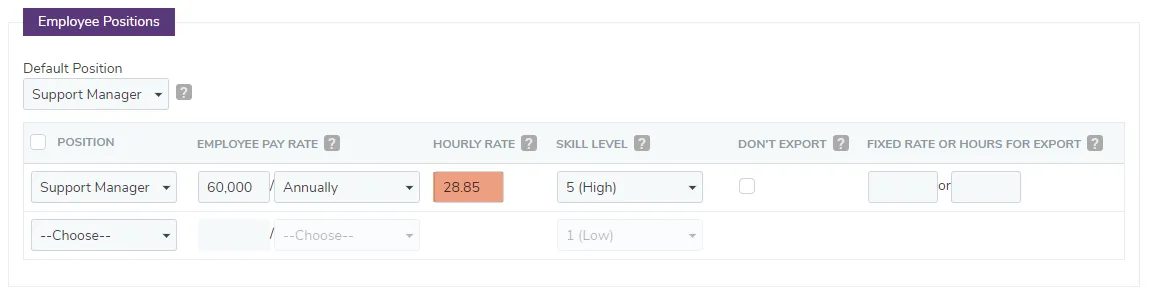
Notice the “Hourly Rate” box
Section titled “Notice the “Hourly Rate” box”The Hourly Rate box displays an approximate hourly rate in order to provide real-time labor analytics for the position. It can be adjusted.
Select a skill level (optional)
Section titled “Select a skill level (optional)”Apply a skill level to the employee’s position, if desired.

If the employee’s pay frequency is weekly, notice the “Recalculate Cost” box
Section titled “If the employee’s pay frequency is weekly, notice the “Recalculate Cost” box”Check the Recalculate Cost box if you would like the employee’s calculated hourly rate to be recalculated according to their weekly rate, regardless of the number of hours worked.

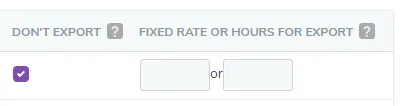
Decide whether you would like to export this employee’s salary information or not
Section titled “Decide whether you would like to export this employee’s salary information or not”Check the Don’t Export box if you do not want this employee’s salaried position information to be exported with the rest of payroll. Or, input a fixed pay rate or fixed number of hours to be exported for this employee’s position each pay period.
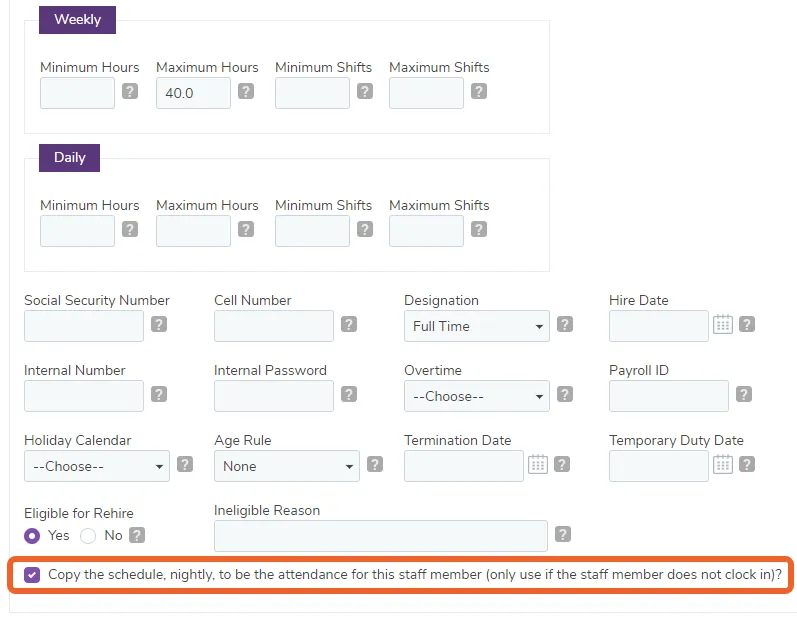
Copy the schedule to the attendance, if desired
Section titled “Copy the schedule to the attendance, if desired”At the bottom of the Basic Employee Information sections (a little further up the page), is an option to copy the employee’s schedule directly into the attendance. This option is useful for employees that do not clock in. You can schedule them for a reasonable number of hours and have that schedule automatically copied into their attendance, which can be adjusted as needed.
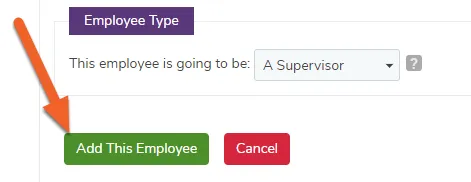
Click Save or Add This Employee
Section titled “Click Save or Add This Employee”Scroll down and click Add This Employee if you are adding a new employee, or Save if you are editing an existing employee.