

Set a user as an Administrative User
In TimeForge, Admin users are those users who aren’t scheduled and don’t clock in our out. Typically, business owners, HR staff, and accountants fall into this category. The key thing to remember about Admin users is that they don’t appear on the employee list at the location level. You must go to the corporate level to view admin users. Here’s how to assign someone the “Admin User” role.
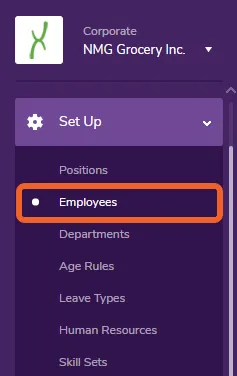
From the Corporate level, navigate to the Employees page
Section titled “From the Corporate level, navigate to the Employees page”While at the Corporate level, open the Set Up tab and select Employees.
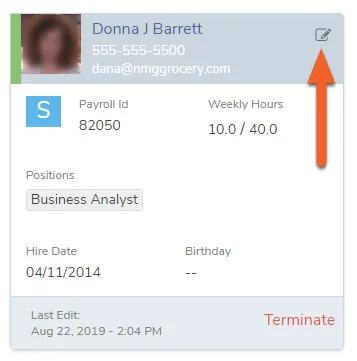
Edit the appropriate employee
Section titled “Edit the appropriate employee”You’ll want to open up the employee’s profile in order to assign them the Admin User role. To do that, click on their card (shown), or click the Edit button the row with their name.
Find the “Administrative User” check box
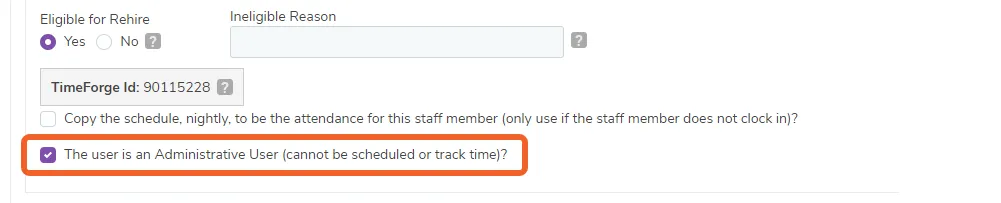
Section titled “Find the “Administrative User” check box”At the bottom of the Basic Employee Information section, there is a check box that reads “The user is an Administrative User (cannot be scheduled or track time)?”. If this box is checked, the user will be considered an Admin user.
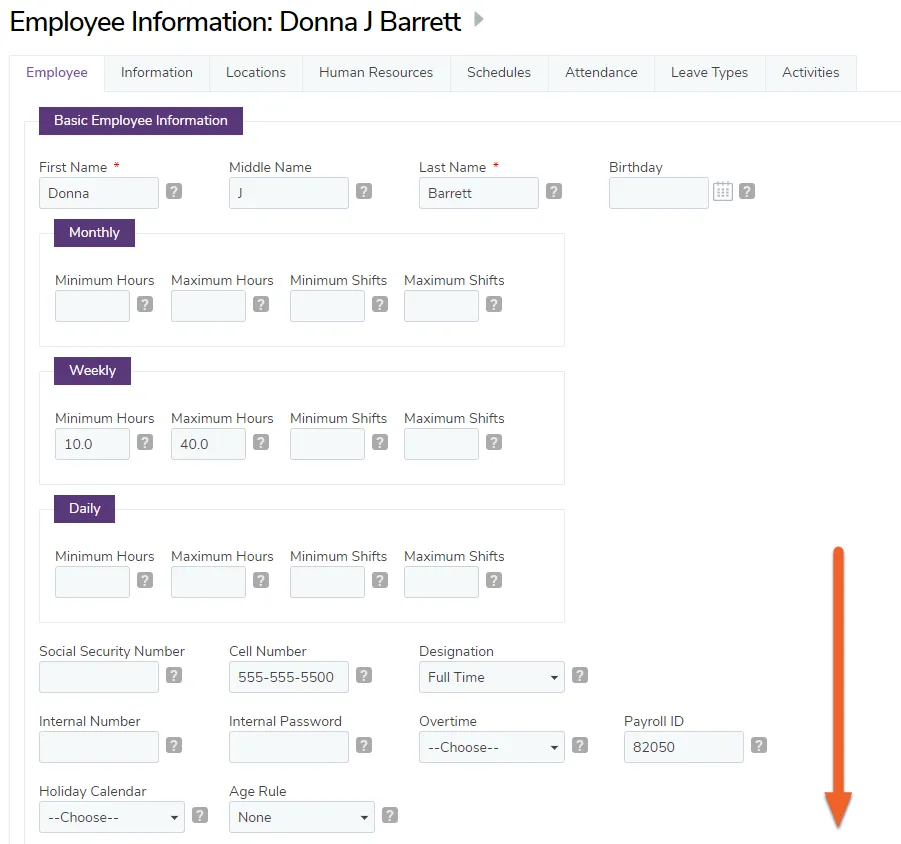
If you make any changes to the employee’s information, including checking or unchecking the Admin User box, you’ll want to make sure you scroll down to the bottom of the page and hit the Save button to save your changes.