Import employees from a CSV file
At TimeForge, we understand that many of our customers switch to us from old-fashioned spreadsheets. That’s why we offer the ability to import employees directly from a CSV file. Most spreadsheets can easily be saved as a CSV, which makes the transition over to TimeForge smooth and painless.
TimeForge is a complete labor management tool that is great for making things like tracking attendance and creating employee schedules quick and easy. Plus, from the employee profile page, you can keep track of information like cell phone numbers, social security numbers, passwords, payrates, and much more.
You can import employees with just a few clicks! Here’s how:
Navigate to your Employees page
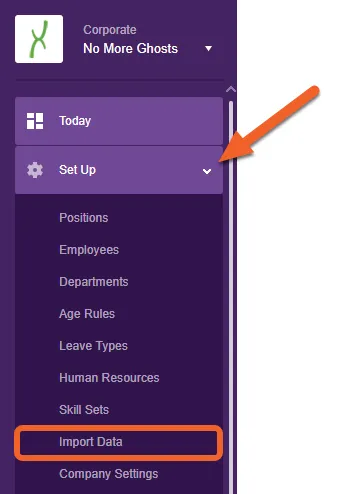
Section titled “Navigate to your Employees page”Open up the Set Up tab, then select Import Data from the sub-menu. (The screenshot below shows this at the Corporate level, but you can also do it from the Location level, depending on your needs.)
Choose the appropriate CSV file
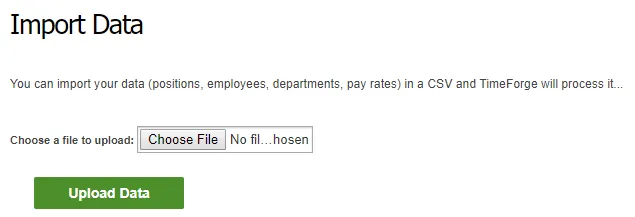
Section titled “Choose the appropriate CSV file”If your file is currently saved as an .xls or .xlsx, you’ll need to first open up Microsoft Excel, then go to File > Save As and export it a CSV. You can then select this .csv in TimeForge.
Review the employee data for import
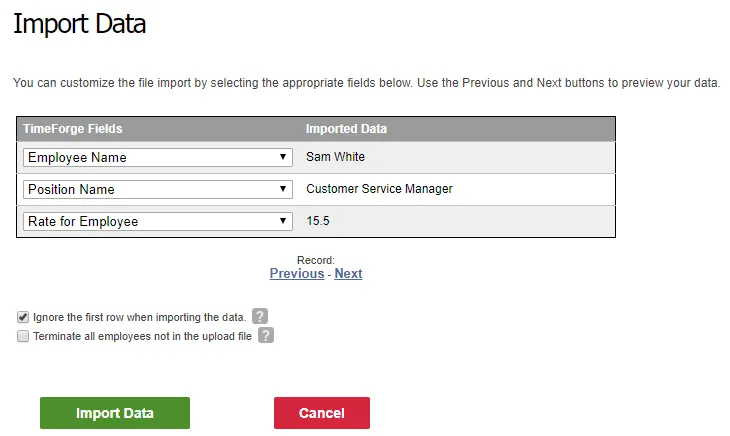
Section titled “Review the employee data for import”TimeForge will automatically attempt to match the header of each column with a field in TimeForge, such as “Employee Name” and “Position,” and will show you a preview of the import, starting with the first row in your sheet.
Click the Next link to review each subsequent row (employee) in the file.
If satisfied, click the Import Data button to import the file. If your first row was a header row, leave the box checked to ignore that row when importing.