

Enable automatic clock outs
Attendance entries require both a clock in and out time. If an employee fails to clock out, you can manually clock them out from your timeclock or the web portal before fixing an attendance entry. There’s also another option: automatic clock out.
Automatic clock outs can help you keep track of entries where an employee forgot to punch out. Follow the instructions below to learn how you can setup automatic clock outs and how to find auto-clocked out entries.
Enabling Automatic Clock Outs
Section titled “Enabling Automatic Clock Outs”1. Navigate to the Attendance tab
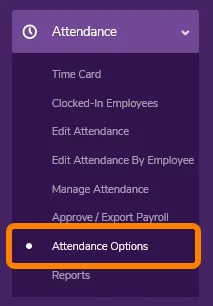
Section titled “1. Navigate to the Attendance tab”You can access all of your attendance settings by clicking on the Attendance tab and selecting Attendance Options from the menu.
2. Scroll down to Advanced Attendance Features
Section titled “2. Scroll down to Advanced Attendance Features”The “Advanced attendance features” section appears towards the bottom of the Attendance Options page.
3. Turn auto clock out options on
Section titled “3. Turn auto clock out options on”You can automatically clock out employees at a specific time or a number of minutes after their shift’s scheduled end time. Each option has their own advantages.
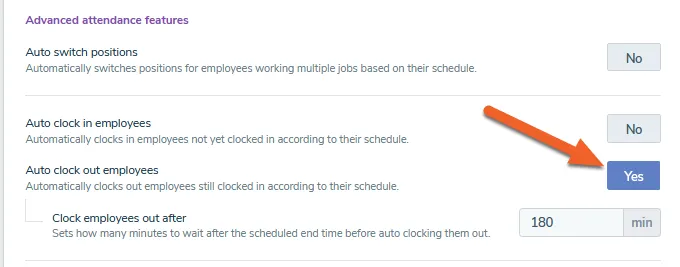
Enable “Auto clock out employees” if your location actively uses TimeForge for scheduling. This feature also works if your employees have varying start times throughout the day. By enabling this feature, the system clocks out employees who do not record a punch out by waiting a specific number of minutes after the employee’s scheduled shift ends.
In the example below, the system would wait 180 minutes (3 hours) after an employee’s scheduled out time before automatically ending their shift:
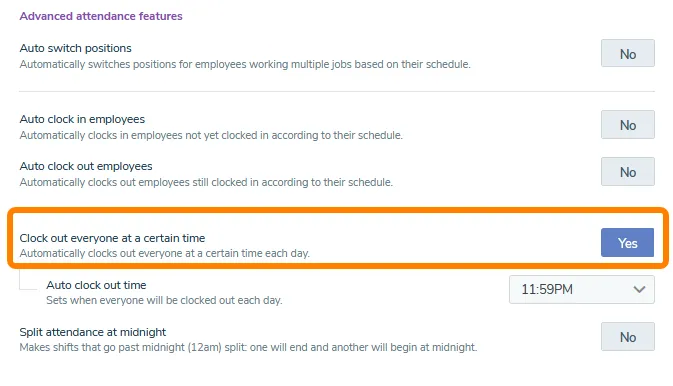
If your location does not have overnight employees and closes its operations at a specific time, enable the “Clock out everyone at a certain time” setting. This setting clocks out an employee if they do not record a punch out by the time you enter.
4. Click the green “Save” button to finalize your changes
Section titled “4. Click the green “Save” button to finalize your changes”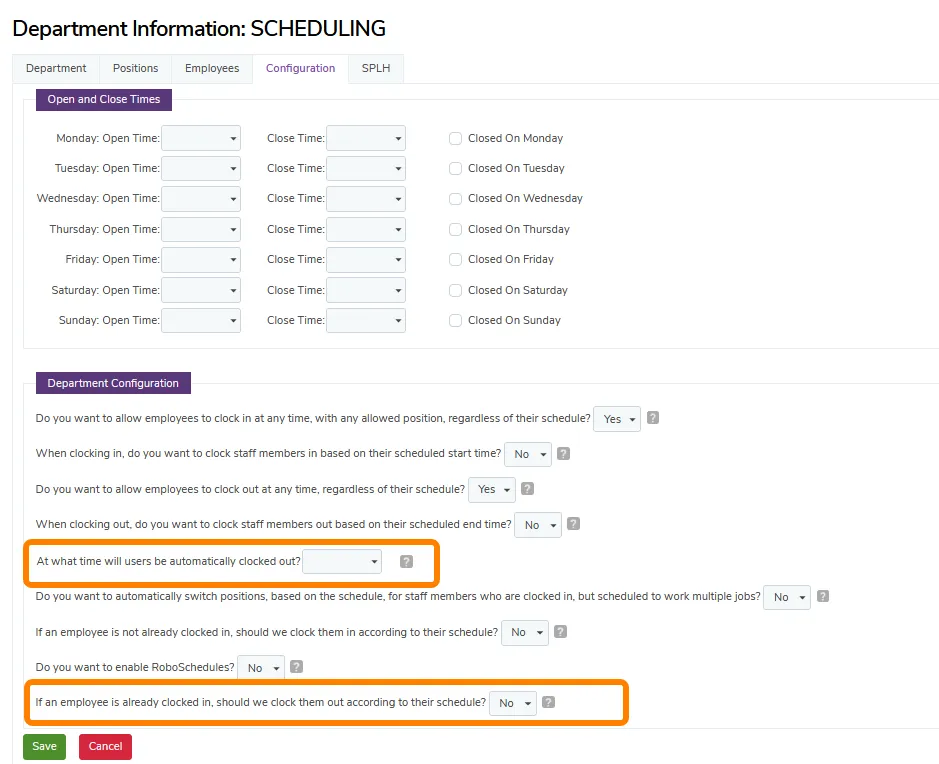
Viewing Automatic Clock Outs in Manage Attendance
Section titled “Viewing Automatic Clock Outs in Manage Attendance”The “clock out by schedule” and “clock out by absolute time” filters in the Manage Attendance page allows you to quickly find entries where an employee did not punch out. You can find these filters by following the next three steps:
- Navigate to the Attendance tab and select Manage Attendance
- In the top right corner click on the filter drop down menu
- Select either “clock out by schedule” and “clock out by absolute time” depending the clock out method your location uses
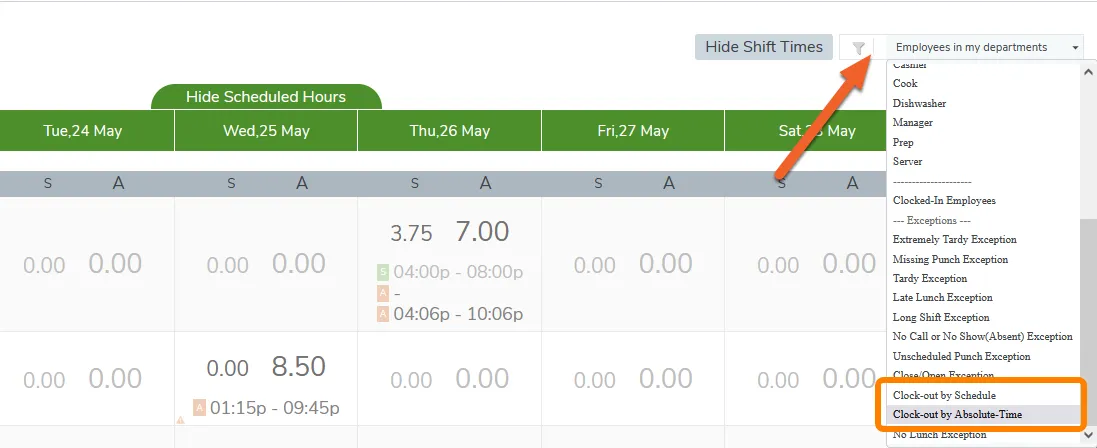
After you select the filter for the clock out method your location uses, entries which did not have clock out recorded by an employee will appear.