View and edit employees
On the Employees screen, you can view who is clocked in or out. All it takes is a few taps. If the employee has an email address or phone number in TimeForge, you can also email or call/text them directly from your mobile device.
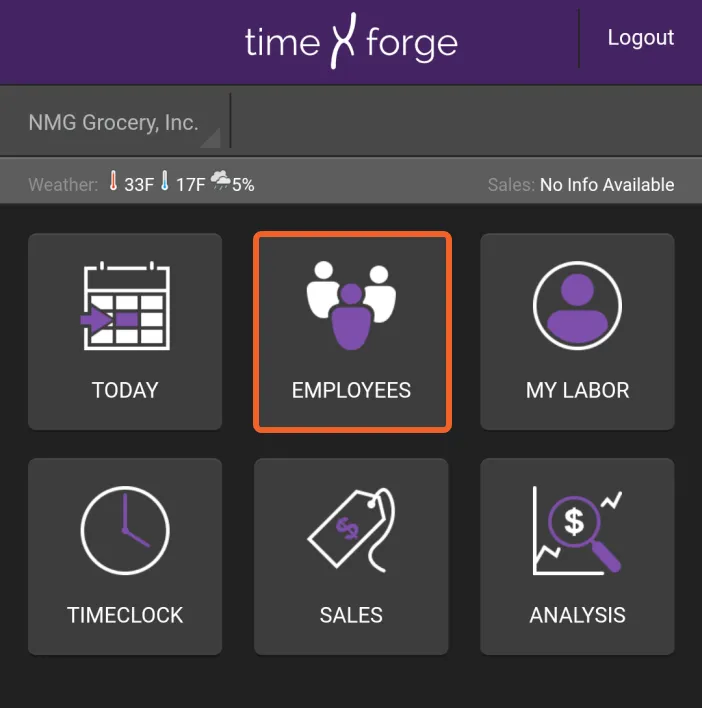
Tap the EMPLOYEES tile
Section titled “Tap the EMPLOYEES tile”From the home screen, tap the EMPLOYEES tile.
View your list of employees
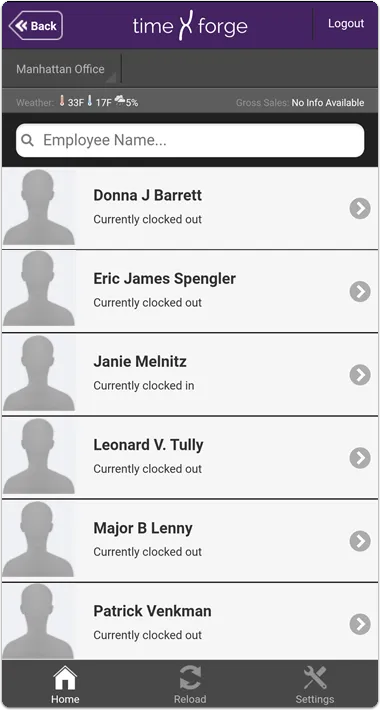
Section titled “View your list of employees”You will see a list of employees for your current location (shown in the upper left), as well as their status (clocked in or out).
Tap an employee to see additional options
Section titled “Tap an employee to see additional options”Tapping on an employee in the list will show you additional options, depending on whether the employee has an email or phone number associated with their TimeForge account:
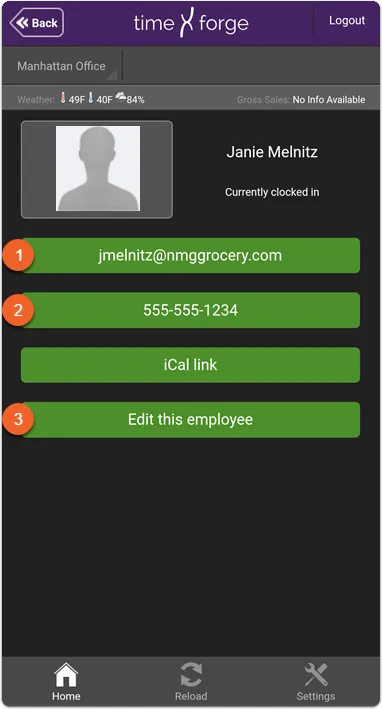
- If the employee has an email address associated with their account, you can email them using your mobile device’s preferred email application by tapping their email address.
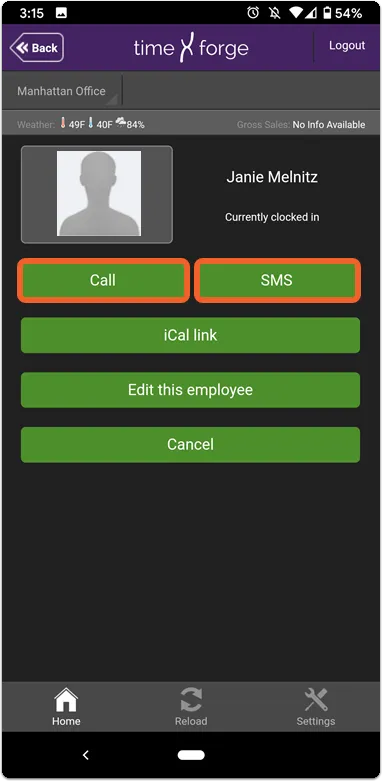
- If the employee has a phone number associated with their account, you can call or send them a text message by tapping their phone number.
- Tapping the Edit button will take you to the TimeForge website, where you can view and edit the employee’s information on file.
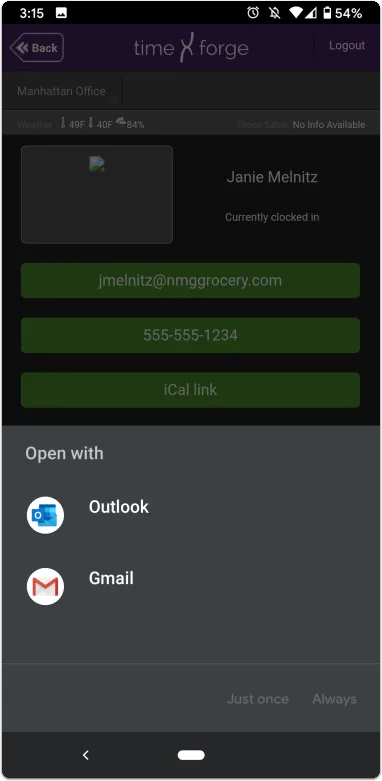
Tap the email button to send an email using your preferred email app on your device
If you have more than one email app on your device, you may be prompted to select which one you would like to use.
Tap the phone number button to call or text (SMS) using your mobile device