

View your daily labor cost
Analyzing your daily labor costs, or how much employee wages cost each day, is important for understanding your business operations, noticing any room for improvement, and preventing over- or under-staffing in the future.
In TimeForge, there are two easy ways to view the daily labor cost, and both involve the Schedules page. Here are instructions for both methods of accessing your daily labor costs.
Go to your Schedules page
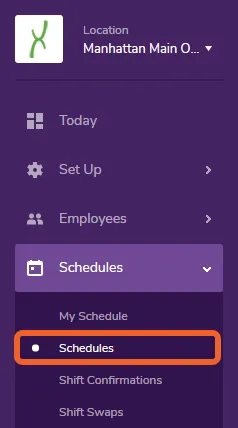
Section titled “Go to your Schedules page”Open the Schedules tab and select Schedules from the menu.
Select a schedule
Section titled “Select a schedule”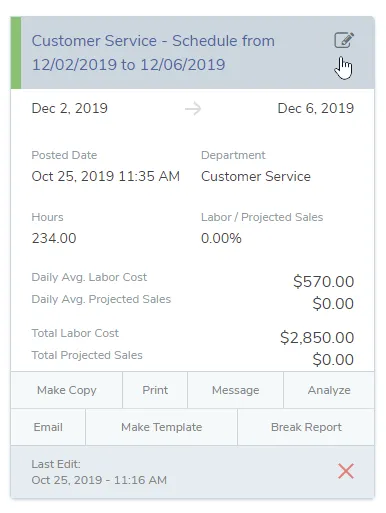
Select the Daily View
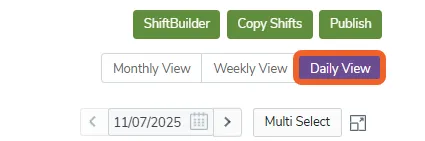
Section titled “Select the Daily View”Go to the Daily View by clicking on the Daily View link in the upper right.
Check the daily labor cost
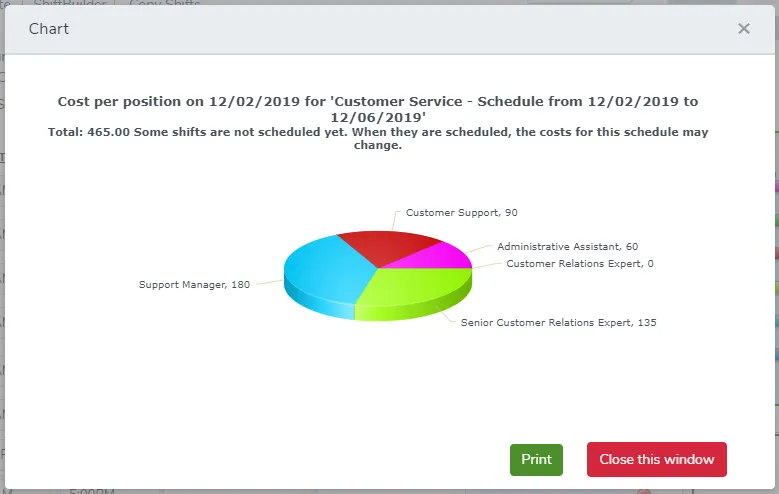
Section titled “Check the daily labor cost”Under the schedule information, you should see a link to Today’s Labor Cost. In this example, we can see that we have 54 hours scheduled and a cost of $465.
To view a breakdown of cost by position, click the link.
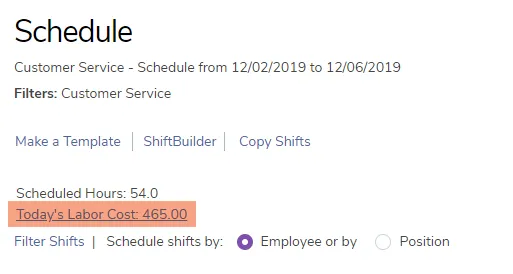
A pie graph will appear, showing daily labor cost by position.
Select the Weekly View
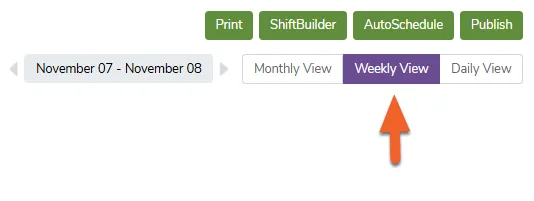
Section titled “Select the Weekly View”Another way to view costs is from the Weekly View page. First, go to the Weekly View.
View Labor Costs
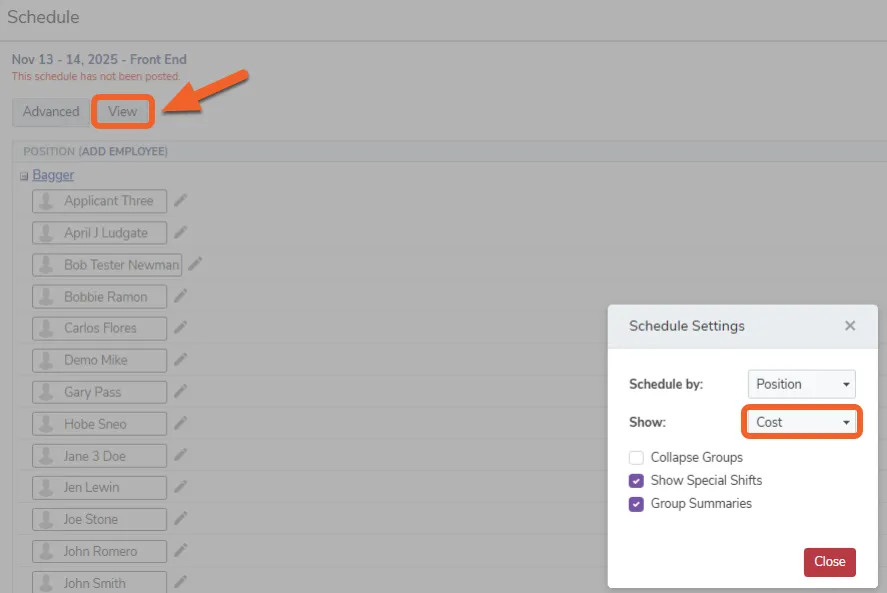
Section titled “View Labor Costs”After selecting the Weekly View, click the View tab at the top of the schedule. Then, under Show, select Cost from the dropdown menu.
This will display labor costs directly on your schedule so you can easily monitor expenses by shift or position.
View the daily labor costs
Section titled “View the daily labor costs”You’ll notice two things when you select Cost. First, the shift times/hours will be replaced with employee cost:

Second, at the bottom of the page, you will see the total costs per day of all shifts, including a Weekly Total at the end of the row:
