Adjust holiday pay for an employee
This article will teach you how to manually adjust an employee’s pay through the Manage Attendance screen. This is especially useful, for example, if you need to adjust an employee’s pay rate based on their eligibility for holiday pay.
Open your Manage Attendance page
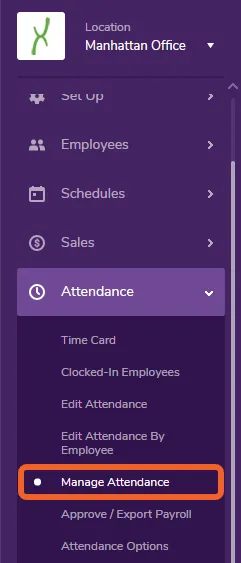
Section titled “Open your Manage Attendance page”Open the Attendance tab and select Manage Attendance.
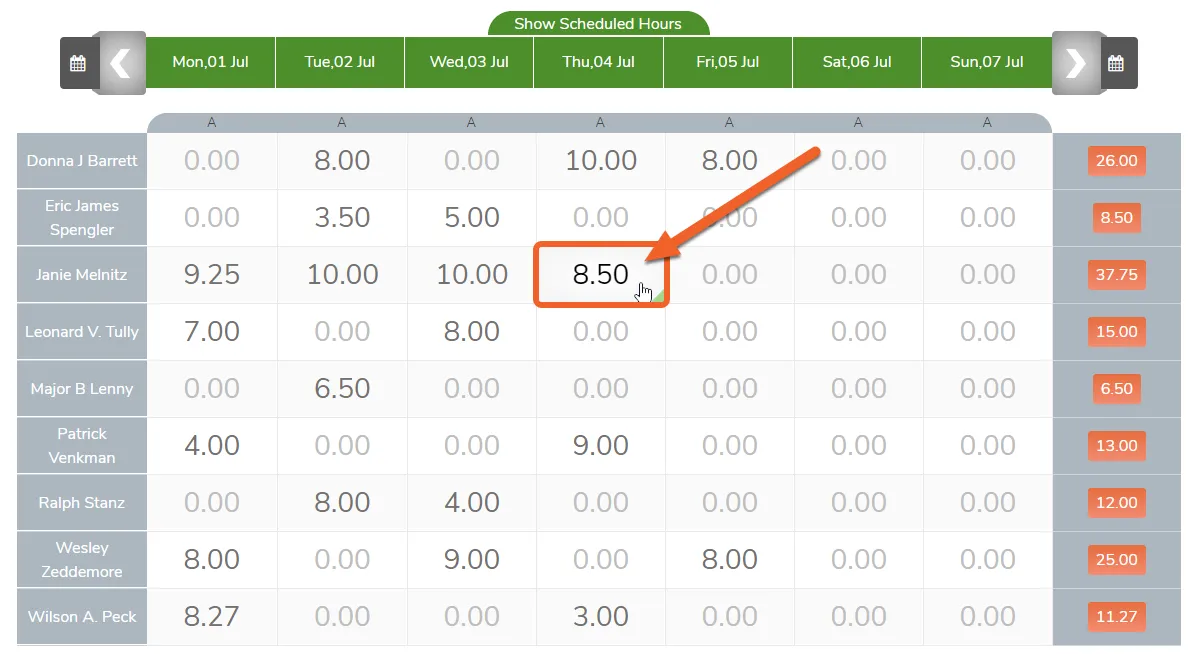
Click the shift you wish to edit
Section titled “Click the shift you wish to edit”In this example, we will manually edit an employee’s holiday pay for the 4th of July.
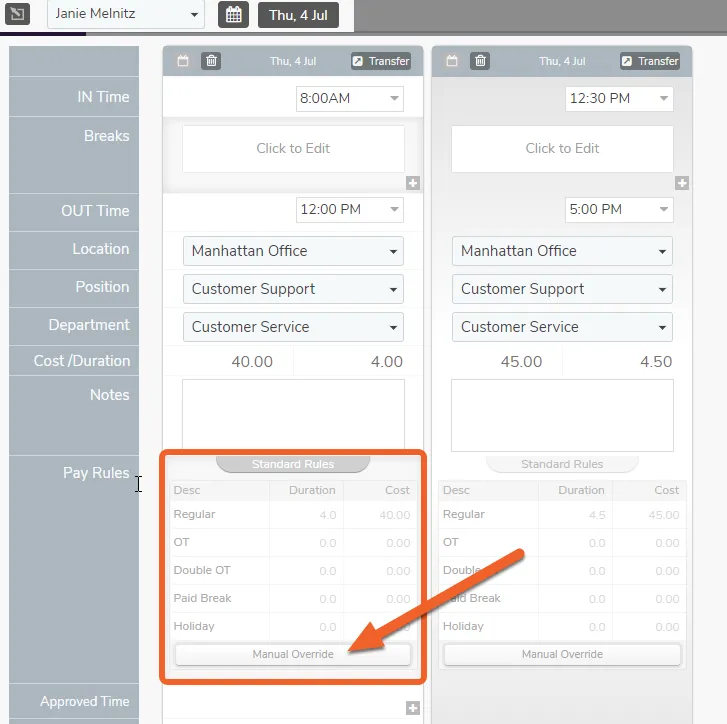
Click Manual Override
Section titled “Click Manual Override”Click the Manual Override button in the Pay Rules row. This will allow you to manually adjust the duration and cost values for various types of pay, such as Regular, OT, and Holiday.
Manually adjust the employee’s pay
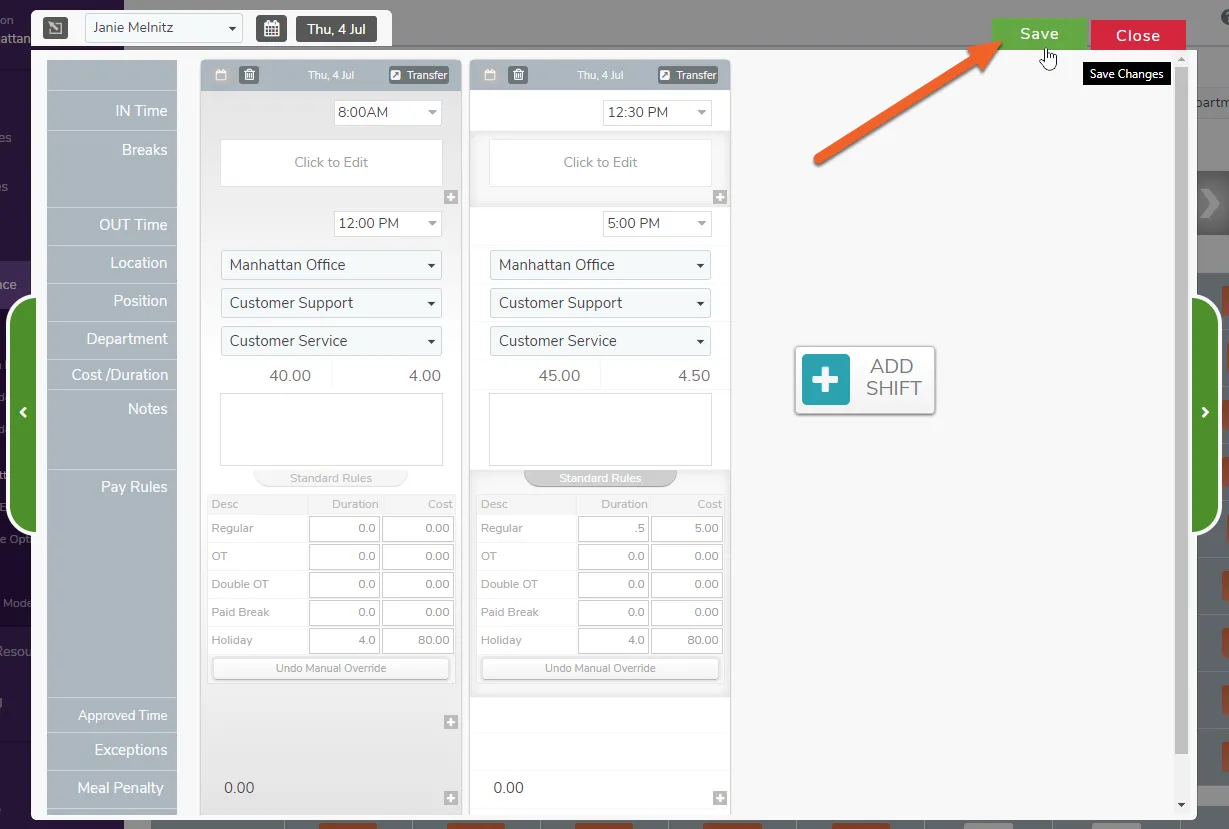
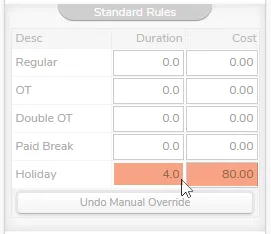
Section titled “Manually adjust the employee’s pay”In this example, we’ve adjusted the pay to reflect 4 Holiday pay hours for a total cost of $80.00 for the shift.
If you need to remove Holiday pay, you can do this easily by entering zero in the duration and cost boxes.
Click Save to save your changes
Section titled “Click Save to save your changes”Once you’re finished making any adjustments, don’t forget to click the Save button in the upper right to save your changes.