Create schedules using graphs
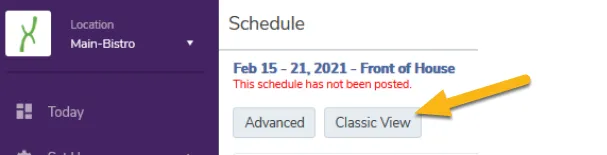
Managers now have two methods for creating and assigning shifts in a schedule’s Daily View. The first option (Classic) allows users to create shifts using drop down menus to select the shift’s start time, end time, employee, and position. The Daily View of a schedule uses this method by default.
The second option (Graph) allows users to create schedules using drag-and-drop graphs. To use this method, you must first click on the Graph button in the schedule’s Daily View.
This guide will show you how to use the Graph feature, as well as how to change between the two different methods.
Click the graph button in the upper left
Section titled “Click the graph button in the upper left”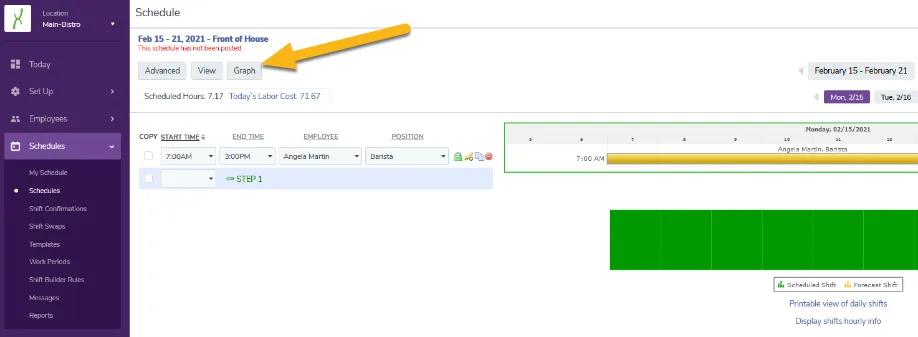
View shifts by employee or position
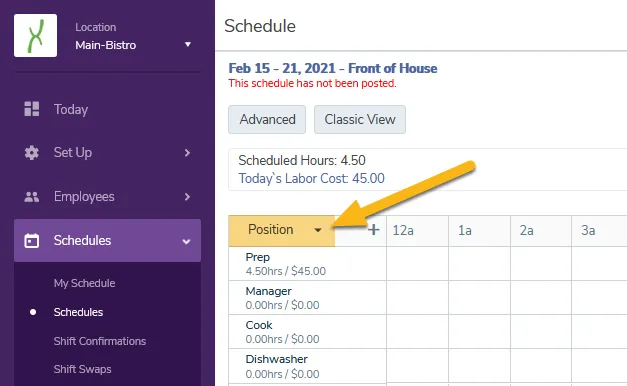
Section titled “View shifts by employee or position”Once you select the Graph option, you can then decide on arranging the shifts on the graph by employee or position. You can toggle between either arrangement by clicking on the arrow at the top left corner of the graph (highlighted below).
Create shifts by clicking the grid
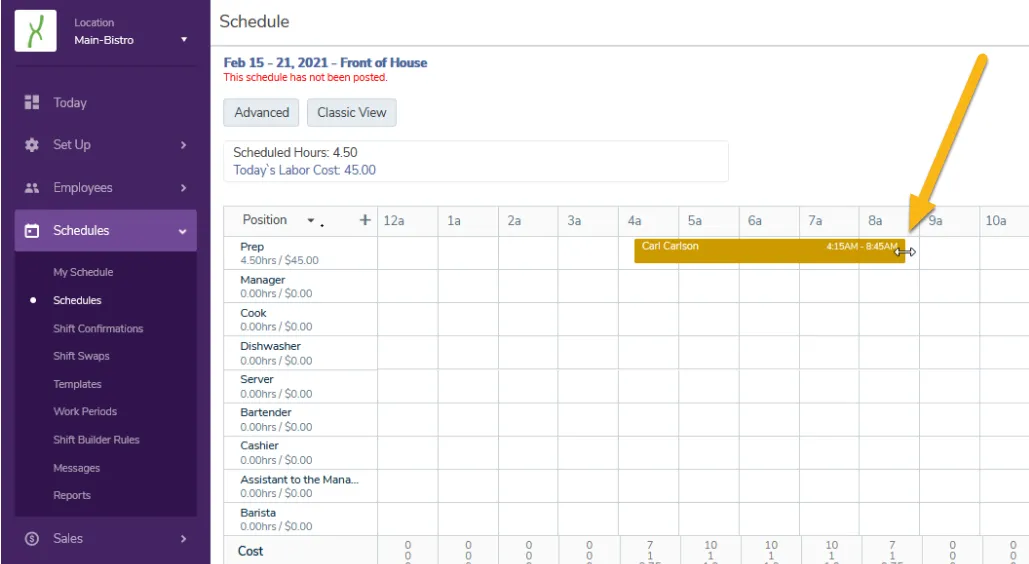
Section titled “Create shifts by clicking the grid”Simply click on the graph where you want the shift to begin. Then, slide the cursor to the time you’d like for it end.
Assign shifts by dragging and dropping them
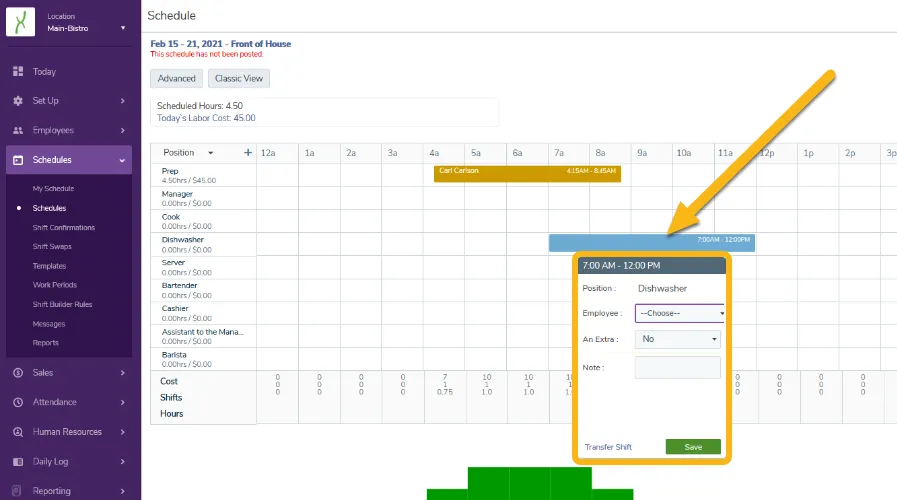
Section titled “Assign shifts by dragging and dropping them”Drag and drop a shift and select an employee or position to assign the shift on your schedule. You can even leave a note or mark a shift as an extra just like the Classic option before saving your changes.
Adjust the start and end times
Section titled “Adjust the start and end times”If you need to edit the start and end time of a shift, drag and drop the shift to the appropriate place on the graph. You can also use change the start or end time of a shift by hovering your cursor over the left or right ends of a shift. When you hover over a shift, a double arrow appears. The double arrow allows you to move the start or end time to a later or earlier time on the graph.
Create repeating shifts
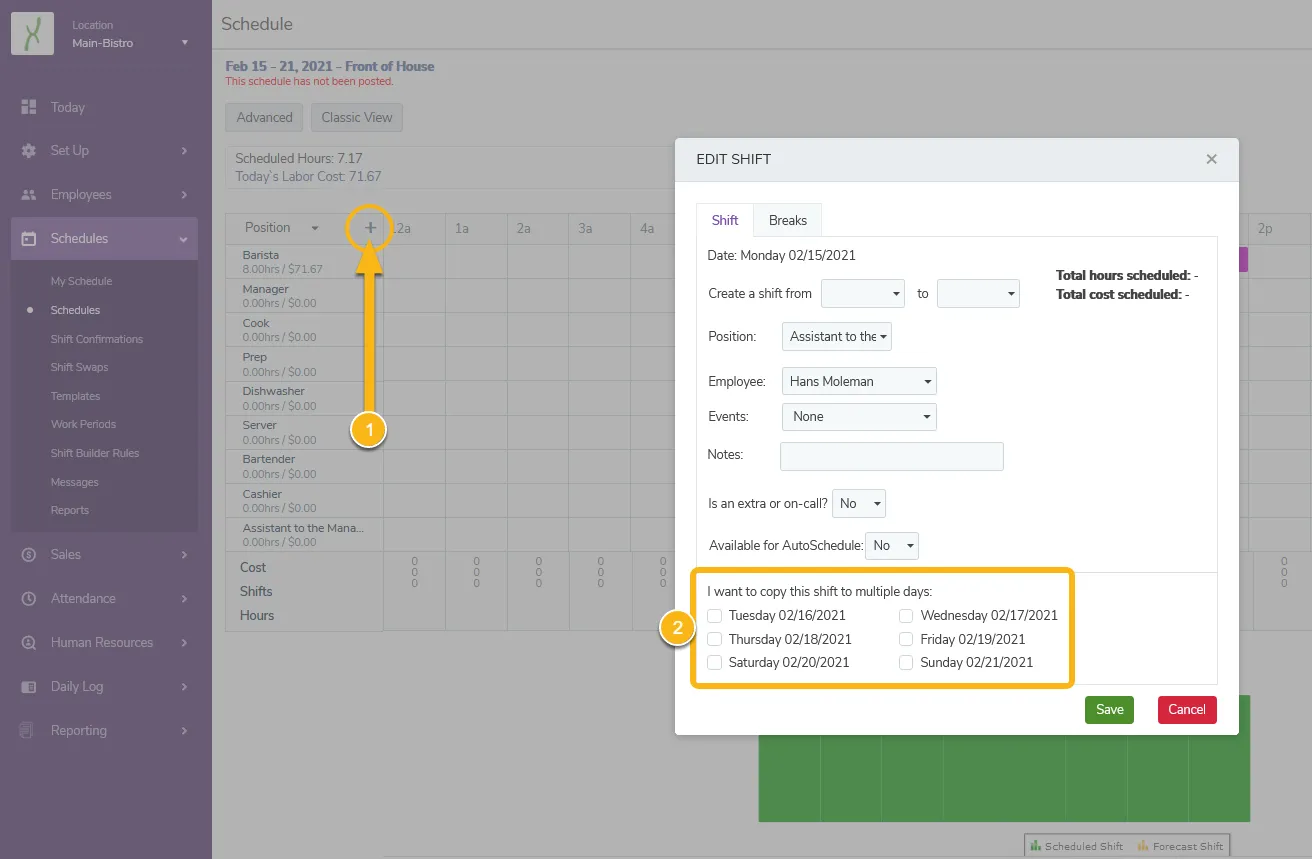
Section titled “Create repeating shifts”Like the weekly view, the Graph option lets you create repeating shifts. To do create a repeating shift:
- click on the plus sign (+) button at the top left corner of the graph (this will bring up the Edit Shift window)
- set up the shift the way you want it
- select the dates you want to copy the shift to
- click save
Return to Classic view
Section titled “Return to Classic view”You can return to the more familiar drop-down method at any time! Just click on the Classic button in the upper left.