Add multiple HR documents to an employee's profile using HR Activities
Activity Templates are a huge time saver because they allow you to send multiple HR documents at once to your employees. You may already know how to create HR Activities for your entire company, location, or subset of employees, but this guide will show you how to use HR Activities at the employee level. This can be super helpful if you need to train or onboard a single employee here or there, as it allows you to send a standard onboarding or training packet without having to upload each individual document to the employee’s profile.
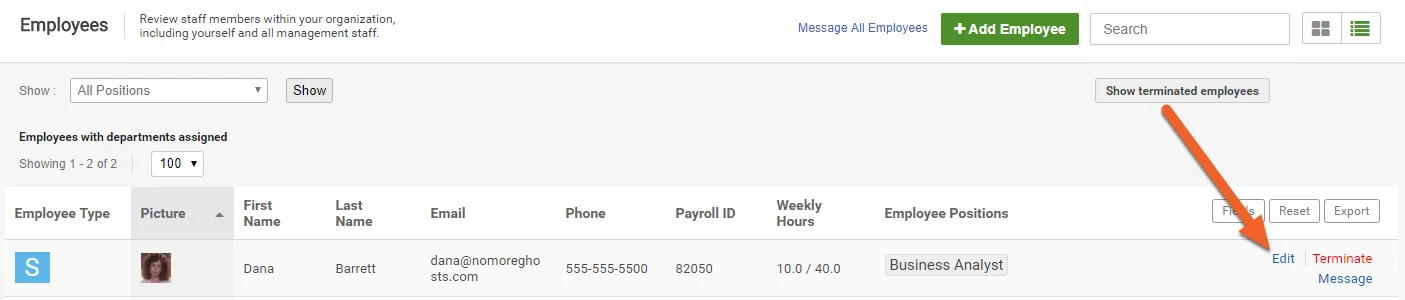
Navigate to the employee’s profile at the Location level
Section titled “Navigate to the employee’s profile at the Location level”From the Location level, go to the profile of the employee you would like to onboard.
Select the Activities tab
Section titled “Select the Activities tab”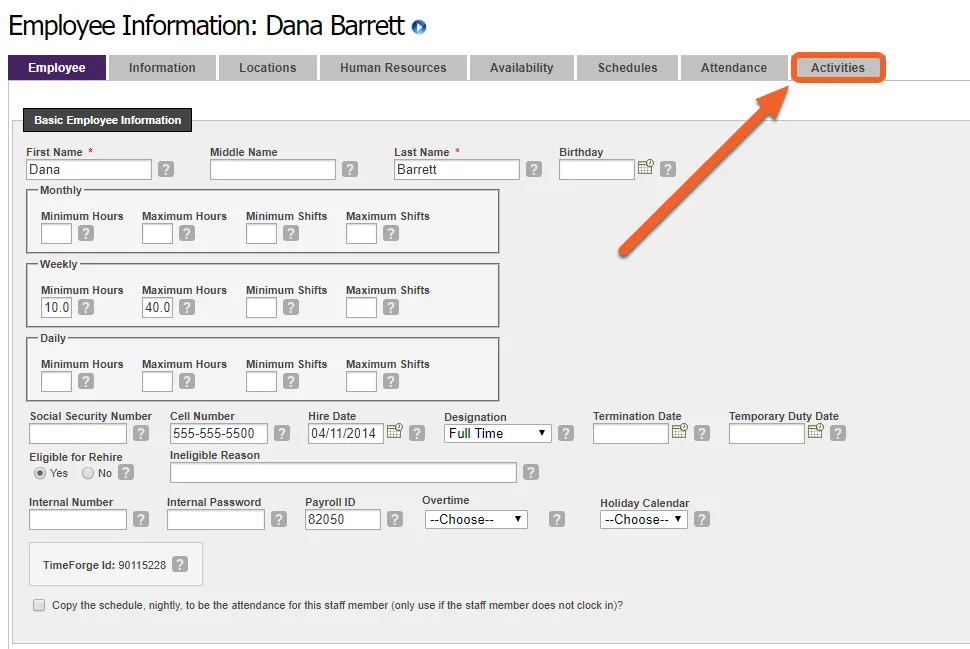
Create a new HR activity or use an existing
Section titled “Create a new HR activity or use an existing”From here, you can create a new HR activity from a template and apply it directly to the selected employee, OR you can add this employee to an existing activity in the system:
Use a template to create a new activity
Click on New HR Activity
Section titled “Click on New HR Activity”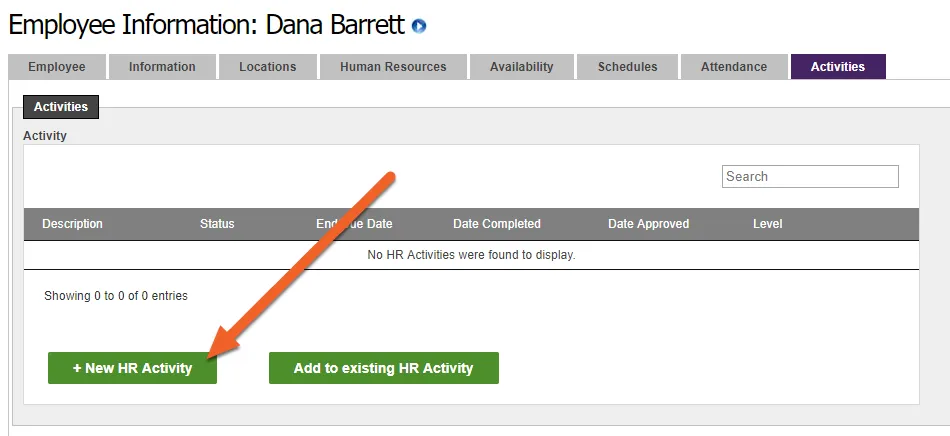
Fill out the New HR Activity form
Section titled “Fill out the New HR Activity form”Give the activity a name/description, start date, end/due date, and provide email addresses for anyone who should be notified.
Then, select a template to apply to this activity.
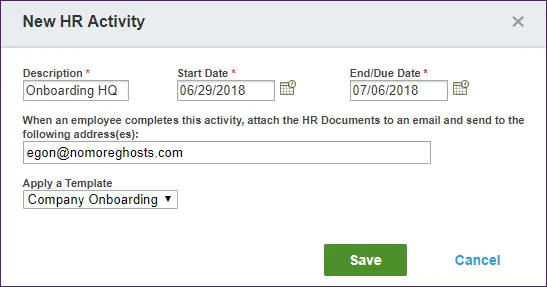
Click Save to save your new activity
Section titled “Click Save to save your new activity”When you hit Save, TimeForge will do two things. First, it will create a new HR Activity for this location, using the template you chose and the options you specified, and second, it will add the selected employee to to the new activity. You can then re-use the activity with additional employees, if desired.
Use an existing HR activity
Click on Add to existing HR Activity
Section titled “Click on Add to existing HR Activity”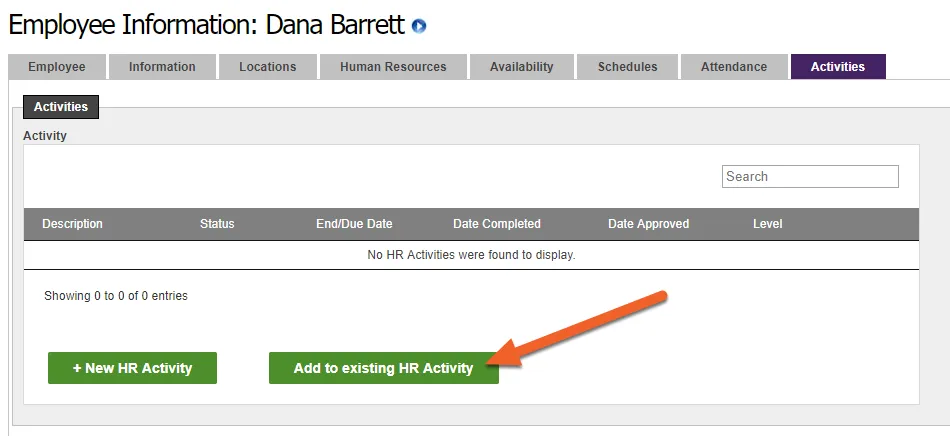
Select the existing activity, then click Save
Section titled “Select the existing activity, then click Save”The employee will be added to this activity, and the activity will appear in the employee’s Activities list.
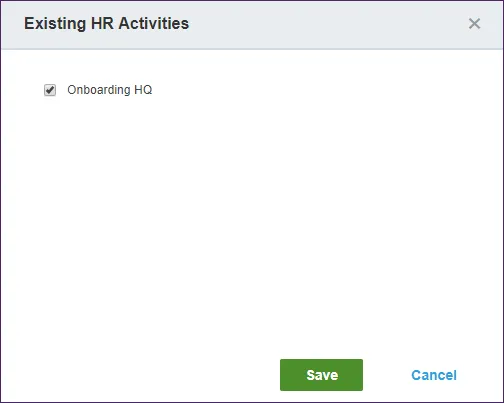
Track the status of this employee
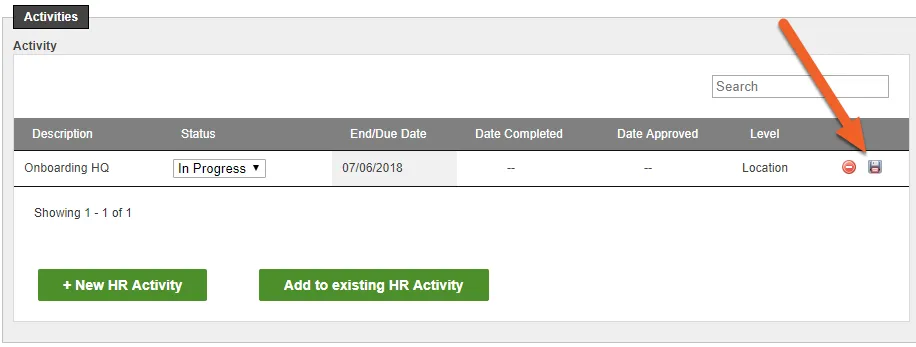
Section titled “Track the status of this employee”Now that this employee has an activity to complete, you can use the dropdown menu under Status to indicate the employee’s progress with this activity.
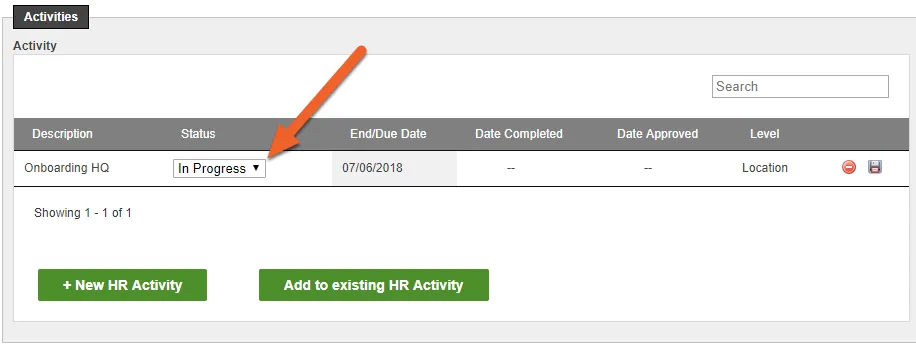
Click the file disk icon to save any changes
Section titled “Click the file disk icon to save any changes”