Update your profile and contact information
TimeForge provides each user with access to customize and update personal contact information and other useful settings. For managers, these settings include not only the ability to update their personal contact information, but also to decide which email notifications they would like to receive, to choose if they would like to view information in ICal or RSS form, and to view which reports they have scheduled. Having all of these settings customizable for each manager and located on one page is convenient and helps ensure that TimeForge is working optimally for each user.
Changing your personal profile settings is easy, so make TimeForge unique for you! Just follow the steps below.
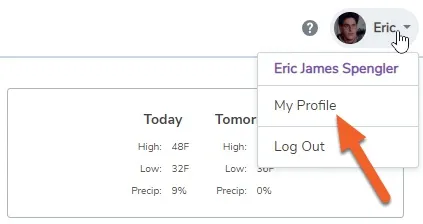
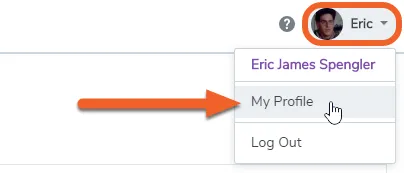
Click the button in the upper right, then select My Profile from the drop down menu.
Numbered features are described below.
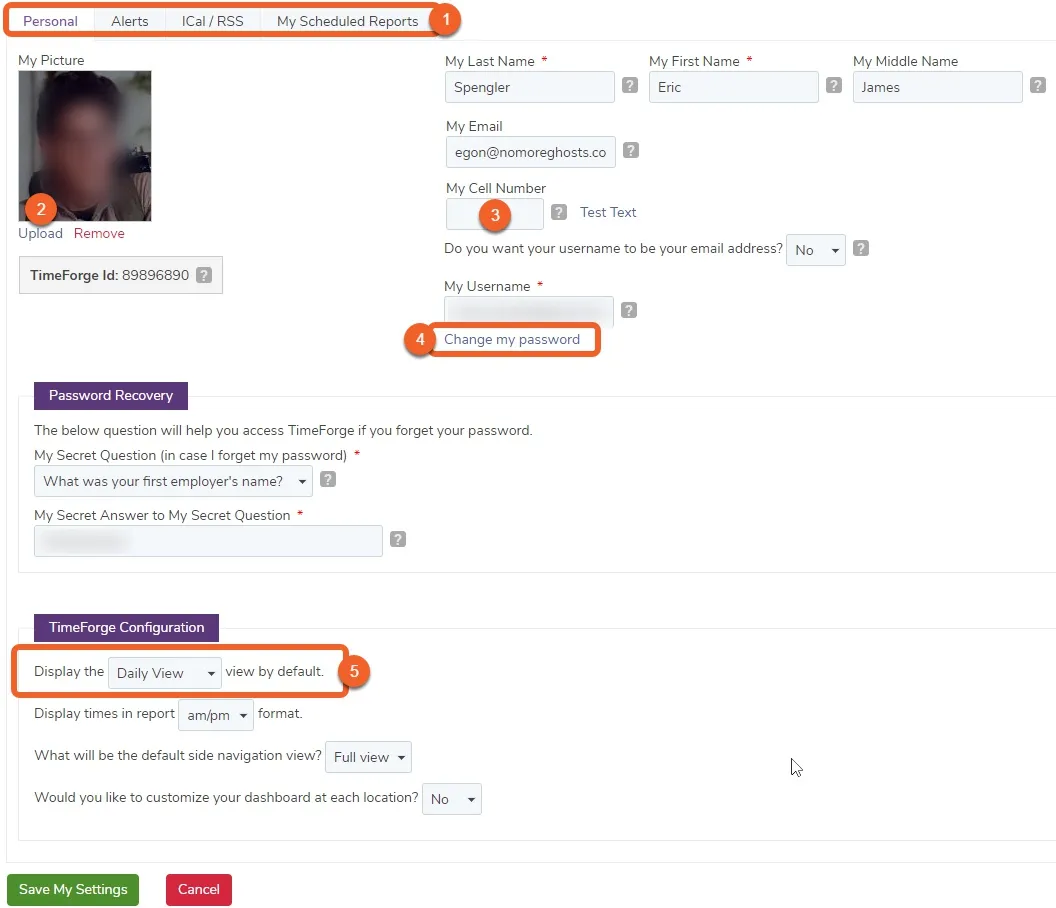
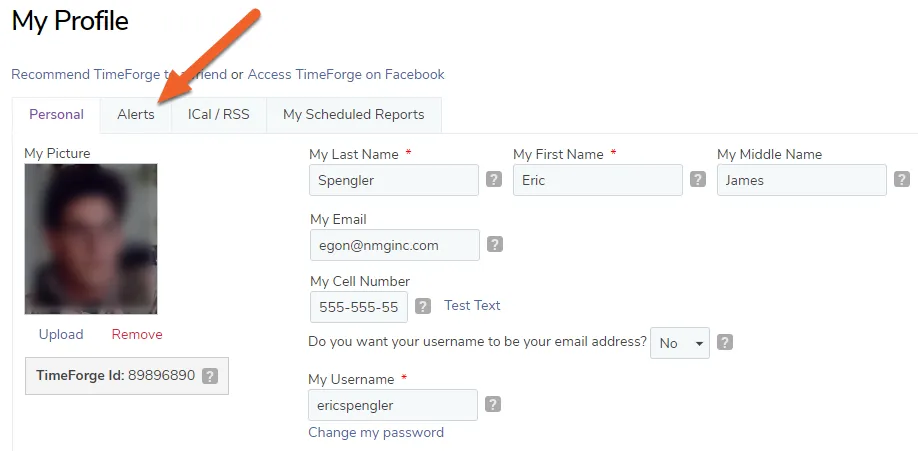
- With these tabs, you can switch between:
- You can upload a personal picture that will be associated with your account.
- You are able to input your cellphone number,, which will enable you to receive certain text message notifications if you’d like.
- You can easily reset your password by clicking this link and entering a new password.
- This is how you can determine which view is the default when you’re creating an employee schedule.
The tabs on the My Profile page allow managers to navigate between their personal contact information, alerts they would like to receive, ICal and RSS options, and any scheduled reports. To update personal contact information, make sure you are on the “Personal” page.

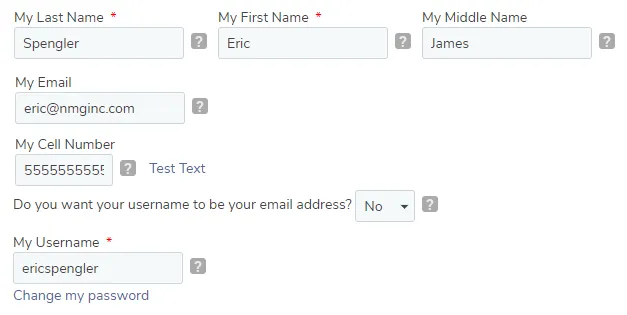
To update your information, locate the appropriate fields (as shown below), and update your personal contact information accordingly.
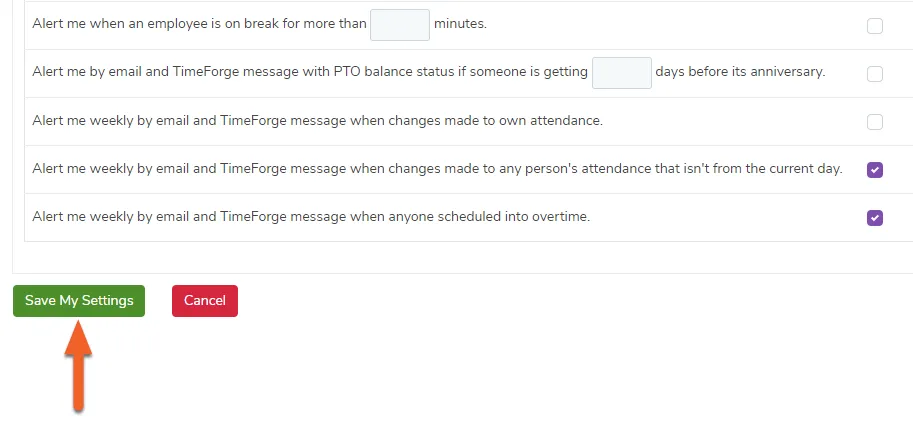
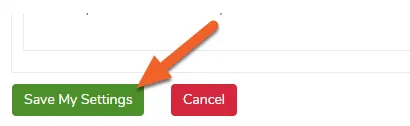
Don’t forget to save! Scroll to the bottom of the page and click the green Save My Settings button.
Set up and receive email alerts
With its many communication features, TimeForge offers the ability to receive text message or email alerts for a variety of scenarios. You can have TimeForge notify you about things like when an employee clocks in early, before an employee reaches overtime, or when an employee schedule has been posted. You could even have any of your reports emailed to you at a certain time.
When setting up your TimeForge account, you can use the Set Up Wizard to guide you through the process of entering your employee information.
Input contact information for your employees, and TimeForge will automatically email them with information about creating and logging in to their own TimeForge account. Through their TimeForge account, your staff can make schedule requests, receive messages (like memos) from you, view upcoming schedules, and check on their time sheets / attendance. Of course, if you want to limit their access to any of these features, you can do that in the “Settings” menu for each of your business locations.
Additionally, employees can provide their contact information (like cell phone number and Facebook information), and we will automatically notify them about any upcoming schedules you post that might affect them. When we notify your employees, we record the notification, so that you can run an audit report - ensuring that staff members are receiving and responding to schedule updates. This completely eliminates the “I never got the schedule / memo / note” excuse!
Through our automatic notification system, your employees will always be up to date on the latest schedule, eliminating any confusion about schedule information, improving your staff’s tardiness, and ultimately improving your bottom line!
Example: Receive clock-in and clock-out alerts
Are you tired of sitting in front of the time clock to see when your staff members show up to clock in, or clock out for their shift? Monitoring time clocks is a time consuming way to manage employees and while it can often be an effective way to reduce payroll expenses, it also increases frustration and costs among managers and supervisors.
TimeForge already supports a number of ways to manage staff members without sitting in front of the time clock including:
- Online employee work scheduling accessible over the Internet,
- Web-based attendance that can be viewed remotely,
- Enforcing the schedule with a grace period for clocking in or out,
- Identifying “most different” time punches, and
- Allowing other staff members to act as a witness when employees show up before they are scheduled to work
TimeForge can notify managers or supervisors when employees show up early or late, and when clocking in or clocking out.
For example, you can receive email and TimeForge notifications when staff members show up more than 10 minutes early for their scheduled shift. To configure these Alerts, log into TimeForge, go to your Settings page, and configure the applicable Alerts.
To get to your profile, click the dropdown menu in the upper right corner and select My Profile.
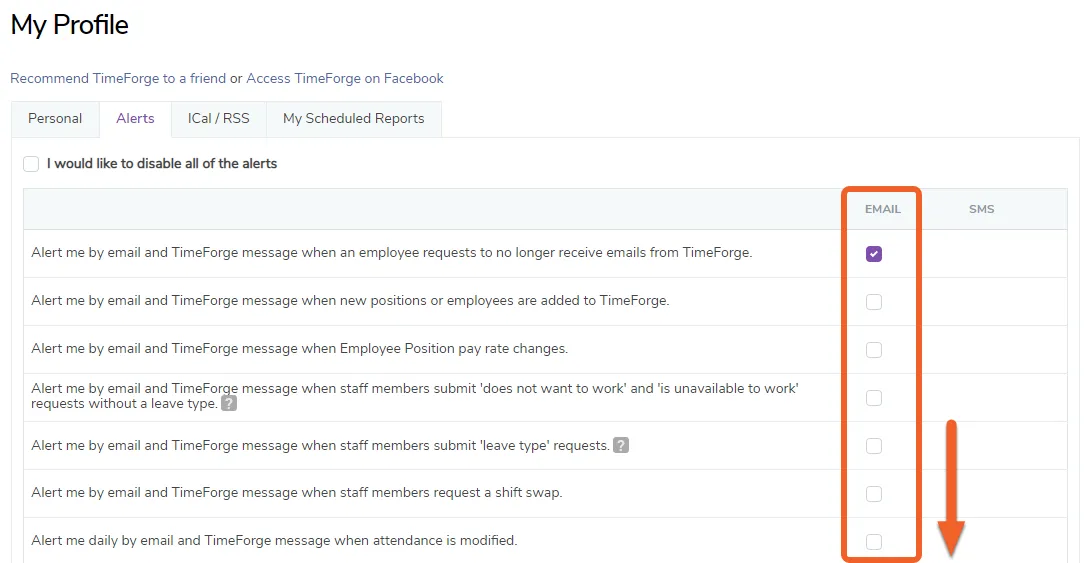
Check all of the boxes in the “email” column for which you’d like to receive an alert. Scroll down to see more notification options.
After you customize all of your settings, make sure you click Save My Settings so that your changes will take effect.