Turn off shift confirmations
In TimeForge, shift confirmations allow employees to confirm that they will work a shift for which they are scheduled, notifying management that they “got the memo.” You may want to turn off shift confirmations if your business does not need employees to confirm their scheduled shifts. By turning off shift confirmations, employees will no longer have the option of confirming their scheduled shifts.
Here’s how you can easily disable confirmations.
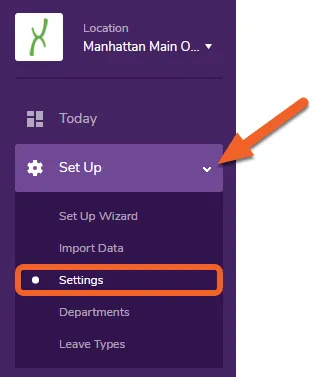
Navigate to the Settings page under the Set Up tab
Section titled “Navigate to the Settings page under the Set Up tab”From the Location level, open the Set Up tab and select Settings from the submenu.
Scroll down to the shift confirmation settings
Section titled “Scroll down to the shift confirmation settings”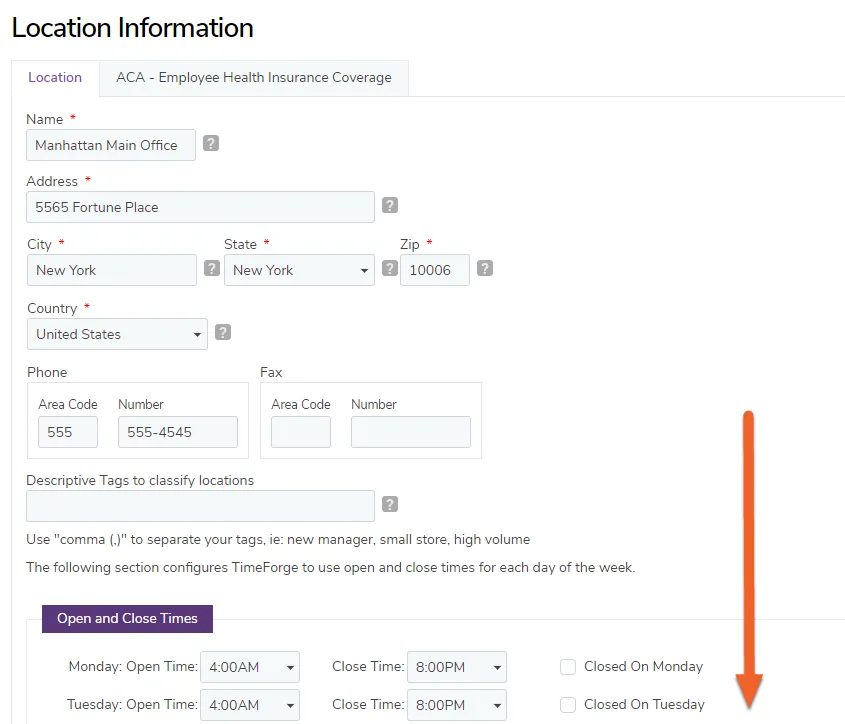
Select “No” to turn off shift confirmations
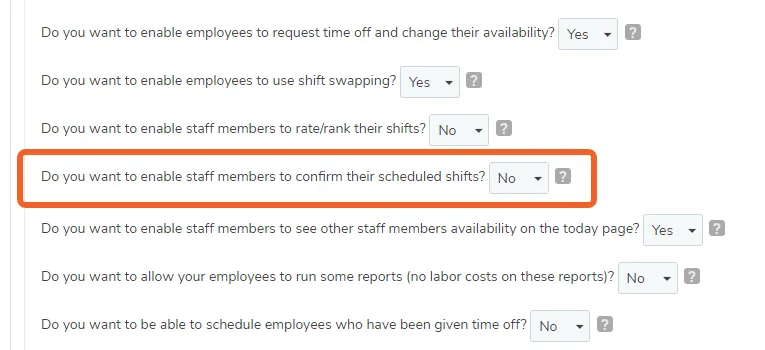
Section titled “Select “No” to turn off shift confirmations”Find the option that says “Do you want to enable staff members to confirm their scheduled shifts?”
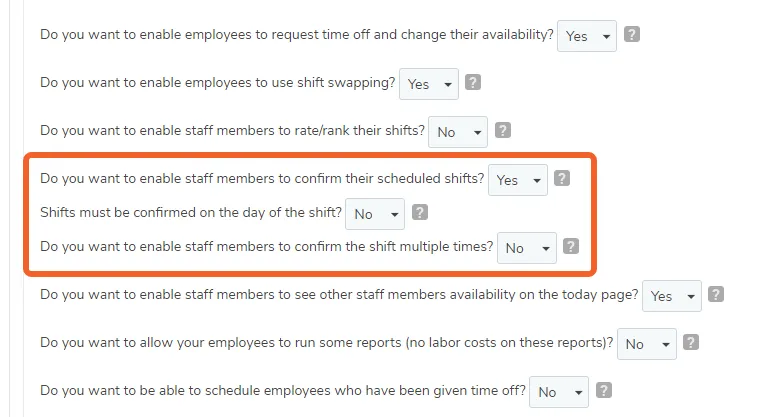
Select No to turn off shift confirmations. (This will also hide the two other shift confirmation options below it.)
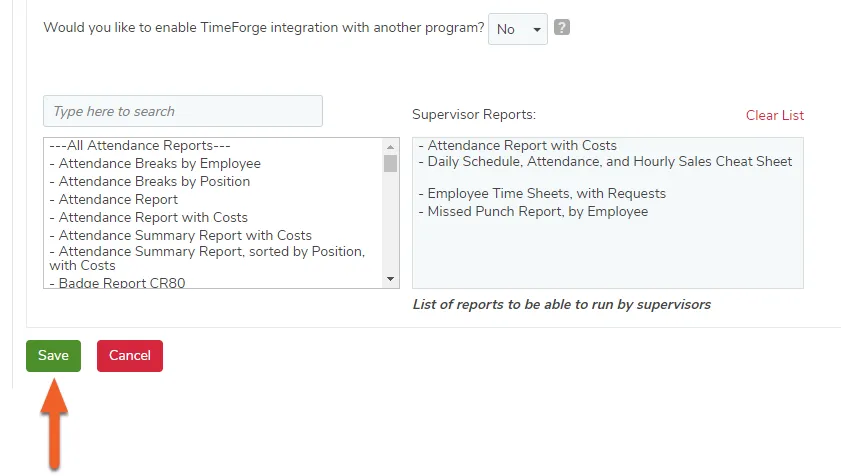
Click the Save button at the bottom of the page
Section titled “Click the Save button at the bottom of the page”To save your changes, scroll down and click the Save button at the bottom of the page. You’re all set!