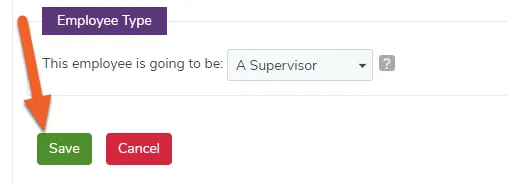
Apply overtime to an employee
No matter how carefully you create an employee schedule and watch your labor costs, often times something comes up and your employees will accrue overtime (OT) hours. You can set the rate at which employees accrue overtime (like 1.5x, 2.0x the normal rate etc.) as well as when the overtime hours begin to accrue. There are two ways to change these settings:
- Universal OT settings, which affect every employee and every position,
- Or from the information page for each employee, which can override the universal settings (this is useful if you pay a few employees different overtime hours than others).
Here are the easy steps involved with both methods of applying overtime hours, beginning with the universal setting.
Universal Overtime Settings
Section titled “Universal Overtime Settings”
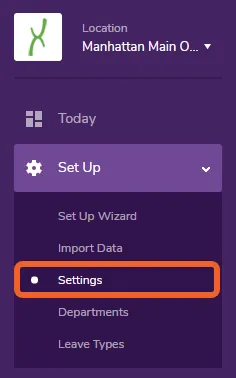
With a location selected, open the Set Up tab and select Settings
Section titled “With a location selected, open the Set Up tab and select Settings”This will allow you to modify the settings for the currently selected location in TimeForge.
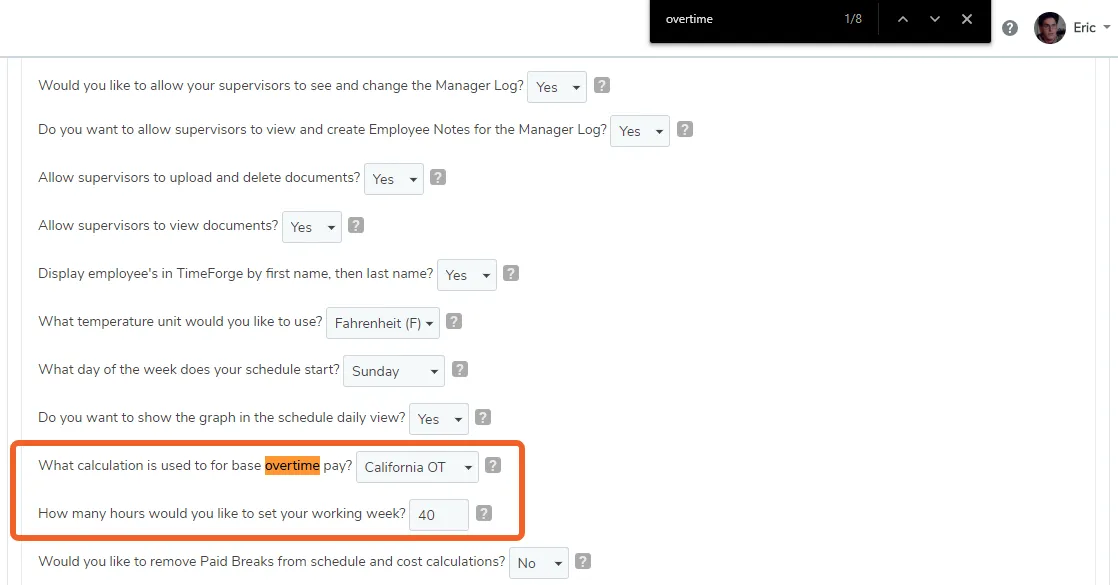
Locate the overtime options
Section titled “Locate the overtime options”Scroll down and find the overtime options, which are near the end of the page. Alternatively, you can click CTRL-F and do a quick-find for the word “overtime”.
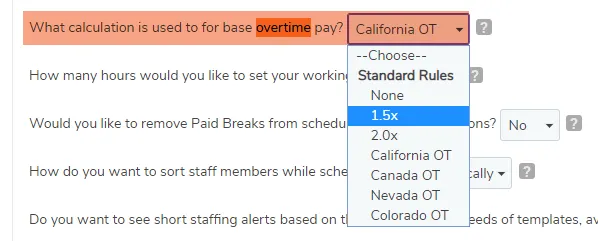
Apply the overtime rules
Section titled “Apply the overtime rules”Choose the calculation type you want to use as a base for overtime pay. You can choose from none (default), 1.5x or 2.0x the employee’s normal rate, or state OT rules depending on the needs of your business.
Choose how many hours the employee needs to work before they can begin accruing overtime.

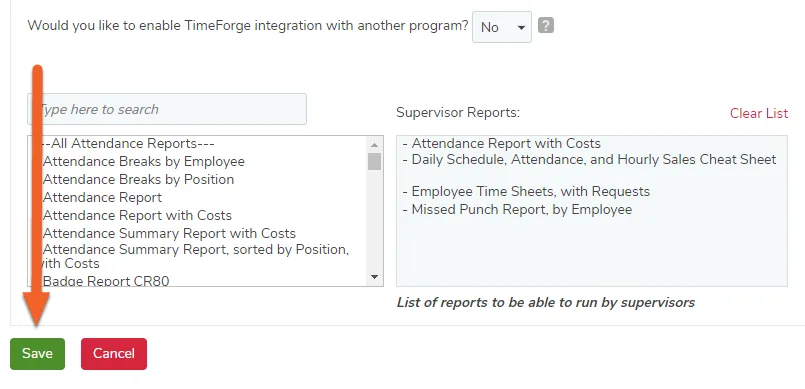
Save your changes
Section titled “Save your changes”Don’t forget to click Save when you’re finished.
Overtime Settings Per Employee
Section titled “Overtime Settings Per Employee”
Open the Employees tab and select Employees
Section titled “Open the Employees tab and select Employees”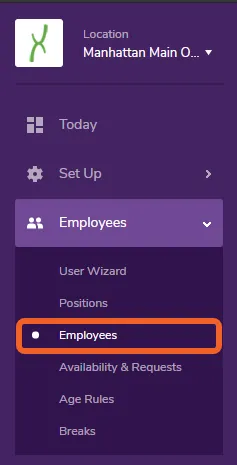
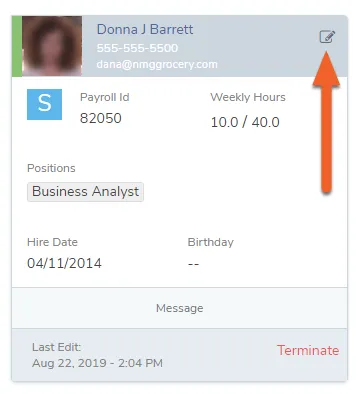
Edit the appropriate employee’s information.
Section titled “Edit the appropriate employee’s information.”Locate the employee to whom you would like to apply overtime. Either click the card to edit (if in Grid view, shown) or select the Edit button on their row (if in List view).
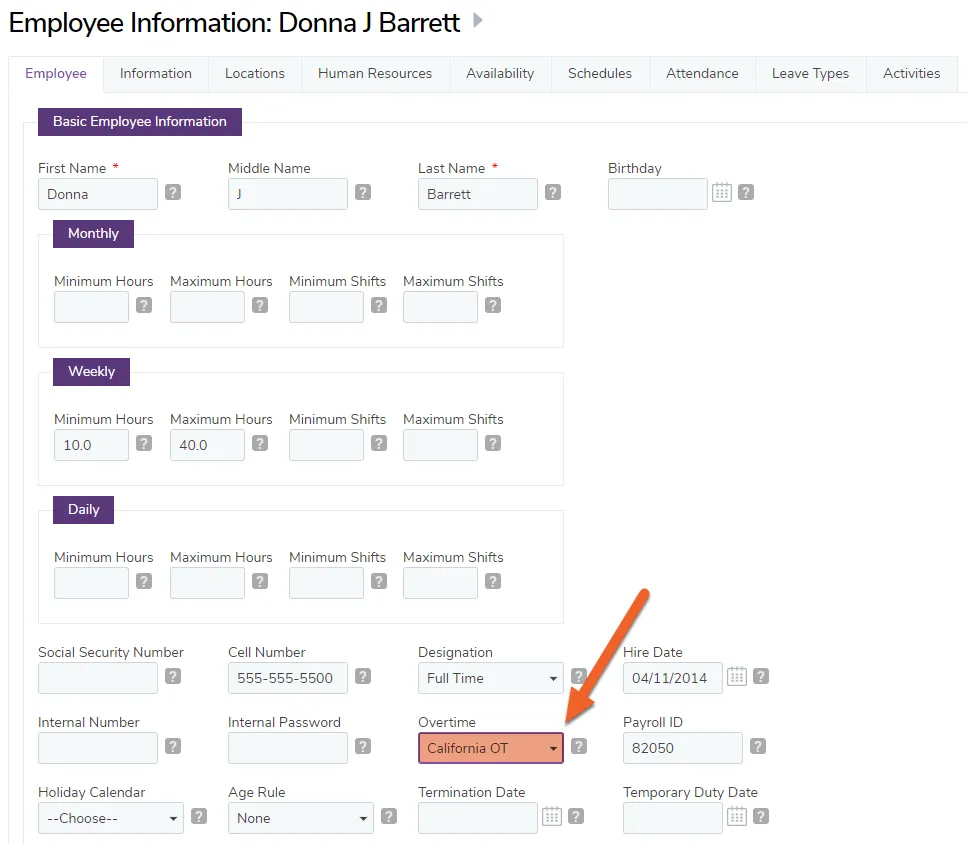
Apply overtime
Section titled “Apply overtime”Locate the “Overtime” drop down menu on the employee’s profile. Select the appropriate pay rate.
Save the overtime changes
Section titled “Save the overtime changes”Scroll to the bottom of the page and click the Save button.