Create a job posting
By creating your job postings inside TimeForge, you can greatly streamline the review and hiring process. The system will store information about your applicants for review, allowing you to archive those who don’t meet your criteria and to hire those that do. When you hire a job applicant, TimeForge uses their application to create their employee profile, saving you time and effort that would otherwise be spent on manual data entry.
TimeForge offers two great options for listing your job openings: 1) your company’s own website, using our custom job board system, or 2) integration with Indeed.com, a popular job board service. To take advantage of either of these options, please reach out to our amazing Customer Support team.
Navigate to your company’s Job Postings
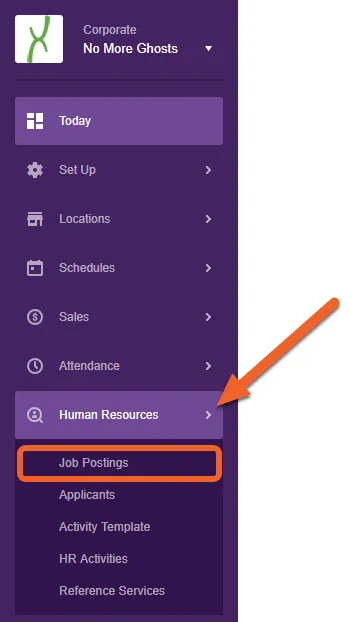
Section titled “Navigate to your company’s Job Postings”Make sure you’re at the Corporate level. Open the Human Resources tab, then select Job Postings from the sub-menu.
Click on Add a New Job Posting
Section titled “Click on Add a New Job Posting”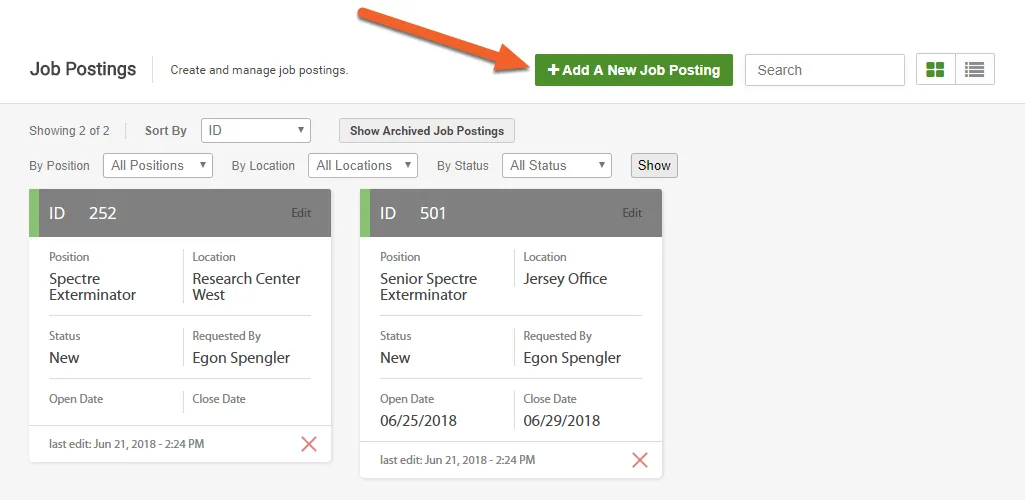
Enter basic information about the job
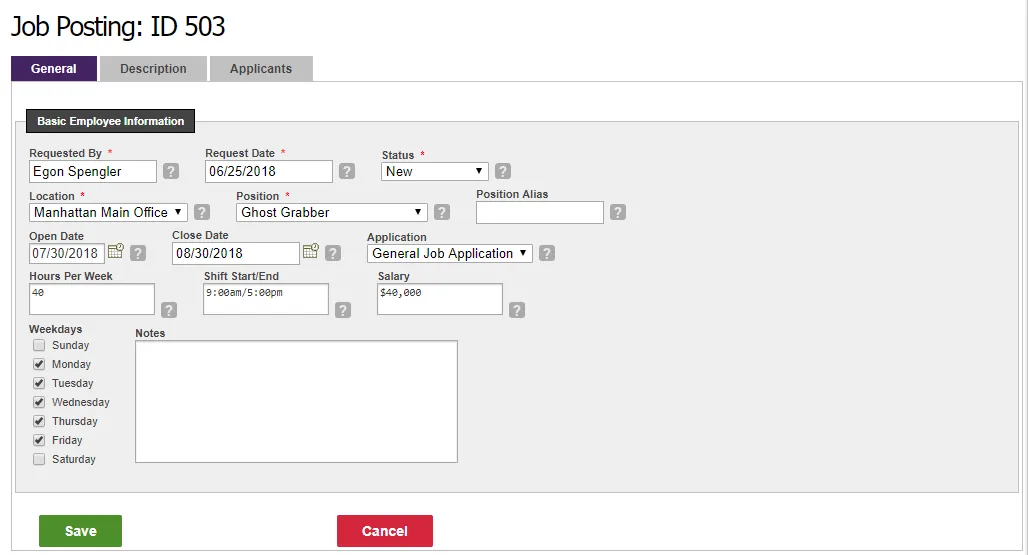
Section titled “Enter basic information about the job”This is where you select the position the job posting is for, who requested it, and the location.
Fields marked with a red asterisk (*) are required.
Select the Description tab, then enter the job description
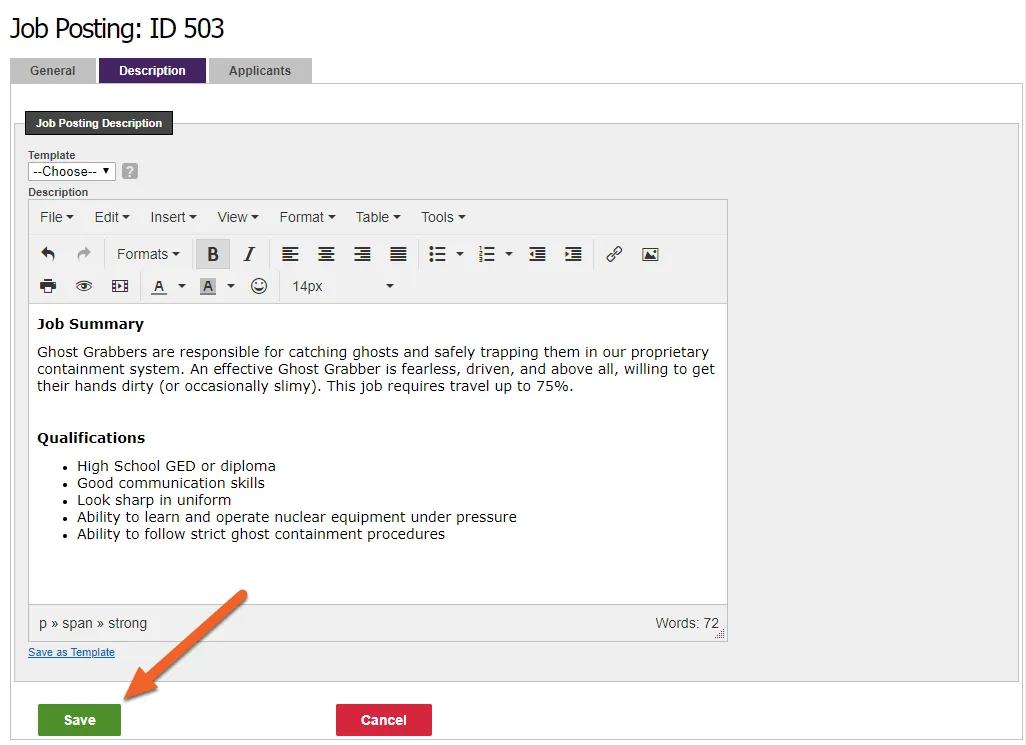
Section titled “Select the Description tab, then enter the job description”This is where you provide the description for your job posting. You can copy and paste from your favorite word processor (e.g. MS Word, Google Docs) or use the tools provided to create and design from scratch.
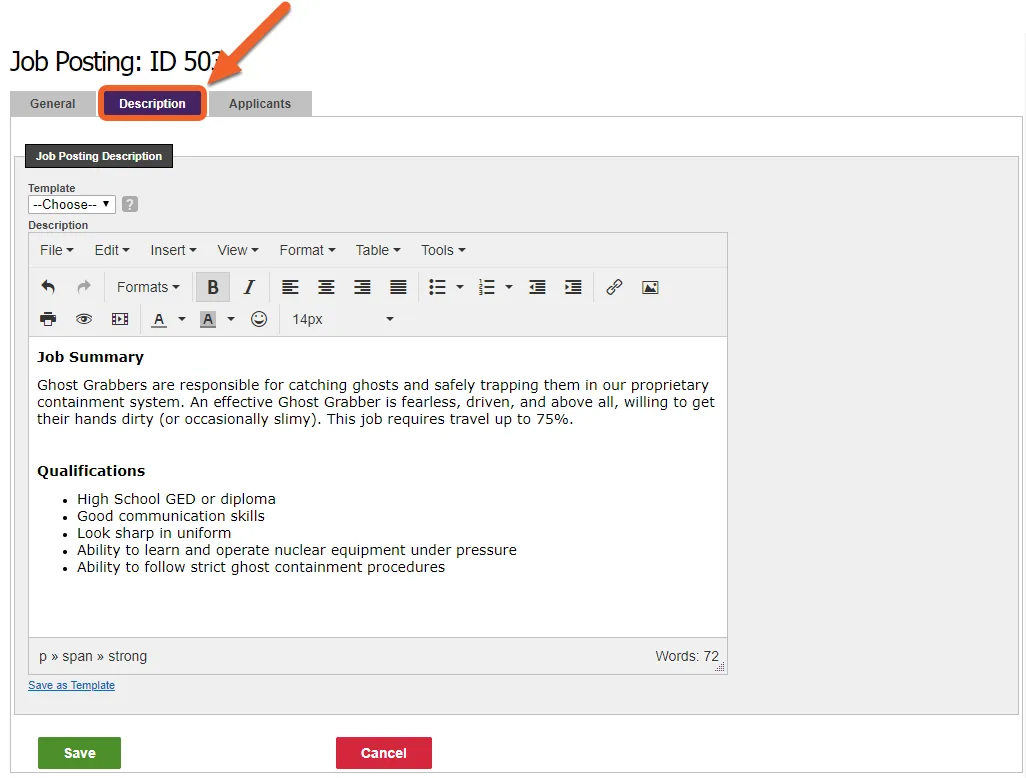
(Optional) Save your job description as a template
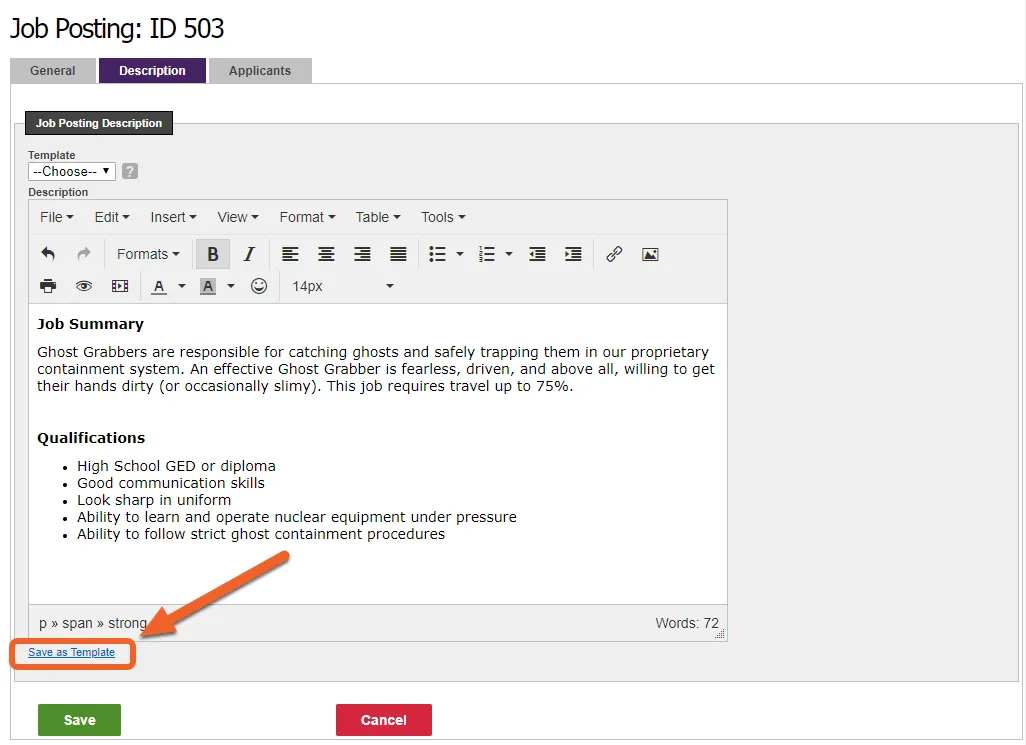
Saving a description as a template will allow you to reuse that description later. So save a description as a template, click the Save as Template link.
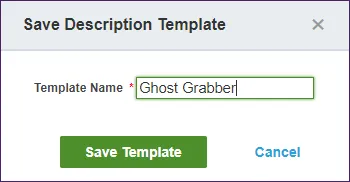
Provide a name for your new template, then click the save button.
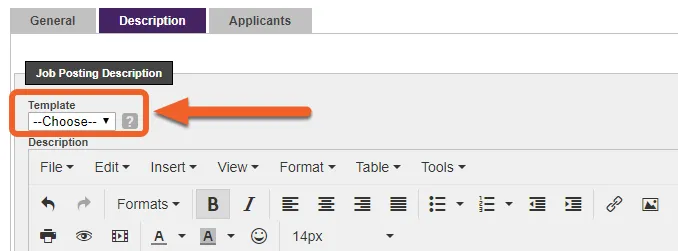
And that’s all there is to it! The next time you need to create a job posting for this job (or a similar job), you can select the template from the dropdown menu to load the description.
Click Save to save your job posting
Section titled “Click Save to save your job posting”Click the Save button to save your job posting and exit the editor.
Post your jobs to the job board
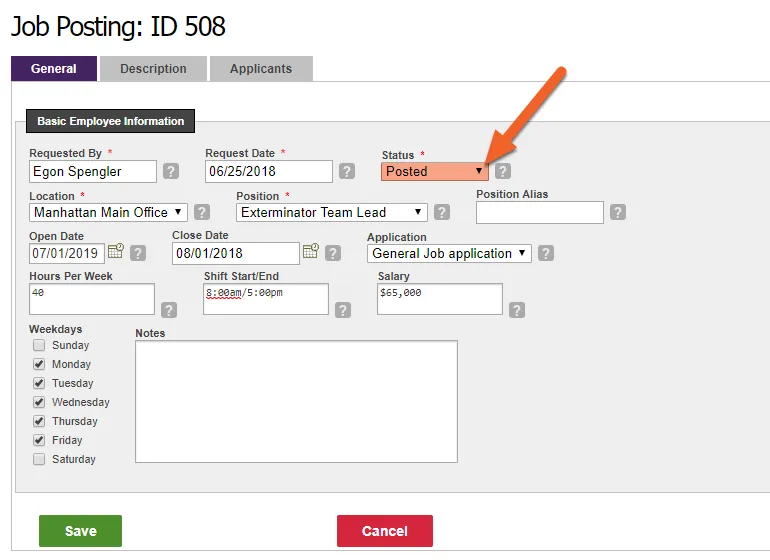
Section titled “Post your jobs to the job board”When you’re ready to post a job and make it available to applicants, open the job posting and change the Status field to “Posted.” Then, click Save.
View who's applied to a job
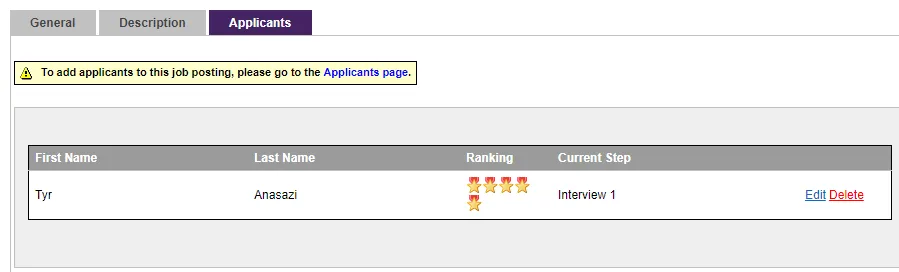
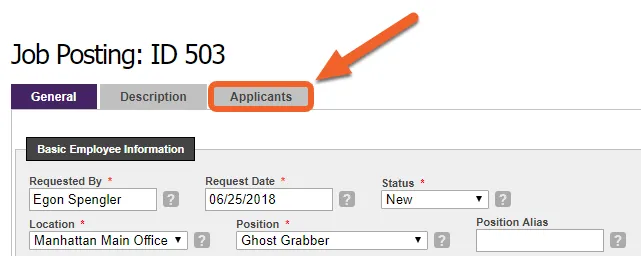
You can view who’s applied to this job by selecting the Applicants tab.
You’ll see a list of who has applied, their ranking (if any), and their current step in the application process.