New Holiday Calendars
TimeForge allows you to create customizable holiday calendars, which can be used to specify work holidays and set rules for compensating your staff on those dates. This guide will teach you how to create and configure a new holiday calendar.
Navigate to the Holiday Calendars set up page
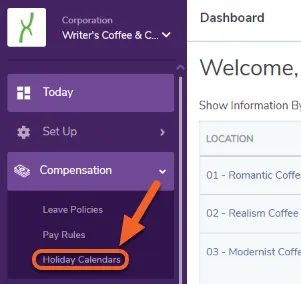
Section titled “Navigate to the Holiday Calendars set up page”From the Corporate level, open the Compensation tab, then select Holiday Calendars from the sub-menu.
Start with the basics
Section titled “Start with the basics”Begin by clicking Add Holiday Calendar. After this step you’ll then be able to enter in all the specifics for the holiday you’d like to create. This is a good time to make sure you know the date, necessary rates and frequency of the holiday you’d like to schedule.

Creating a new Holiday Calendar
Section titled “Creating a new Holiday Calendar”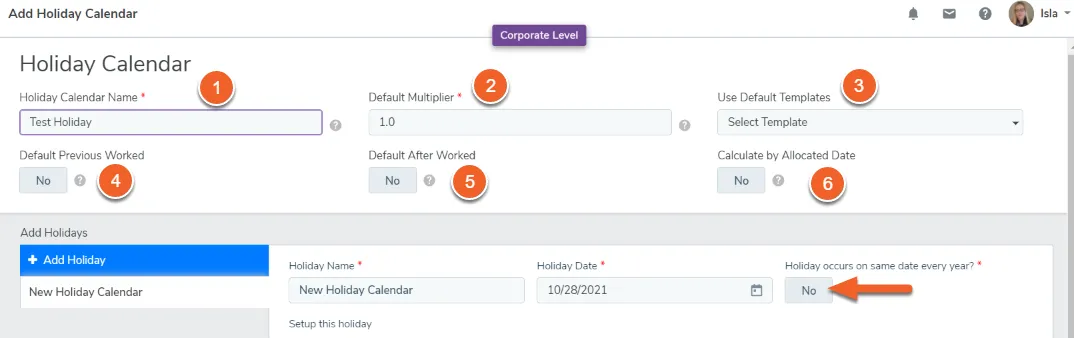
1. Name your Holiday Calendar:
Enter the name of your Holiday Calendar, this name can be whatever you choose. Later, you will name the actual holiday the calendar pertains to.
We recommend entering a descriptive name for example, “Hourly Staff” or “Part Time Workers”.
2. Default Multiplier:
The rate multiplier is specific to if the employee works the days listed on this calendar.
For example, if an employee’s pay rate is $10 an hour and you set the cost multiplier as 1.5, the employee will be awarded $15 for every hour that they work on the holiday.
3. Use default templates:
Select any default templates if applicable.
4. Default previous worked:
If this is checked, by default it is a requirement that an employee is eligible for non-working holiday pay if the employee worked their last scheduled shift before the holiday.
5. Default after worked:
If set to yes, it is a requirement that an employee is eligible for holiday pay if they work their first shift scheduled after the holiday.
6. Calculate by allocated date:
If set to yes, the entire shift will be eligible for holiday if the employee clocks in anytime during the holiday. If set to no, only the portion of the shift that falls on the holiday will be eligible for holiday pay.
Filling in the Specifics of your Holiday
Section titled “Filling in the Specifics of your Holiday”Do employees get paid a premium to work this holiday?
Section titled “Do employees get paid a premium to work this holiday?”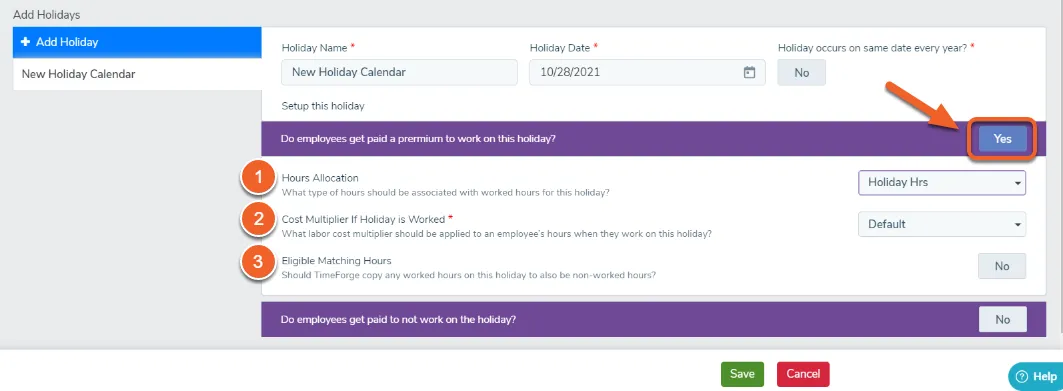
1. Hours Allocation:
This setting allows you to select which type of hours (e.g. holiday, regular or custom) will be allocated to this specific holiday.
2. Cost Multiplier if Holiday is Worked:
This cost multiplier is specific to the hours an employee works while assigned to this holiday date.
3. Eligible Matching Hours:
If set to “yes” the eligible matching hours will copy any worked hours to also be non-worked.
For example, if a holiday calendar has matching hours enabled, and the employee worked 8 hours of the applicable holiday would also get 8 hours of non-worked time allocated to them.
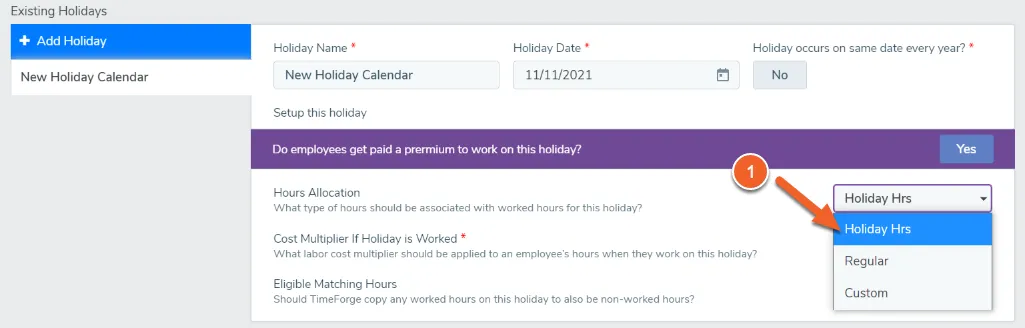
1. Hours allocation:
- Holiday hours: employees who worked the holiday will receive their hours as holiday.
- Regular: employees can also receive regular time when working a holiday. (The default multiplier won’t apply when hours are allocated as regular)
- Custom: if your holiday hours are allocated differently you’ll see a drop down menu to enter in a specific pay code associated with that holiday.
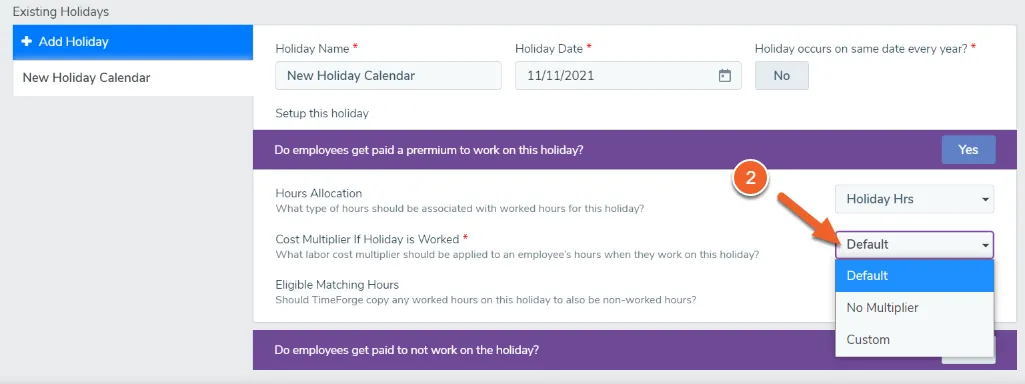
2. Cost Multiplier if Holiday Worked:
- Default: If default is selected, the default multiplier for the holiday calendar will be used.
- No Multiplier: No multiplier will be used on the shift. (The shift will use a 1.0x multiplier)
- Custom: Allows you to input a custom multiplier for the holiday.
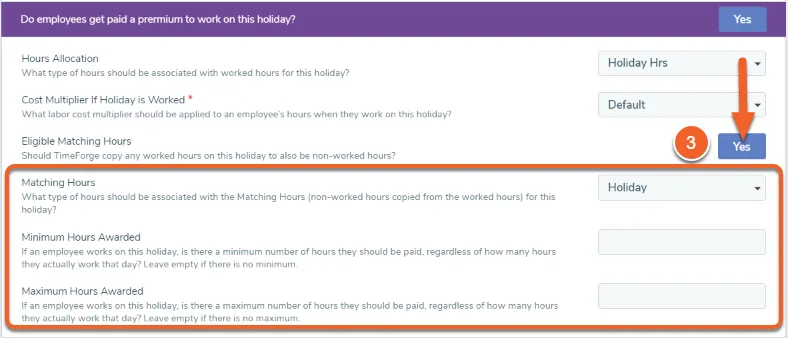
3. Eligible Matching Hours:
If eligible matching hours is set to yes, TimeForge will automatically copy an employee’s worked hours as non-worked hours as well.
Do employees get paid to not work on the holiday?
Section titled “Do employees get paid to not work on the holiday?”Select Yes if your employees are paid if they don’t work on the holiday. Otherwise, skip the following step.
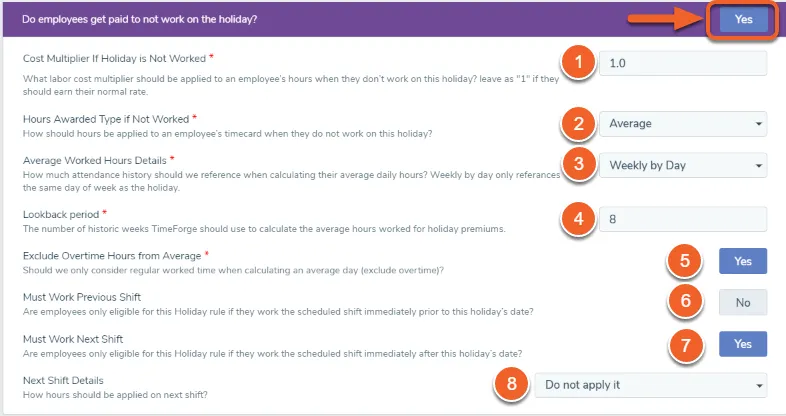
1. Cost Multiplier if Holiday is not worked:
If an employee is paid to not work the holiday, you would enter the cost multiplier associated with the shift.
2. Hours Awarded Type if Not Worked:
- Fixed Hours - can be designated as holiday or custom hours. Enter the static amount of hours you’d like to add to the employee’s time card.
- Average Hours - TimeForge can take an average of the employee’s worked hours in order to award holiday pay.
- Weekly by Day: This will only reference the same day of the week as the holiday when looking at historic attendance.
- Weekly: This will look at all of the historic attendance data for the employee.
4. Lookback Period:
Designate a lookback period of the historic attendance history inside TimeForge to calculate average weekly hours work to pay holiday premiums.
5. Exclude Overtime Hours from Average:
To exclude any OT from being calculated in the above lookback period, make sure to select “yes”.
6. Must Work Previous Shift:
You can also designate that in order for an employee to be eligible for the Holiday that they must work their most recently scheduled shift prior to the holiday’s date.
7. Must Work Next Shift:
You can also designate that in order for an employee to be eligible for the Holiday that they must work their next scheduled shift after to the holiday’s date.
8. Next Shift Details:
If you selected ’yes” that an employee must work their next scheduled shift in order to be eligible for the holiday, you can then designate if the hours should be applied prior to their next scheduled shift, or you can select “Do not apply it” and it will wait until the shift has been completed.
Don’t forget to save your calendar
Section titled “Don’t forget to save your calendar”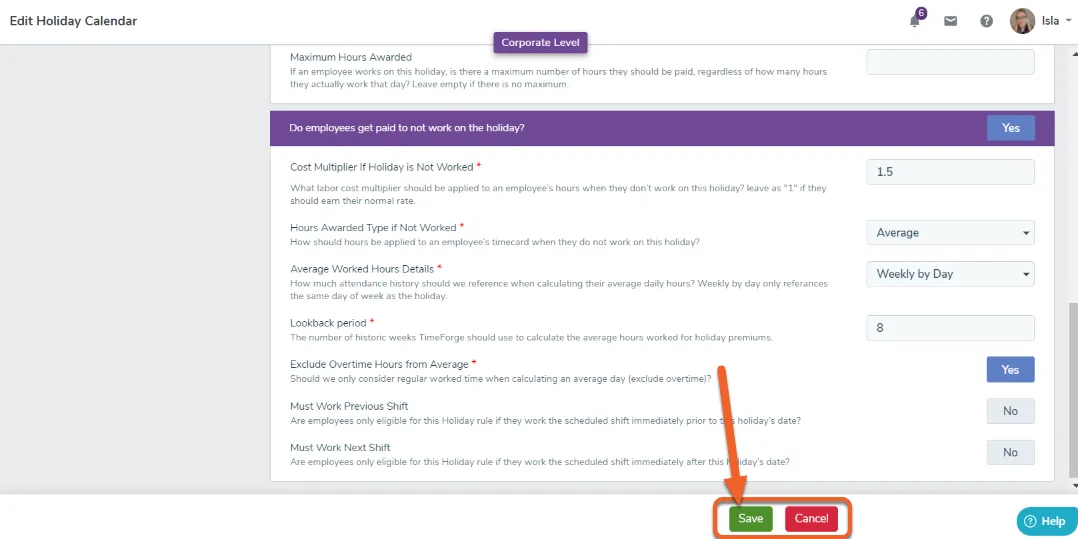
Adding the holiday calendar to an employee’s profile
Section titled “Adding the holiday calendar to an employee’s profile”You’ll need to add the holiday calendar to each employee who’s eligible at the location level.
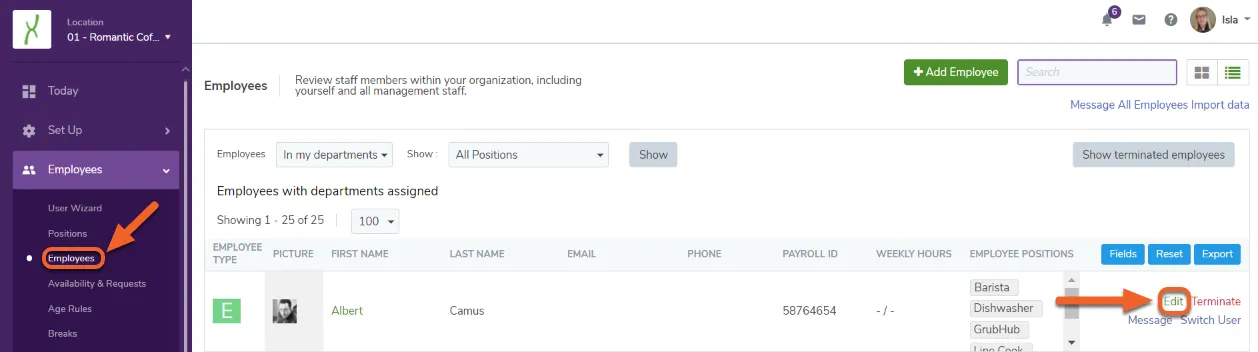
Navigate to the Employees page and hit “Edit” to the right of the employee’s profile you’d like to apply the holiday calendar to.
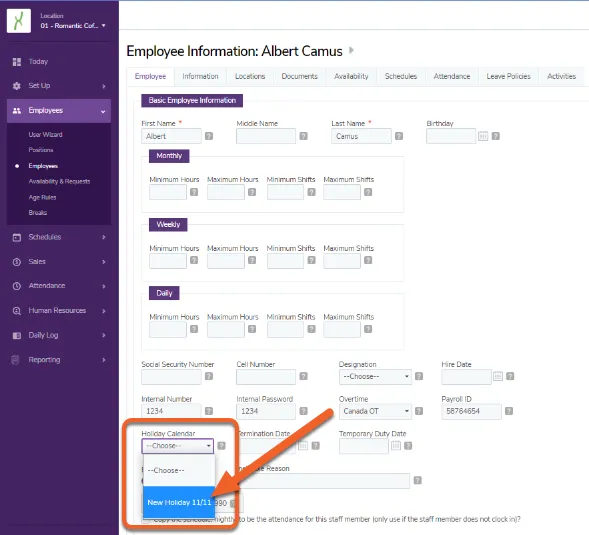
Scroll down to the “Holiday Calendar” field and select the calendar you’d like to apply to the employee. You will need to do this for every employee that is eligible for the calendar.