Restrict supervisors' access to personal information
TimeForge gives you the ability restrict access to personal information. With different security levels between managers, supervisors, and employees, TimeForge already has some built-in security that helps prevent unwanted access to confidential information. For instance, an employee is not able to see pay rates, make schedules, or edit attendance entries unless you specify otherwise.
Similarly, a Supervisor has access to schedules and attendance and most everything a Manager has access to (by default but this can be changed), but is unable to see confidential information like the pay rates of other Supervisors/Managers unless you specify differently.
There are many options that can be customized for supervisors. Some of these options can be customized with security templates. Other options are listed below, and can be found on the “Settings” page.
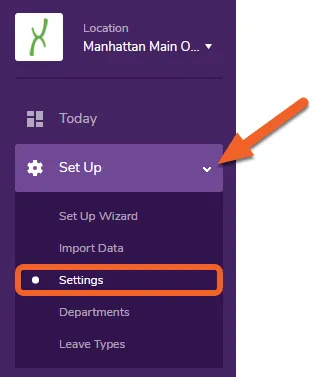
Navigate to the Settings page under the Set Up tab
Section titled “Navigate to the Settings page under the Set Up tab”While at the Location level, open the Set Up tab and select Settings from the submenu.
Scroll down the page to the security options
Section titled “Scroll down the page to the security options”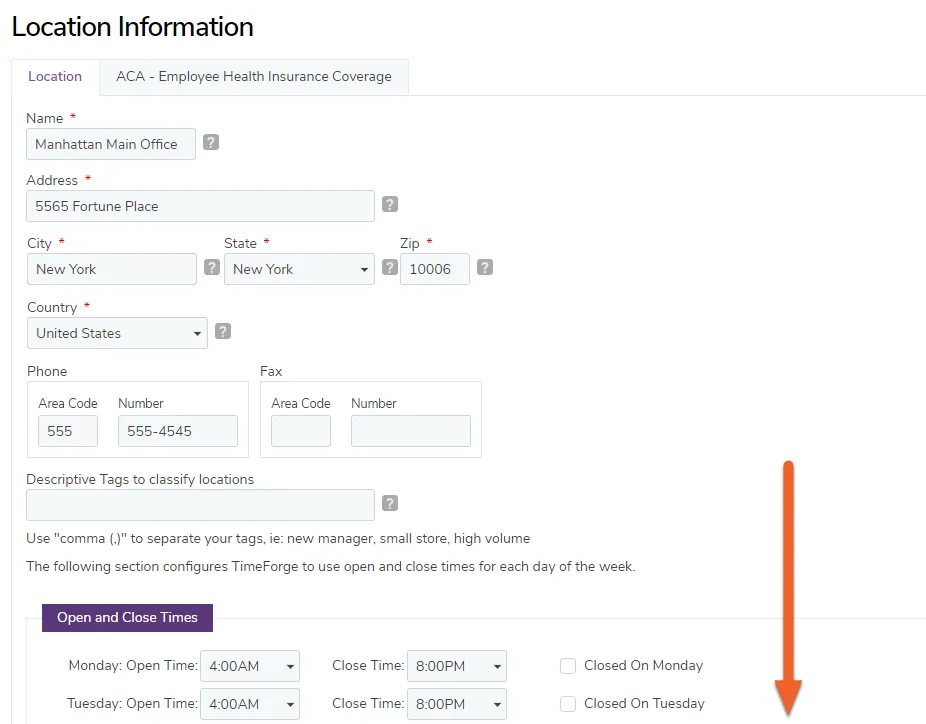
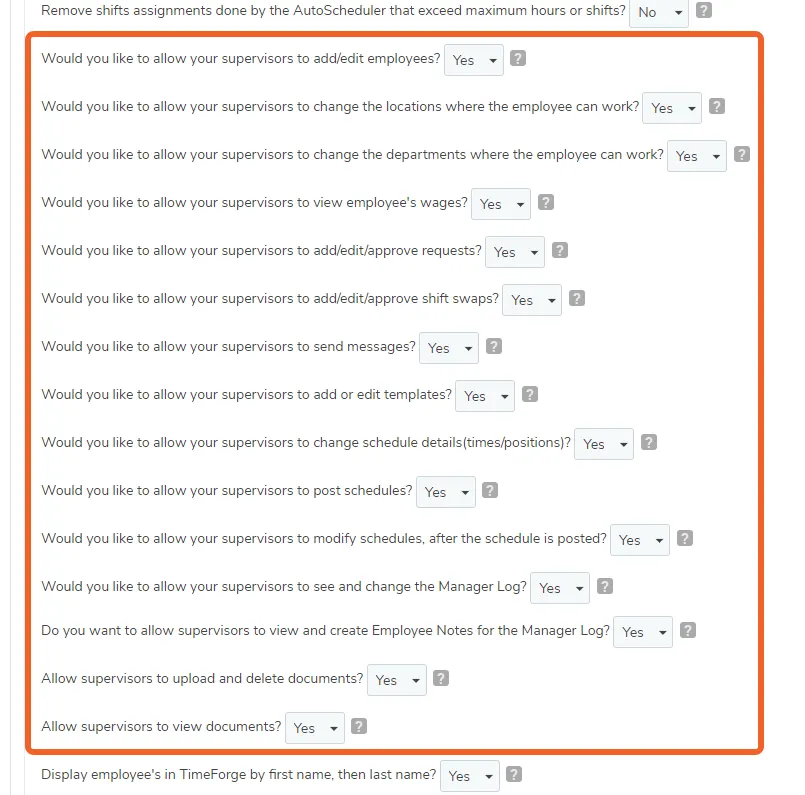
Designate the restricted information by selecting Yes or No as appropriate
Section titled “Designate the restricted information by selecting Yes or No as appropriate”These options are located half-way down the page. If you don’t want your supervisors to have special access, you can designate which information is restricted here.
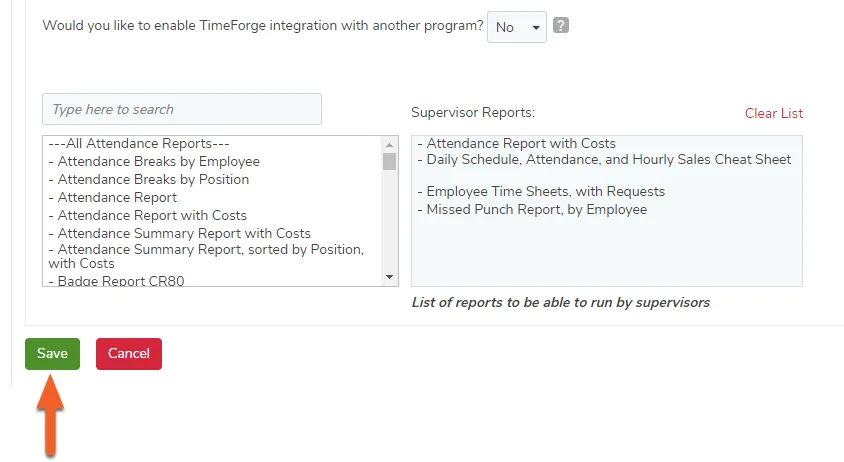
Click the Save button at the bottom of the page when done
Section titled “Click the Save button at the bottom of the page when done”Don’t forget to click the Save button at the bottom of the page when you’re done. This will save your changes.