Export a schedule report to PDF or Excel
This article will show you how to export and save a Schedule report as either a PDF or Excel file.
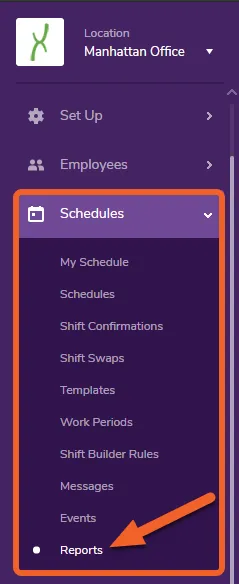
Go to your Schedule Reports page
Section titled “Go to your Schedule Reports page”Open the Schedules tab and select Reports from the menu.
Choose a report to run
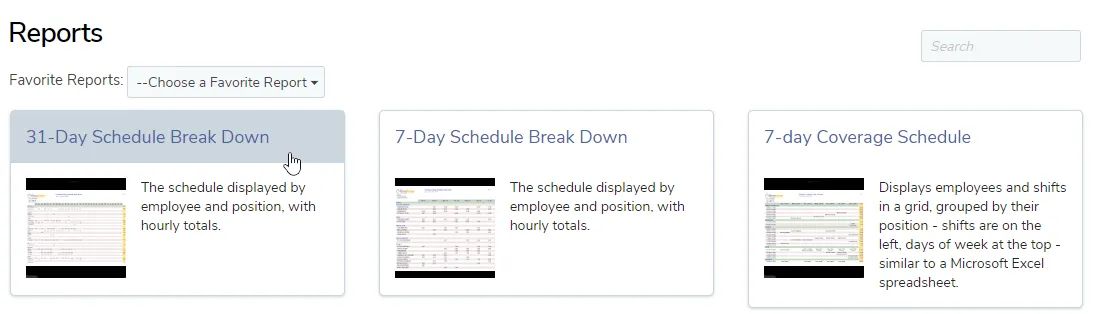
Section titled “Choose a report to run”Reports are ordered alphabetically, but you can narrow down the list by entering keywords in the search box (upper right).
For this example, we’ll run the 31 Day Schedule Break Down report.
Configure the report
Section titled “Configure the report”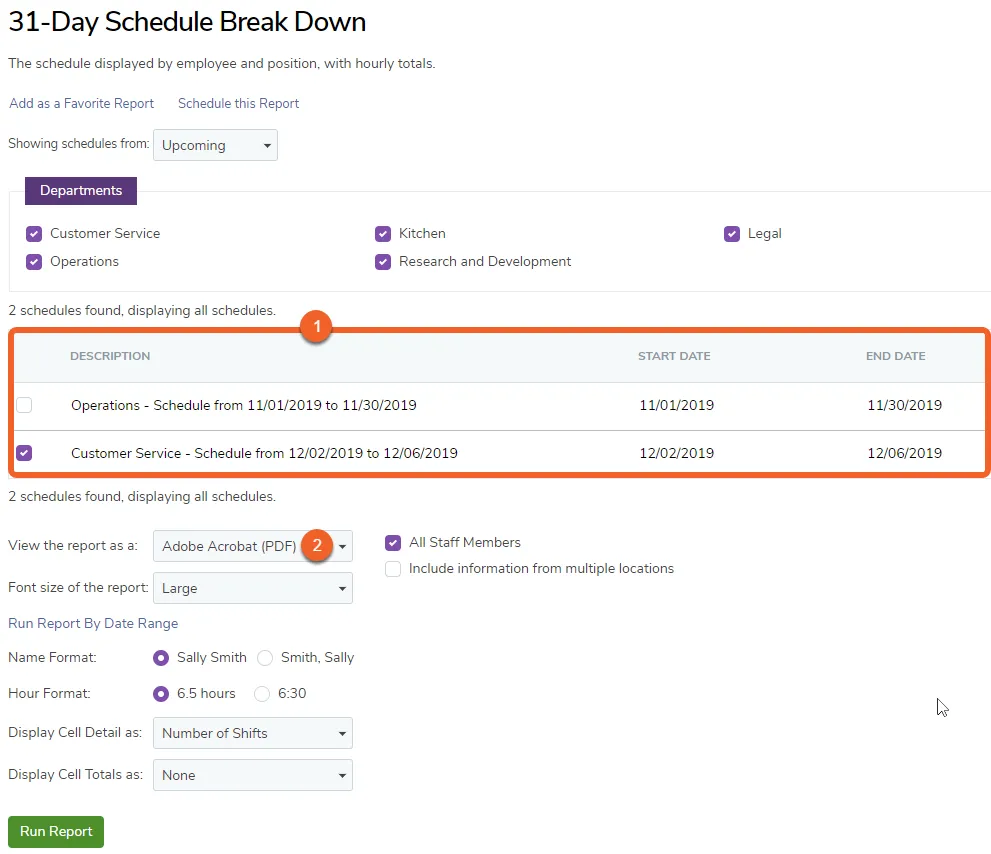
- Choose which schedule(s) you would like to export.
- Choose Adobe Acrobat (PDF) or Microsoft Excel (XLS).
Configure any other settings as best suits your needs.
Run and save the report
Section titled “Run and save the report”When you’re satisfied with the configuration, click the Run Report button at the bottom of the screen. What happens next will depend on your browser configurations.
If you selected to view as a PDF, the report will likely display on screen, and you can use your browser’s built-in options to download and/or print.
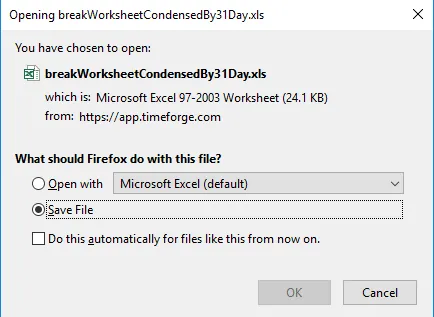
If you selected to view as an Excel spreadsheet, the file will either automatically download, or you will be presented with options to open/save (shown below). Selecting Save File will ensure you save a copy to your computer.