

Add a break to a schedule, such as a lunch or meal break
In TimeForge, the employee breaks module is a powerful and flexible part of scheduling and attendance tracking in regards to scheduling employee breaks and meal periods. TimeForge breaks are controlled using Break Rules, and after you create an employee schedule, these Break Rules become scheduled employee breaks that can be controlled and monitored using TimeForge Attendance, or with a worksheet and signatures by staff members.
If you are using TimeForge Scheduling, you can add new schedules and breaks for staff members. Setting up employee breaks on your schedule is easy, and here’s how it’s done.
Navigate to the Schedules page
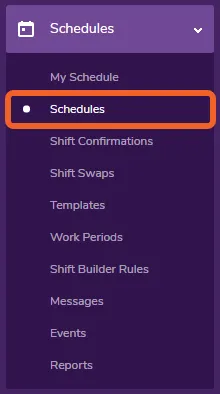
Section titled “Navigate to the Schedules page”Open the Schedules tab and select Schedules from the menu.
Edit your schedule
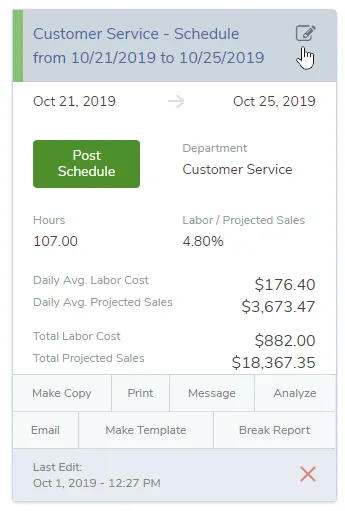
Section titled “Edit your schedule”Pick a schedule that you would like to edit.
Choose an employee and a shift
Section titled “Choose an employee and a shift”Pick an employee and a shift to add a break. If there is no shift available already, you may add a new shift.

Open the Breaks tab
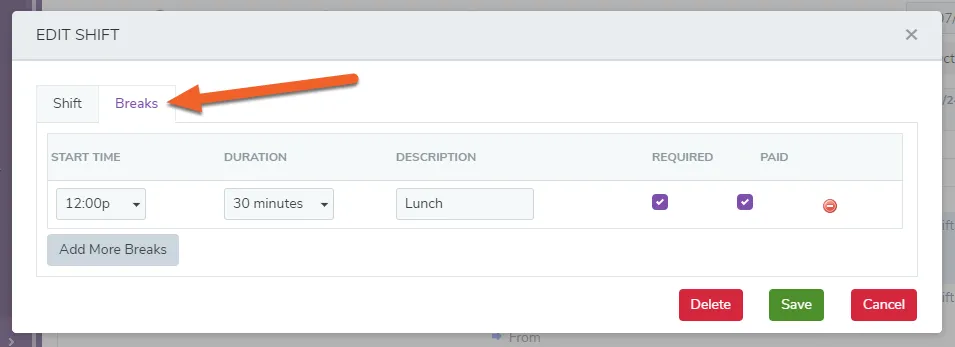
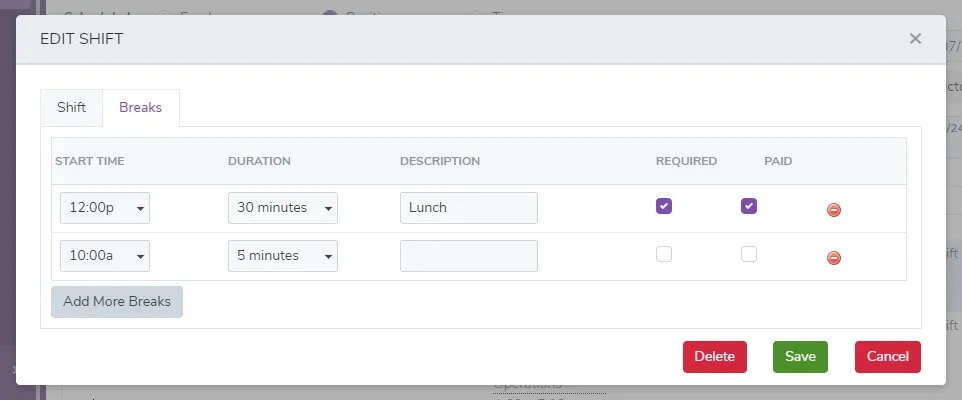
Section titled “Open the Breaks tab”At the top of the add-edit shift screen, there is a Shift tab and a Breaks tab. Choose the Breaks tab to display scheduled breaks, or schedule new breaks.
Add Breaks for the employee’s shift
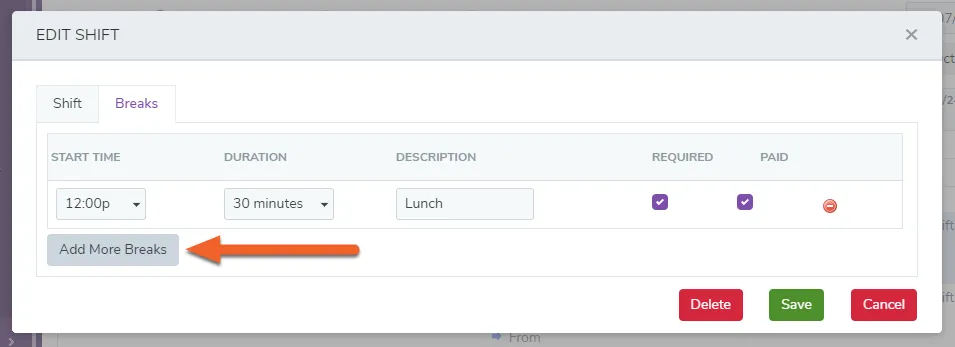
Section titled “Add Breaks for the employee’s shift”To schedule breaks for the shift, click Add More Breaks*.*
Set break parameters
Section titled “Set break parameters”Configure the time, the duration, and the type of break that you want for this shift. When you are finished adding breaks for this shift, click the Save button.
How to recreate your breaks
Section titled “How to recreate your breaks”TimeForge can save you time scheduling breaks while you’re creating employee schedules. You can set up break rules so that breaks will automatically be created when you’re building a schedule. Sometimes you may need to add a break rule, or make changes to a break rule, even after you’ve already created a schedule. TimeForge allows you to easily update the schedule to reflect your new rules without having to start a new schedule.
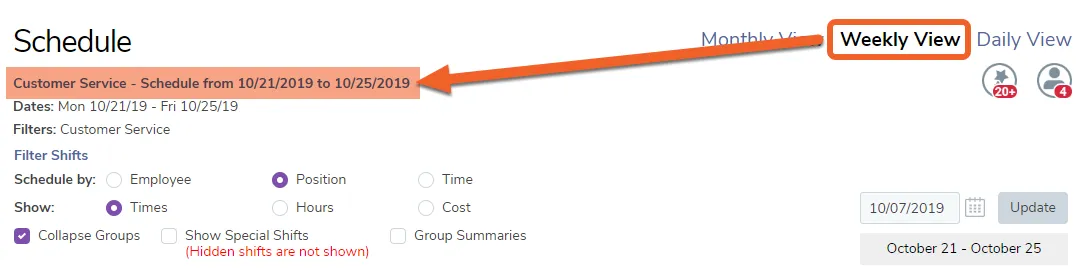
Go to the Weekly View and click the title of the schedule.
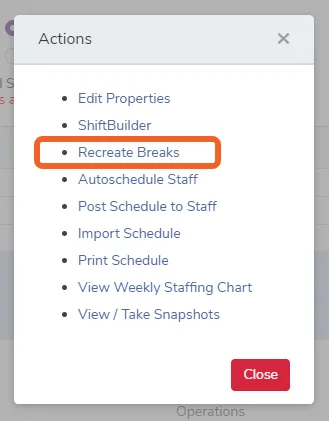
Then click the Recreate Breaks option.
Click OK when prompted.
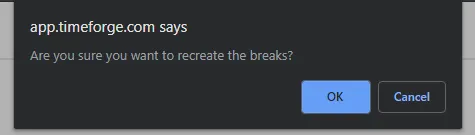
Recreating your breaks will undo any manual breaks you added. Only