

View and send messages through TimeForge
TimeForge’s messaging system provides a single location for convenient and simple work-related messages. Messages sent or received through TimeForge are accessible via the Messages page inside the application. If you have an email address configured in TimeForge, you will also receive messages by email.
To send and receive messages by email, make sure that you have an email address associated with your TimeForge profile. Your managers and coworkers will also need to set their email addresses in order to do the same.
Open the Schedules tab and select Messages
Section titled “Open the Schedules tab and select Messages”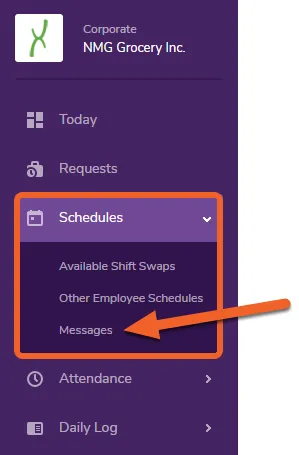
Overview
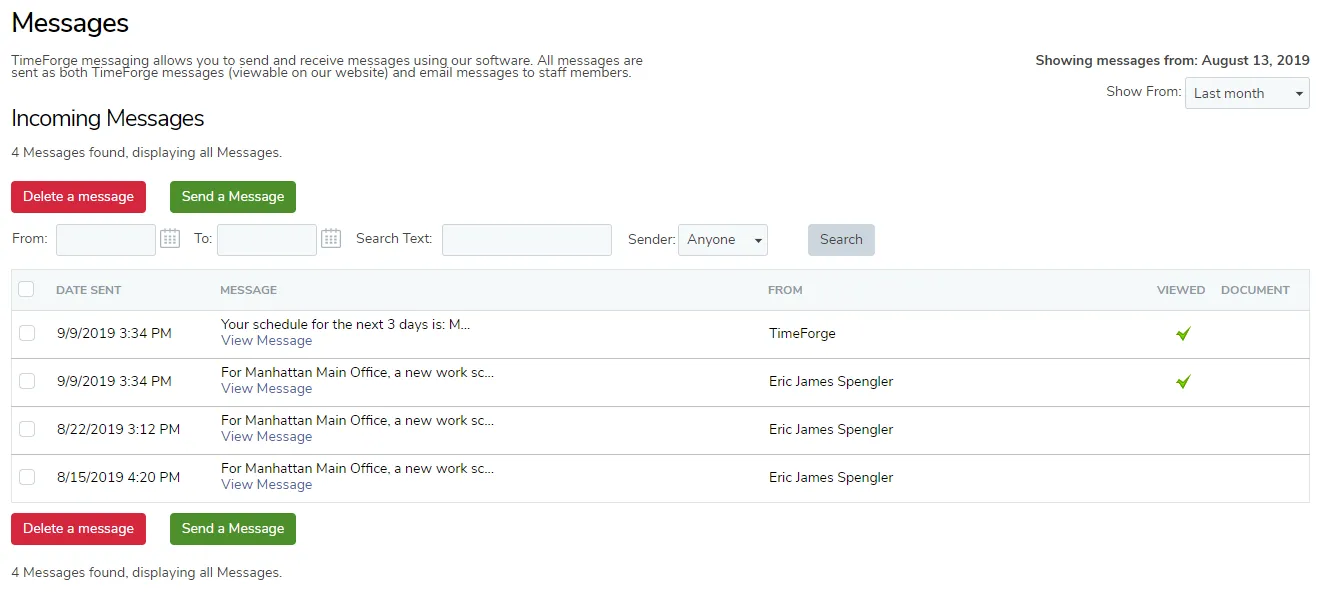
Section titled “Overview”The Messages page displays all incoming / received messages from managers and other staff members, as well as messages that you have sent to other team members.
Incoming messages are displayed first, followed by Sent messages:

Read a message
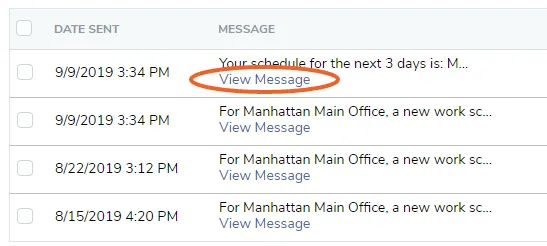
Section titled “Read a message”To read a message, simply click the View Message link.
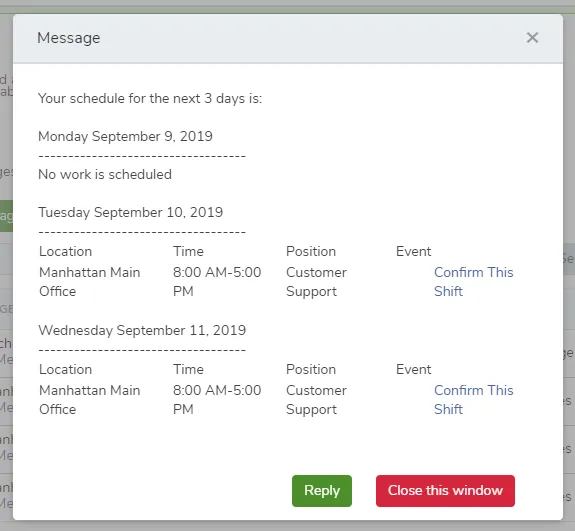
The message will display in a pop-up window and will allow you the option to Reply or to simply close the window. For some messages, such as automatic schedule notifications you’ve signed up for (see the Alerts tab in your profile), the message might also contain links to confirm your shifts.
Viewed messages receive a check mark next to them in the list:

Send a message
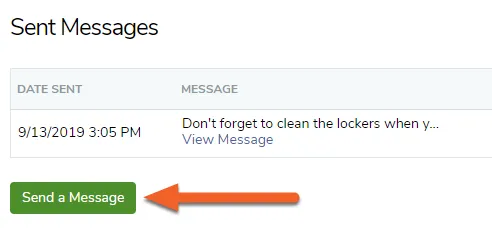
Section titled “Send a message”To send a new message to your managers or coworkers, click the Send a Message button at the bottom of the page.
Choose the recipients, enter your message, and hit Send
Section titled “Choose the recipients, enter your message, and hit Send”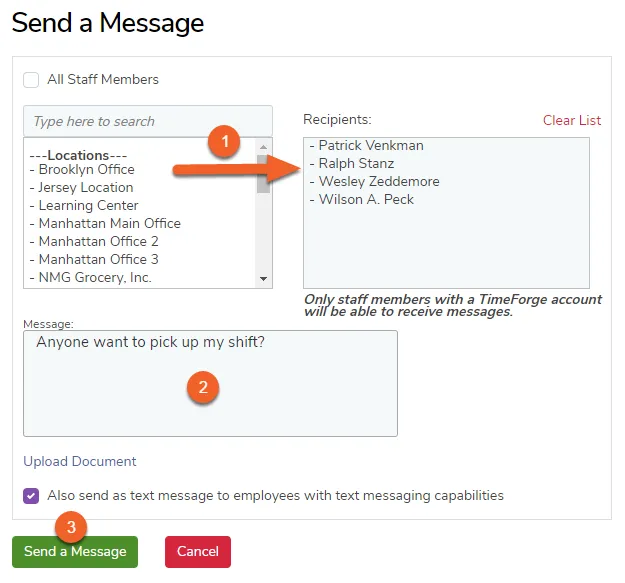
- Start by choosing the staff members that should receive your message. Staff members are displayed in an easy to read / locate fashion, and you can send a message to multiple staff members by simply selecting all of the staff member names. Team members and managers that do not have a TimeForge account are shown with a line drawn through them, as these individuals cannot receive messages using TimeForge.
- Next, enter an appropriate message in the text field. Selected individuals will receive notification of the message through their TimeForge account as well as through email.
- When you’re ready, click Send a Message to send the message – the message will now appear in your Sent Messages section.
You can review the status of your sent messages at any time. TimeForge records the message date and time, the body of the message, and the number of recipients (both within TimeForge and via email). You can also view the names of the people who have viewed your message inside of TimeForge by clicking the number in the Viewed Messages column.