

Apply a permission group to a specific user
To provide you with the ability to restrict who has access to some information, TimeForge allows you to create and assign permission groups. These security features can help you define who has access to make changes such as break rules, company settings, and employee positions. You can also define who can view personal information like pay rates and social security numbers.
These permission groups can be assigned to both managers and supervisors independently. In other words, you can create a unique permission group so that your managers have more access than your supervisors.
Assigning a permission group only takes a few clicks!
Go to the Employees page under the Employees tab
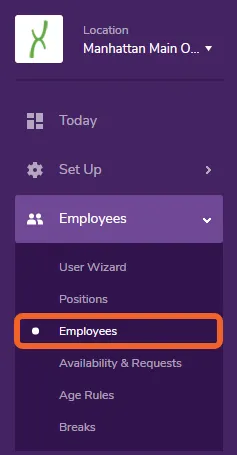
Section titled “Go to the Employees page under the Employees tab”At the Location level, open the Employees tab and select Employees.
Locate the appropriate employee
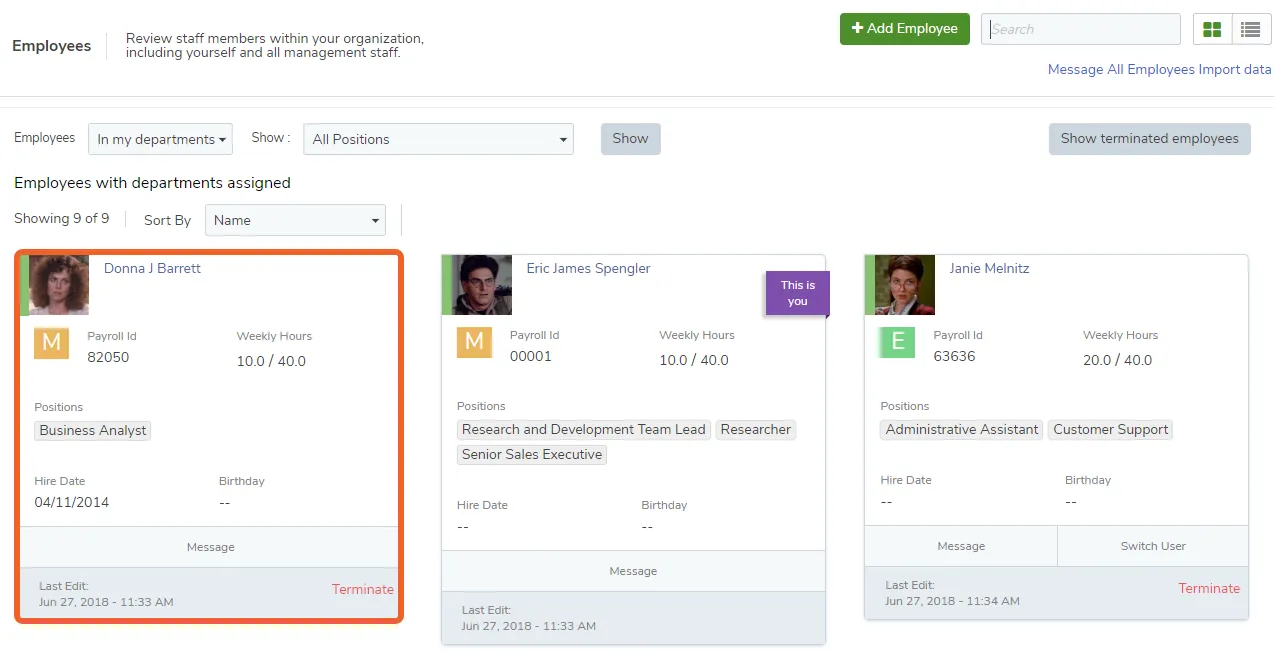
Section titled “Locate the appropriate employee”Locate the manager or supervisor you wish to apply a permission group to from your employee list. If you’re using grid view, you can click anywhere on the card to edit. If you’re using list view, click the Edit link.
Scroll down
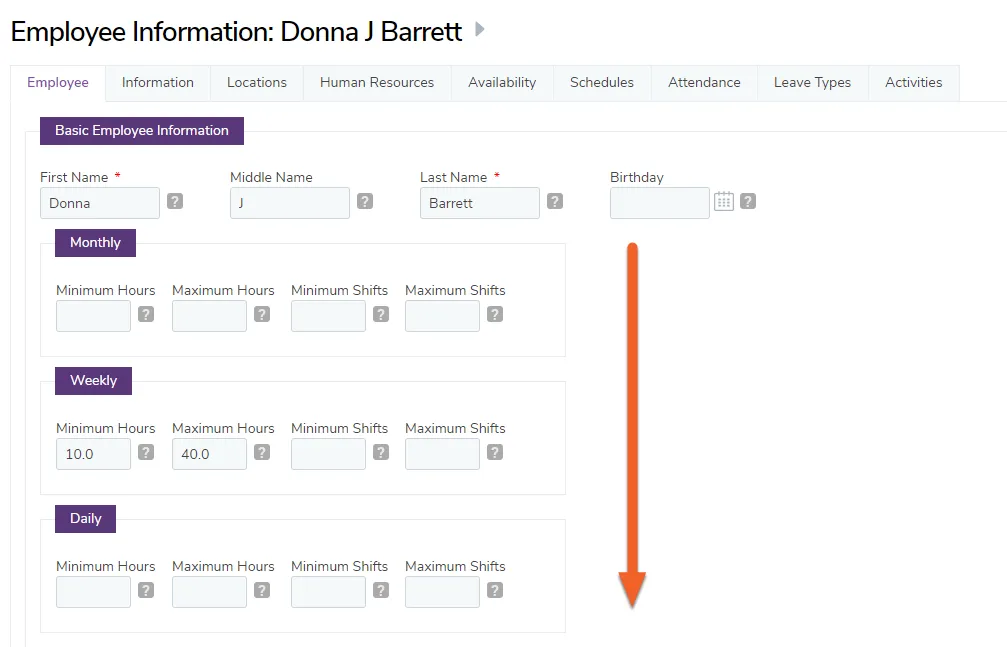
Section titled “Scroll down”The permission group options are at the bottom of the screen.
Assign the Permission Group and click Save
Section titled “Assign the Permission Group and click Save”Look for the section titled Permission Group. Choose the group you would like to apply from the drop down menu.
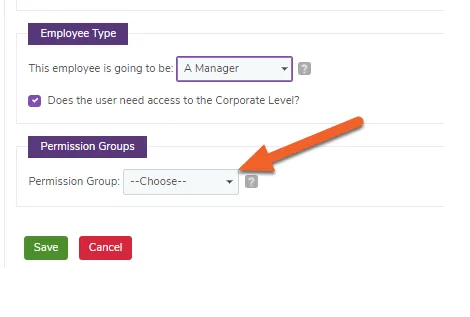
Don’t forget to click Save to save your changes!