

Review, hire, or archive job applicants
TimeForge allows you to manage applications, job postings, and track potential new hires. What makes it even better is that when you’re ready to hire someone, all it takes is a single click to move their information from their job applicant record into an employee record in TimeForge.
This article will show you how to review and track job applicants.
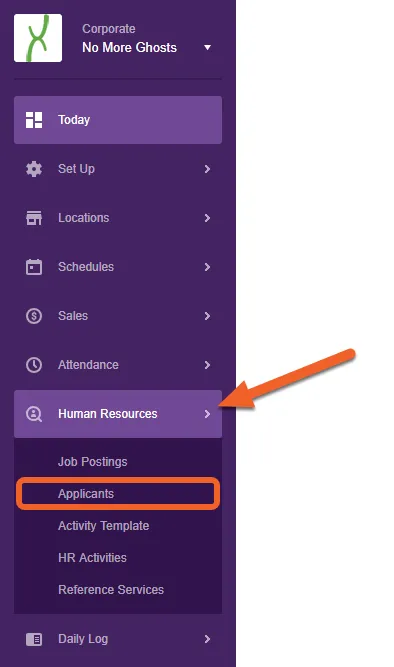
Navigate to the Applicants page under Human Resources
Section titled “Navigate to the Applicants page under Human Resources”Applicants can be reviewed at both the Corporate and Location levels, though in order to be visible at a location, the applicant must have applied to that location.
To begin reviewing applicants, open the Human Resources tab and select Applicants from the sub-menu.
Select an applicant to review
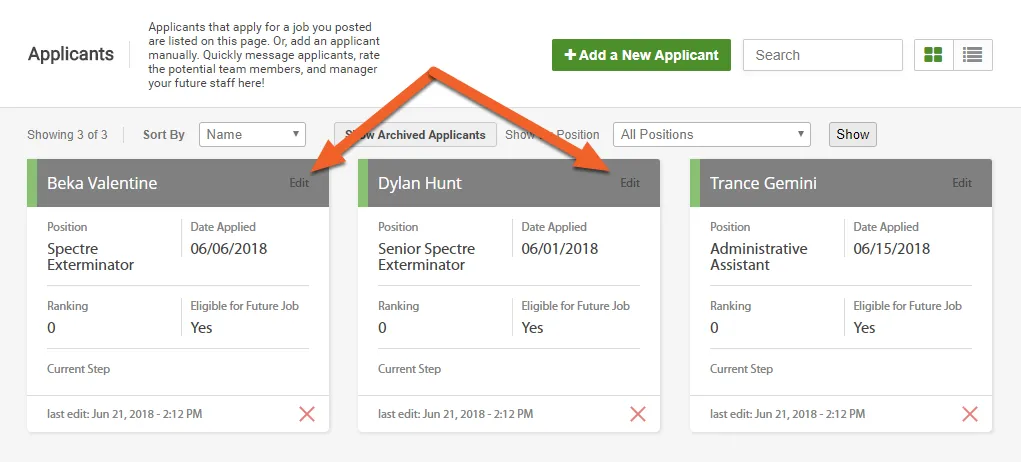
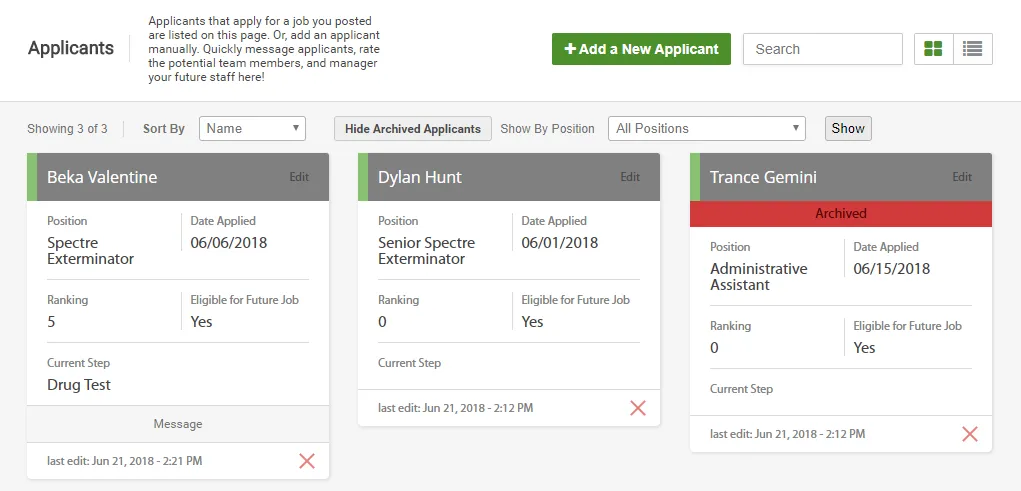
Section titled “Select an applicant to review”On the Applicants page, you can view and edit current applicants, as well as manually add new ones. To review a specific applicant’s information, click the Edit link for the applicant you would like to review.
Review the applicant’s information
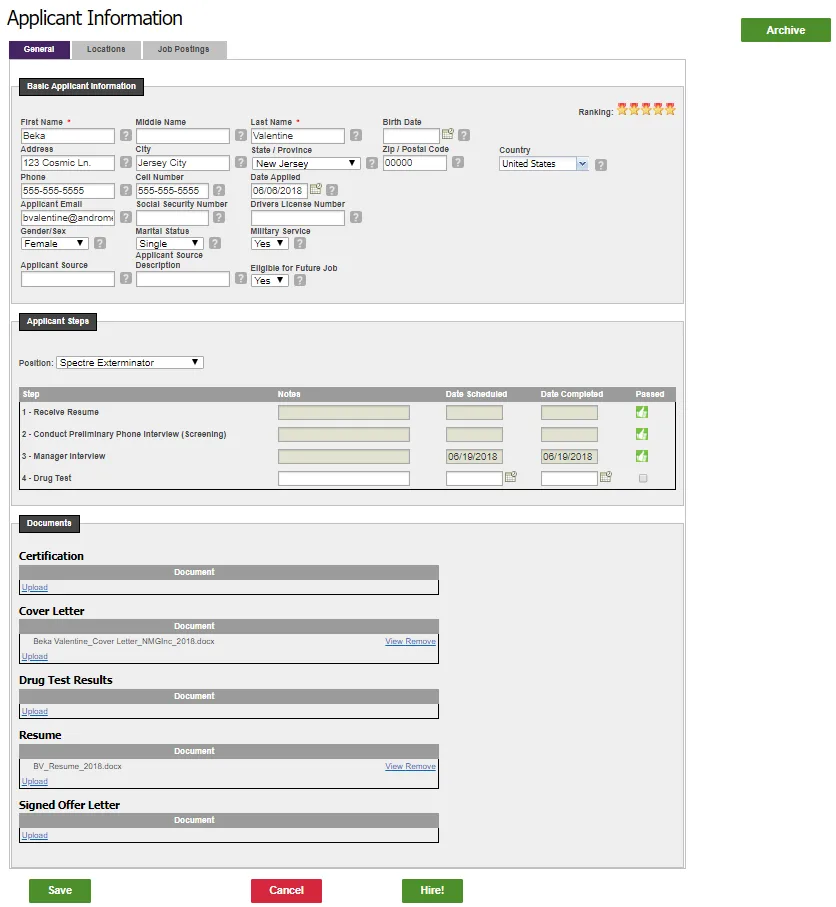
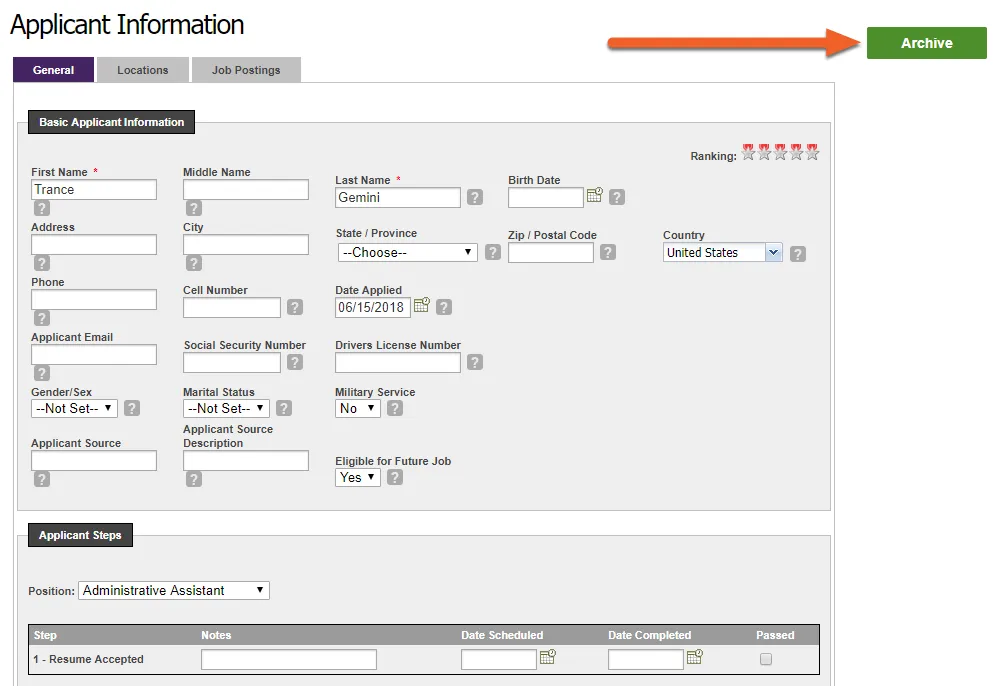
Section titled “Review the applicant’s information”Here, you can view and edit the applicant’s basic information, track their progress, upload documents to their application, or add them directly to your employee list by hiring them. If you decide not to hire, you can Archive the applicant, which will save their application and information for later but remove them from the applicant list.
The sections below will walk you through each area of this page. Be sure to click the Save button to save any changes you make on this screen.
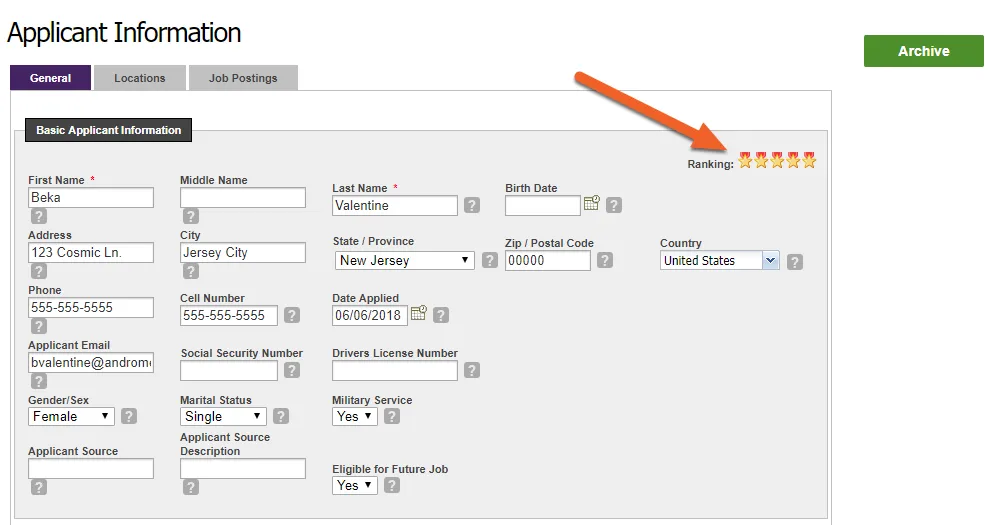
Basic Information
Basic information includes name, address, birth date, phone number, email, etc. Near the top right, you’ll also notice a handy ranking feature. Simply click on a star to rank the applicant from 1-5 (the applicant shown below was given a 5-star ranking).
Applicant Tracking
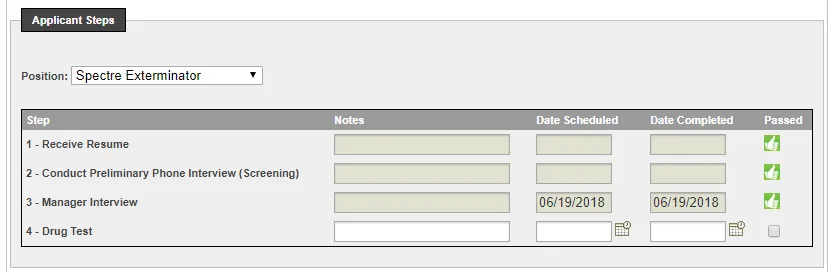
TimeForge’s Applicant Tracking system allows you to quickly and easily see the progress of an application. In the example below, the applicant has passed the first three steps (acceptable resume, phone screening, and manager interview) and is currently at Step 4 in the process. The steps shown depend on the position being applied for.
Documents
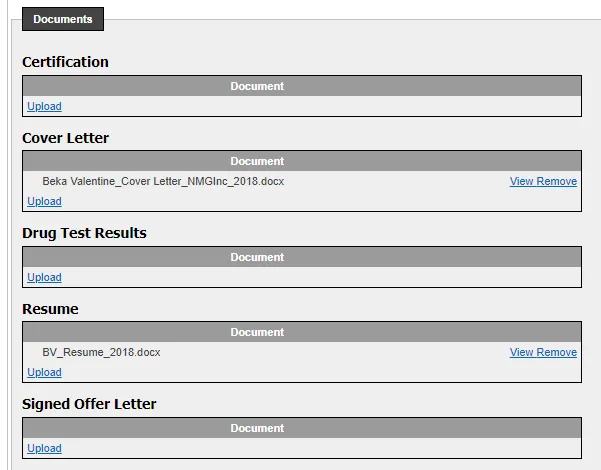
The last section on this page is the documents section. This is where you can upload and review documents pertinent to the application, such as a cover letter and resume.
Save, Cancel, Hire, or Archive
Section titled “Save, Cancel, Hire, or Archive”Below the documents section, you have the option to Save any changes you’ve made and return to the applicant list, Cancel (return to the applicant list without saving), or Hire the applicant. There’s also an option at the top of the page to Archive the applicant.
Archive the applicant
Section titled “Archive the applicant”Archiving an applicant will remove him from the applicants list. However, his information will still remain on file for later viewing, in case you change your mind or your preferred applicant doesn’t work out.
To archive an applicant, simply click the Archive link in the upper right corner. You will be asked to confirm your choice.
Where can I find the applicants who have been archived?
To review an archived applicant later, simply click the Show Archived Applicants button on the Applicants page.
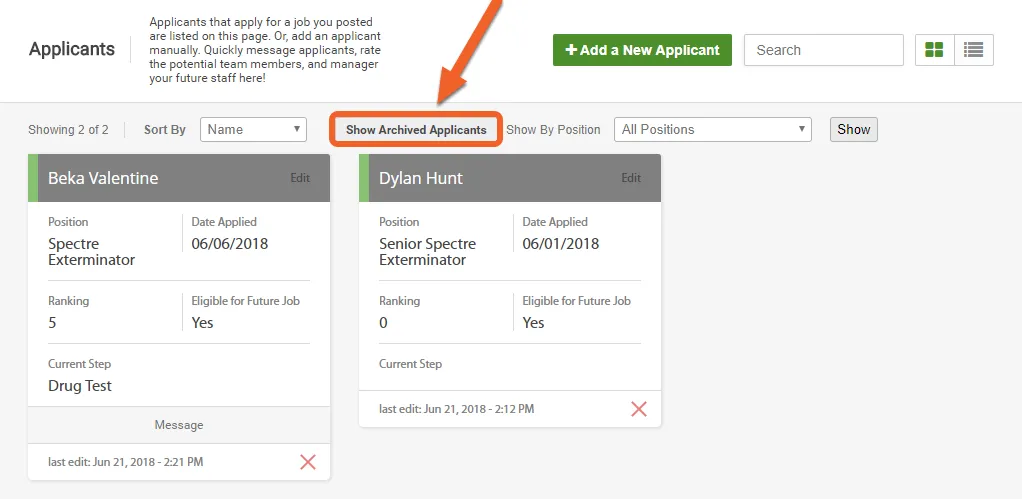
You’ll now be able to view the archived applicant and even unarchive them, if you’d like.
Hire the applicant
Section titled “Hire the applicant”If the applicant is a good fit, you can choose to hire them directly from this page. Simply scroll down to the bottom of their applicant information (past the Documents section), and click Hire!
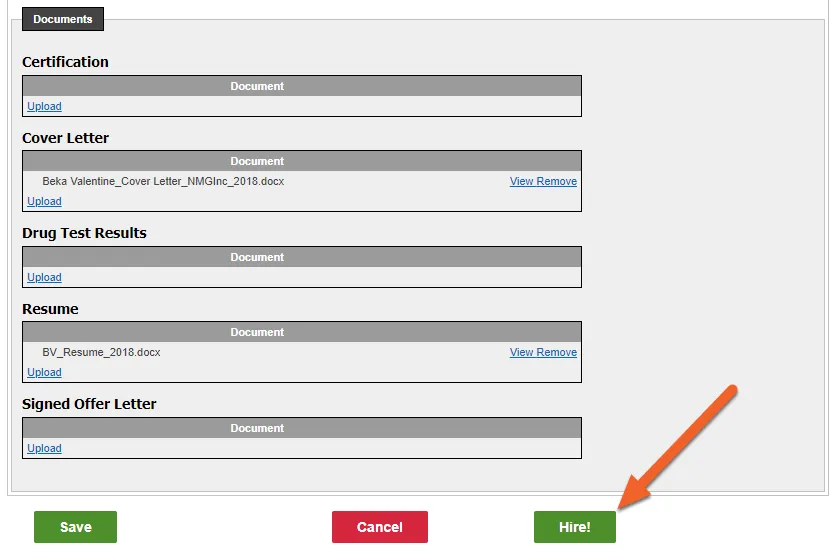
Hiring the applicant will remove him from the applicants list and will make him an active employee inside TimeForge. You can choose to send an email invite at this time (this will allow the employee to set up their credentials in TimeForge) or do so later.