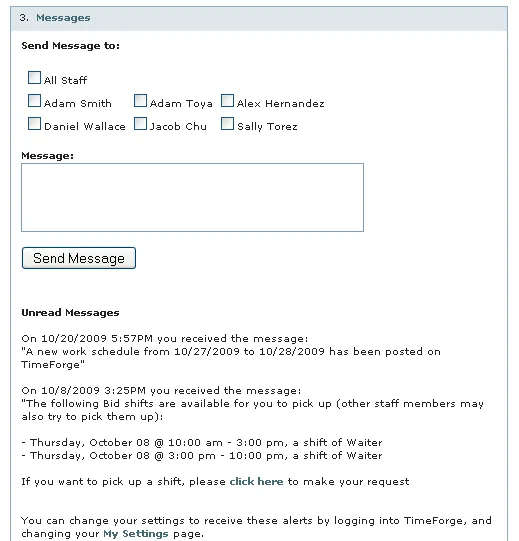
View schedules and timecards using RSS
TimeForge will allow you to view schedules, messages, time cards, and more using any phone capable of reading an RSS feed. Of course, you can always use a web browser, such as Mobile Safari or Opera Mini, to view the TimeForge website at https://app.timeforge.com.
However, TimeForge schedules, messages, shift swaps, and much, much more can be viewed directly on your cell phone, iPhone, Blackberry, or other non-web browser reader by using RSS feeds.
TimeForge uses RSS feeds to deliver the information directly to your cell phone and requires that your phone be able to read both encrypted RSS feeds (over an SSL connection), as well as secured RSS feeds (which require a username and password).
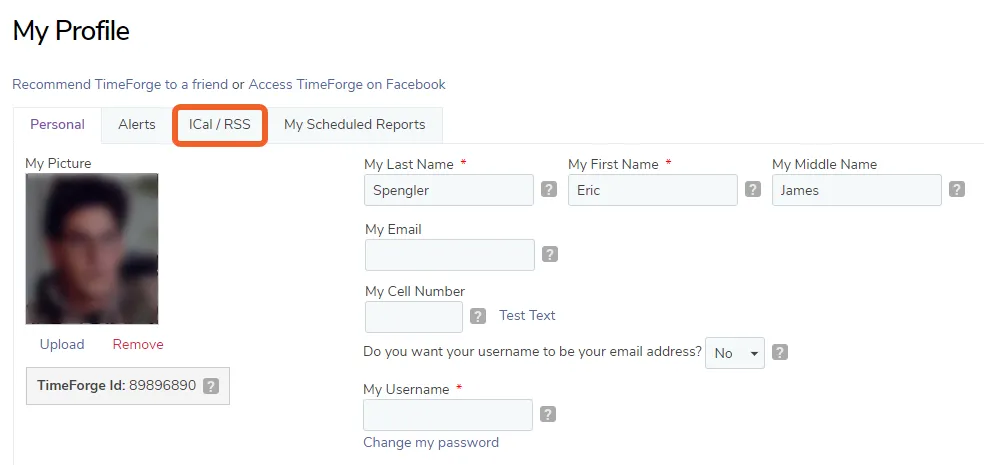
Open the ICal / RSS tab on your Profile
Section titled “Open the ICal / RSS tab on your Profile”Click the dropdown menu in the upper right and select My Profile to visit your profile page. From there, click the ICal/RSS tab:
Find the RSS URL (the RSS Feed)
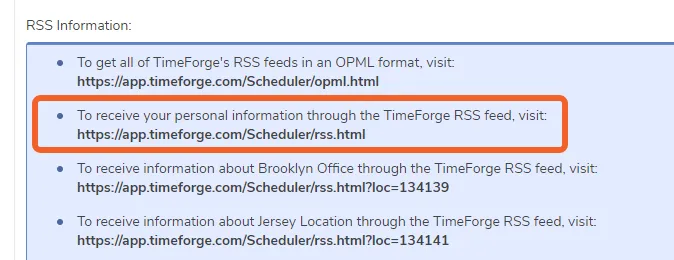
Section titled “Find the RSS URL (the RSS Feed)”Locate the URL for the personal RSS feed, which should be near the top of the list (above your locations).
Add the TimeForge data to your RSS reader - Step 1
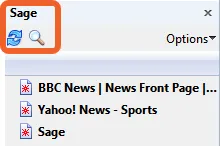
Section titled “Add the TimeForge data to your RSS reader - Step 1”Each RSS program is slightly different in how it requires that you add a feed. In this example, we are using Sage, a popular RSS feed reader for the Firefox web browser.
Click on the Find icon. Other RSS readers may require that you enter the URL of the RSS feed. If that is the case, enter the RSS RSS URL directly into the software. This URL is most commonly:
https://app.TimeForge.com/Scheduler/rss.html
Some RSS readers (such as Viigo for the Blackberry) do support encryption, but do not support username and passwords. In some cases, these RSS readers can be coerced to support username and passwords by using a URL with the format of:
https://username:password@app.TimeForge.com/Scheduler/rss.html
For example, if your username is ‘abigail@timeforge.com’ and your password is ‘testing123’, the URL you would enter is:
https://abigail@timeforge.com:testing123@www.TimeForge.com/Scheduler/rss.html
Add the TimeForge data to your RSS reader - Step 2
Section titled “Add the TimeForge data to your RSS reader - Step 2”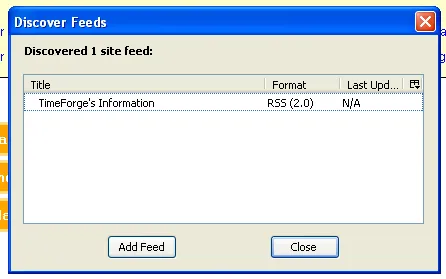
Sage, like many mobile web browsers (such as Safari and Opera) will automatically find any relevant TimeForge RSS feeds. Select the feed (“Timeforge’s Information”), and then click Add Feed.
These feeds have a lot of information in them, and contain details such as:
- Upcoming schedules
- Shift Swaps and Open Shifts
- Time card information
- Approved, pending, and denied requests
- Messages from other staff members and management
And more!
View the TimeForge RSS Feed
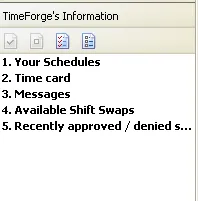
Section titled “View the TimeForge RSS Feed”Sage, or any RSS reader, will show the items relevant to your TimeForge account.
View Upcoming Work Schedules
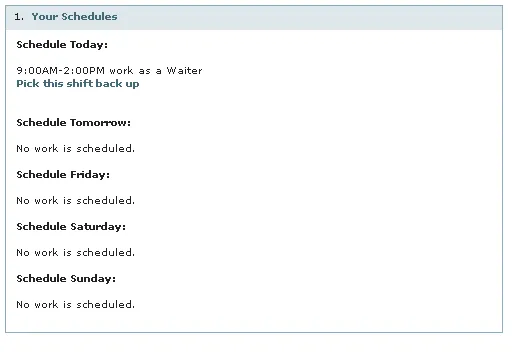
Section titled “View Upcoming Work Schedules”Use the TimeForge RSS feed to get upcoming schedule information directly on your cell phone, at any time, without browsing the web.
View or Send Staff Member Messages using TimeForge
Section titled “View or Send Staff Member Messages using TimeForge”Using the TimeForge RSS feed, you can easily view and send TimeForge messages.