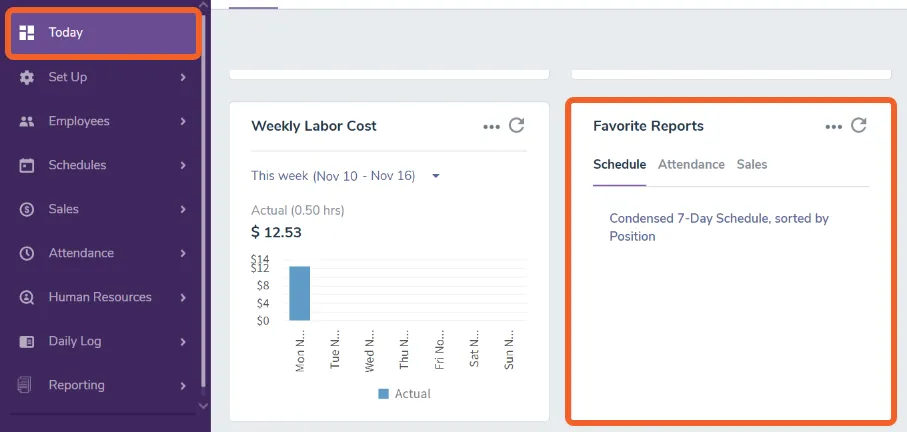
Add a report to your favorites list
TimeForge offers a variety of reports in each of the scheduling, attendance, and sales modules. No matter what you’re looking for, TimeForge has a report that will tell you the information you need to know.
In addition to choosing a favorite report, you can also set up reports to be automatically emailed to any address at a specific time and frequency.
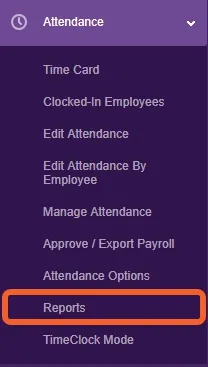
Go to the appropriate Reports page
Section titled “Go to the appropriate Reports page”Open the Schedules, Attendance, or Sales tab and select Reports.
Select a report
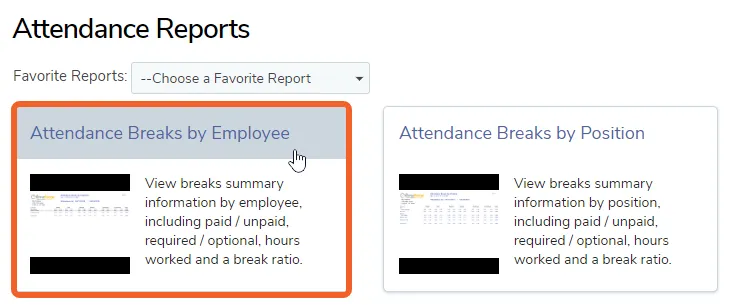
Section titled “Select a report”If you already have favorite reports, they’ll appear in the dropdown menu next to Favorite Reports. To add a new one, click on any card to open up that particular report.
For this example, we’ll add ‘Attendance Breaks by Employee’ as a favorite.
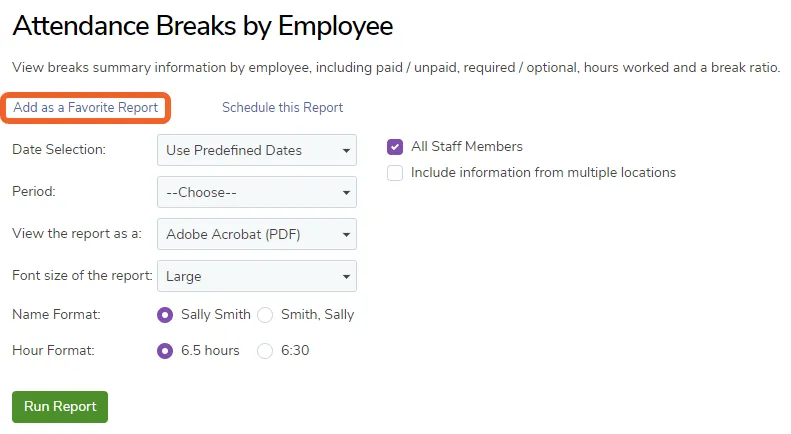
Click ‘Add as a Favorite Report’
Section titled “Click ‘Add as a Favorite Report’”Near the top of the page, above the report options, you’ll see a link to Add as a Favorite Report. Simply click this link to add this report to your list of favorites.
Now return to the main menu and click Today. In the Favorite Reports section, you will see the report you just added.