Add a new entry to the Daily Log
The TimeForge Daily Log is a great way to communicate with employees and other management staff.
The Daily Log consists of 3 different areas:
- A Manager Log, which is only viewable by Managers and Supervisors (if configured).
- A Staff Log, which contains notes from management to staff members.
- An Audit Log, which contains important tracking information from within TimeForge
Adding new daily log entries allows other employees or managers to view the messages, which are sent from management. This article will teach you how.
Navigate to the Daily Log
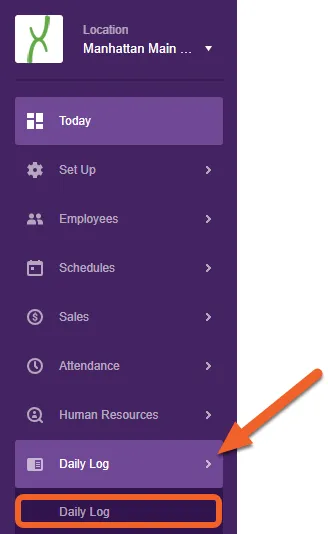
Section titled “Navigate to the Daily Log”Open the Daily Log tab, then choose Daily Log from the sub-menu.
Select a log (Manager or Staff)
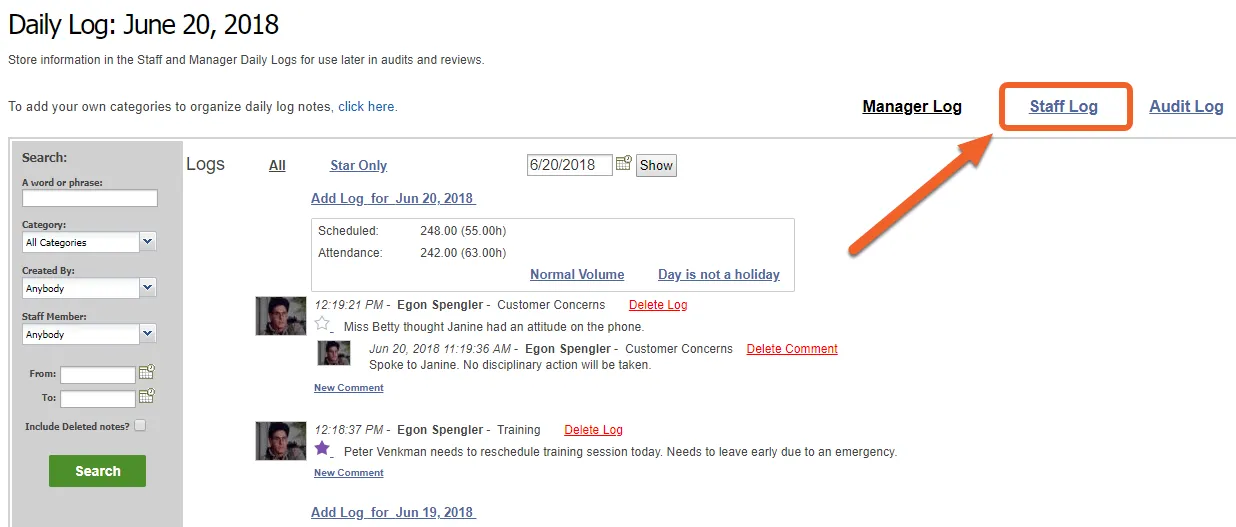
Section titled “Select a log (Manager or Staff)”By default, the Daily Log will open up the Manager Log. For this example, let’s select the Staff Log by clicking the link in the upper right of the page:
(Optional) Use the date picker to select a previous date
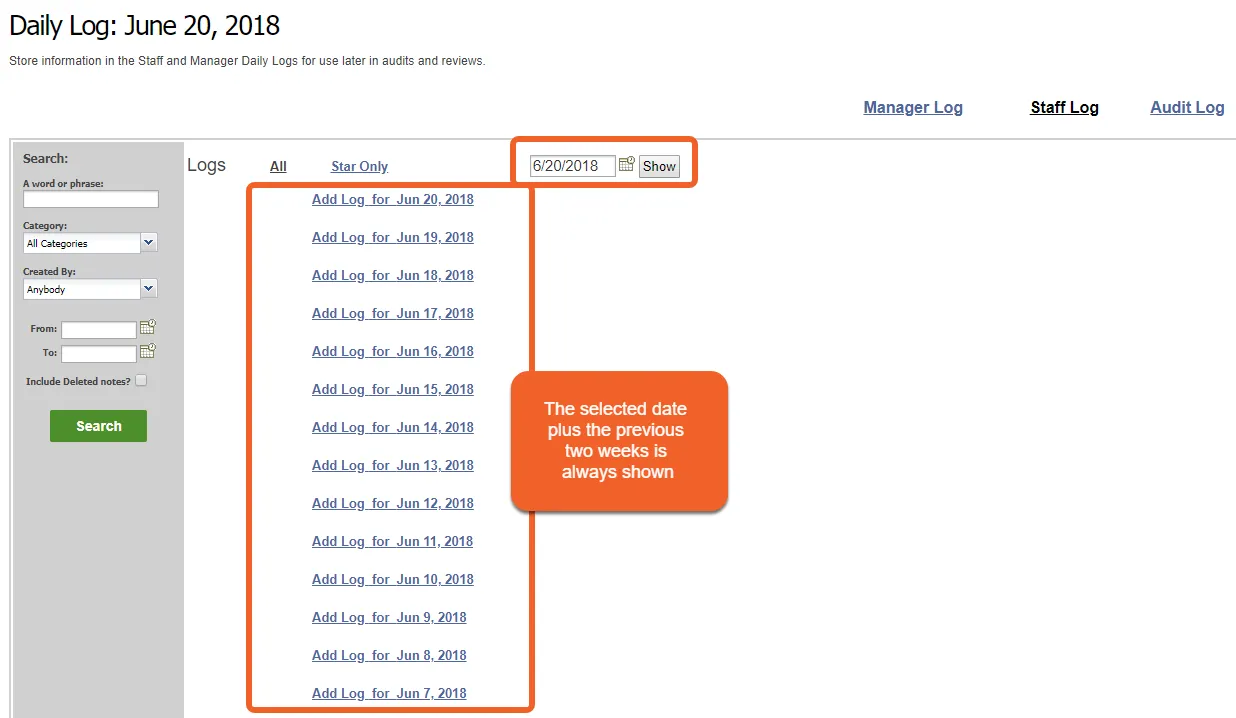
The date picker is useful if you’d like to add (or review) a log entry for a specific date in the past. The Manager and Staff logs always show entries for the previous two weeks from whatever date is selected. The default date when you visit the log is always the current date.
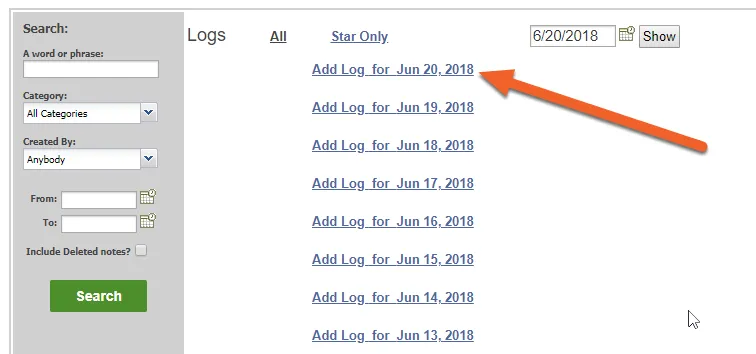
Click the “Add Log” link for the appropriate date
Section titled “Click the “Add Log” link for the appropriate date”For this example, let’s add a note to the Staff Log for the current (selected) date. To do so, simply click the link.
Fill in the details
Section titled “Fill in the details”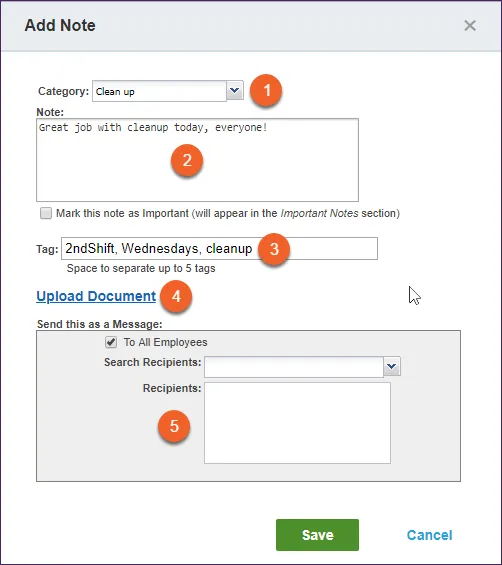
- Select a category for your note (learn about adding new categories).
- Write the body of your note/log entry, including any details you want staff members to see (remember, this is a Staff Log note, which means it’ll be visible to employees in TimeForge). To mark the note as important, check the box directly below this section.
- Add any tags to help label the note and make it easier to find with searches.
- Upload a file, such as a photo, image, or checklist form.
- Indicate whether you’d like to send the note to employees as a message and, if so, to whom.
Click Save to save your entry
Section titled “Click Save to save your entry”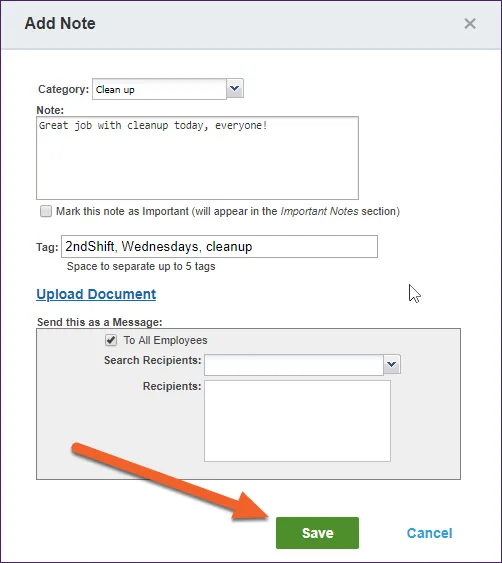
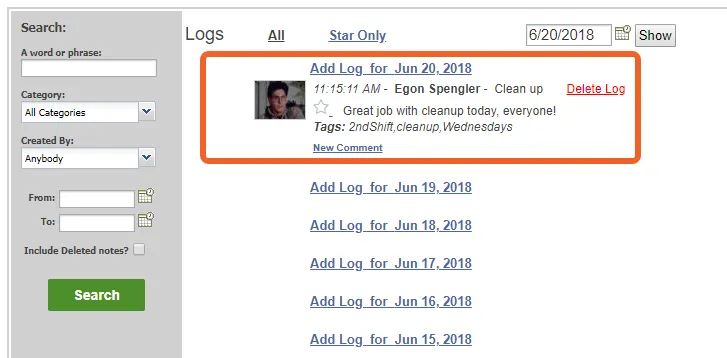
Your note will be added to the log for the selected day, where it can be viewed and commented on by other management.
How do Manager Log entries and Staff Log entries differ?
Section titled “How do Manager Log entries and Staff Log entries differ?”The entry forms for the Manager and Staff logs are very similar! They both include a category and note, and they both support tags, uploaded documents, and being marked as important.
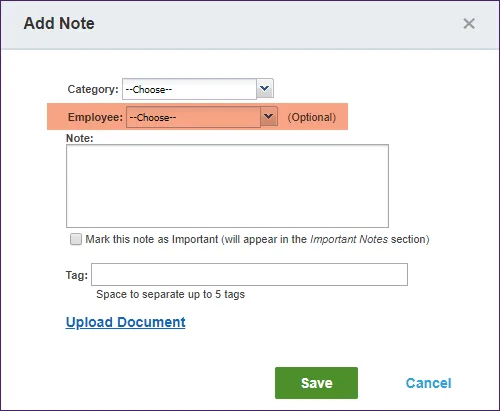
However, Manager notes differ in that they can be written about a specific employee (see highlighted area in the image below). Also, because Manager notes are only visible to management, there’s no extra form fields to share the note with staff.
Manager Log “Add Note” Form
Section titled “Manager Log “Add Note” Form”