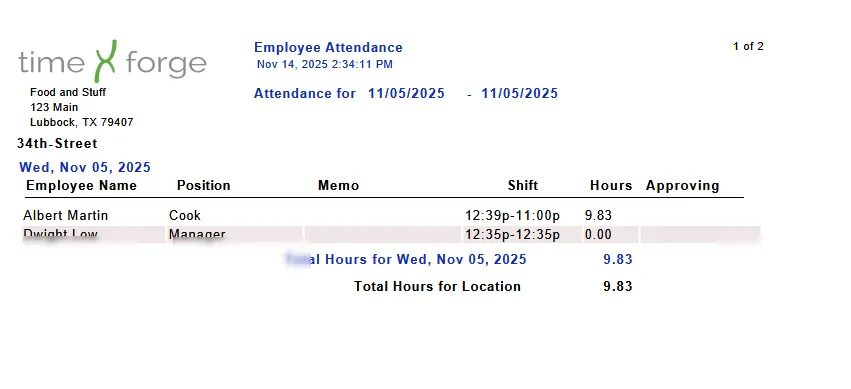
View employee clock-in and clock-out times
TimeForge Attendance was created to save management the time and hassle of keeping up with employee schedules. You can even enforce your employee schedule so that your employees only clock in and out at the times designated by their schedules.
In TimeForge, there are many ways to keep track of your employees’ time punches. For example, you can view currently clocked-in employees, quickly view who’s clocking in too early or out too late, and even create and enforce break rules.
Here’s how you can quickly run a report to view employee clock-in and clock-out times.
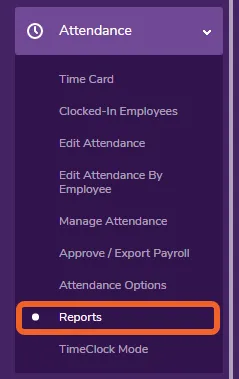
Go to the Reports page under the Attendance tab
Section titled “Go to the Reports page under the Attendance tab”Open the Attendance tab and select Reports from the menu.
Select the Attendance Report
Section titled “Select the Attendance Report”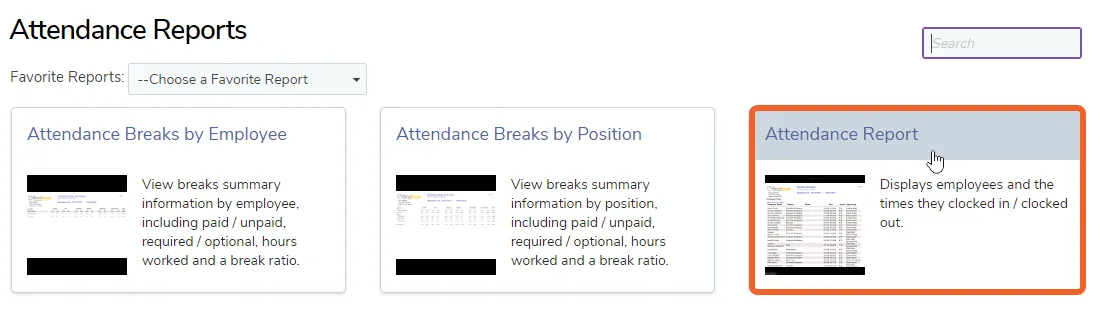
Customize your report
Section titled “Customize your report”This report will display employee clock-in/clock-out times for the selected department(s). Department selection becomes available when you choose a Period for the report.
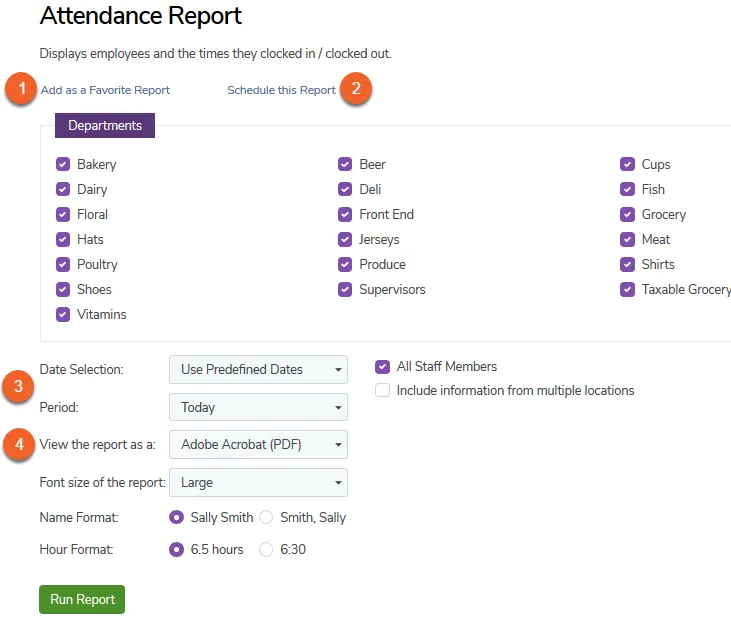
- You can add this report to your favorites, which will make it available in a drop-down menu on your reports page. This is for quick access to frequently used reports.
- You can Schedule this Report if you would like it to be emailed directly to one or more addresses at a specified date/time. Learn more about how to schedule reports.
- You can choose a date range or a period (today, yesterday, next week, last week, etc.).
- Choose whether to view the report as a PDF file or as a Microsoft Excel file.
Click the ‘Run Report’ button
Section titled “Click the ‘Run Report’ button”Once you’re done customizing the report, click the Run Report button.
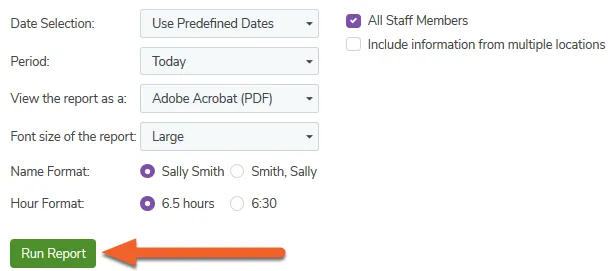
Your report will load as a PDF or will save as an Excel file, depending on what you selected in the previous step. From here, you can view all staff members’ clock-in and clock-out times as well as print or save the report.