For many businesses that aren’t using TimeForge and don’t have access to the Daily Log, keeping track of the daily notes, events, task lists, to-do items, and can be a cumbersome task. Add to that having to keep track of employee attendance and employee schedules, and it’s any wonder work actually gets done.
This article explains the disadvantages to using pen-and-paper log books and explains why the TimeForge Daily Log, an online digital log book, is superior in every way.
Some businesses tackle the tornado of paper and notes with supplies from the local office supply store, such as notepads, lab notebooks, 3-ring binders, and other similar products. While these products are inexpensive, the disadvantages are obvious:
Paper products will tear with even mild abuse.
Writing can be smudged or rendered unreadable with a single drink spill, or wet hands.
Staff using ink pens can scratch out each others notes, making notes indecipherable.
Handwriting from management and staff in a hurry can be unreadable weeks or months after the note is made.
Light weight notebooks can easily be lost in a back office.
Searching dozens of paper notebooks for historical notes is impossible.
Organizing paper books into categories on a day-by-day basis is cumbersome at best.
Multi-unit (multiple location) operators have no insight into the day-to-day operations of each location without faxing and scanning pages to each other.
In most cases, the paper log book is simply insufficient for modern businesses. Many niche businesses provide organized paper equivalents of the 3-ring binder or lab notebook, like RedBook Communications and CommLog. While these product are superior to paper notebooks from your local office supply store, almost all of the disadvantages of the paper process remain. In addition, these proprietary log books are organized in a format that might not work for your business.
Fortunately, the TimeForge Daily Log does not suffer from any of the disadvantages described above. The TimeForge Daily Log is a superior digital log book, designed to work the way that your business works. Some of the advantages of the TimeForge Daily Log include:
You always know where it is. Simply log in to your TimeForge account with a web browser or mobile phone. It’s always accessible and always on, which means it can never be misplaced.
Notes are never smudged, because they are entered into the computer. There’s no need to remember acronyms, abbreviations, or interpret sloppy handwriting.
Staff and Management notes cannot be erased. They can be removed from searching, but they are always available. You’ll never lose another note!
Every note is tagged with the staff member who entered it, as well as the date and time that the entry was made. No more finger pointing over late or misplaced notes.
You can organize the Daily Log to work the way your business works, with your own categories. Use your own organization system to track any note or reminder you need.
Built-in search capabilities allow you to quickly and easily search notes. You can search instantly for notes by staff member, date, category, or across multiple locations!
Keep notes organized across multiple stores, without the need to fax or scan pages from your notebook. You always have instant access to one or more locations!
Divide notes into what employees should see (the Staff Log) and what management needs to see (the Manager Log). Send broadcast notes to staff and ensure that manager notes are only viewed by managers.
The TimeForge Daily Log is a great tool for anyone in management. It helps keep track of things like daily notes, tasks, and to-do items, all in one easy-to-use place, and makes it easy to communicate those items with your fellow management and staff members. This means less time spent searching through paper notes and more time spent being productive and managing your employees.
Inside the Daily Log, there are three different styles of Logs that each have a unique purpose: the Manager Log, the Staff Log, and the Audit Log. Here is a quick overview of what you can do with each.
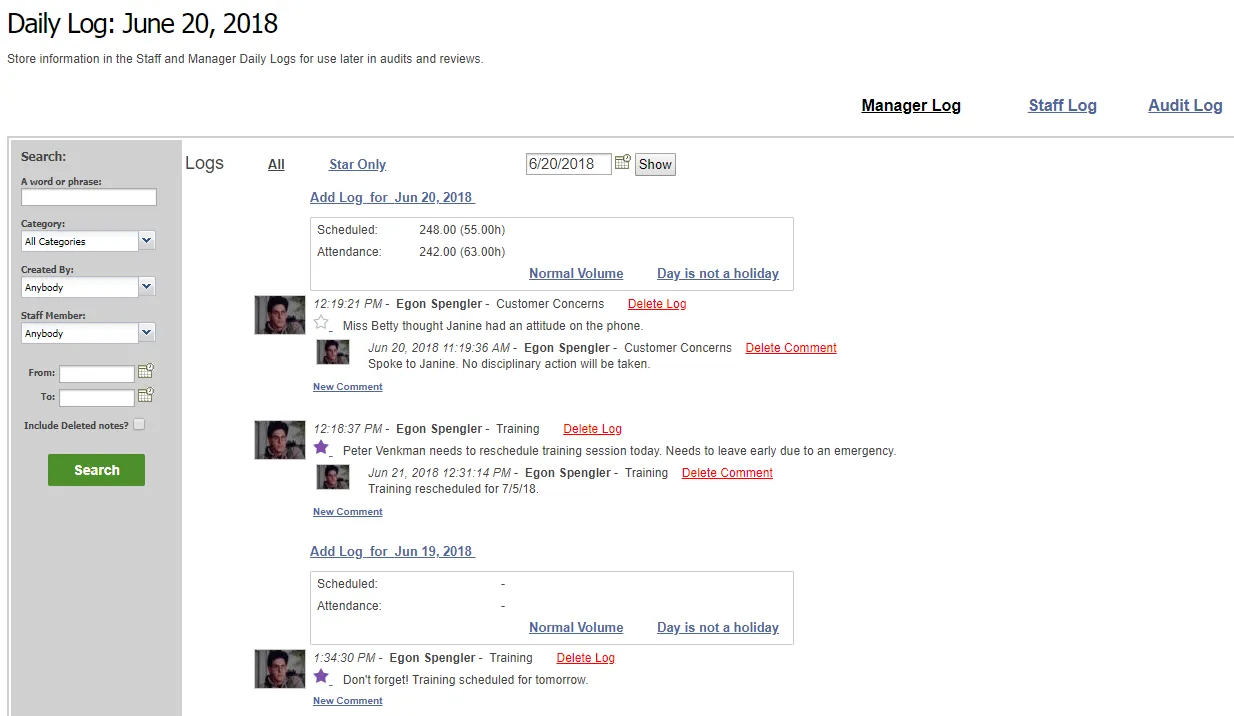
The primary purpose of the Manager Log is to make sure your management team is on the same page and ensure that your business runs smoothly. Within the Manager Log, you can add anything from a note about an employee calling in sick to a total of your scheduled vs. actual hours.
How do I change whether Supervisors can access the Manager Log?
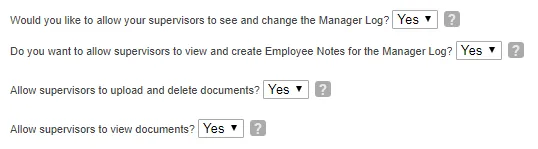
By default (meaning, if you didn’t change these settings, or we didn’t change them for you at your request), Supervisors have access to the Manager Log, which means they can view and edit log entries, comments, and uploaded documents.
If you’d like to change your current settings, you can do so from the Settings page for your location. To get there, simply click the Set Up tab, then select Settings.
Scroll down until you see the following (or hit CTRL-F on your keyboard to do a quick find):
Select Yes or No according to your business needs, then scroll down to the bottom of the page and hit Save to save your changes.
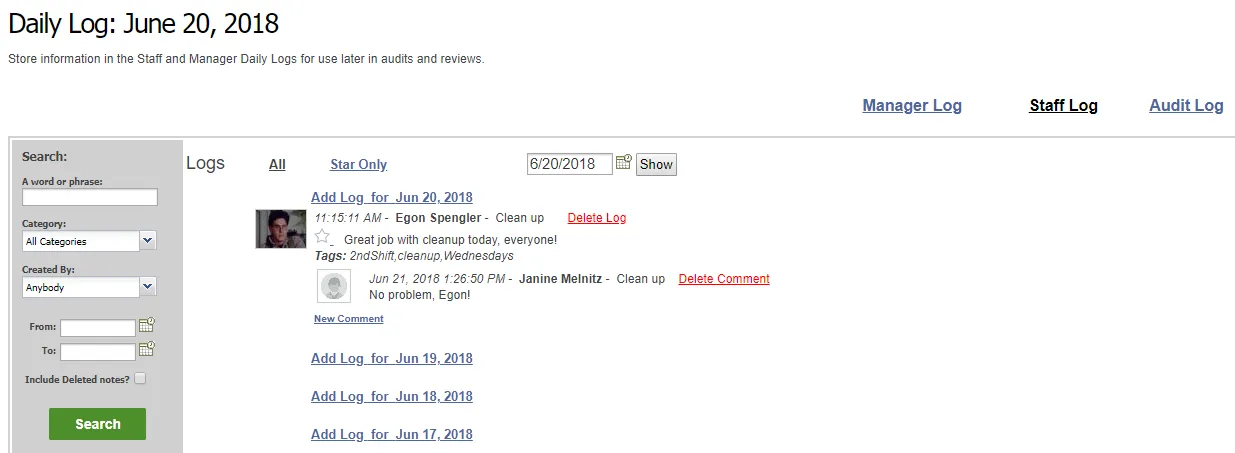
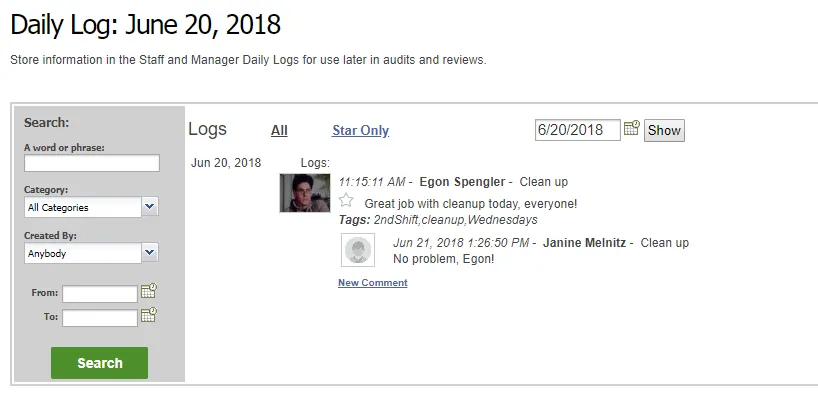
The Staff Log is a great way for management to keep employees informed and to communicate important news in a way that’s transparent. When you make an entry in the Staff Log, it’s visible to all employees at that location (not just management), and employees can respond in the form of comments.
In addition, at the time of entering the note, you have the option to send a copy of that note to one or more staff members as a direct message, so you can be sure they don’t miss a thing.
What do employees see on their end?
Employees see the same interface, just with fewer options. They can search the entries, use the date picker, and make comments, but they can’t add new log entries or delete existing ones.
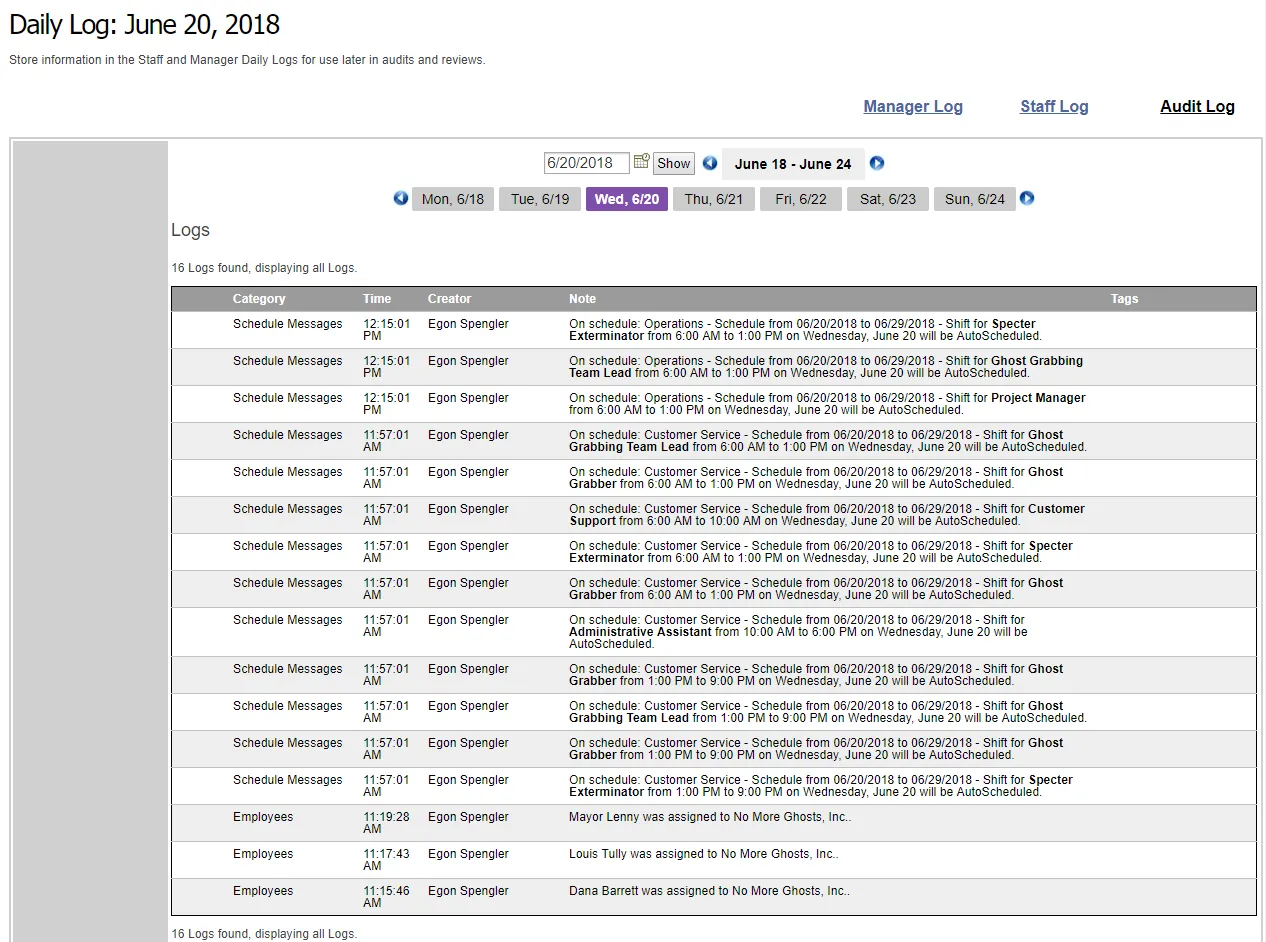
The Audit Log is an excellent resource for any business that has several individuals in charge of managing time and attendance. This log helps to ensure honesty and integrity among members of management because it automatically records user actions within TimeForge. The Audit Log allows you to clearly see who did what and when. Also, entries in the Audit Log cannot be deleted, and because the system can’t be manipulated, business owners can enjoy peace of mind.
The TimeForge Daily Log is a digital log book designed to work the way that your business works. You’ll soon find that keeping track of things like notes and reminders is much more efficient through a digital medium.
The Manager Log is a management log book that can only be viewed by managers. Log entries are written and viewed by members of management.
The Staff Log is a log book that is written by management but is viewable by staff members (employees).
The Audit Log is an internal log book that records important changes in TimeForge during the normal course of business, such as when new shifts are posted as part of a schedule.
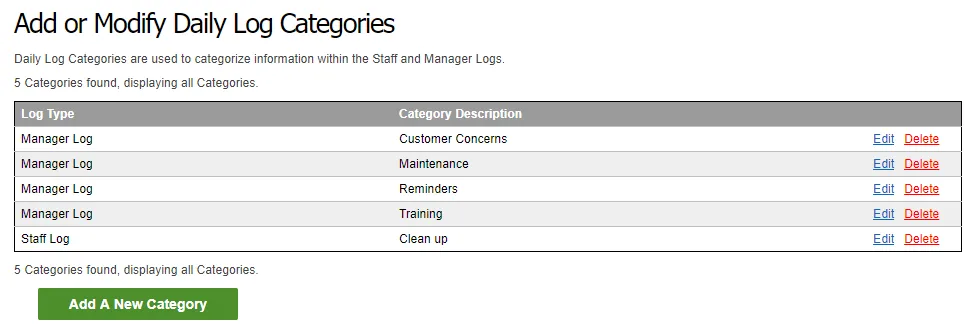
Before you can add any entries to the Manager or Staff logs, you must first create categories. Your entries can only belong to a single category, but you can have as many entries or categories as you’d like.
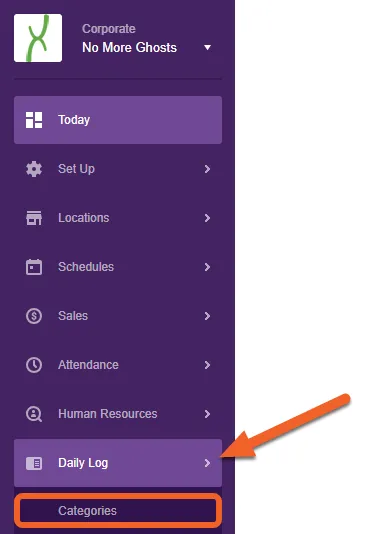
This article will teach you how to create your first Daily Log category in TimeForge, as well as any additional categories after that.
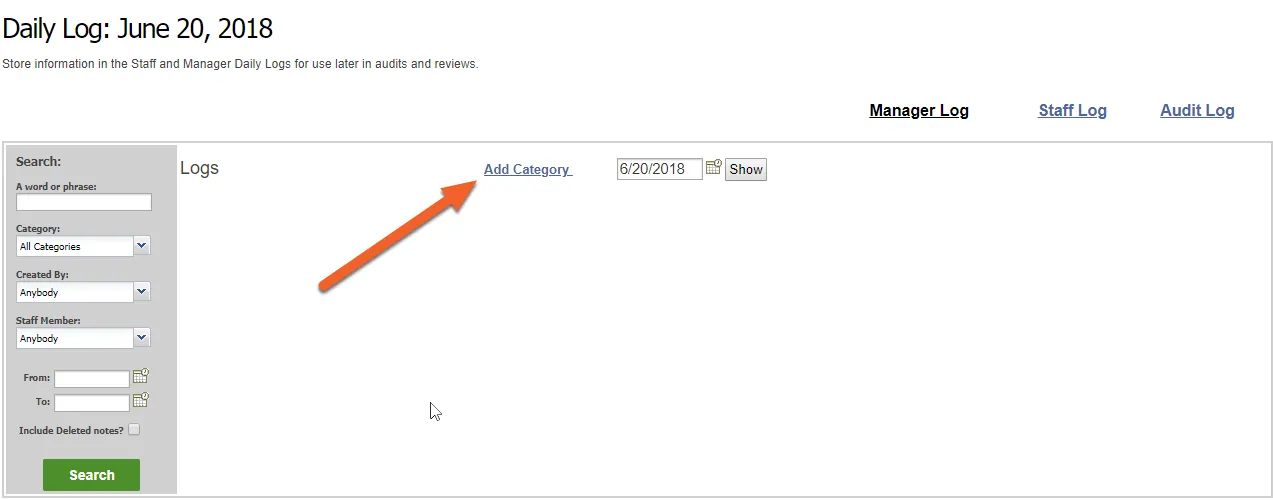
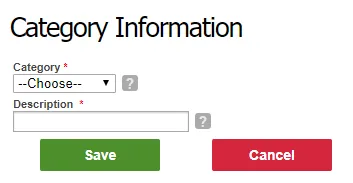
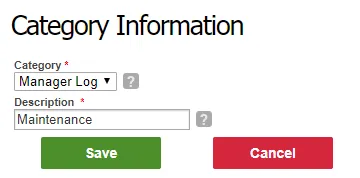
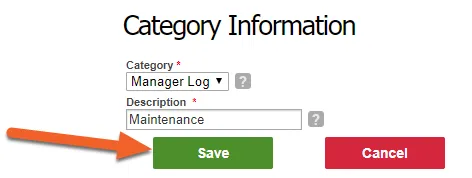
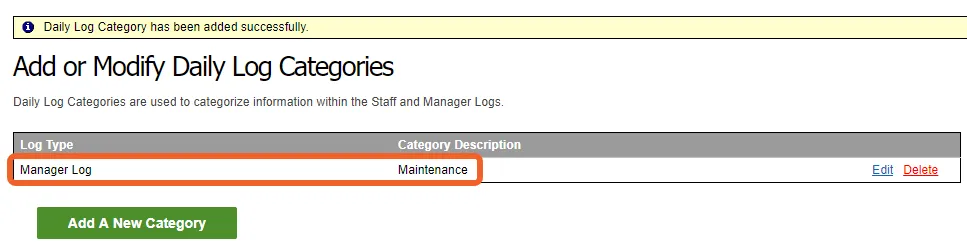
This will open up a form to add a new category. Use the first drop-down to select which log you’d like to create the category for (Manager Log or Staff Log), then provide a name for your category, such as “Maintenance.”
Here are some additional ideas for category names.
Manager Logexamples
To-do List Item
Employee Actions
Customer Concerns
Equipment Maintenance
Bank Deposits
Staff Logexamples
Uniform Reminders
Meetings
Upcoming Events
HR Documents
Menu Updates
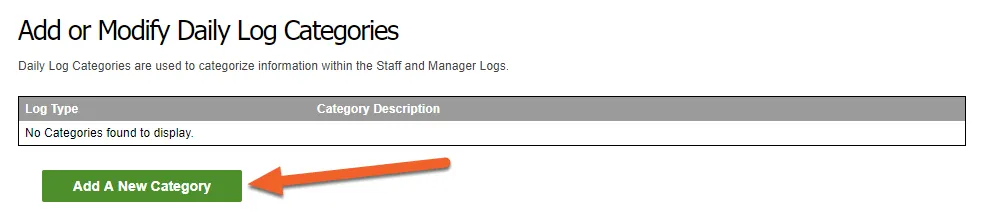
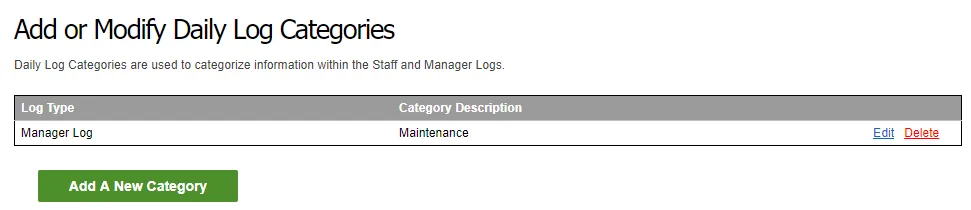
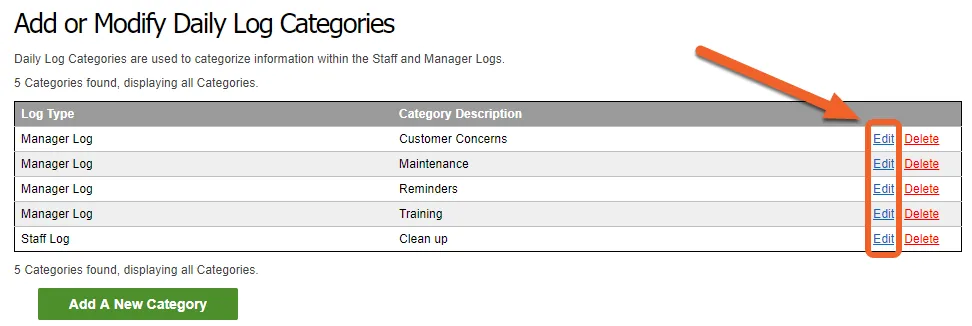
Click on “Add A New Category” to add a category, or choose edit next to the log you’d like to modify.
Adding additional categories is easy! Just return to the Categories page and click the Add A New Category button. You can add as many categories as you want.
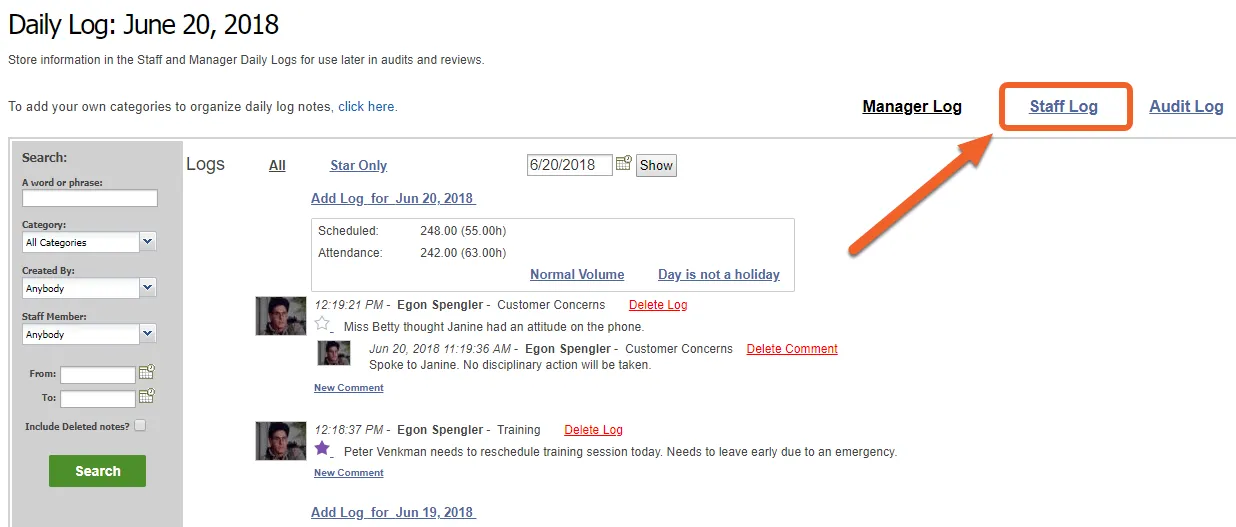
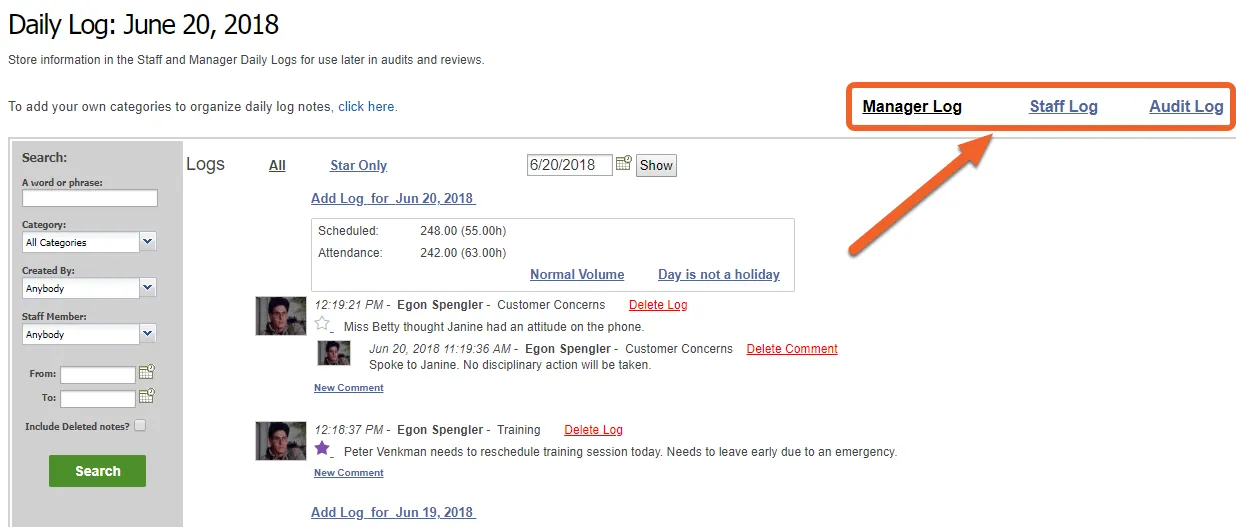
By default, the Daily Log will open up the Manager Log. For this example, let’s select the Staff Log by clicking the link in the upper right of the page:
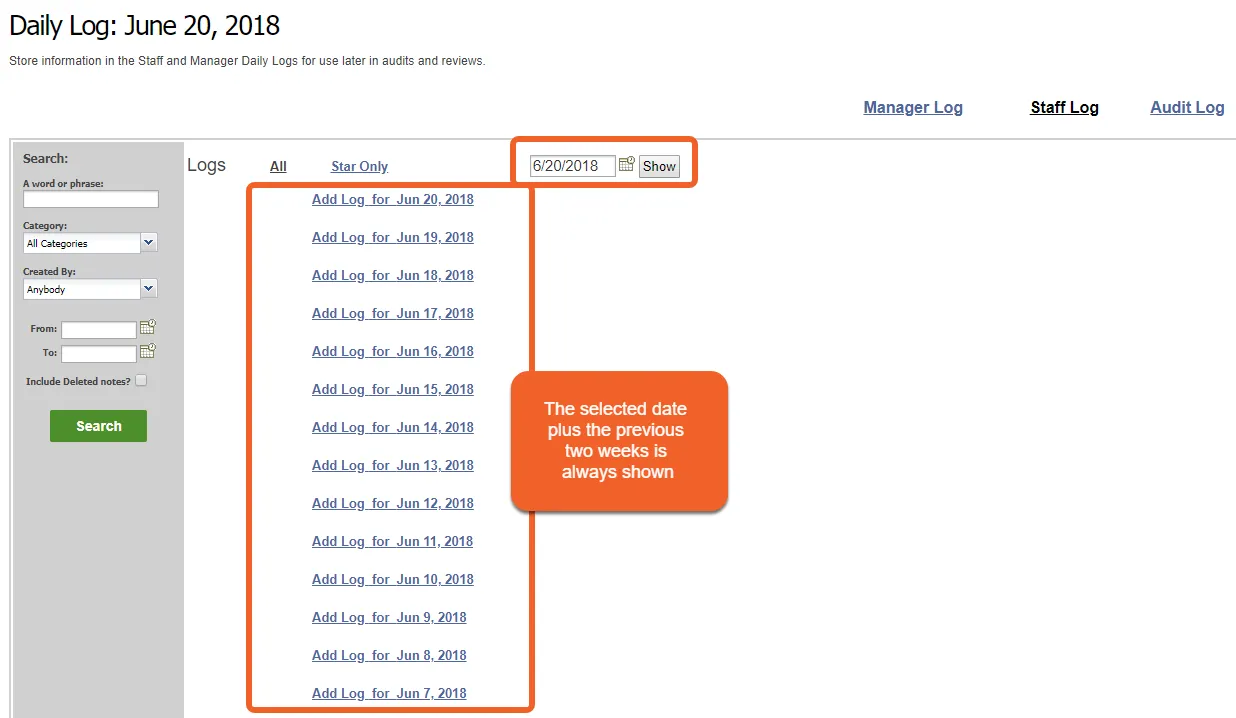
(Optional) Use the date picker to select a previous date
The date picker is useful if you’d like to add (or review) a log entry for a specific date in the past. The Manager and Staff logs always show entries for the previous two weeks from whatever date is selected. The default date when you visit the log is always the current date.
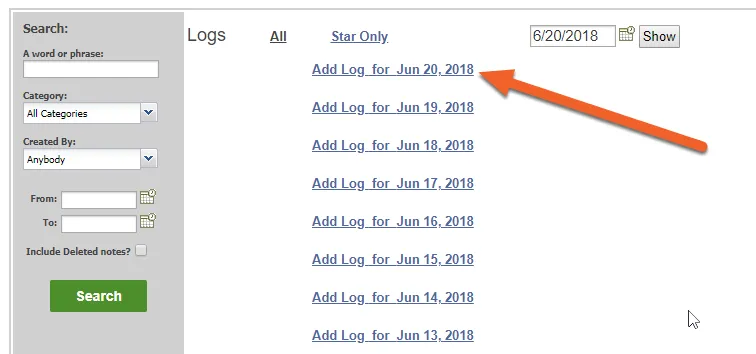
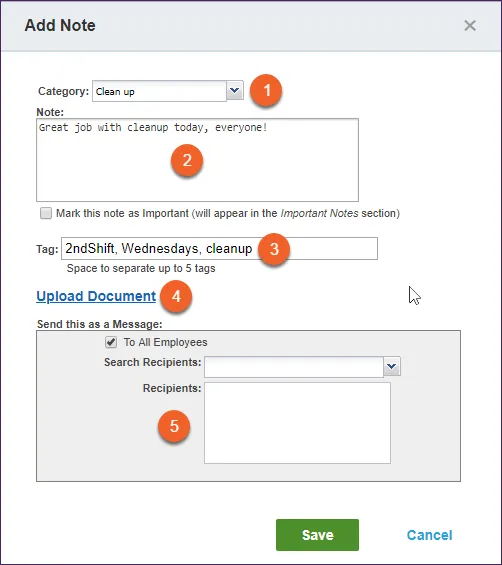
Write the body of your note/log entry, including any details you want staff members to see (remember, this is a Staff Log note, which means it’ll be visible to employees in TimeForge). To mark the note as important, check the box directly below this section.
Add any tags to help label the note and make it easier to find with searches.
Upload a file, such as a photo, image, or checklist form.
Indicate whether you’d like to send the note to employees as a message and, if so, to whom.
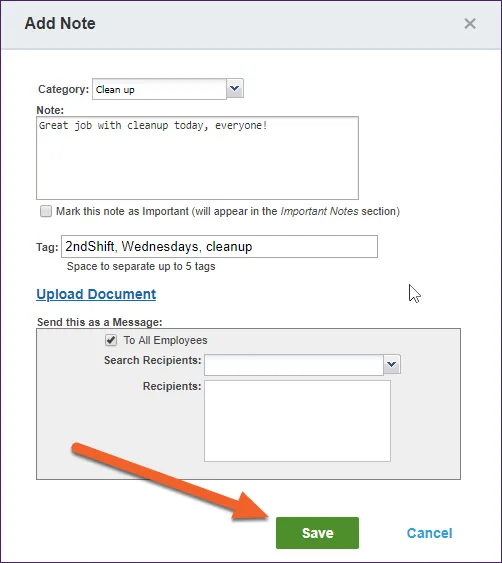
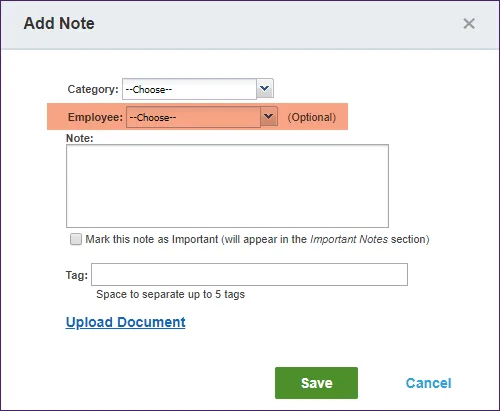
The entry forms for the Manager and Staff logs are very similar! They both include a category and note, and they both support tags, uploaded documents, and being marked as important.
However, Manager notes differ in that they can be written about a specific employee (see highlighted area in the image below). Also, because Manager notes are only visible to management, there’s no extra form fields to share the note with staff.
The TimeForge Daily Log is the perfect tool to help communicate information with employees and other managers. Viewing entries in the Daily Log is simple! Read on to learn how.
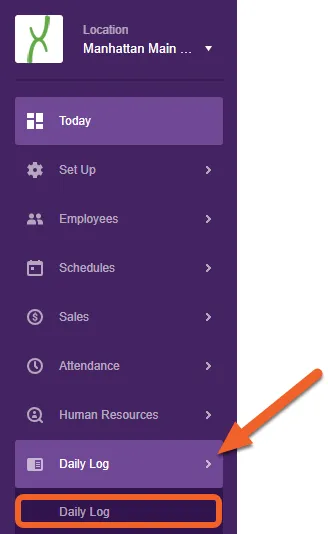
By default, the Daily Log will open up the Manager Log, which contains notes made by management, for management. To view the Staff Log (notes from management to employees) or the Audit Log (automatic notes about changes made in TimeForge), use the links in the upper right corner.
Viewing Manager and Staff Logs
Select the day for which you would like to view log entries
The Manager and Staff Logs always show the last two weeks’ worth of log entries by default, with the current date (and most recent notes) at the top of the page.
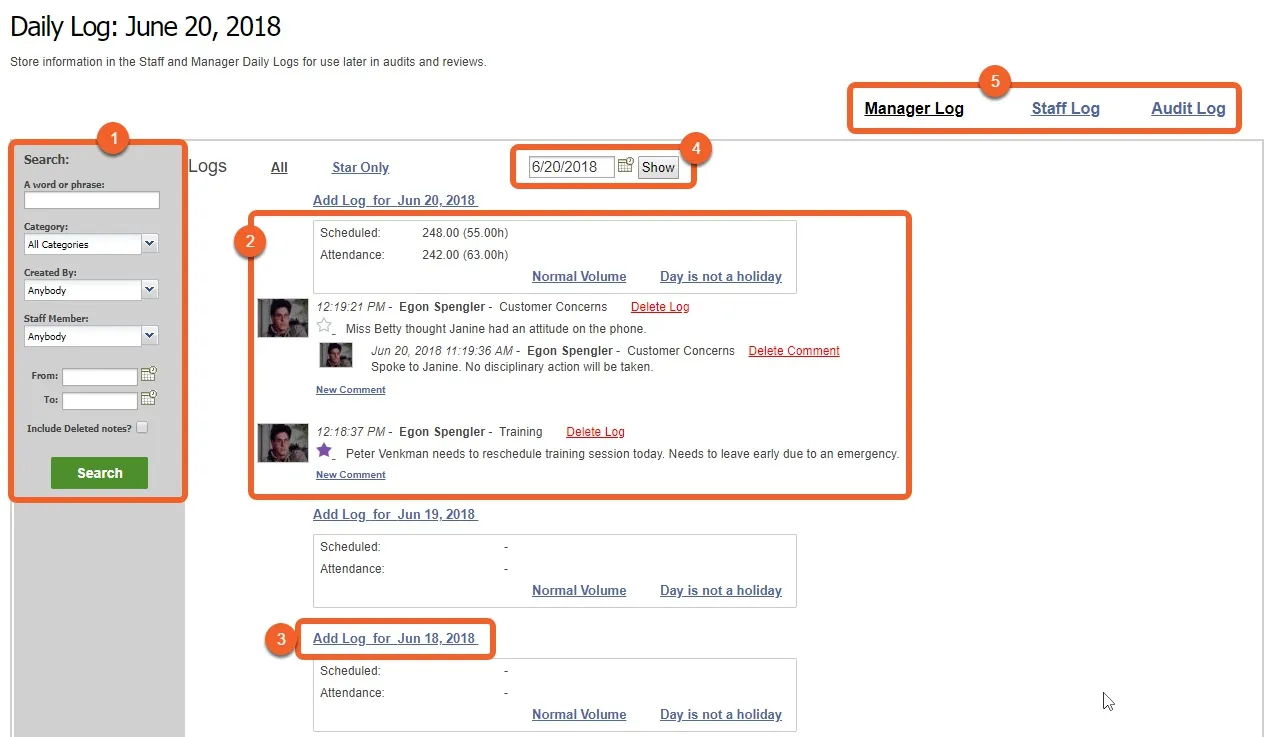
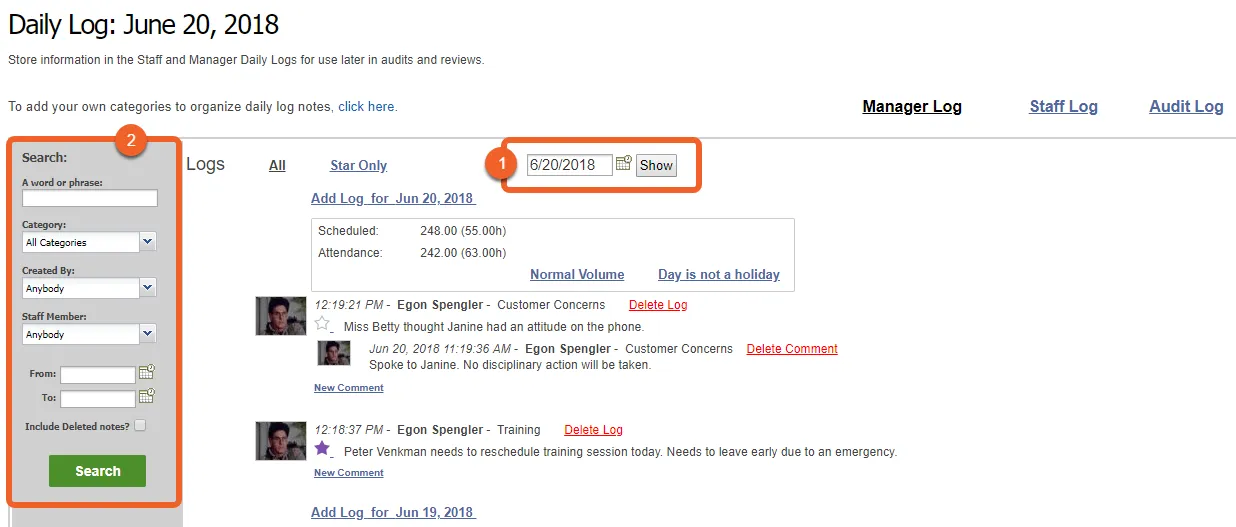
To view the logs for a different day, use the date picker at the top page (1), or use the search feature to search for logs between a range of dates (2).
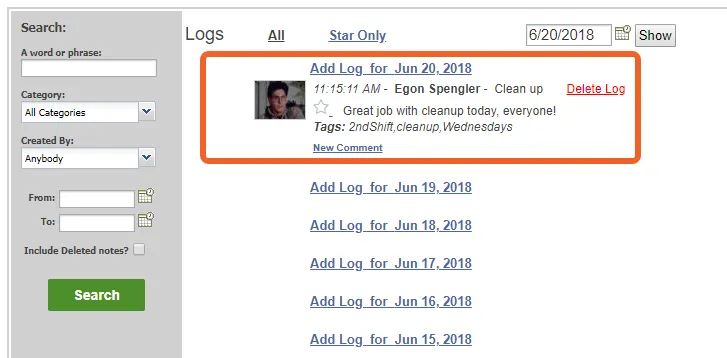
If you used the date picker, you can simply view the selected date’s logs at the top, followed by the previous two weeks. You’ll see all comments, as well.
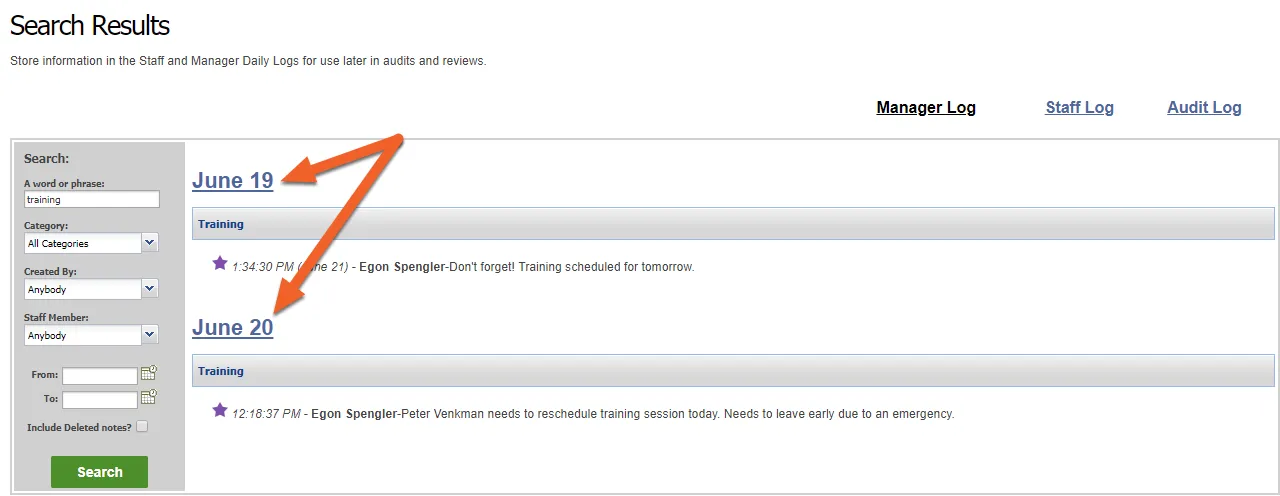
If you used the search feature, you’ll be shown relevant entries matching the criteria you entered. You can click on a date to be taken to that day as if you’d selected it in the date picker. This will allow you to see all comments associated with that entry, as well as additional information only visible on the main screen (e.g. Schedule, Attendance, Volume for that day, etc.).
Viewing Audit Log Entries
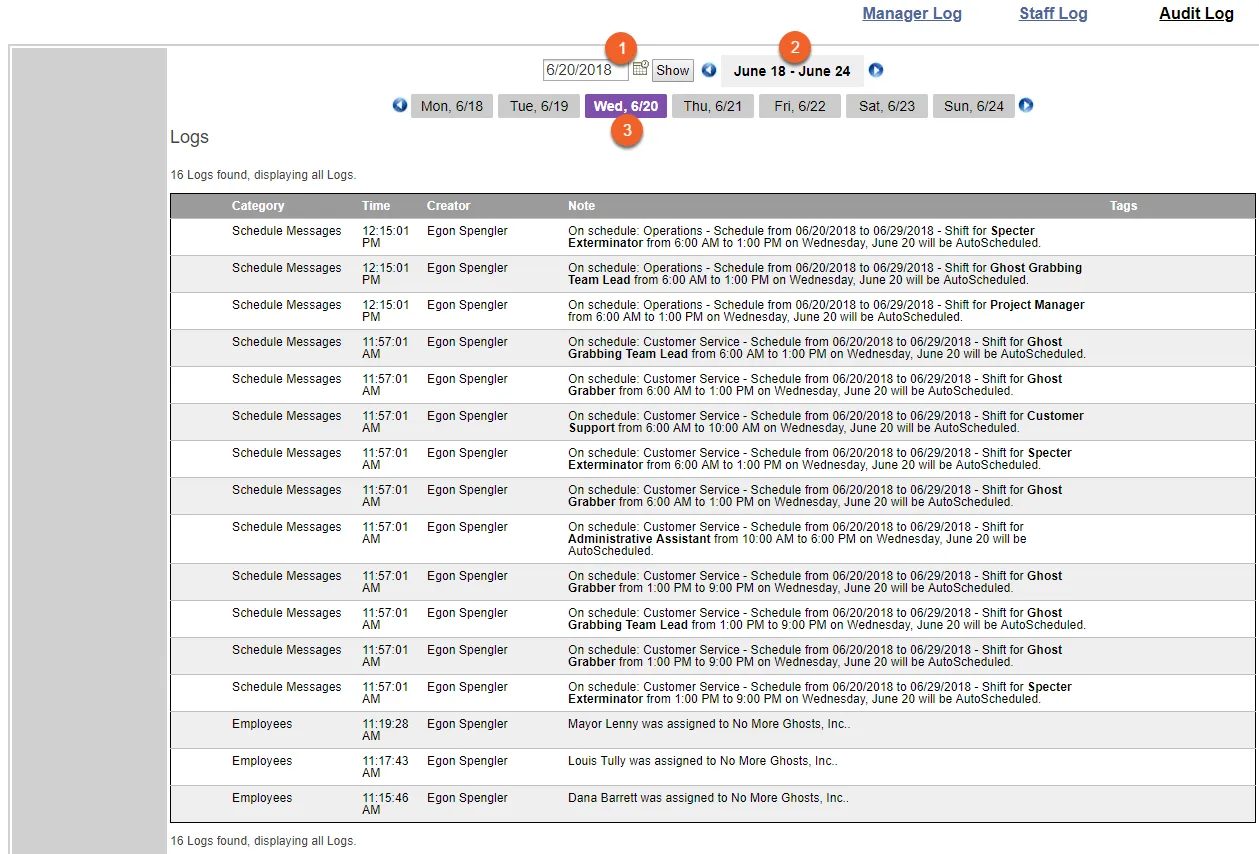
The Audit Log is a little different from the Manager and Staff Logs because all of the entries in the Audit Log are recorded automatically by TimeForge and include important information about schedules (who created the schedule, for what positions, and when) and employee changes (new hires or transfers, for example). Since there are typically a lot more notes, there are more options for browsing them, too!
Date picker.
Month selector.
Day-of-the-week selector, with the selected date highlighted.