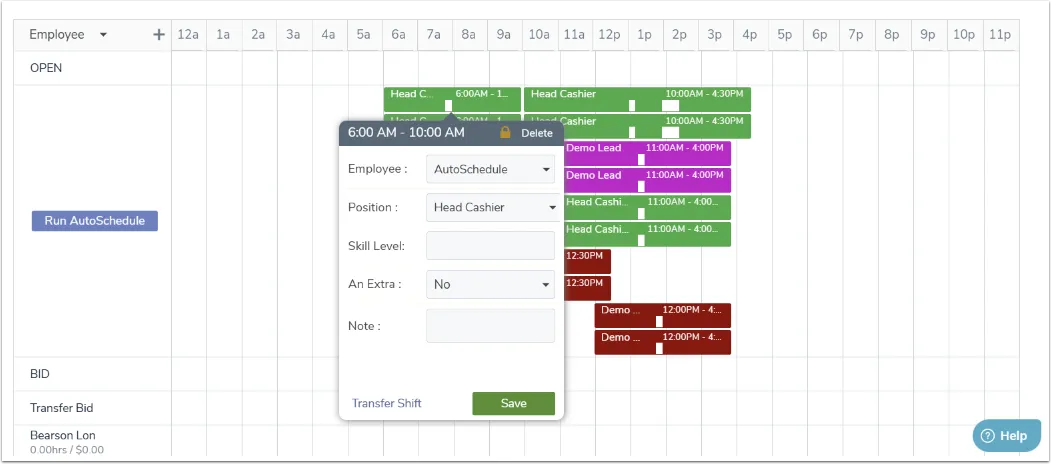
Create and assign shifts using the ShiftBuilder
There are many ways that you can build an employee schedule in TimeForge. Whether you want to build shifts yourself, use templates to expedite the scheduling process, have the AutoSchdeduler automatically assign shifts for you, or have the ShiftBuilder automatically create employee shifts, TimeForge will save you time and headaches when creating a work schedule.
One unique feature to the already powerful ShiftBuilder is the ability to generate shifts based on manager projections. Doing this is easy and will better control your labor costs by essentially putting your work schedule on a budget.
The first thing you’ll need to do is set up some Manager Projections. Then, follow these steps to use the ShiftBuilder to generate shifts based on those projections.
Navigate to the Schedules page
Section titled “Navigate to the Schedules page”After you input some manager projections, make your way over to the Schedules page under the Schedules tab.
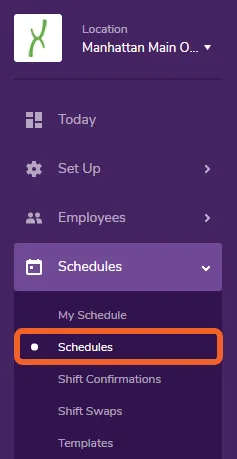
Create a new schedule
Section titled “Create a new schedule”Click the +Add Schedule button at the top of the Schedules page.

Enter the schedule information
Section titled “Enter the schedule information”The boxes with asterisks next to them are mandatory fields.
- Select the dates your schedule will start and end.
- Choose a title for your schedule (TimeForge will give the schedule a default name based on the start and end days).
- Choose which department is associated with this schedule.
- Next, choose a Sales Category.
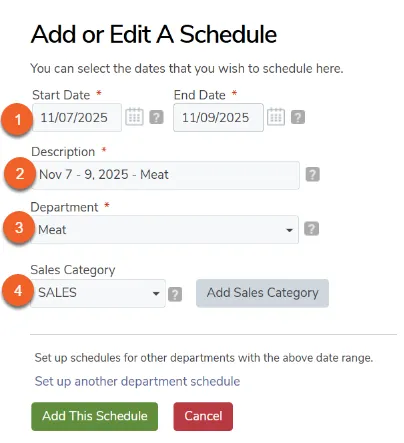
Fill out the remaining boxes as needed. Click the Add This Schedule button when done.
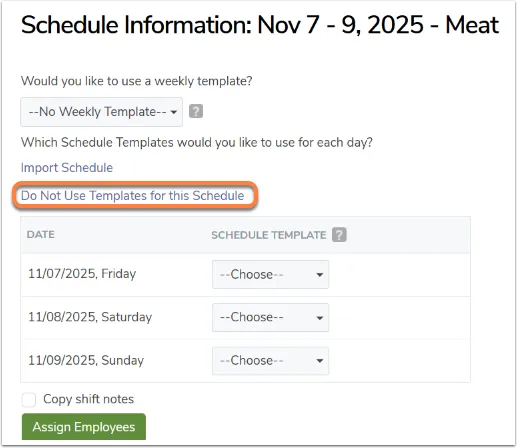
Do not use templates
Section titled “Do not use templates”Since you will be using the ShiftBuilder, click the Do Not Use Templates for this Schedule link.
Open the ShiftBuilder
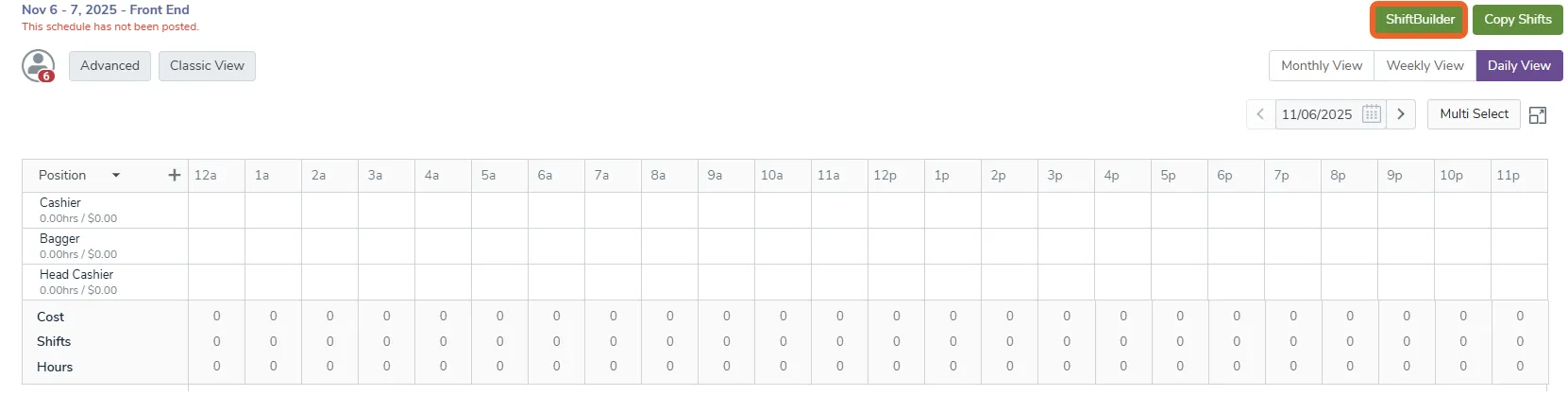
Section titled “Open the ShiftBuilder”Click the ShiftBuilder link on the top left of the page.
Enter shift information
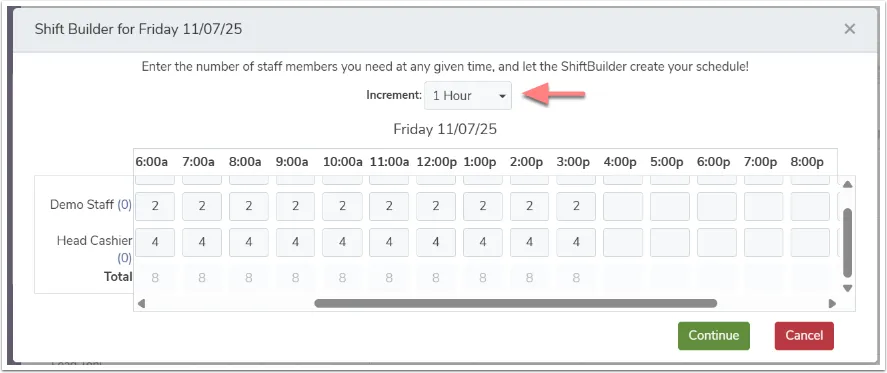
Section titled “Enter shift information”The Shift Builder pop-up will appear. Decide whether you would like to build your shift in 15 minute, 30 minute, or 1 hour increments.
Watch as your shifts are built
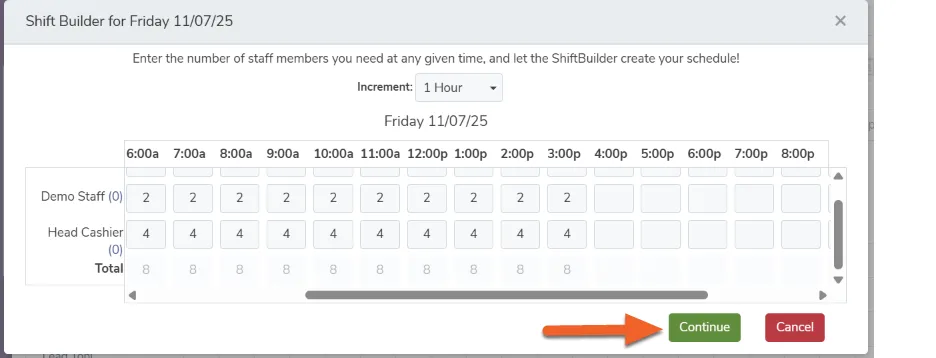
Section titled “Watch as your shifts are built”Coverage will be automatically decided based on Manager Projections. Of course, you can edit the numbers as needed.
Click Continue when done.
Preview Your Shift
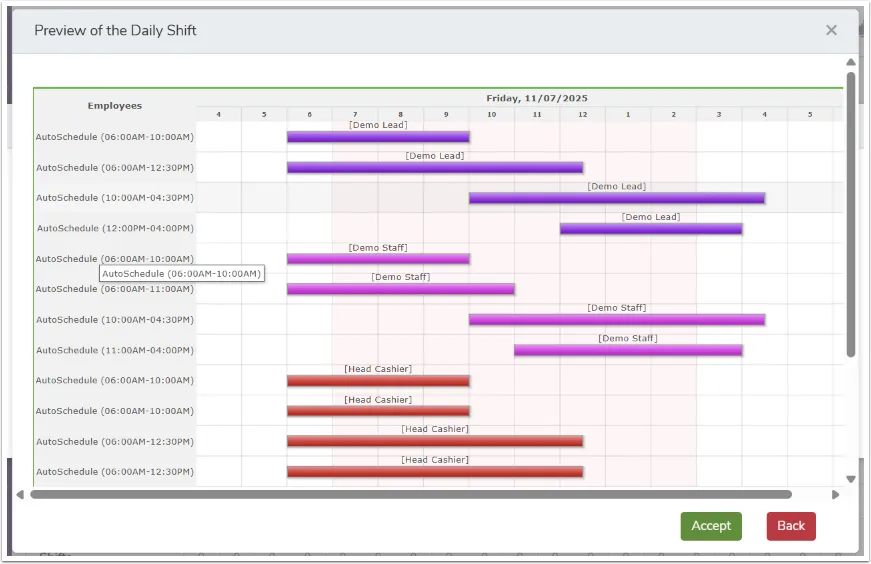
Section titled “Preview Your Shift”Preview the daily shift to review all assigned employees and shift times. Once verified, click Accept to confirm or Back to make changes.
Your shifts are now built!
Section titled “Your shifts are now built!”You can now assign an employee to each shift or let the AutoScheduler find the best fit.