Automatically approve Bid Shifts
Bid Shifts are a way to allow employees to build their own schedules in TimeForge, saving you the hassle of needing to assign staff members to every shift. You can simply set a bid shift for a specific time and date and let your employees build part of their own schedule.
For example, a bid shift can be picked up by several qualified employees – providing management with a choice of multiple employees who want to work that shift. Bid shifts are then approved by management, and employees can choose to be notified, or not, about the approval (or denial) of the shift.
Alternatively, bid shifts can be set up be approved automatically. This is a great feature if you don’t need to be directly involved with the decision of who wins a bid. With automatic approval, the first person to make a bid is always the winner.
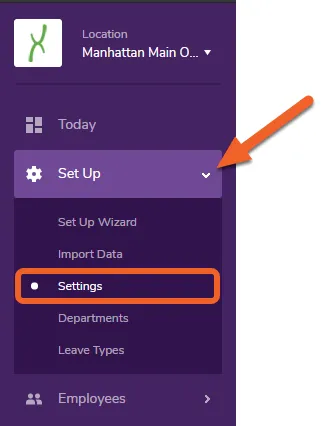
While at the Location level, open the Set Up tab and select Settings from the dropdown menu.
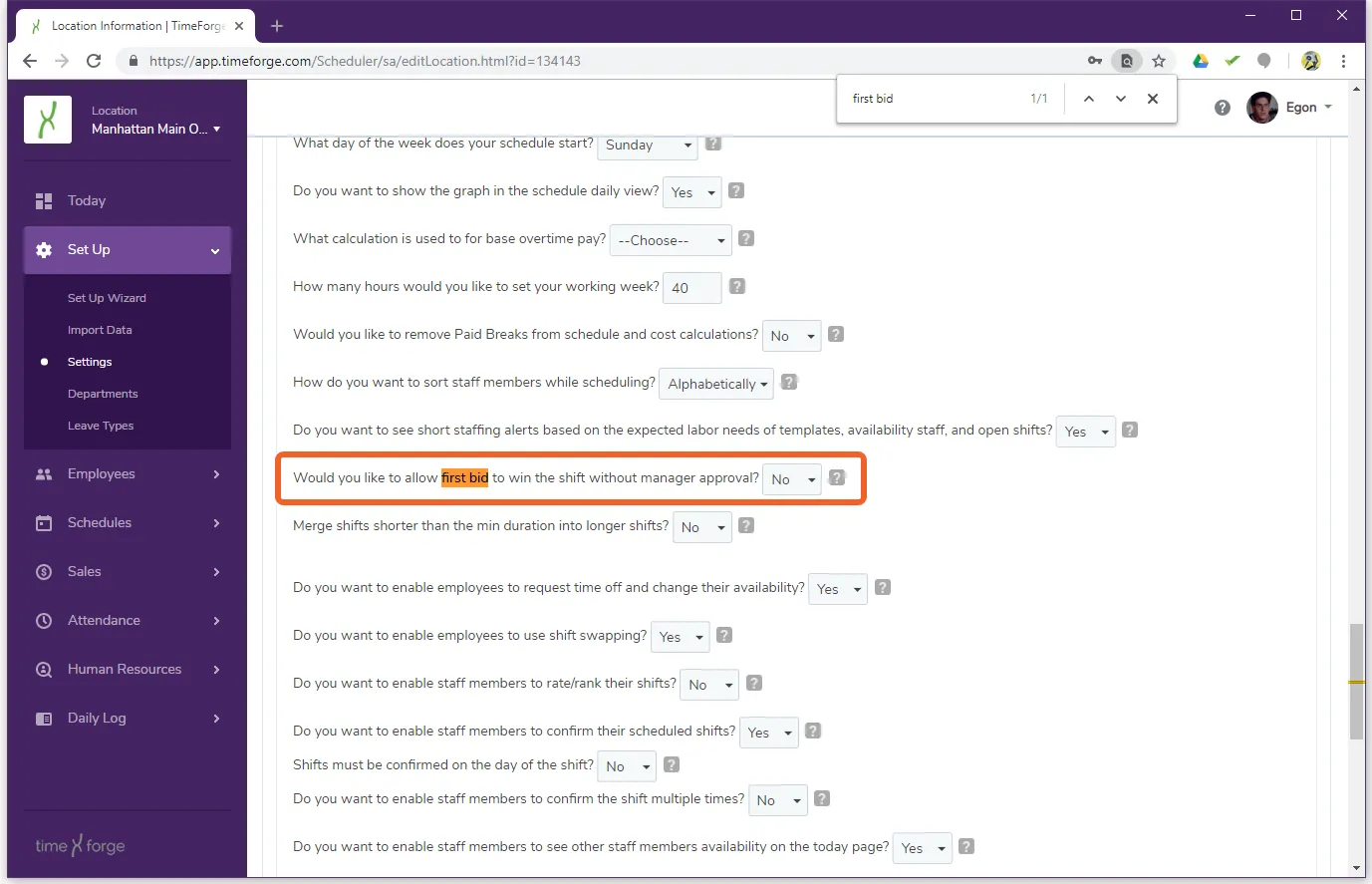
The option to automatically approve bid shifts is located near the bottom of the page.
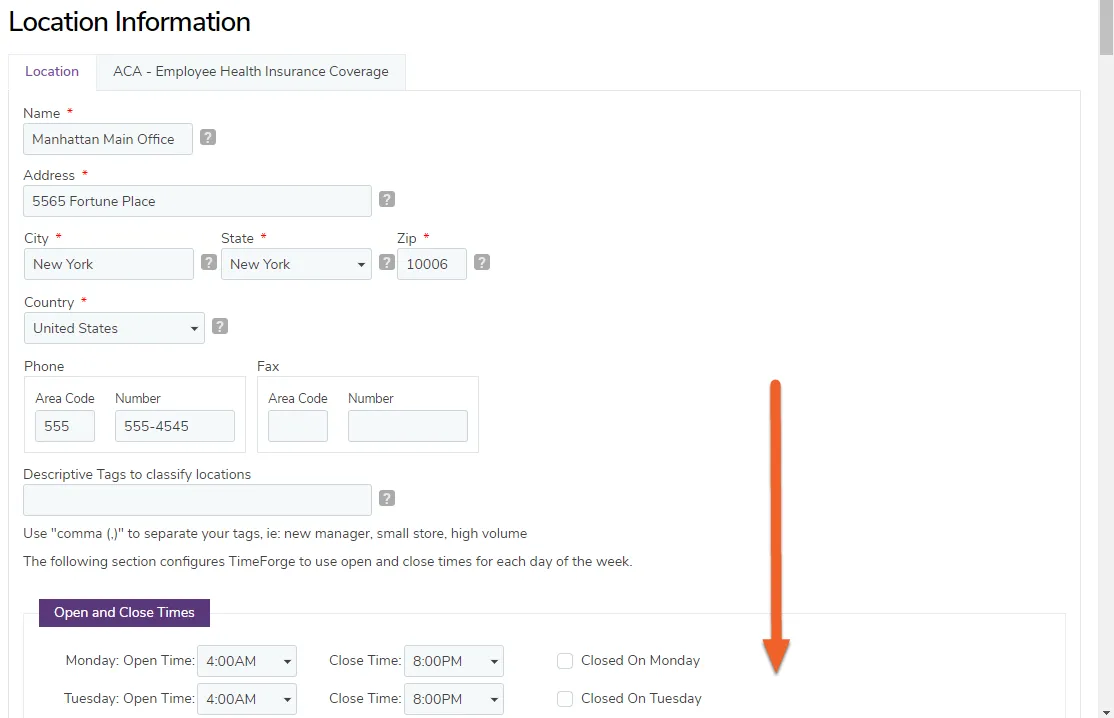

Don’t forget to scroll down and click the Save button to save your changes!
Restrict supervisors' access to personal information
TimeForge gives you the ability restrict access to personal information. With different security levels between managers, supervisors, and employees, TimeForge already has some built-in security that helps prevent unwanted access to confidential information. For instance, an employee is not able to see pay rates, make schedules, or edit attendance entries unless you specify otherwise.
Similarly, a Supervisor has access to schedules and attendance and most everything a Manager has access to (by default but this can be changed), but is unable to see confidential information like the pay rates of other Supervisors/Managers unless you specify differently.
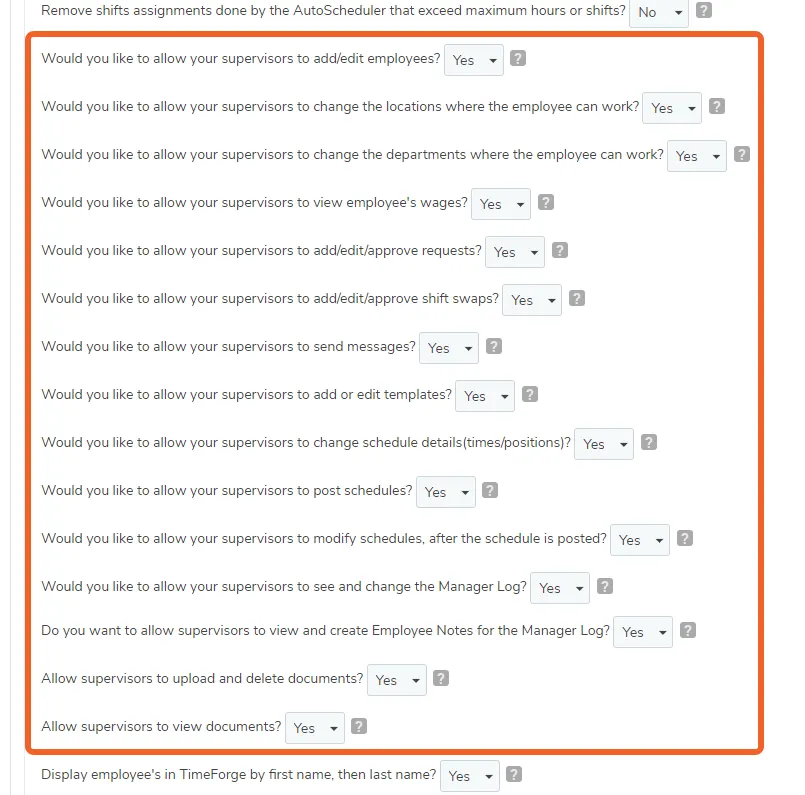
There are many options that can be customized for supervisors. Some of these options can be customized with security templates. Other options are listed below, and can be found on the “Settings” page.
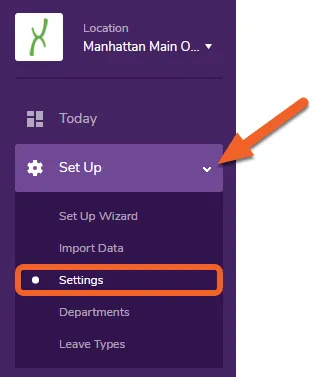
While at the Location level, open the Set Up tab and select Settings from the submenu.
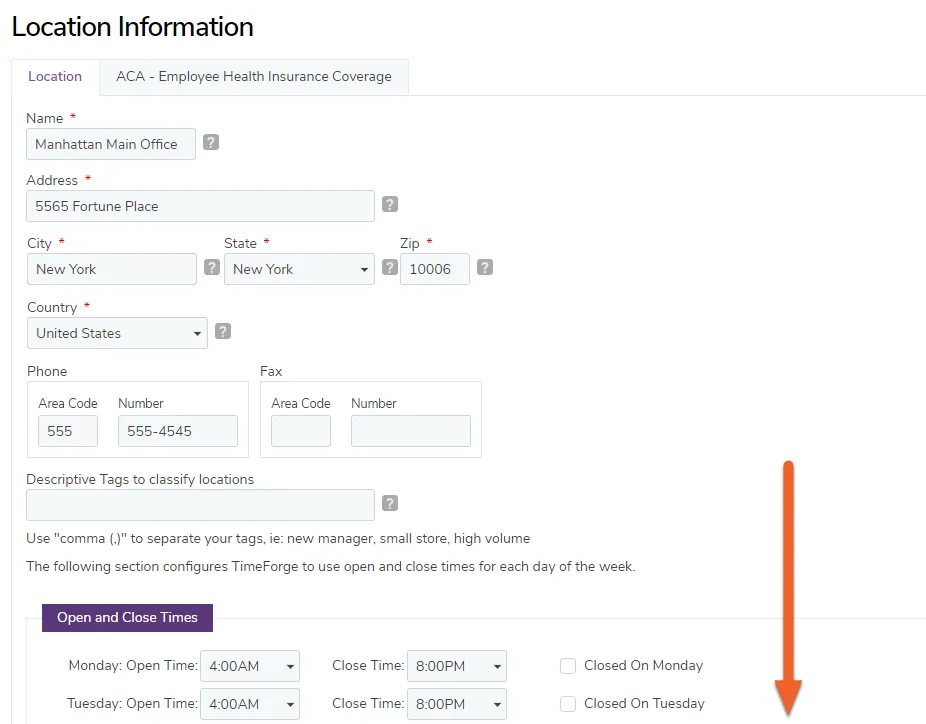
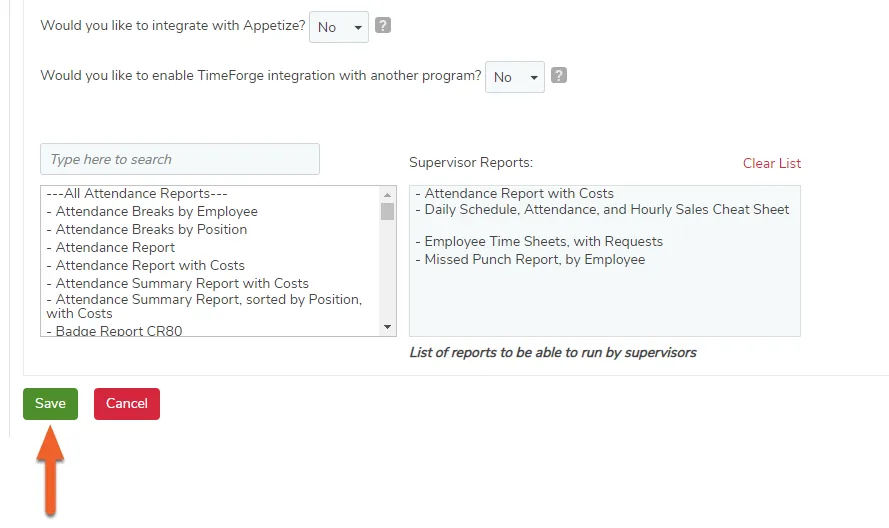
These options are located half-way down the page. If you don’t want your supervisors to have special access, you can designate which information is restricted here.
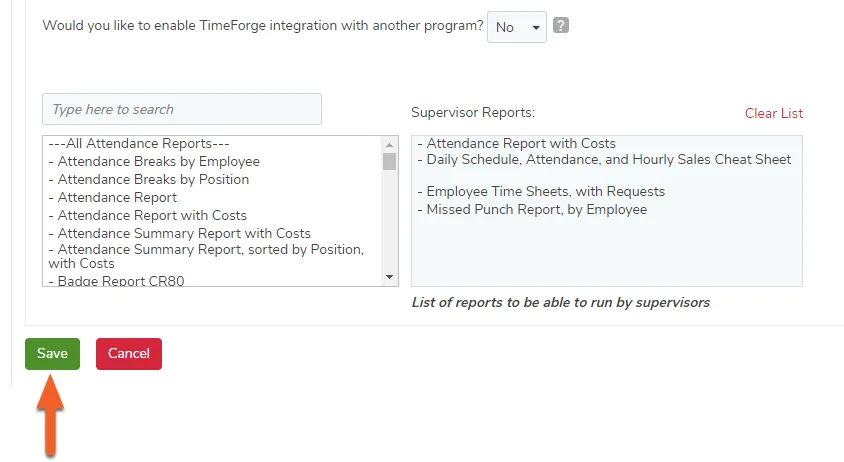
Don’t forget to click the Save button at the bottom of the page when you’re done. This will save your changes.
Turn off shift confirmations
In TimeForge, shift confirmations allow employees to confirm that they will work a shift for which they are scheduled, notifying management that they “got the memo.” You may want to turn off shift confirmations if your business does not need employees to confirm their scheduled shifts. By turning off shift confirmations, employees will no longer have the option of confirming their scheduled shifts.
Here’s how you can easily disable confirmations.
From the Location level, open the Set Up tab and select Settings from the submenu.
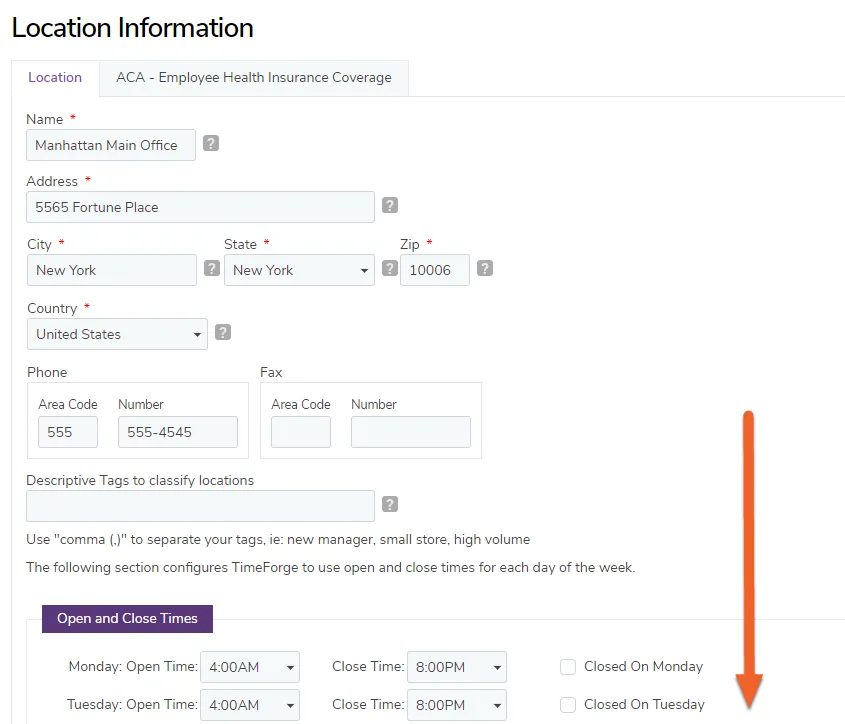
Find the option that says “Do you want to enable staff members to confirm their scheduled shifts?”
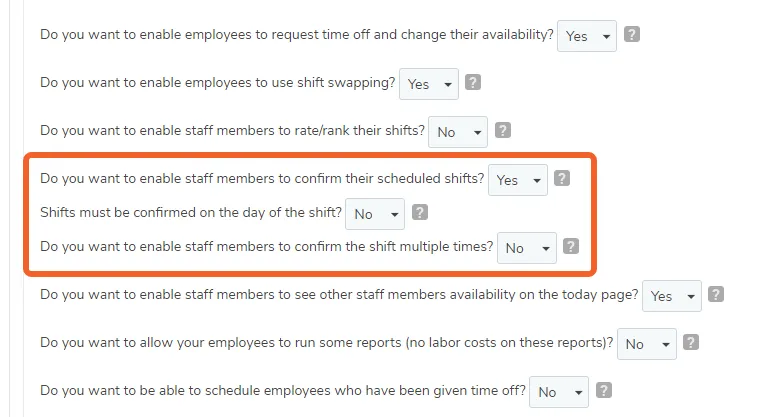
Select No to turn off shift confirmations. (This will also hide the two other shift confirmation options below it.)
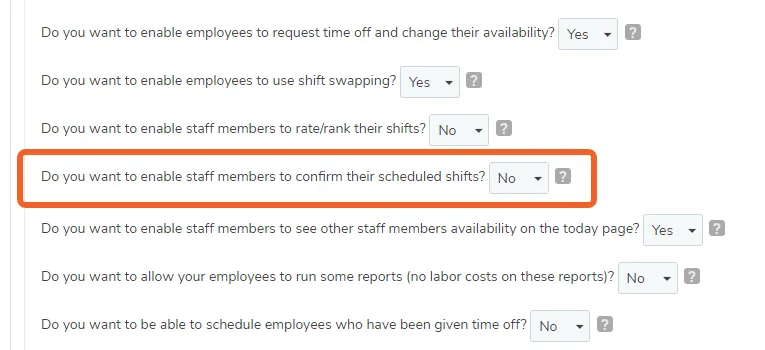
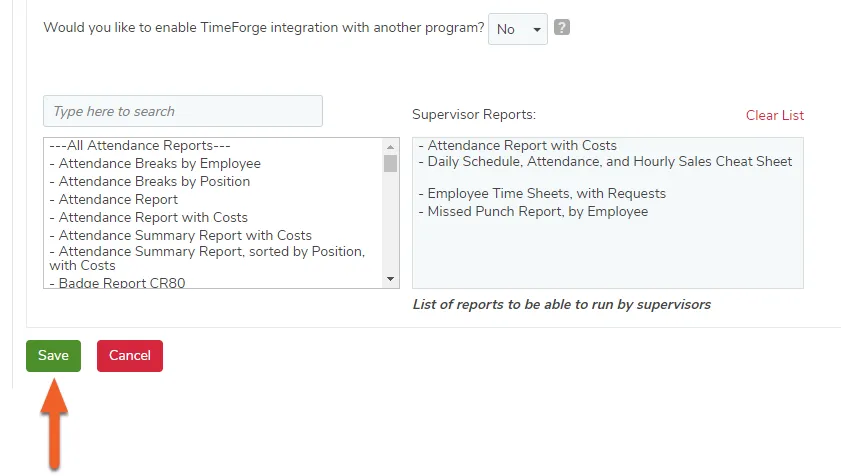
To save your changes, scroll down and click the Save button at the bottom of the page. You’re all set!
Create and modify Age Rules
TimeForge Age Rules enable your business to adhere to company, state, or federal mandates regarding minors and seniors in the workforce. For example, if employees under age 16 are restricted from working more than 20 hours per week, TimeForge can help you set up and enforce this restriction on the Age Rules page.
Here’s how you can set up age rules for your employees.
While at the Location level, open the Employees tab and select Age Rules from the submenu.
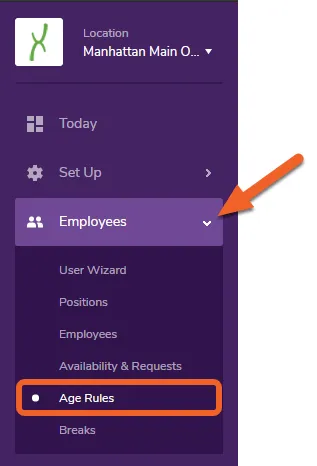
Age Rules can be applied to an entire location or can be applied to individual employees.
Age range-based rules are located at the top of the page. Click the + Add Age Rule button to create a new rule or click on a card to edit an existing rule. (If you’re in list view, you’ll see an Edit link instead.)
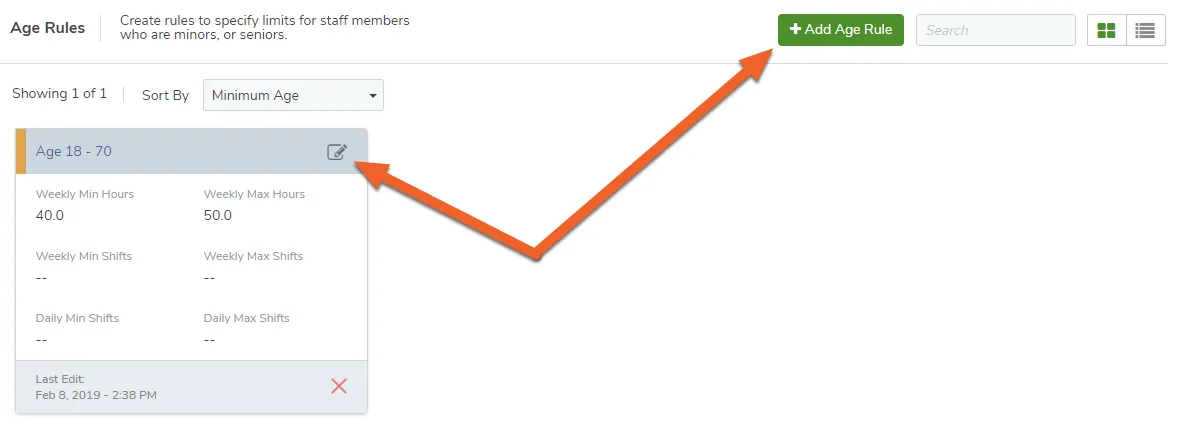
In the example below, we’ve set an age range of 18-70 years and have specified minimum and maximum hours that may be worked by employees that fit this rule. We’ve also set the maximum number of shifts that may be worked in a week.

Don’t forget to hit the Save button to save your changes!

Age Rules that you will apply to individual employees are under the Age Rules for Individual section.
Click the + Add Age Rule button to create a new rule or click on the Edit link to edit an existing rule. (If you’re in grid view, you can just click on the card, as in the example above.)
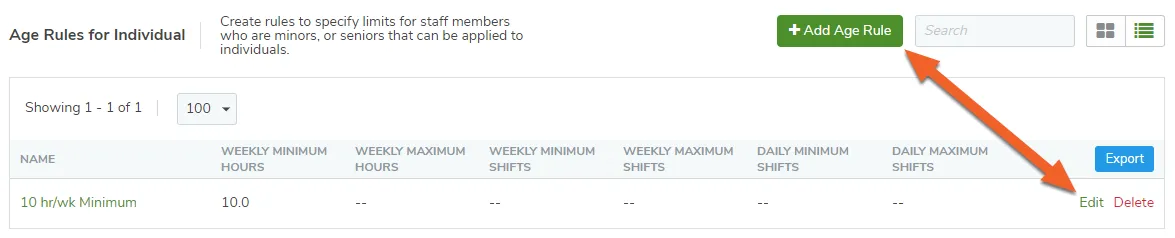
Below is an example of a custom Age Rule that can be applied to one or more individual staff members. Notice that the Name field is the name of the rule, not the name of a staff member. This is because a single age rule like this one can be applied to as many or as few employees as needed!

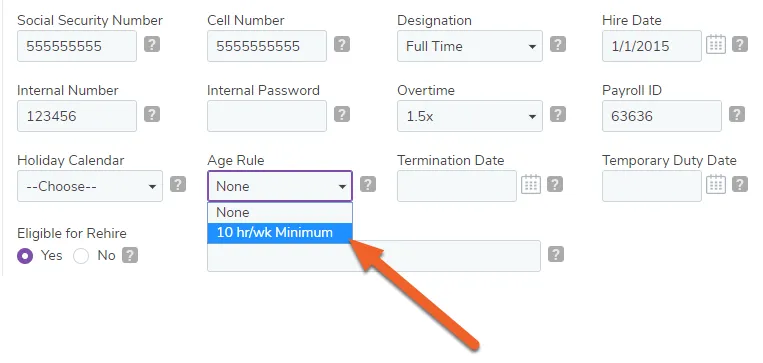
To apply an age rule to an employee, open up their profile and select an Age Rule from the dropdown menu:
Don’t forget to save your changes at each step of the way!