Attach files and images to items on your checklists
TimeForge’s task management solution allows you to rank, comment on, and upload files to a task that has been created in the system. Our file upload feature helps managers as well as employees keep track of activities they complete or work on throughout the day. This can be especially useful for documenting things like liquid spills, broken equipment, or other hazards, especially if you operate in an industry or area that requires visual documentation of workplace hazards.
This guide outlines how you can use the file upload feature to share images and documents for any tasks.
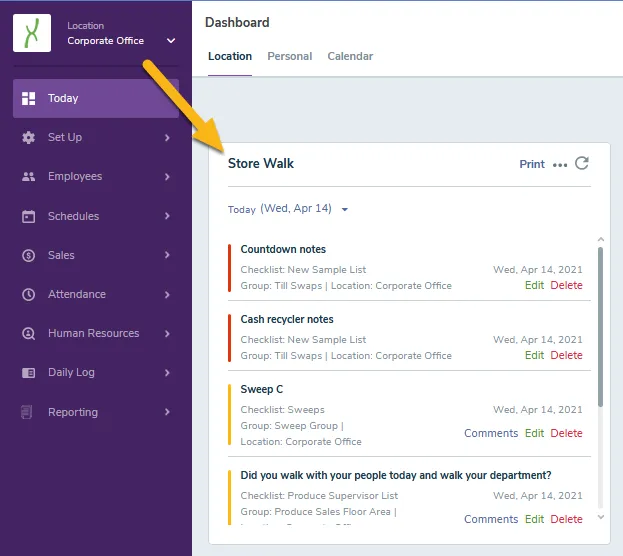
Access the “Store Walk” widget on your dashboard
Section titled “Access the “Store Walk” widget on your dashboard”You can find the “Store Walk” widget on the Today page.
If you are an employee, you can find the widget under the Personal tab.
If you are a manager or supervisor, you can find the widget under the Location tab.
Click the tasks you want to edit
Section titled “Click the tasks you want to edit”Click Edit on an item that you would like to upload a document or image to. A pop-up will appear for that task.
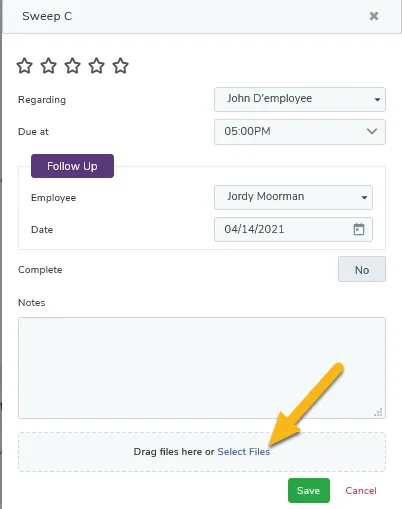
At the bottom of the pop-up, you’ll see an area that says ‘Drag files here or Select Files.’ You can click ‘Select Files’ to choose one on your device.
Select file and upload
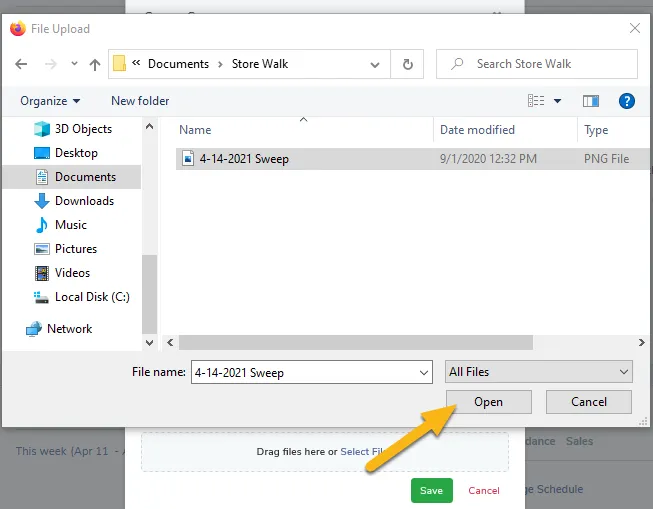
Section titled “Select file and upload”Navigate to the location you have your image/document saved and select to Open the file.
Save your changes
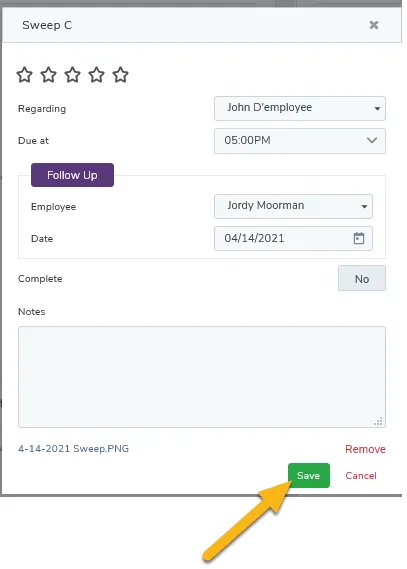
Section titled “Save your changes”Once you have selected the file you wanted to upload and added in any comments, click the Save button to update your task.
View attached documents and images
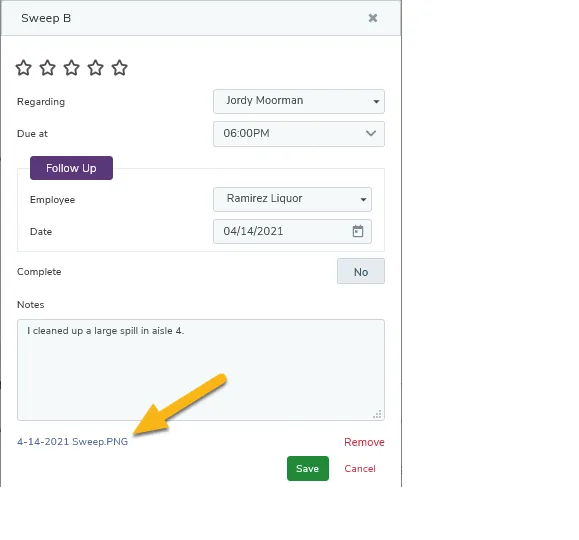
Section titled “View attached documents and images”Documents or images that are attached to an item will appear at the bottom of the item next. Simply clicking on the document or image’s name will open it for you to view.