

Create schedule templates
To quickly create employee schedules, many managers rely on the TimeForge AutoScheduler and schedule forecasts, or if they’ve got a small crew, they might build schedules manually, one shift at a time. Other managers pre-build days on the schedule using collections of shifts, called templates.
Each TimeForge work schedule template contains one or more shifts, and can be used to quickly generate schedules for staff members. Each location (or store) can have many different schedule templates (as many as are needed), and the schedule templates can be used to build new schedules.
Some examples of employee work schedule templates:
- Friday server / waiter template
- Monday night football template
- Summer weekend lifeguard template
- Christmas retail template
Navigate to the Templates page
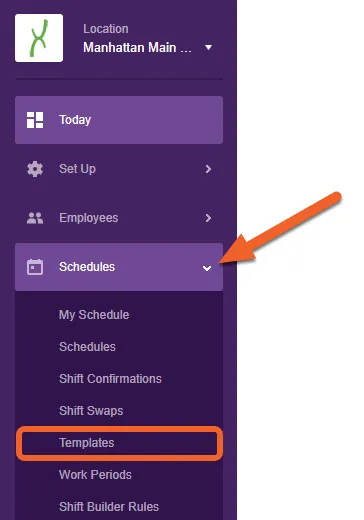
Section titled “Navigate to the Templates page”From the Location level, open up the Schedules tab and select Templates from the list.
Click the + Add Schedule Template button
Section titled “Click the + Add Schedule Template button”Employee schedule templates can be built one shift at a time, or can be copied from other templates. Additionally, a work schedule template can be created from a pre-existing schedule, and if departments are enabled, each department will have individual schedule templates.
There are no limits to the number of schedule templates that can be created at a location.

Create a schedule template for any length of time
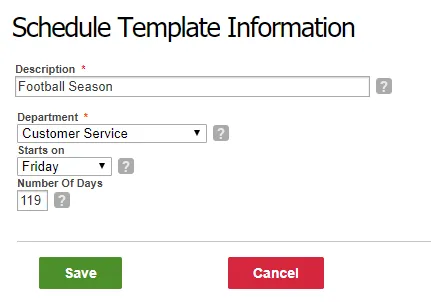
Section titled “Create a schedule template for any length of time”Work schedule templates can be made for any length of days and for any department.
Fill out the form and click Save when done.
Build your schedule template
Section titled “Build your schedule template”Create your work schedule template just as you would build any employee schedule. TimeForge makes it easy by showing you right where to start: STEP 1.
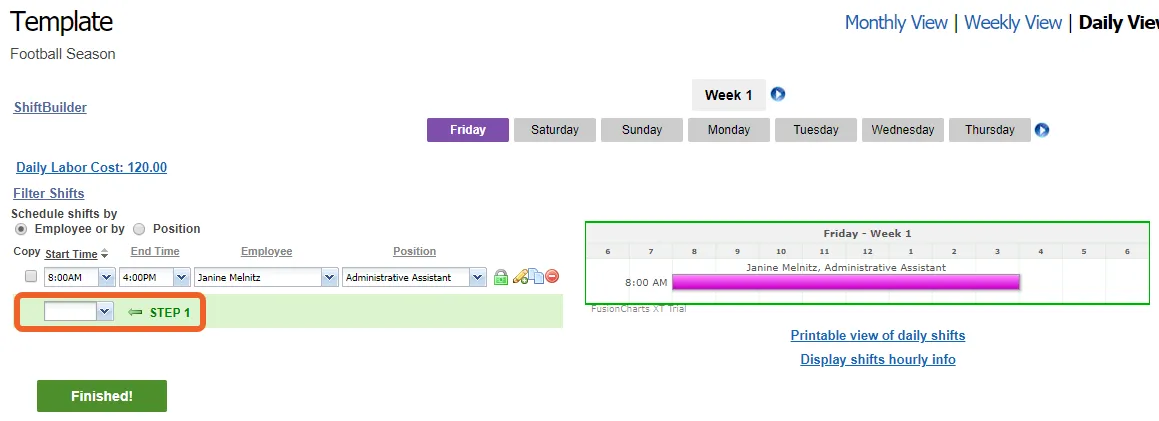
Be sure to click the Finished! button when you’re done.