Clock in, out, and take breaks in TimeClock Mode
While in TimeClock Mode, the Manager App acts like a mobile timeclock, allowing you to clock employees in or out at will. This article will teach you how to locate an employee, clock them in, set them as on/off break, and clock them out.
For the selected location, locate an employee to clock in
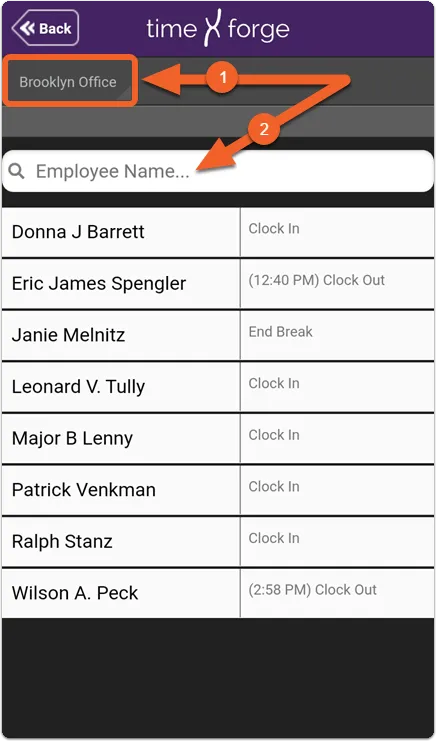
Section titled “For the selected location, locate an employee to clock in”- First, make sure you have the right location selected. To select a different location, use the location selector in the upper right.
- Once you have the correct location selected, you can either browse the list for an employee (if your list is short) or use the search bar (great for long lists).
Clock in the employee
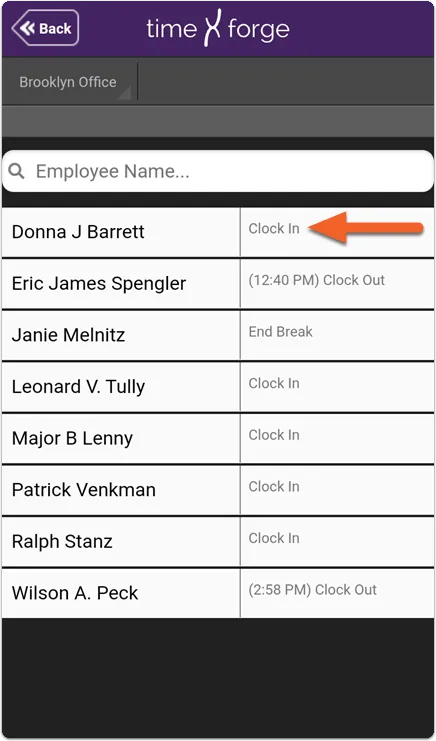
Section titled “Clock in the employee”Next to the employee’s name, tap the action bar where it says Clock In.
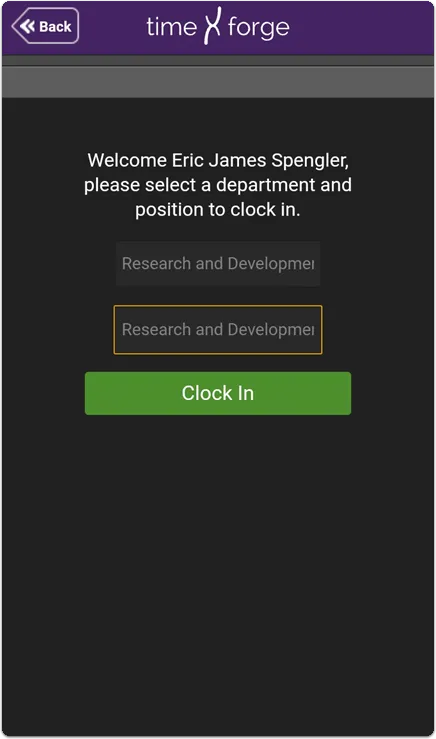
Select the department and position for this employee, then tap Clock In to complete the process.
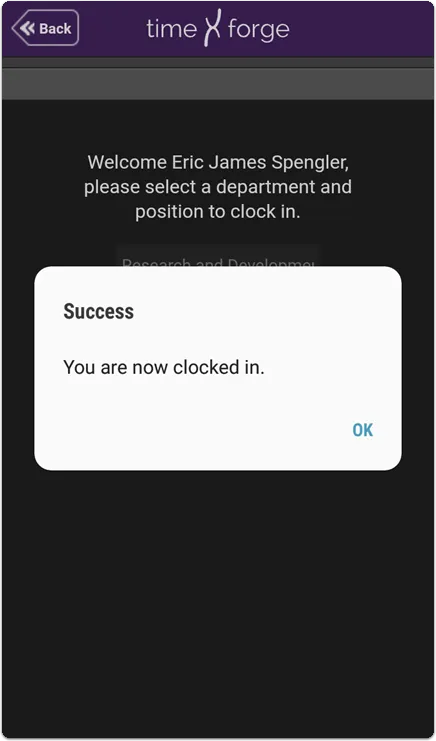
Tap OK to acknowledge the successful clock-in. You will be returned to the employee list, which should now be updated according to the employee’s new status.
Start a Break
Section titled “Start a Break”Starting a break is simple! Locate a clocked-in employee and tap the action bar next to their name.
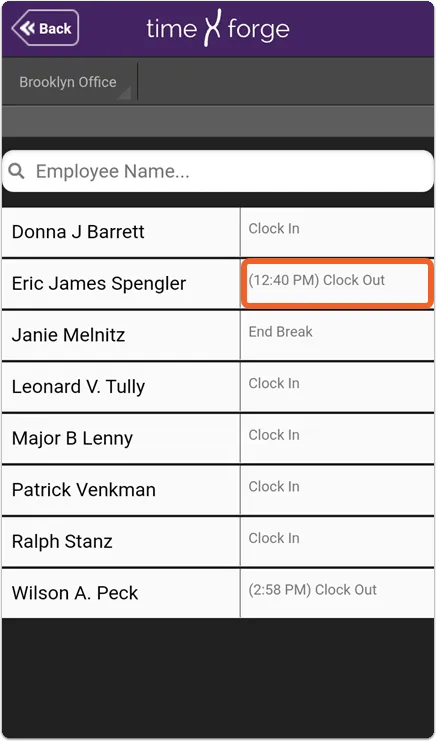
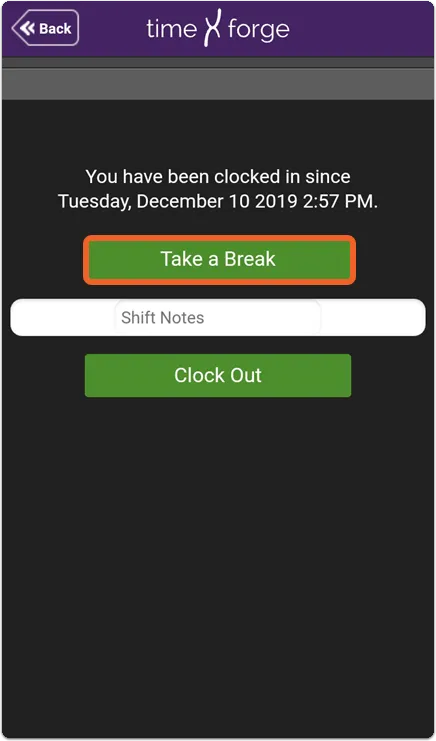
The action bar will say “Clock Out,” but when the options appear, we’ll actually choose Take a Break.
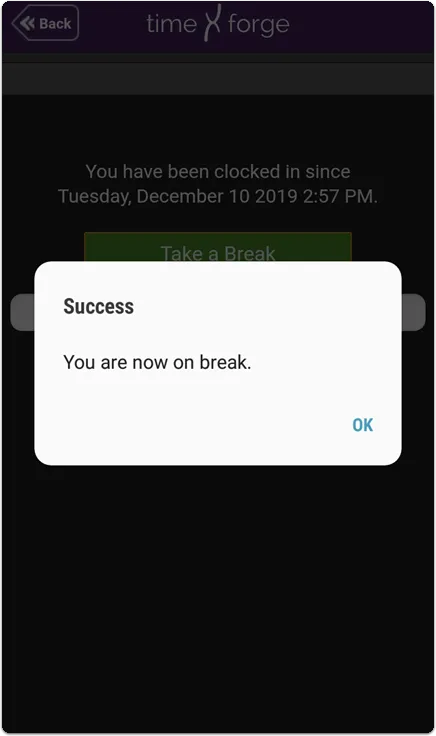
Tap OK to acknowledge the successful break message. You will be returned to the employee list.
End a Break
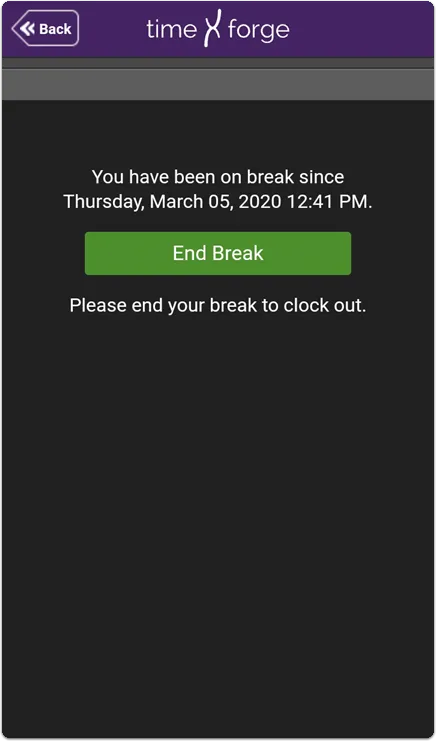
Section titled “End a Break”To end a break, locate the employee and tap the action bar, which should say “End Break”.
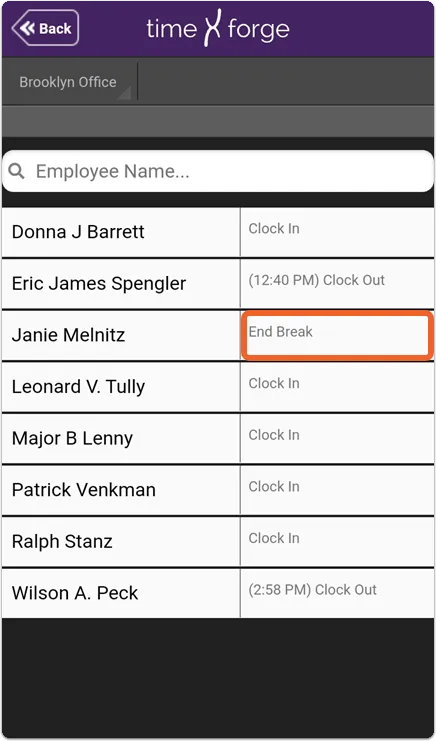
Then, tap the End Break button.
Clock out
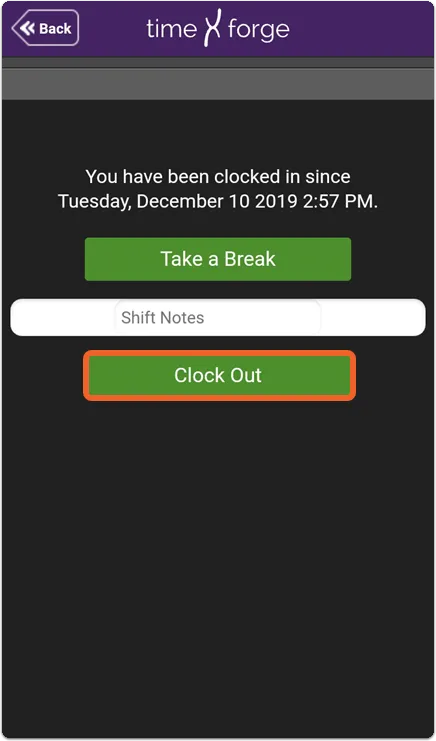
Section titled “Clock out”Clocking out is as easy as ending a break. Find the employee you’d like to clock out and tap the action bar (should say “Clock Out”) next to their name:
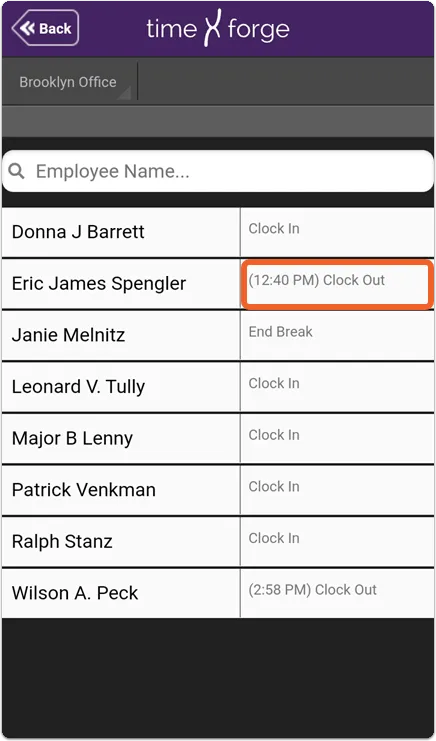
Then, type in any Shift Notes (optional), and tap the Clock Out button to complete the clock-out.