Assign an Internal Number and Internal Password to an employee
Internal Numbers and Internal Passwords can be used in a few different areas of TimeForge to allow users to clock in and out of the system. This can be useful in situations where an employee has difficulty clocking in on a Biometric TimeClock due to callused fingertips, for example.
Assigning an internal number and internal password for employees is simple and only takes a couple of clicks. This can be done from the employee’s profile.
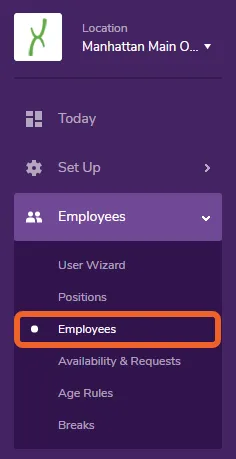
Open the Employees tab and select Employees
Section titled “Open the Employees tab and select Employees”The first step is go make our way over to the Employees page and select an Employee from our roster.
Edit the employee
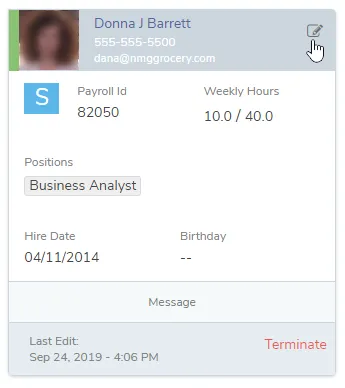
Section titled “Edit the employee”Find the appropriate employee and click their profile card (Grid view, shown) or the Edit button for their row (List view).
Enter an internal number and password
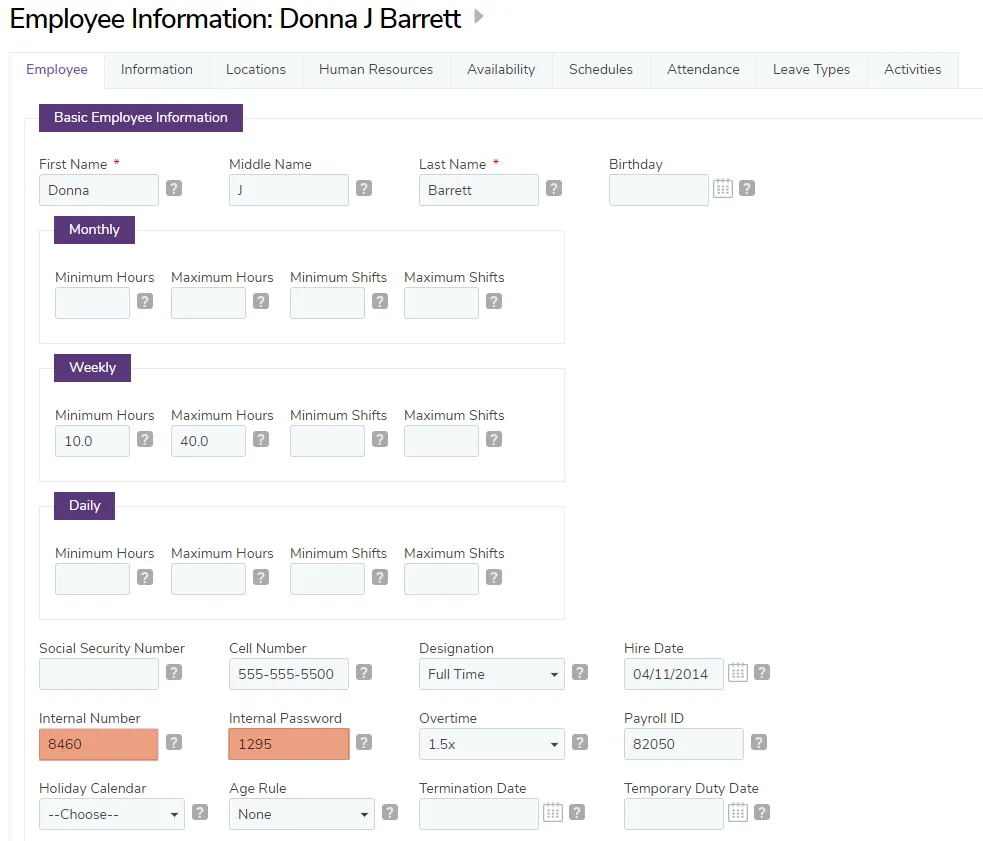
Section titled “Enter an internal number and password”Toward the bottom of the Basic Employee Information section, locate the “Internal Number” and “Internal Password” boxes. Enter a number (at least 4 digits) that is easy for your employee to remember.
You can use the same combination for both the number and the password, but for better security, we typically advise use two different combinations.
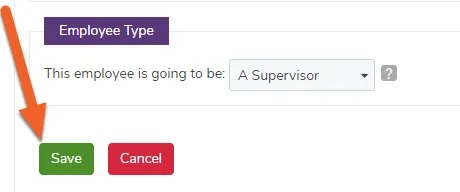
Don’t forget to save your changes
Section titled “Don’t forget to save your changes”Click Save at the bottom of the page once you’ve finished.