Move all shifts from one employee to another
You will want to move shifts from one employee to another if someone is unable to work scheduled shifts, if you prefer a different staff member to work a scheduled shift, if an employee is terminated, or for any other reason that you want to transfer shifts from one employee to another. TimeForge makes this process easy, simply follow the directions below.
Go to the Employees List
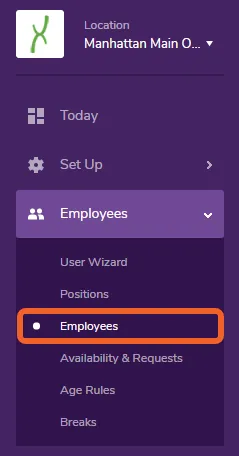
Section titled “Go to the Employees List”Open the Employees tab and select Employees from the menu. This will take you to your employees list.
Select an Employee
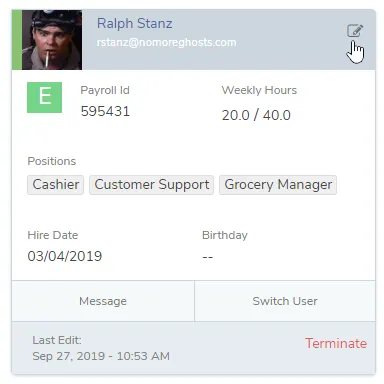
Section titled “Select an Employee”Select the employee for whom you’d like to move shifts.
Click the Schedules tab
Section titled “Click the Schedules tab”On the Employee Information page, click the Schedules tab.

Select the Shifts you want to move
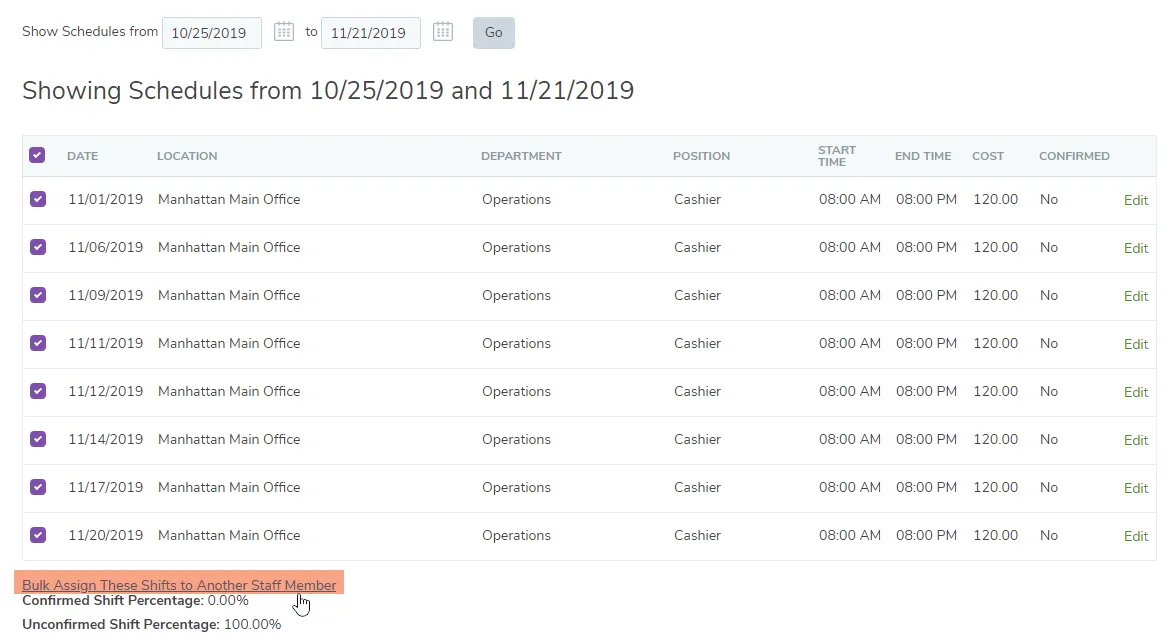
Section titled “Select the Shifts you want to move”Click on the check boxes next to the shifts you want to remove from this employee. Then, click on the think that says Bulk Assign These Shifts to Another Staff Member. (This link will only appear once you have selected one or more shifts.)
Select an Employee
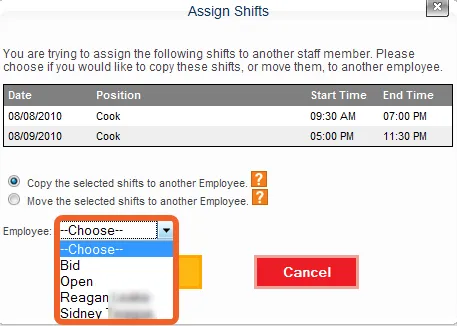
Section titled “Select an Employee”Click on the drop-down menu and select the employee to whom you want to assign these shifts.
Once you’re finished, click the Save button. The selected shifts will be reassigned to the employee you chose.