Enable and exit TimeClock Mode
The Manager App can be used as a mobile TimeClock. This is a very handy feature if the manager wishes to use this instead of a biometric device.
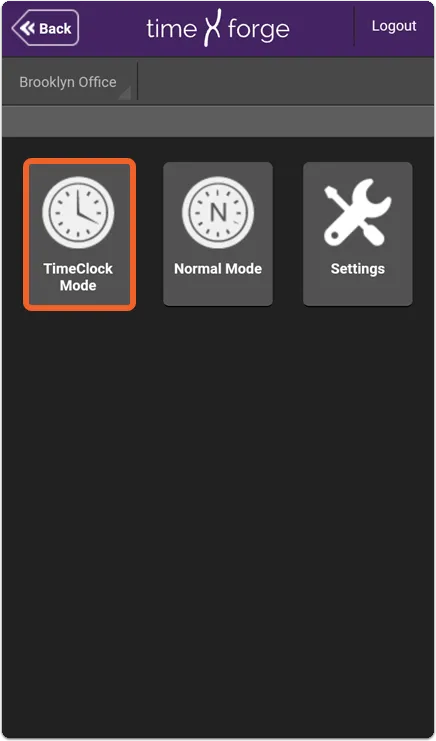
The TIMECLOCK tile has 3 buttons. These are:
- TimeClock Mode - Enables TimeClock Mode. In this mode, the manager can clock employees in or out at will from a list. Read below to learn how to enable and exit this mode on your mobile device.
- Normal Mode - Enables Normal Mode. In this mode, employees must use their own credentials to clock in/out.
- Settings - Provides a few configurable options, such as your default location and turning manager mode on or off.
Tap the TIMECLOCK tile, then tap TimeClock Mode
Section titled “Tap the TIMECLOCK tile, then tap TimeClock Mode”TimeClock Mode, Normal Mode, and TimeClock Settings are all accessible from the TIMECLOCK page in the app. From the home screen, tap TIMECLOCK.
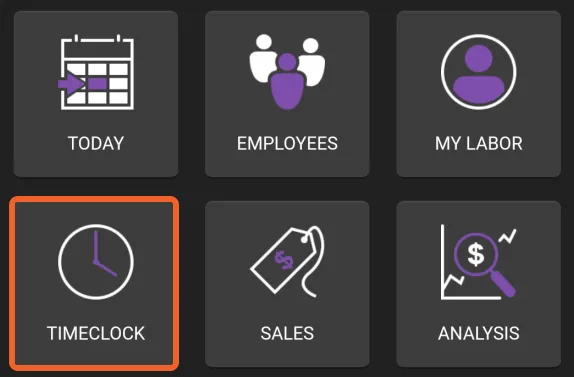
Then, tap the TimeClock Mode button to enable TimeClock Mode.
Inside TimeClock Mode
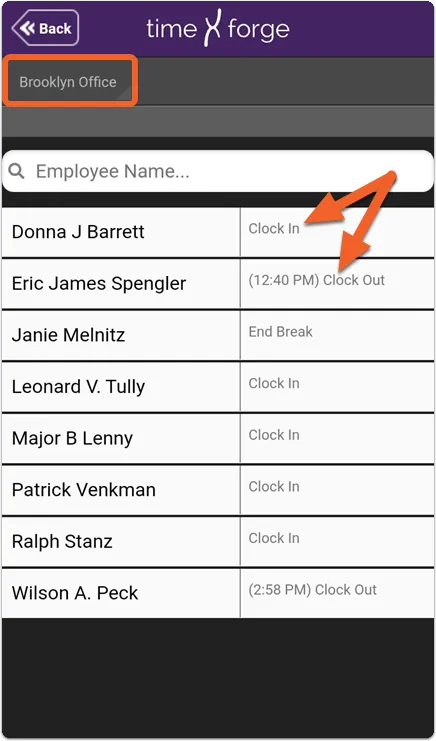
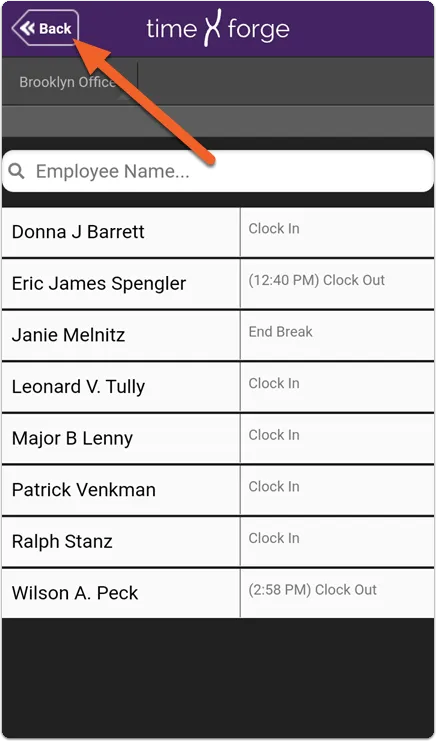
Section titled “Inside TimeClock Mode”Once TimeClock Mode is entered, you will see a list of employees for that particular location and any available actions you may take, such as clocking in, clocking out, starting a break, or ending a break.
How do I exit TimeClock mode?
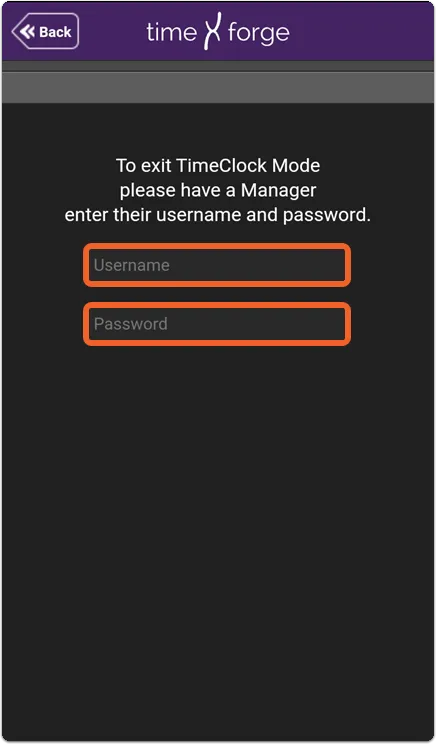
Section titled “How do I exit TimeClock mode?”To exit the page, simply tap the Back button in the upper left corner of the app.
You will be prompted for a manager’s Username and Password to proceed.