Ad-hoc reports, including hourly sales reports
Under the new Reporting tab, managers now have access to ad-hoc reporting: a simple yet powerful tool that allows you to build and run your own reports in just a few easy steps!
One of the biggest benefits to ad-hoc reporting is that you can now run hourly sales reports. TimeForge will show you the entire week’s sales, with the option to view manager projections, actual figures, or system forecasts.
Keep reading to learn how!
Open the Reporting tab
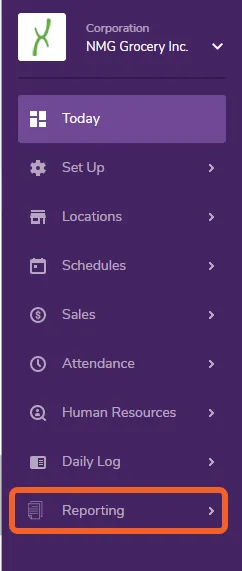
Section titled “Open the Reporting tab”Ad-hoc reports are under the new Reporting tab in the left side navigation menu:
Select Ad-hoc Reporting
Section titled “Select Ad-hoc Reporting”Select Ad-hoc Reporting to open up the new reporting tool.
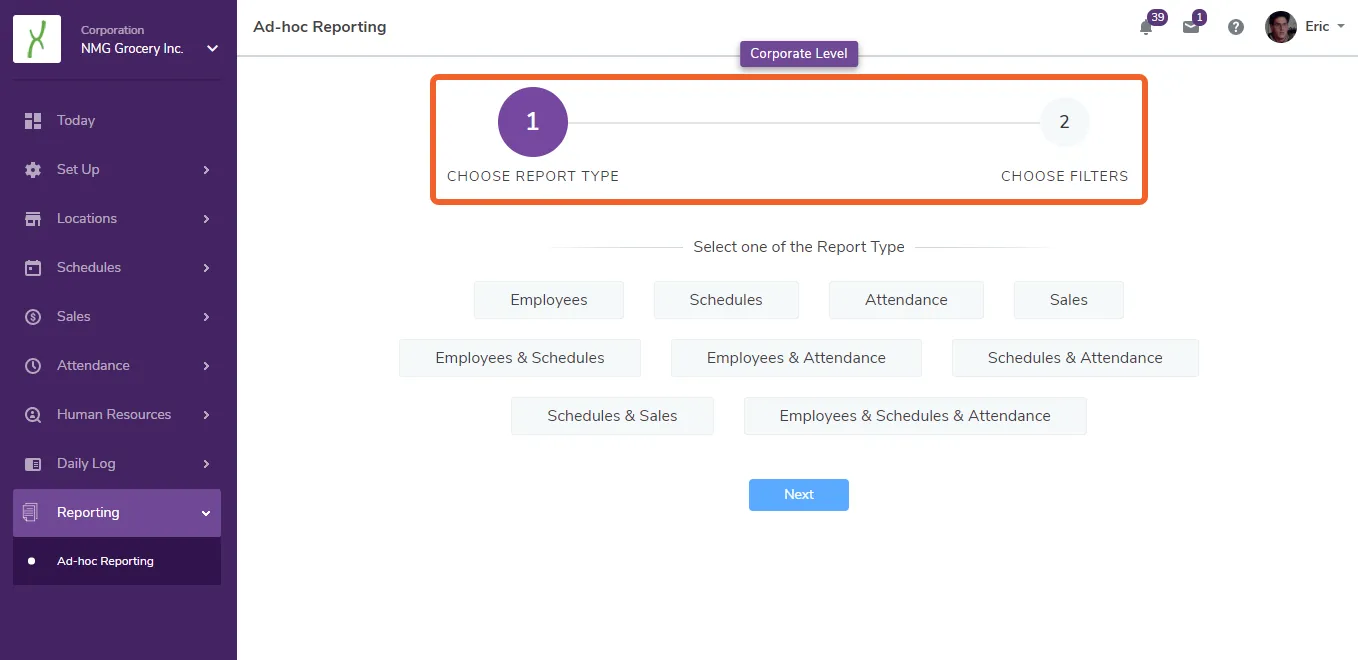
The tool is designed to walk you through two simple steps:
- Choosing the report type (Sales, Employee, Schedules, etc.)
- Choosing what data to include in your chosen report
Let’s give it a try by running an hourly sales report!
Hourly Sales Report
Section titled “Hourly Sales Report”Choose a report type
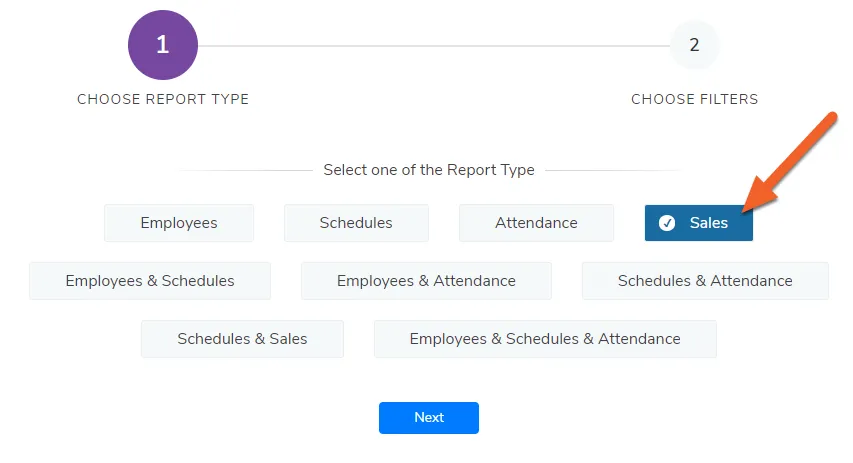
Section titled “Choose a report type”Start building your ad-hoc report by choosing the type. For this example, we’ll choose Sales.
Choose what data to use
Section titled “Choose what data to use”For a Sales report, you can choose:
- what location(s) to include,
- whether to run the report for a particular (or all) departments,
- for what sales category, and
- for what date:
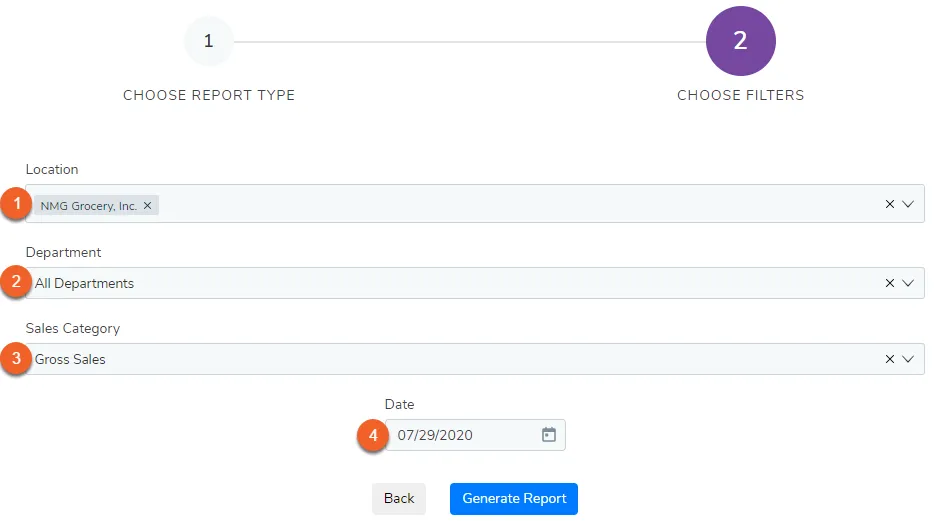
The report will show you data for an entire week, starting from the date selected.
View your hourly sales!
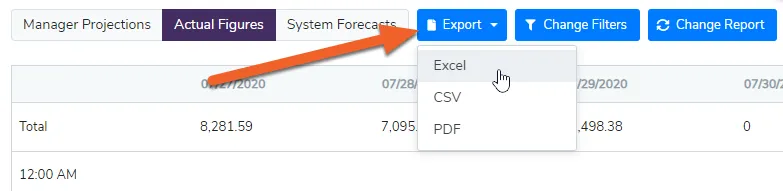
Section titled “View your hourly sales!”You can use the buttons at the top of the report to toggle between Manager Projections, Actual Figures, and System Forecasts.
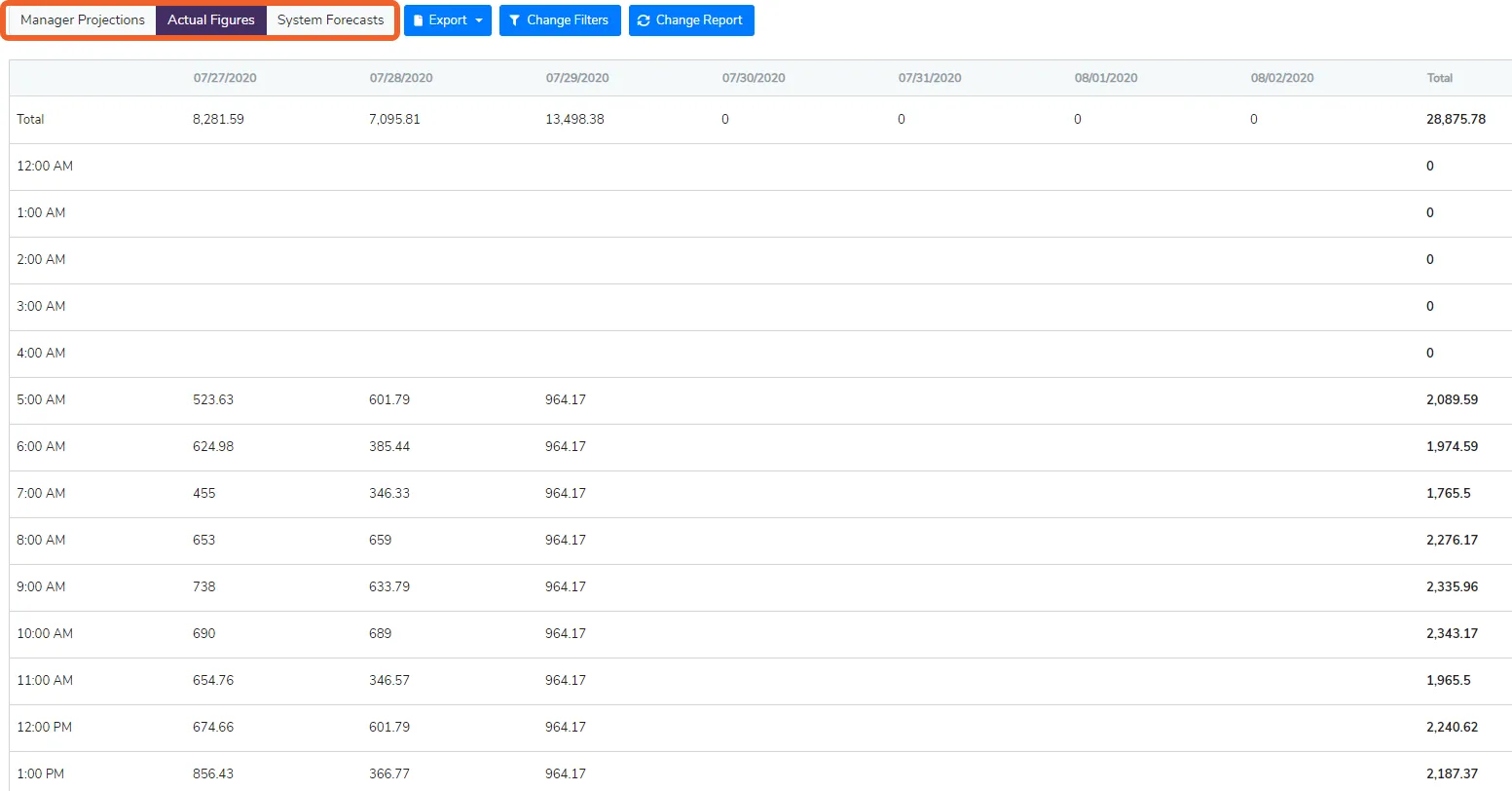
Export your report in a format you like!
Section titled “Export your report in a format you like!”Click the Export button to export your report as an Excel file, CSV, or PDF: