Create a schedule in under 20 minutes with the AutoScheduler
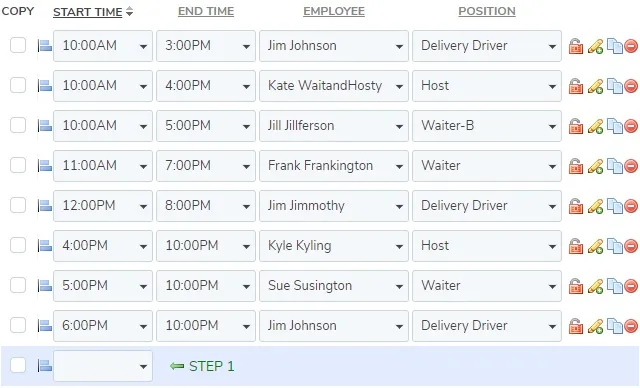
The AutoScheduler is an industry leading tool that TimeForge offers to its users at no additional cost. AutoScheduler lets you input the basic outline of a schedule, then you click AutoSchedule, and presto! The perfect schedule is born. An AutoScheduled schedule is optimized to make both employees and managers happy by considering employee requests, skill levels, busy times, costs of different employees, and other criteria. The AutoScheduler creates the most profit-friendly and most employee friendly schedule possible.
Here’s how you can use the AutoScheduler to build your schedule.
Navigate to the Schedules page
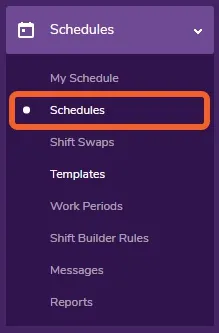
Section titled “Navigate to the Schedules page”Open the Schedules tab and select Schedules.
Choose the appropriate schedule
Section titled “Choose the appropriate schedule”
Select AutoSchedule for the Employee option
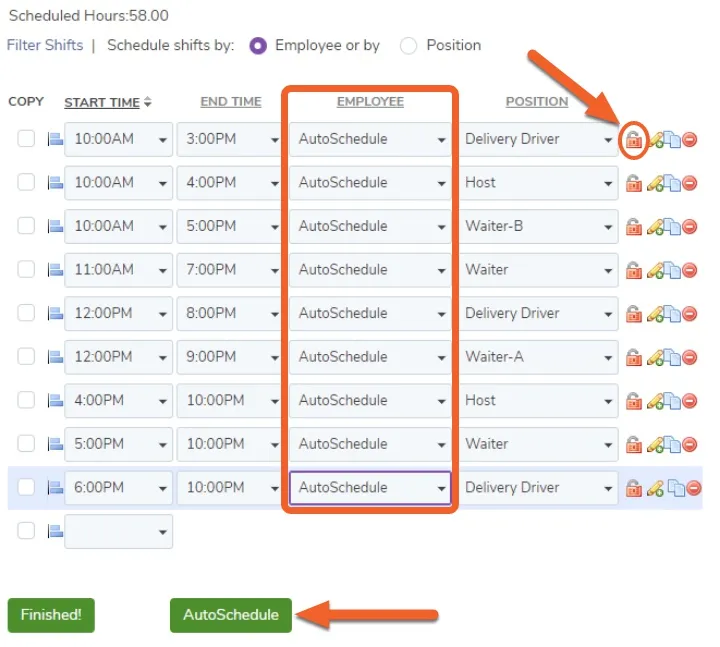
Section titled “Select AutoSchedule for the Employee option”Under the “Employee” column, select AutoSchedule. If there are any shifts you don’t want the AutoScheduler to adjust, click the lock icon on that row so that it is green and locked.
When you’re finished, click “AutoSchedule” at the bottom of the page.
Using the AutoScheduler on the entire week at once
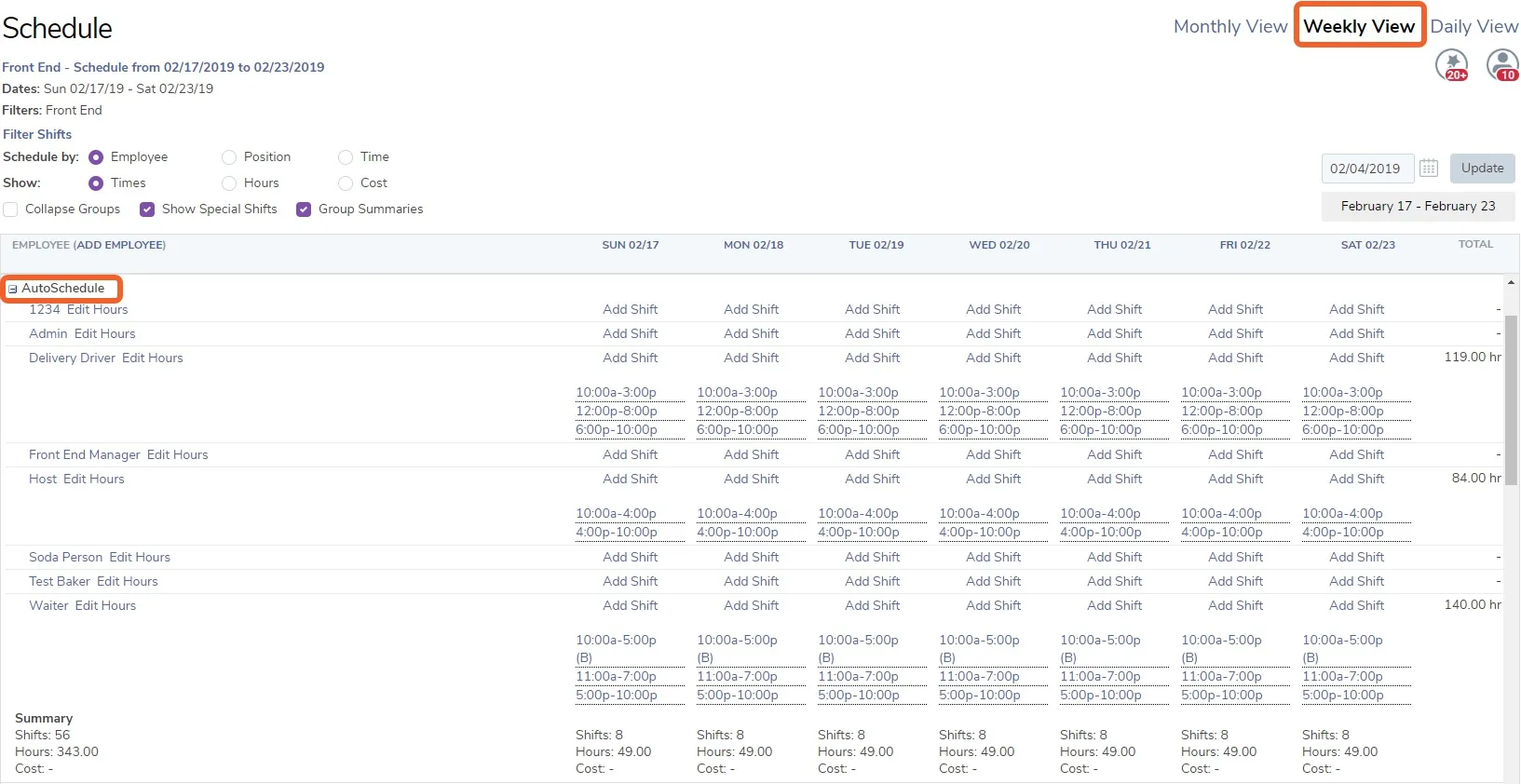
Section titled “Using the AutoScheduler on the entire week at once”To use the weekly AutoScheduler, all you have to do is swap to the weekly view and hit the AutoSchedule button.
The AutoScheduler loading page
Section titled “The AutoScheduler loading page”This page will continue to load as long as the Autoscheduler is working. However, you don’t have to stay on this page – the AutoScheduler will continue to work in the background as long as you remain logged-in to your account. Feel free to work on your attendance, sales, or grab a coffee. Whichever is most urgent.

Your schedule is finished!
Section titled “Your schedule is finished!”The amount of time it takes for the AutoScheduler to be finished depends on the size of the schedule, but it will never be longer than 20 minutes (it’s written in the algorithm to find the best fitting schedule in under 20 minutes). Once it’s done, all that’s left to do is review the schedule and post it.