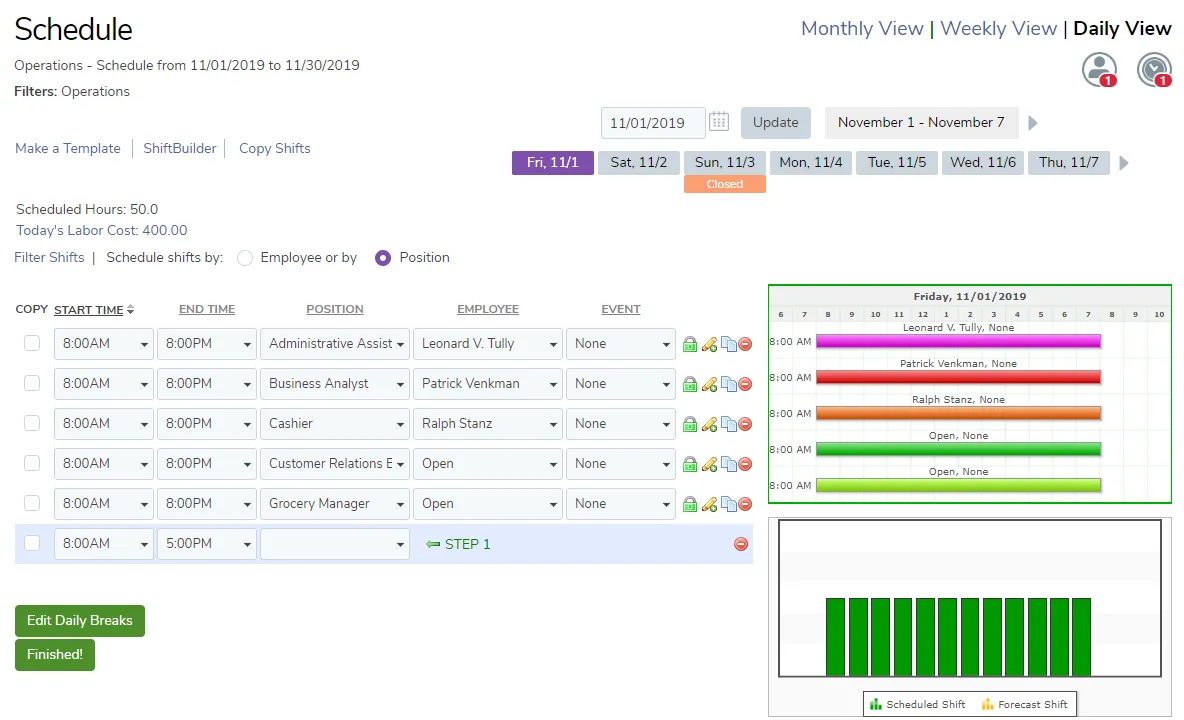
Ways to view a schedule (Daily, Weekly, or Monthly)
With the TimeForge scheduling software, you have the power to create low cost employee schedules that are also effective. Additionally, TimeForge makes it easy to quickly view or print your monthly schedule. You can also quickly switch between weekly and daily views to help you create the perfect employee schedule.
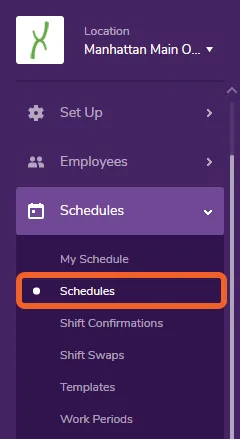
Navigate to the Schedules Page
Section titled “Navigate to the Schedules Page”Open the Schedules tab and select Schedules from the menu.
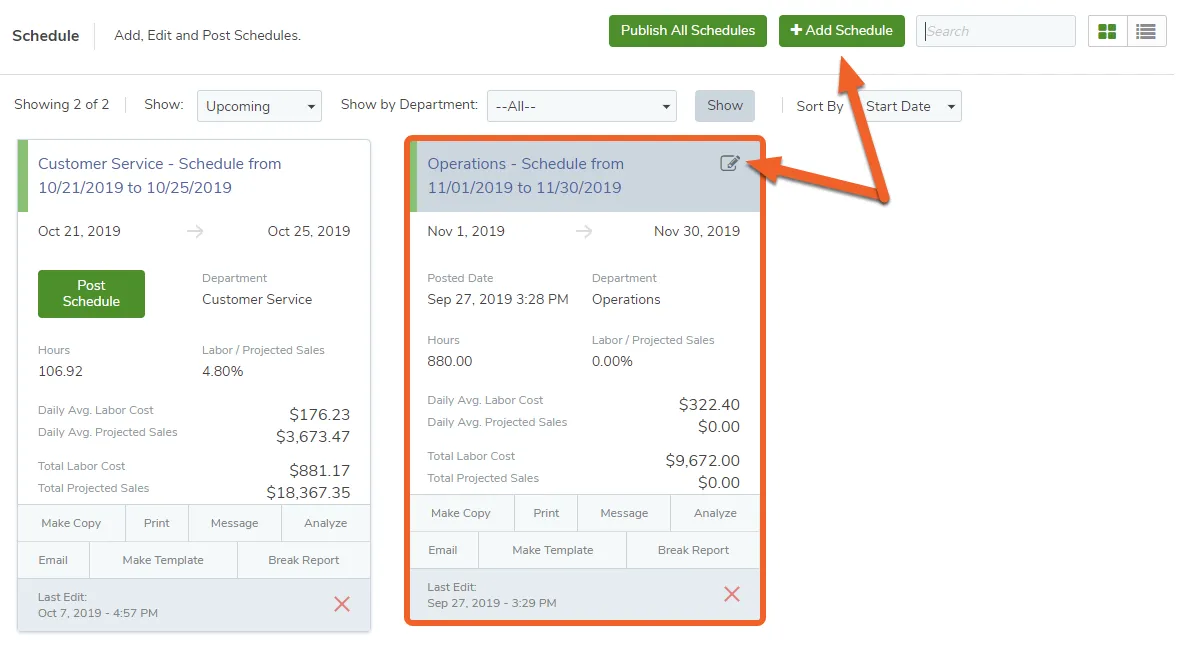
Choose the employee schedule you would like to work on
Section titled “Choose the employee schedule you would like to work on”Click on the link/card of the schedule you’d like to work on. Alternatively, you can create a new schedule using the + Add Schedule button at the top of the page.
Select the Monthly View
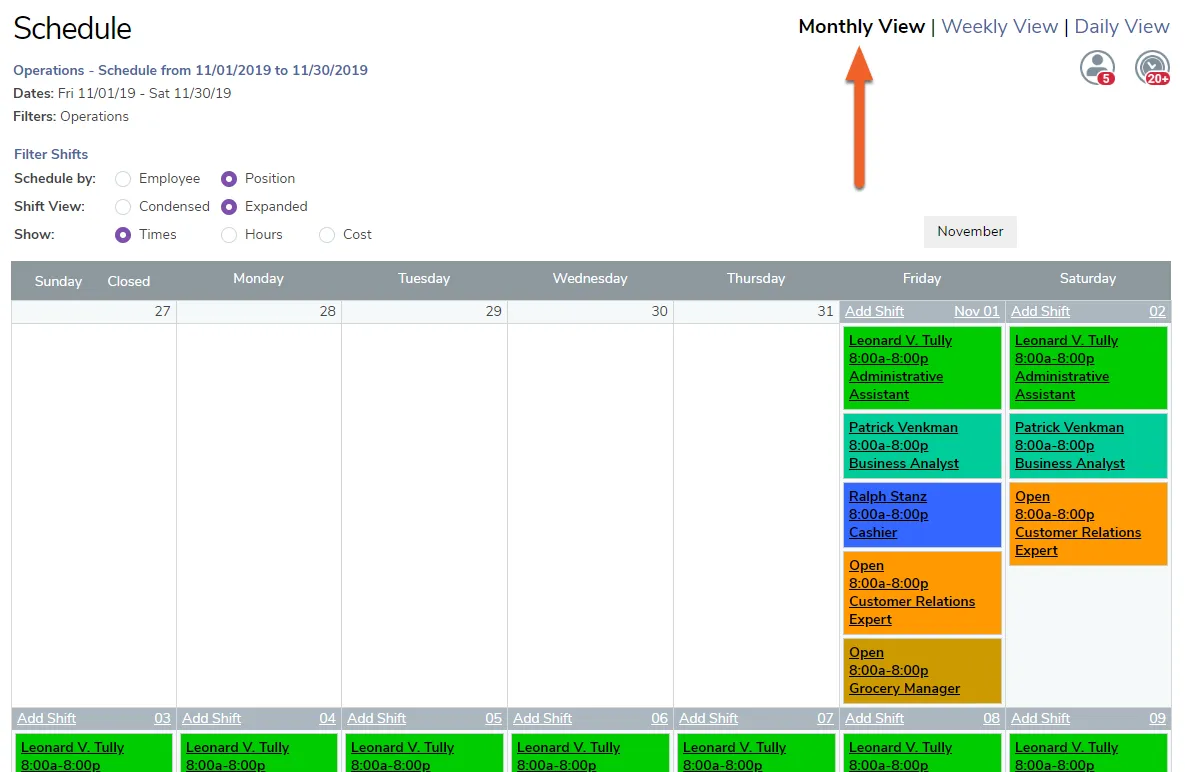
Section titled “Select the Monthly View”Click Monthly View in the upper right.
When Monthly view is highlighted, you’ll see a calendar view of your schedule with different shifts represented visually across the month.
Select the Weekly View
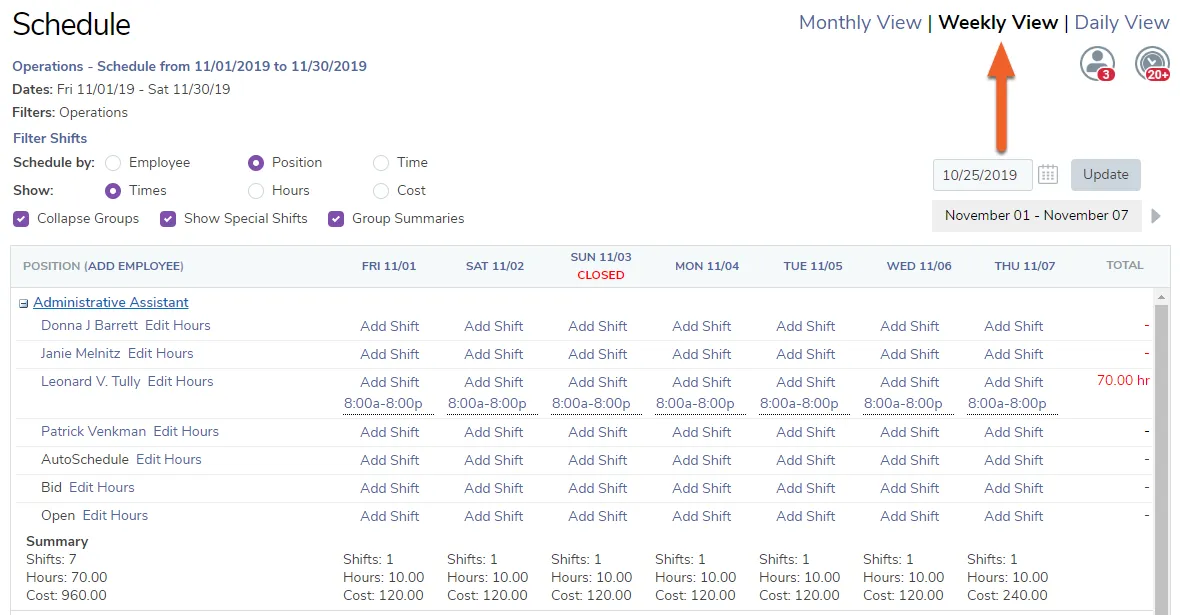
Section titled “Select the Weekly View”Click Weekly View in the upper right.
The Weekly View will show you your scheduled positions and employees across the week. By clicking Group Summaries, you can also see the labor hours and costs associated with each position.
Select the Daily View
Section titled “Select the Daily View”Click Daily View in the upper right.
When this view is highlighted, you will see schedule information for the selected day, much like you did when you created the schedule.