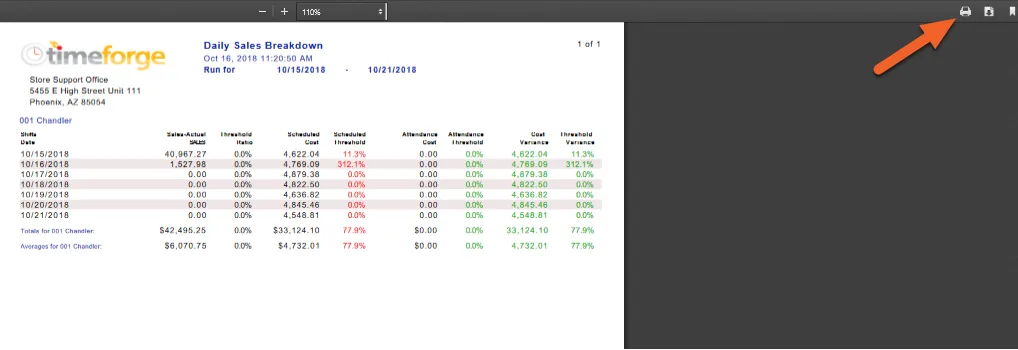
Create a sales report
TimeForge sales is the most powerful way to keep track of your sales information and keep your labor costs at a minimum. Printing your sales report is easy in TimeForge. Here’s how it’s done.
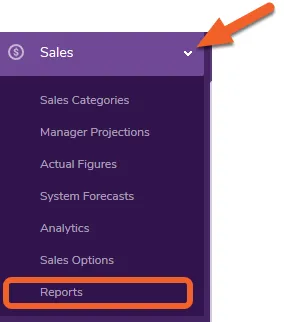
Go to the Reports page under the Sales tab
Section titled “Go to the Reports page under the Sales tab”Open the Sales tab and click Reports.
Choose the sales report that best fits your needs
Section titled “Choose the sales report that best fits your needs”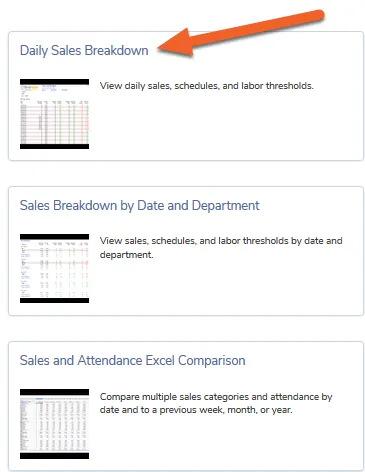
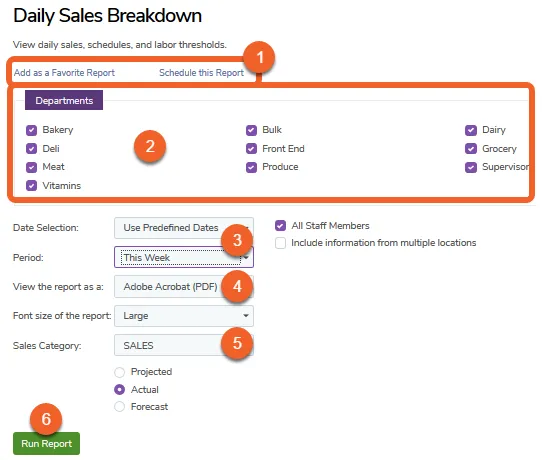
Configure your sales report
Section titled “Configure your sales report”- Save the report to your favorites or schedule it to be automatically emailed to you at a specific time.
- Select the department(s) you would like to run on the report.
- Select which dates or period should be included in the report.
- Choose whether to view the report as either a PDF or Excel file.
- Choose which sales category you would like to run.
- Click Run Report when ready to generate the report.
View and print your sales report
Section titled “View and print your sales report”If you chose to view/print as PDF, you’ll be able to print or save the file from your browser. If you chose to view as an Excel file, the spreadsheet will be downloaded, and you’ll be able to open it up and print from there.