Create alerts for certifications that are about to expire
One of the benefits to using TimeForge to manage your HR documents is that you can set up alerts to notify personnel of changes. This allows managers to be notified when an employee uploads a signed and completed document, for example.
When you create an HR Type as a Certification, Ongoing Training, or Prehire document, you have the option to notify both the manager(s) and the employee that their certification is about to expire. This gives personnel the chance to renew the training or certification prior to the expiration date.
This article will teach you how to set up these handy alerts in TimeForge. To learn how to enforce certifications (prevent employees with expired certifications from being scheduled or clocking in), see our guide on HR Types.
Navigate to the Human Resources settings page
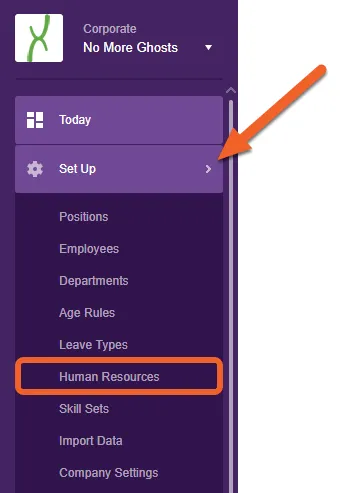
Section titled “Navigate to the Human Resources settings page”While at the Corporate level, open the Set Up tab, then select Human Resources from the sub-menu.
Edit the certification you want to set up an alert for
Section titled “Edit the certification you want to set up an alert for”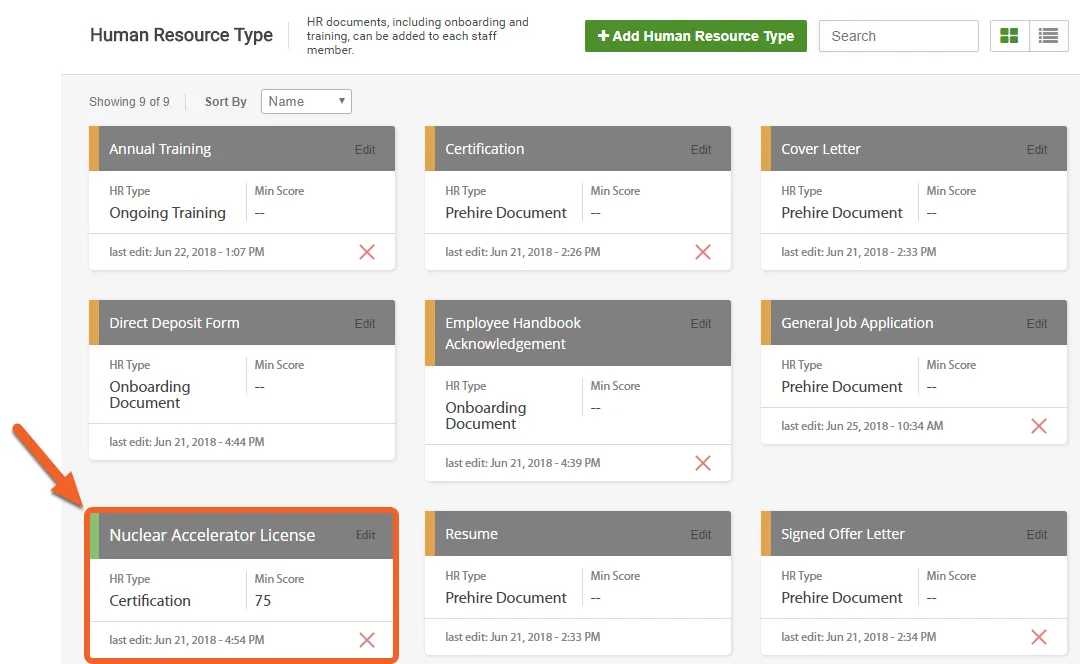
Choose when to send the alerts
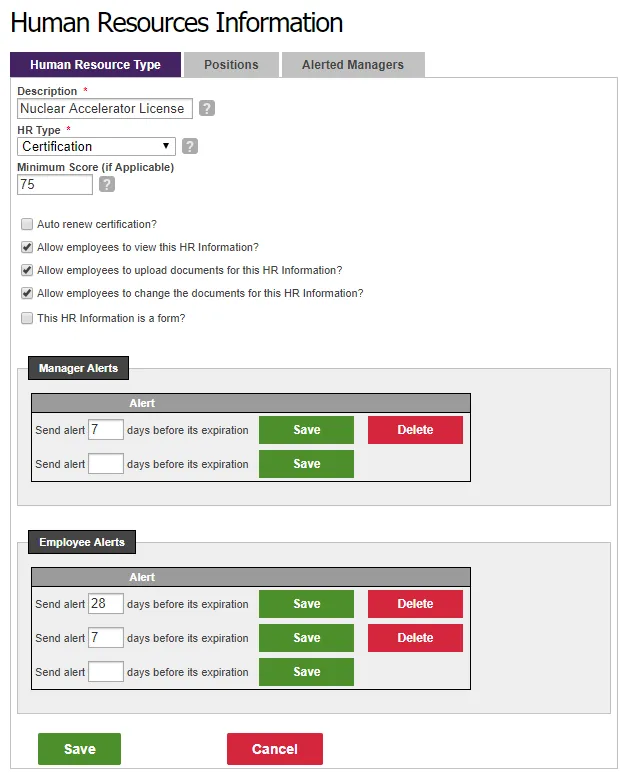
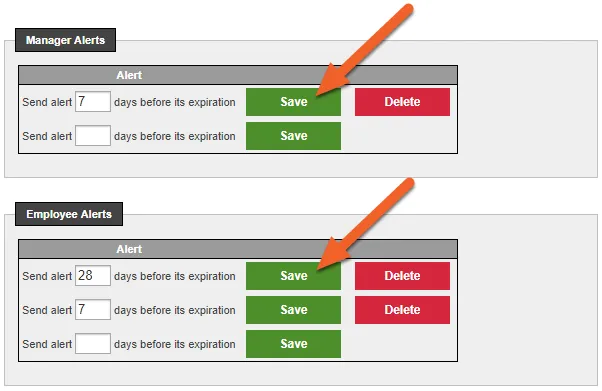
Section titled “Choose when to send the alerts”Under Manager Alerts and Employee Alerts, you can choose when to notify selected managers and the employee, respectively. When you enter a number, an additional field will appear underneath, allowing you to set up multiple alerts.
In the example below, TimeForge will notify the selected managers at 1 week before expiration and the employee at 4 weeks and again at 1 week before expiration. This gives the employee time to renew their certification before the manager is involved.
Save your selections!
Section titled “Save your selections!”Click the Save button next to each alert to confirm and save.
Choose which managers should receive the alerts
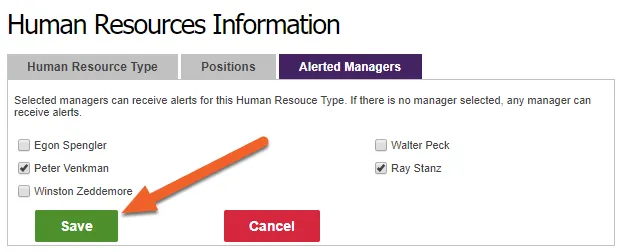
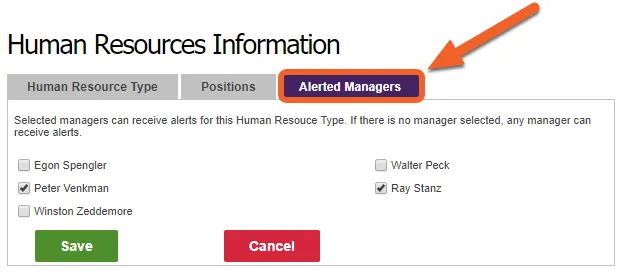
Section titled “Choose which managers should receive the alerts”Select the Alerted Managers tab, then check the box next to each manager who should be notified.
Click Save to save your changes!
Section titled “Click Save to save your changes!”Finally, don’t forget to click the Save button to save your changes under both tabs.