Schedule and approve transfer bid shifts
Transfer Bid Shifts allow managers to open up bid shifts to employees from other locations, as well as prevent employees from being able to bid on shifts that exceed a configurable limit of overtime. The idea is that if two stores are nearby to one another, employees should be able to pick up shifts from either location without necessarily being assigned to that location. TimeForge makes this easy.
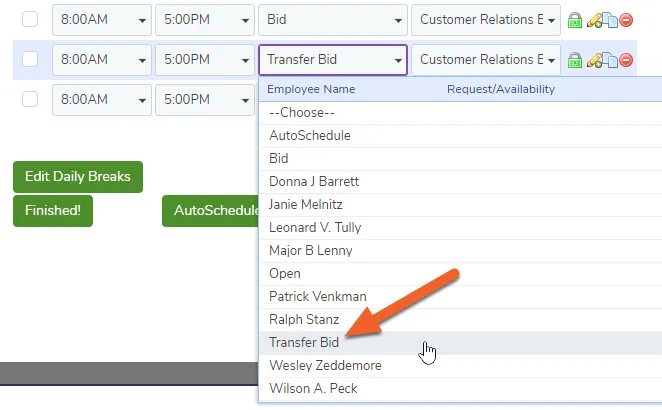
Once Transfer Bid Shifts have been enabled, managers will notice “Transfer Bid Shift” as a shift assignment option (in addition to “Open,” “AutoSchedule,” “Bid,” and selecting a specific employee name). Managers will also notice “Transfer Bid” as a new section in the “Pending Shift Swaps” area.
For a primer on bid shifts, see our guide: Maximize Scheduling Efficiency Using Bid Shifts.
Add transfer bid shifts to a schedule
Section titled “Add transfer bid shifts to a schedule”Adding transfer bid shifts to a schedule is as easy as adding regular bid shifts! Simply select Transfer Bid as an option when adding shifts.
Approve or deny transfer bid shifts
Section titled “Approve or deny transfer bid shifts”
From the pending Shift Swaps page
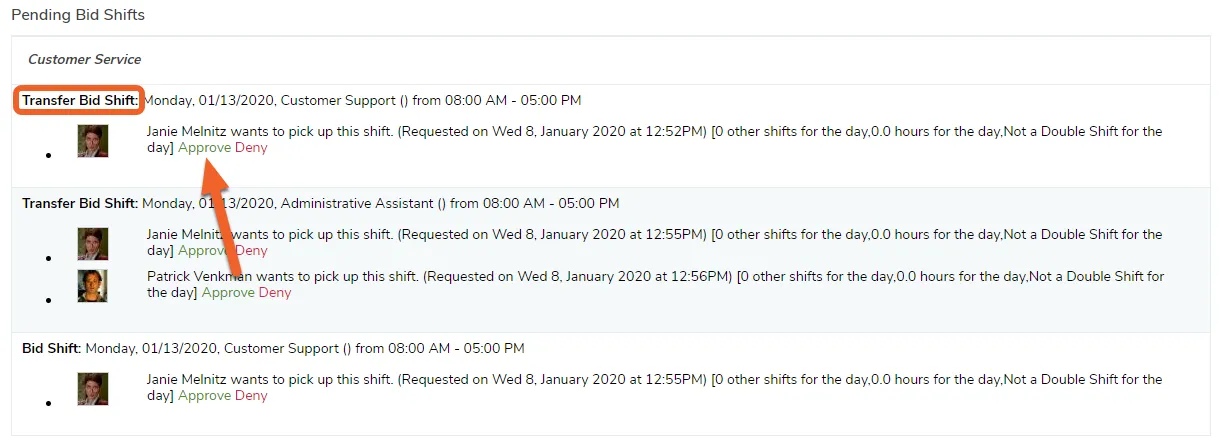
Section titled “From the pending Shift Swaps page”Approving or denying a transfer bid shift is just like approving or denying a regular bid shift.
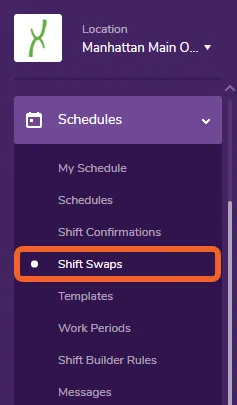
To review all pending bid shifts, open the Schedules tab and select Shift Swaps.
You’ll see Transfer Bid Shifts listed like normal Bid Shifts. Simply approve or deny as usual for a bid shift or shift swap.
From the Location dashboard
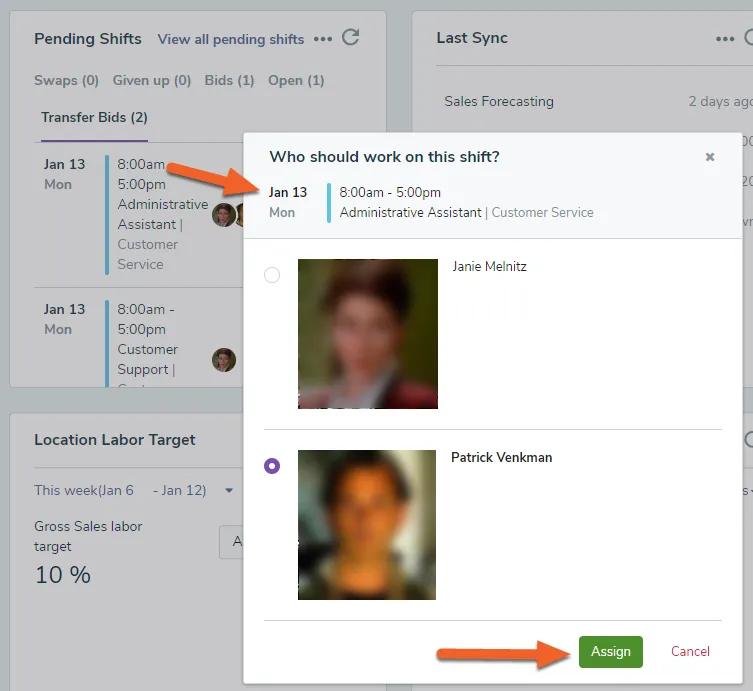
Section titled “From the Location dashboard”If you’re using the Pending Shifts widget, you can view and approve pending bids, including Transfer bids, from the Location dashboard.
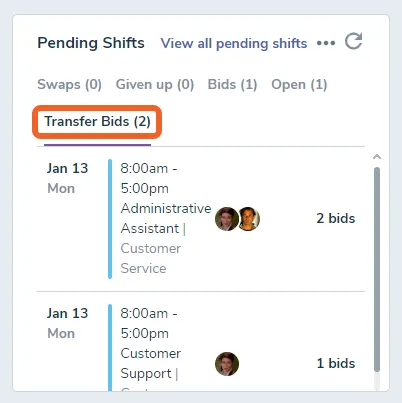
To approve and assign a shift, click the shift, select the employee you’d like to work the shift, and then hit the Assign button.