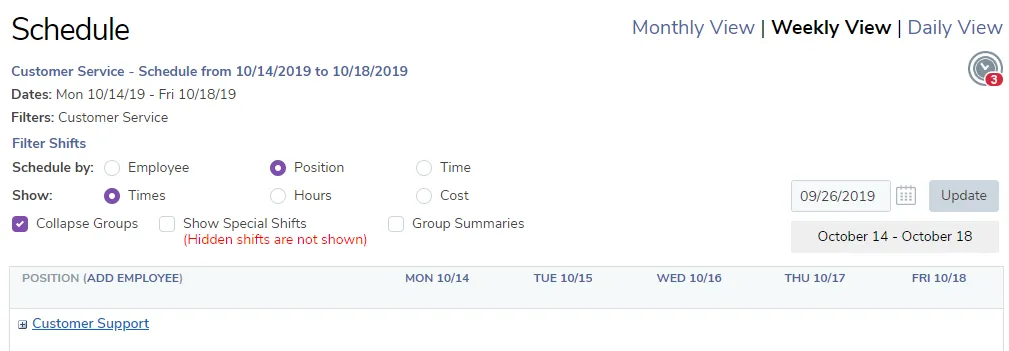
Filter shifts by position or department
With TimeForge, creating and editing an employee schedule is made simple! We also know that sometimes while creating a schedule, you may find it helpful to filter shifts so that you can ensure coverage for specific positions during the day. For example, a catering company may want to only view the waiters and bartenders for a particular day.
You can filter shifts in TimeForge with just a few clicks.
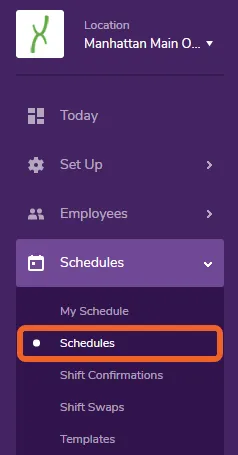
Navigate to the Schedules page under the Schedules tab
Section titled “Navigate to the Schedules page under the Schedules tab”Open the Schedules tab and select Schedules from the menu.
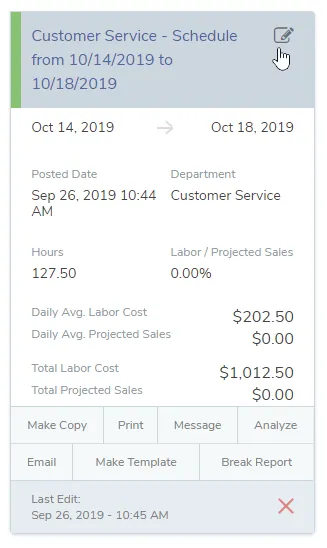
Locate the schedule you would like to view
Section titled “Locate the schedule you would like to view”Locate the schedule for which you would like to view/filter shifts and click on the edit button (Grid view, shown) or link (List view).
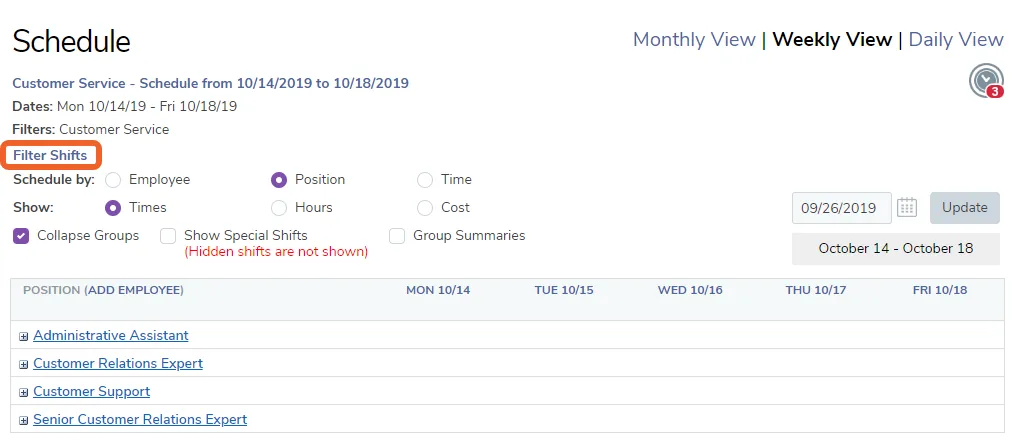
Click on Filter Shifts
Section titled “Click on Filter Shifts”Click the Filter Shifts link on the top left of the page.
Select the scheduled positions you would like to view
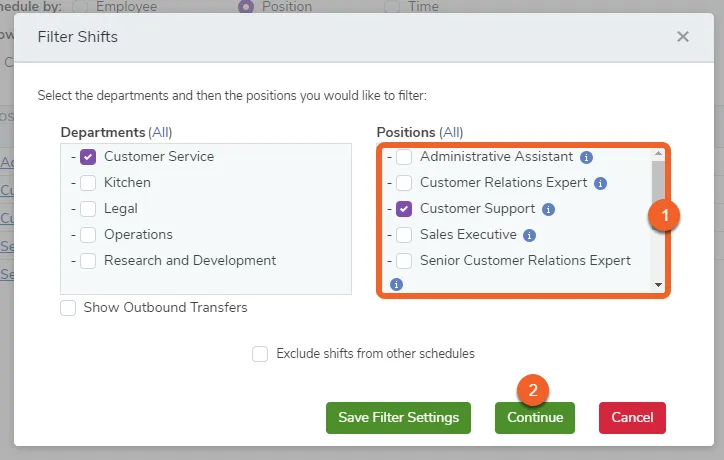
Section titled “Select the scheduled positions you would like to view”- Check the boxes next to the positions you would like to view.
- Click the Continue button.
(You can also save your filter for later use from this screen.)
View the filtered schedule
Section titled “View the filtered schedule”You are now viewing the schedule with only the selected positions.