

Add an HR document directly to an employee's profile
TimeForge makes it easy to onboard your employees! From the employee profile, you can add forms and important documents for them to review, sign, and submit. When the employee logs in, they’ll be notified of the tasks they need to complete or forms they need to fill out as part of their onboarding process, such as reading the company handbook and signing an acknowledgment form.
Although this tutorial is focused on onboarding, the steps below can also be used to add prehire documents, ongoing training documents, offboarding forms, annual notices, and certifications to an individual employee’s profile.
To learn how to add multiple documents at once from a template, check out our tutorial on HR Activities!
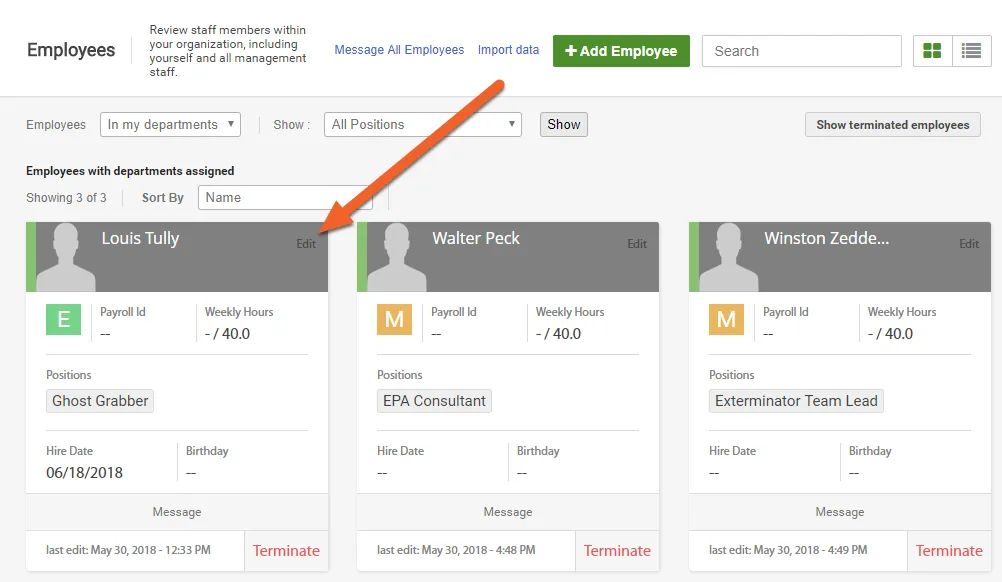
Navigate to the employee’s profile
Section titled “Navigate to the employee’s profile”To begin, go to the profile of the employee you would like to onboard. You can do this from either the Corporate level or the Location level.
Select the Documents tab
Section titled “Select the Documents tab”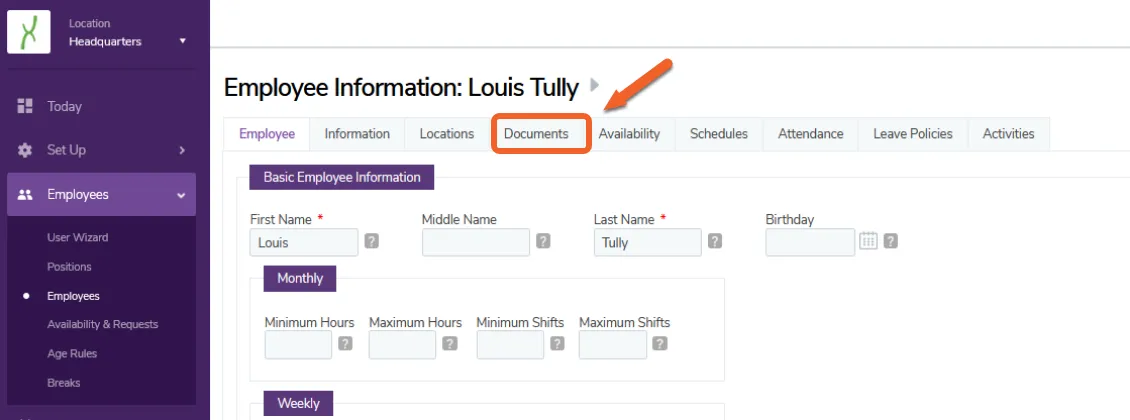
Locate the type of document you want to add
Section titled “Locate the type of document you want to add”In addition to onboarding documents, you can also add prehire documents, ongoing training documents, offboarding forms, and certifications directly to the employee’s profile.
For this tutorial, we’re interested in the Onboarding category.

Select the document you want to add
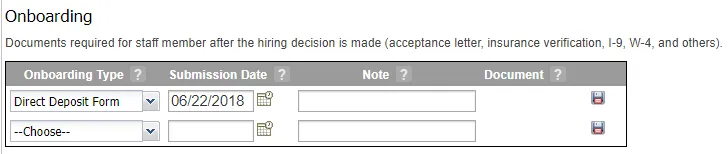
Section titled “Select the document you want to add”Use the dropdown menu to select an Document Type associated with the Onboarding category.

Enter a Submission Date
Section titled “Enter a Submission Date”The submission date can be one of two things: the date the employee submitted the form (if you are uploading a document already completed on paper, for example, and you want to add the record to their profile) or the date you provided the form to the employee (if you intend to use the system to provide the employee with a blank form to sign, for example).
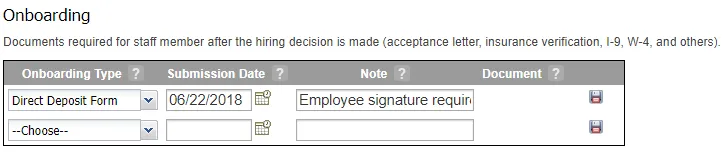
(Optional) Enter a note about the form or document
Section titled “(Optional) Enter a note about the form or document”The note will be viewable by other managers but not by the employee.
Save your changes and add any necessary attachments
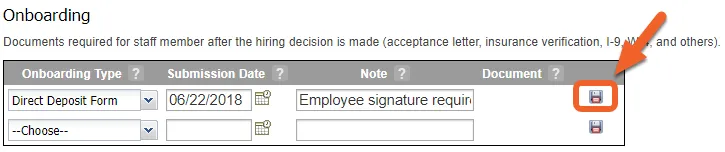
Section titled “Save your changes and add any necessary attachments”Click the floppy disk icon at the end of the row to save your entry.
If the Document Type uses an Orbeon form, an Orbeon icon will appear on the line, allowing you to complete all or part of the form prior to sending it to the employee. Orbeon forms must be set up by Timeforge in advance. If interested, contact our Support team to learn more!
Otherwise, you can click the file attachment icon to upload a file, such as a PDF document.
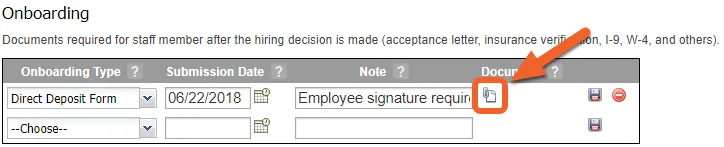

The document will be immediately available to the employee.
How does the employee access and fill out the form?
We have a handy guide to help employees through this process, but here’s the essentials:
If the onboarding document is an Orbeon form, the employee can simply click the link in their profile and fill out the form online.
If it’s a PDF form, the employee will download the form from their profile, open it up, fill it out, and save. Then, they need to remove the original form from their profile and upload their completed version. Alternatively, you can instruct your employees to email you the completed documents, or to print them out and turn them in by hand. The choice is yours!