

Create a minimum wage report
In TimeForge, a minimum wage report is based on tips, and it shows how much more an employee should be paid per hour to meet minimum wage requirements.
Go to the Attendance Reports page
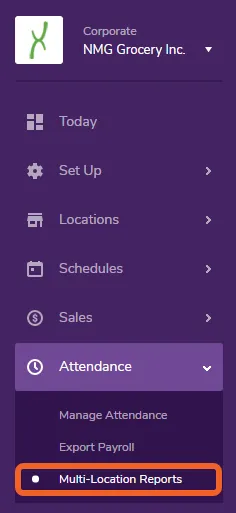
Section titled “Go to the Attendance Reports page”From the Corporate level, open the Attendance tab and select Multi-Location Reports.
Select the ‘Minimum Wage Calculation’ report
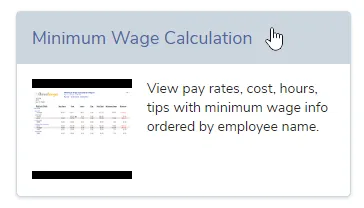
Section titled “Select the ‘Minimum Wage Calculation’ report”Reports are ordered alphabetically, but you can also do a search from the top of the page (upper right).
Configure the report
Section titled “Configure the report”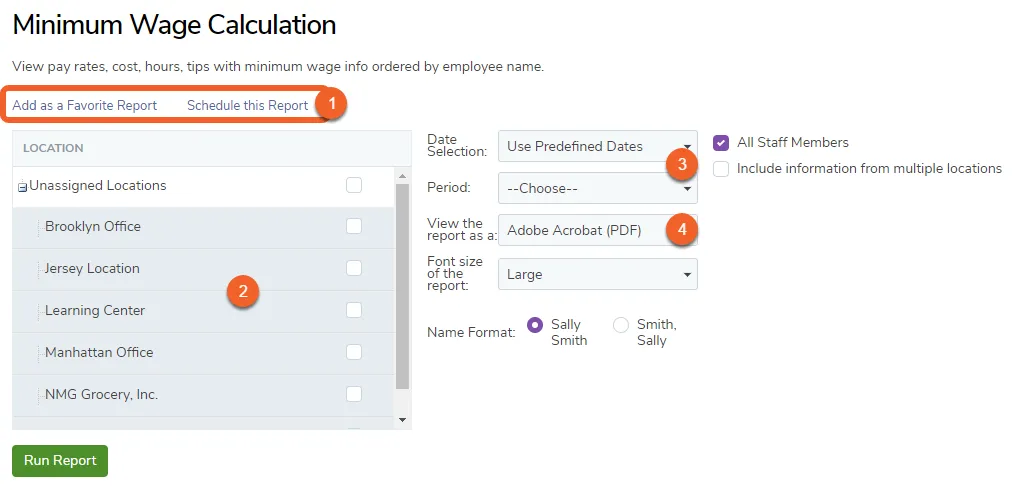
- You can choose to add this report to your favorites, or schedule this report to be automatically emailed to any address.
- Choose which locations you would like to appear on the report.
- Select a date range or period (e.g. yesterday, last week, last month, etc.). Selecting a period may present department options if you have departments enabled.
- Choose whether to view the report as a PDF or Excel spreadsheet.
Click the Run Report button
Section titled “Click the Run Report button”Once you’re done configuring the report, select the Run Report button to generate the report.
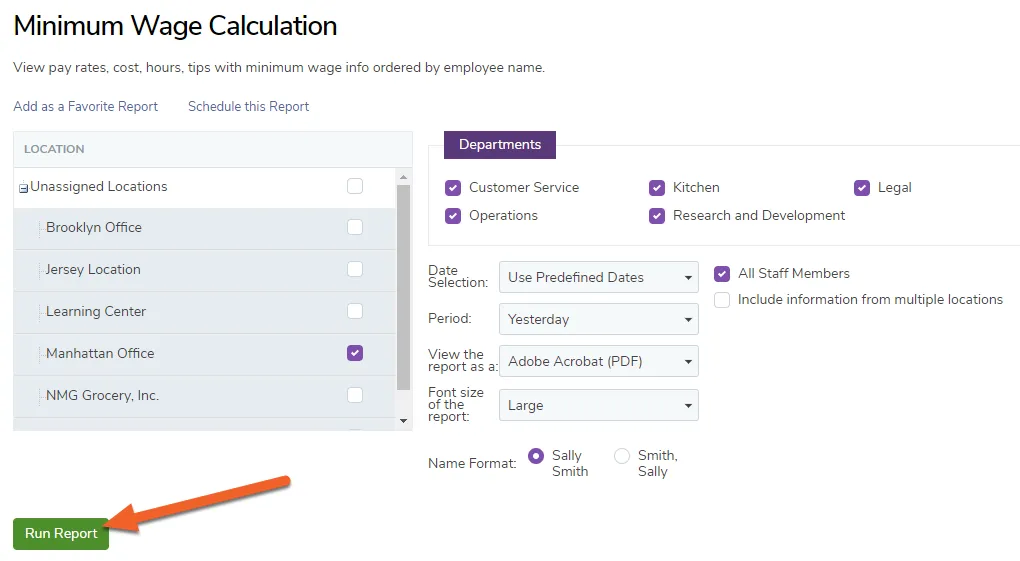
If you choose to run the report as a PDF, it will load on your screen. If you run it as an Excel file, it will save to your computer and you will have to open it in Excel or a similar software.
The report will include columns for Employee Name, Pay Rates, Cost, Hours, Tips, Sub Total, Minimum Wage, and Difference.