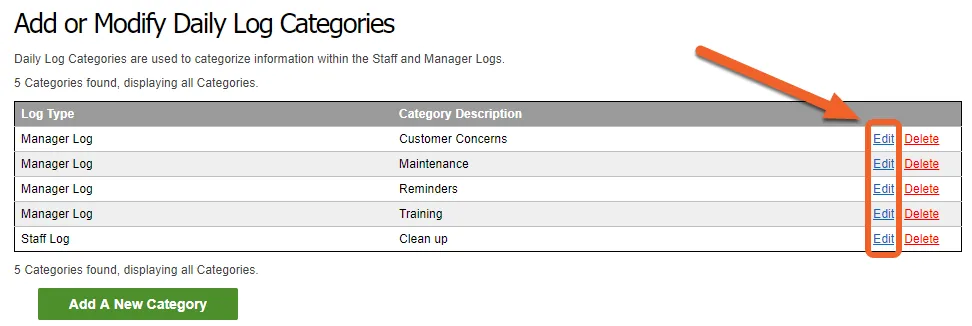
Add or edit Daily Log categories
The TimeForge Daily Log is a digital log book designed to work the way that your business works. You’ll soon find that keeping track of things like notes and reminders is much more efficient through a digital medium.
The daily log contains three different parts, each useful to your business:
- The Manager Log is a management log book that can only be viewed by managers. Log entries are written and viewed by members of management.
- The Staff Log is a log book that is written by management but is viewable by staff members (employees).
- The Audit Log is an internal log book that records important changes in TimeForge during the normal course of business, such as when new shifts are posted as part of a schedule.
Before you can add any entries to the Manager or Staff logs, you must first create categories. Your entries can only belong to a single category, but you can have as many entries or categories as you’d like.
This article will teach you how to create your first Daily Log category in TimeForge, as well as any additional categories after that.
Adding your first category
Section titled “Adding your first category”Navigate to the Categories page
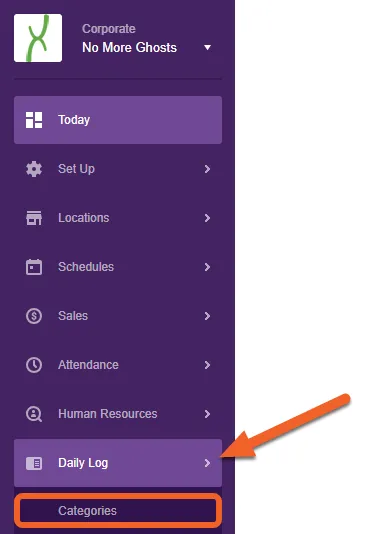
Section titled “Navigate to the Categories page”Open the Daily Log tab and select Categories from the sub-menu.
What happens if I try to visit the Daily Log and I don't have any categories, yet?
When you first visit the Daily Log for your location, you’ll see an empty log book and an Add Category link at the top:
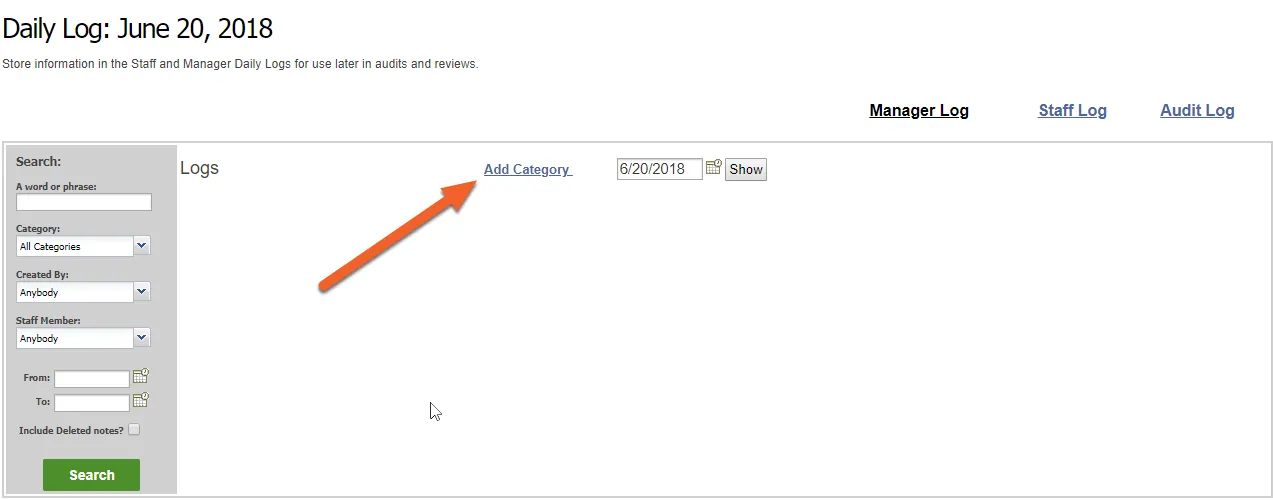
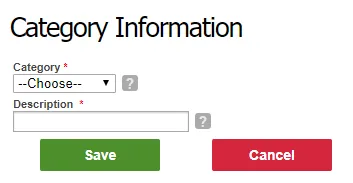
This link is actually a shortcut to add your first category. Click it to go straight to the add new category form, which looks like this:
Click the Add A New Category button
Section titled “Click the Add A New Category button”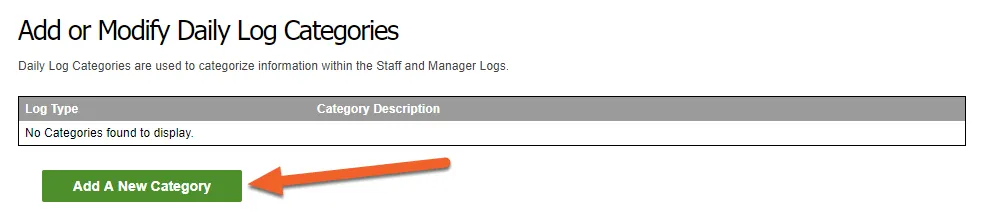
This will open up a form to add a new category. Use the first drop-down to select which log you’d like to create the category for (Manager Log or Staff Log), then provide a name for your category, such as “Maintenance.”
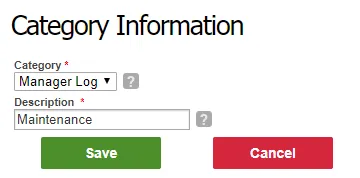
Here are some additional ideas for category names.
Manager Log examples
- To-do List Item
- Employee Actions
- Customer Concerns
- Equipment Maintenance
- Bank Deposits
Staff Log examples
- Uniform Reminders
- Meetings
- Upcoming Events
- HR Documents
- Menu Updates
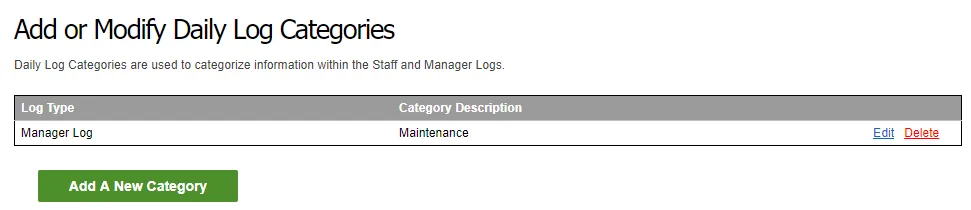
Click on “Add A New Category” to add a category, or choose edit next to the log you’d like to modify.
Click Save to save your new category
Section titled “Click Save to save your new category”Don’t worry, you can always edit the description later if you change your mind.
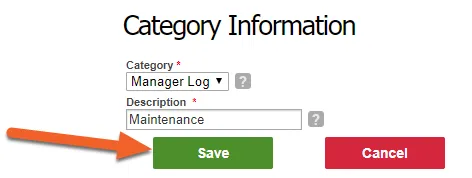
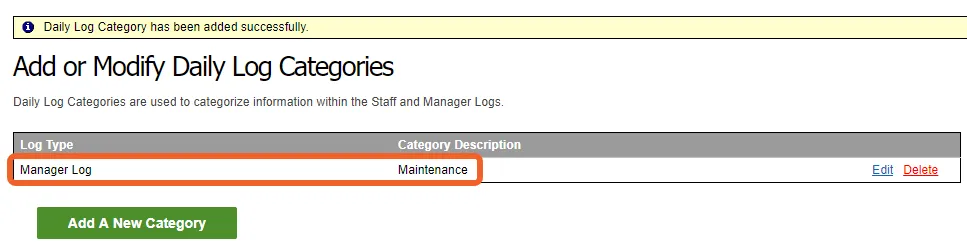
Your new category will now appear in the list!
Visit your Daily Log to start adding entries
Section titled “Visit your Daily Log to start adding entries”Now that you have at least one category for at least one log, you can start adding entries to that log!
Adding additional categories
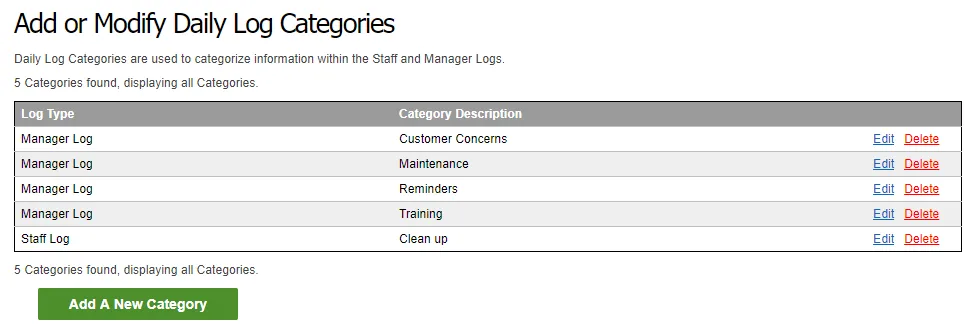
Section titled “Adding additional categories”Adding additional categories is easy! Just return to the Categories page and click the Add A New Category button. You can add as many categories as you want.
Editing your categories
Section titled “Editing your categories”To edit a category, simply click the Edit button while on the categories page.