

Track your job applicants throughout the review and hiring process
Using TimeForge’s Applicant Tracking system, you can easily track your job applicants during every step of the review process, from the moment you receive a resume to the moment you decide to hire. Before you can start tracking applicants, you first need to create your applicant tracking steps for the position(s) you want to hire. Once that’s done, use this article to get the most out of applicant tracking in TimeForge.
Navigate to your Applicants page
Section titled “Navigate to your Applicants page”For this tutorial, we’ll use the Corporate level. However, if your business has more than one location, you can also follow these steps at the Location level.
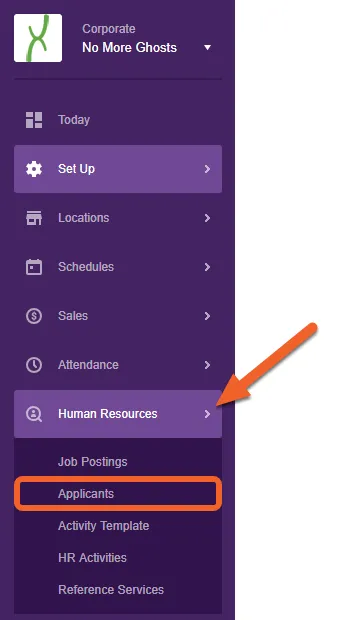
Open the Human Resources tab, then select Applicants from the sub-menu.
Select an applicant
Section titled “Select an applicant”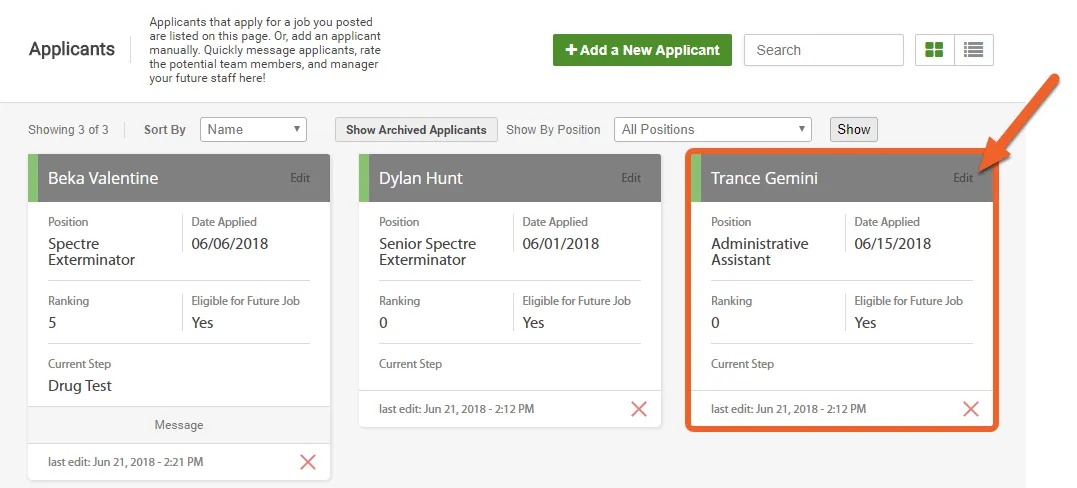
Review the applicant’s progress
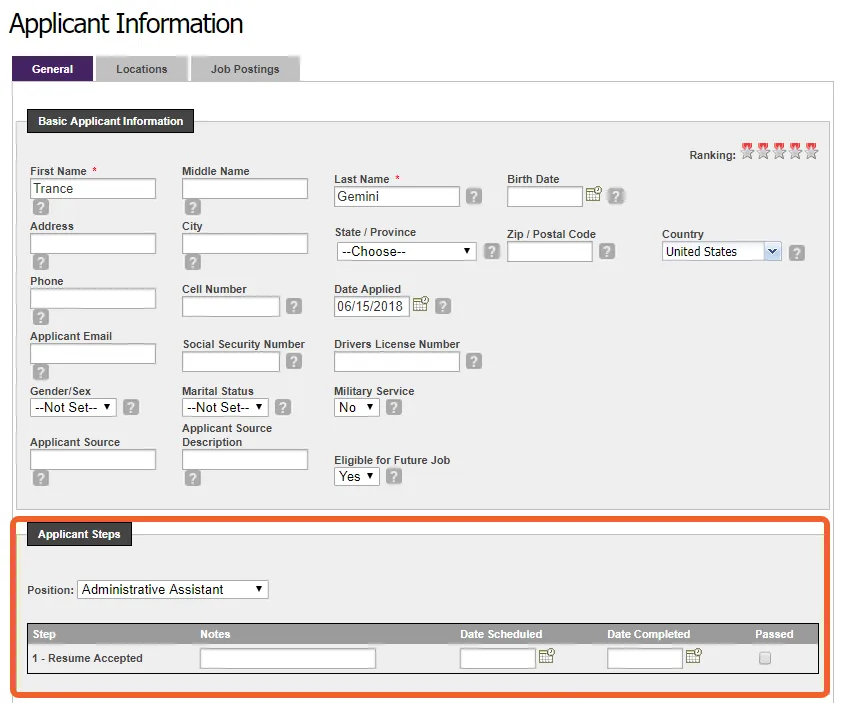
Section titled “Review the applicant’s progress”Under the Applicant Steps section, you’ll see the position they’re applying for and the steps they’ve completed so far, if any.
In the example below, you can see that applicant tracking steps have been created for this position, but none of them have been completed by this applicant, yet. Let’s go ahead and start progressing the applicant through the steps!
Progress the applicant through the steps as they’re completed
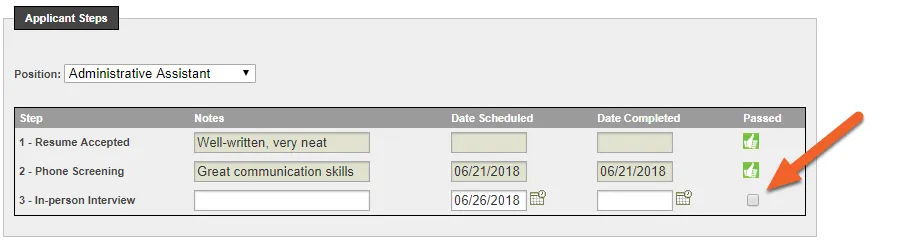
Section titled “Progress the applicant through the steps as they’re completed”Let’s say this particular applicant has already submitted an acceptable resume and has completed her over-the-phone screening interview.
For each line, we can add Notes about the step, such as how well she did, whether she arrived on time, or which manager implemented the step. There are also optional fields for Date Scheduled and Date Completed.
When you’re ready to mark a step as complete, simply check the box at the end of the row.
Scroll down and hit Save to save your changes
Section titled “Scroll down and hit Save to save your changes”Your changes won’t be permanent until you save them. Scroll down past the Documents section and hit Save to finalize your work.
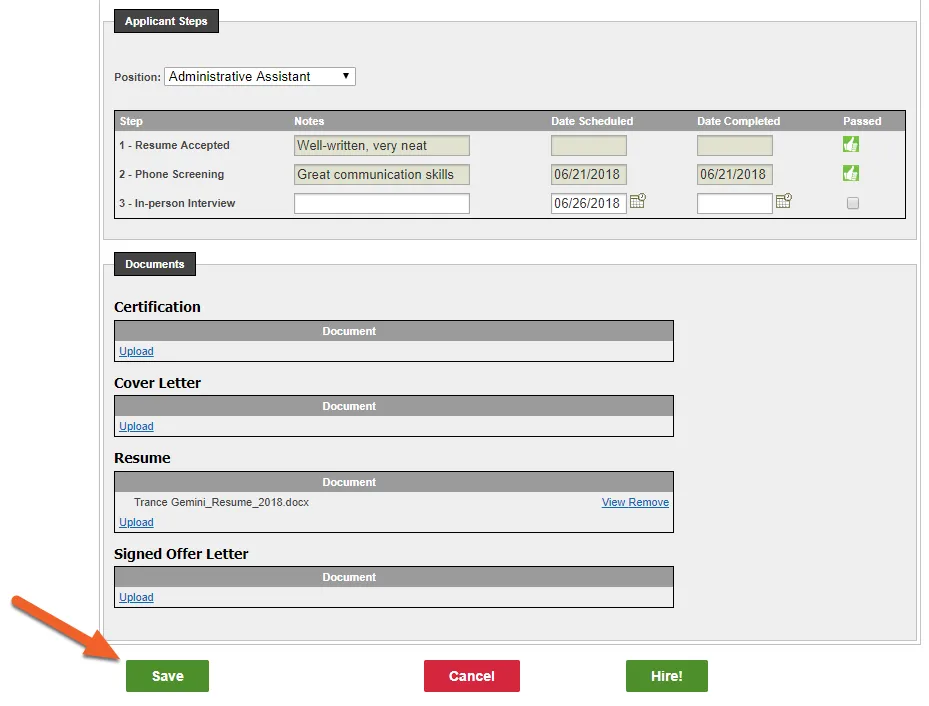
When the applicant completes the next step in their application, you simply return to this page to update their Applicant Steps.
Should the applicant not meet your criteria, or fail to complete a step, you can choose to Archive the applicant and remove them from the applicants list. Alternatively, if the applicant is a good fit, you can Hire her directly from this page.
Related Topics
Section titled “Related Topics”- Review your job applicants
- Hire a job applicant
- Archive an applicant (remove them from the applicant list)