Create an Affordable Care Act (ACA) form for Employee Health Insurance Coverage
At TimeForge, we understand that the Affordable Care Act has serious implications for you and your business. In fact, we even wrote a book about it that explains just how serious those implications are and how you can stay on top of them.
This tutorial will show you how to create an ACA Employee Health Insurance Coverage form and how to send that form to your employees, all from inside TimeForge! It doesn’t get any simpler than this.
Go to your store’s Settings page
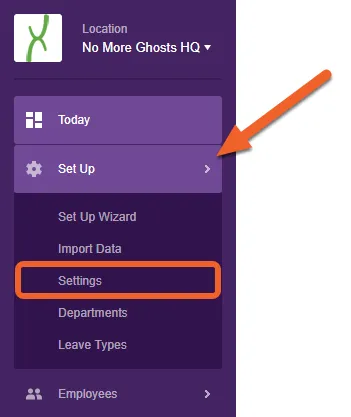
Section titled “Go to your store’s Settings page”At the Location level, open up the Set Up tab, then select Settings from the sub-menu.
Select the ACA - Employee Health Insurance Coverage tab
Section titled “Select the ACA - Employee Health Insurance Coverage tab”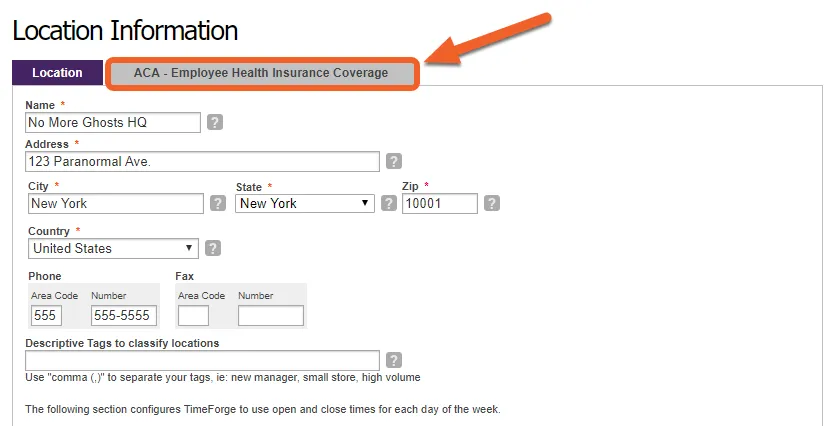
Enter your company’s information
Section titled “Enter your company’s information”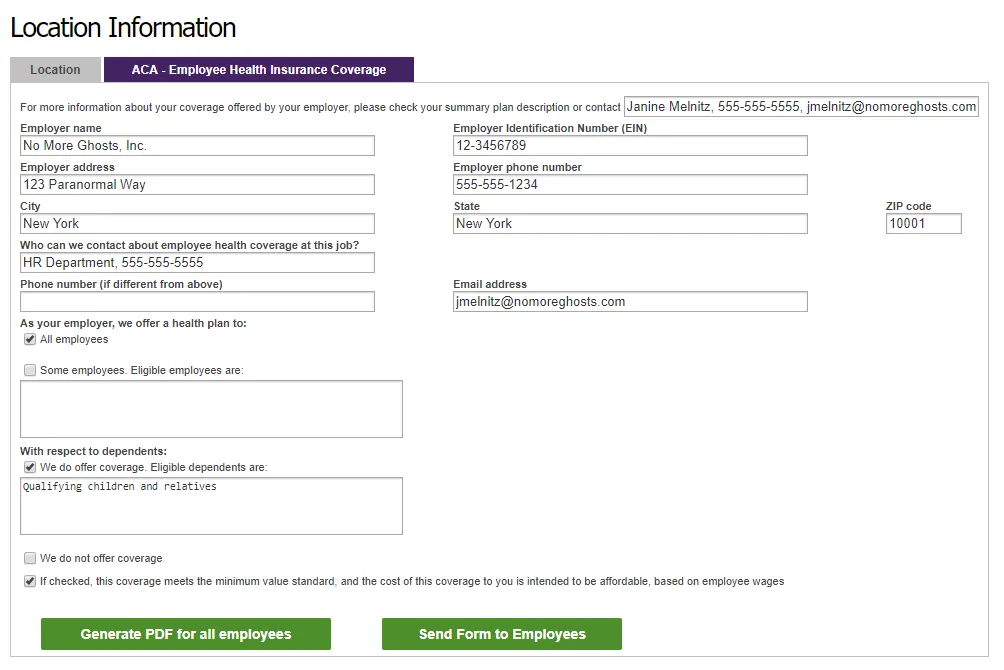
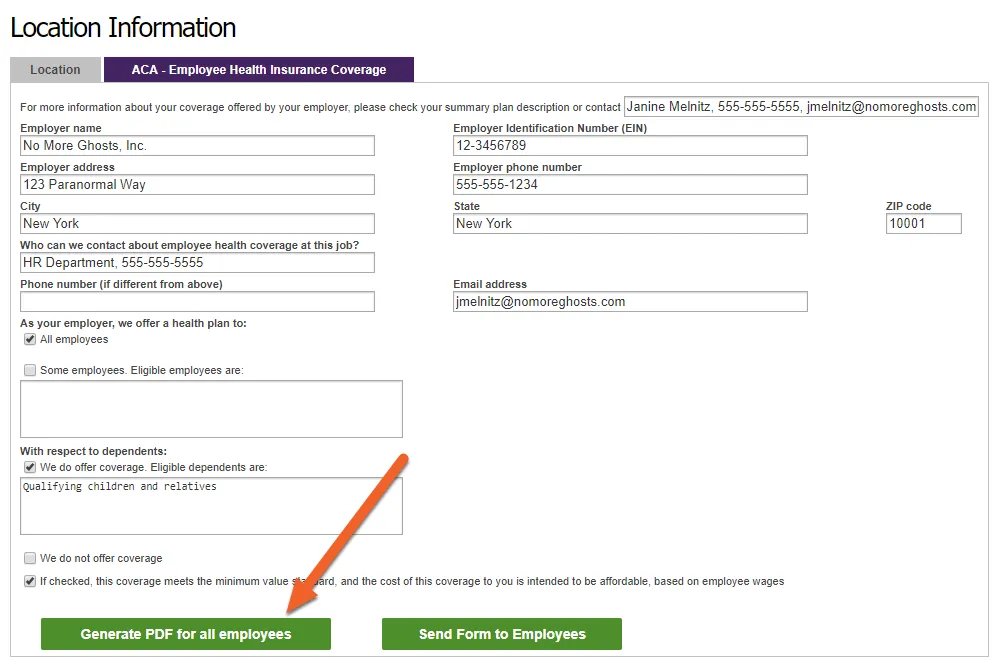
Generate the PDF form
Section titled “Generate the PDF form”This will download a PDF copy of the pre-filled form.
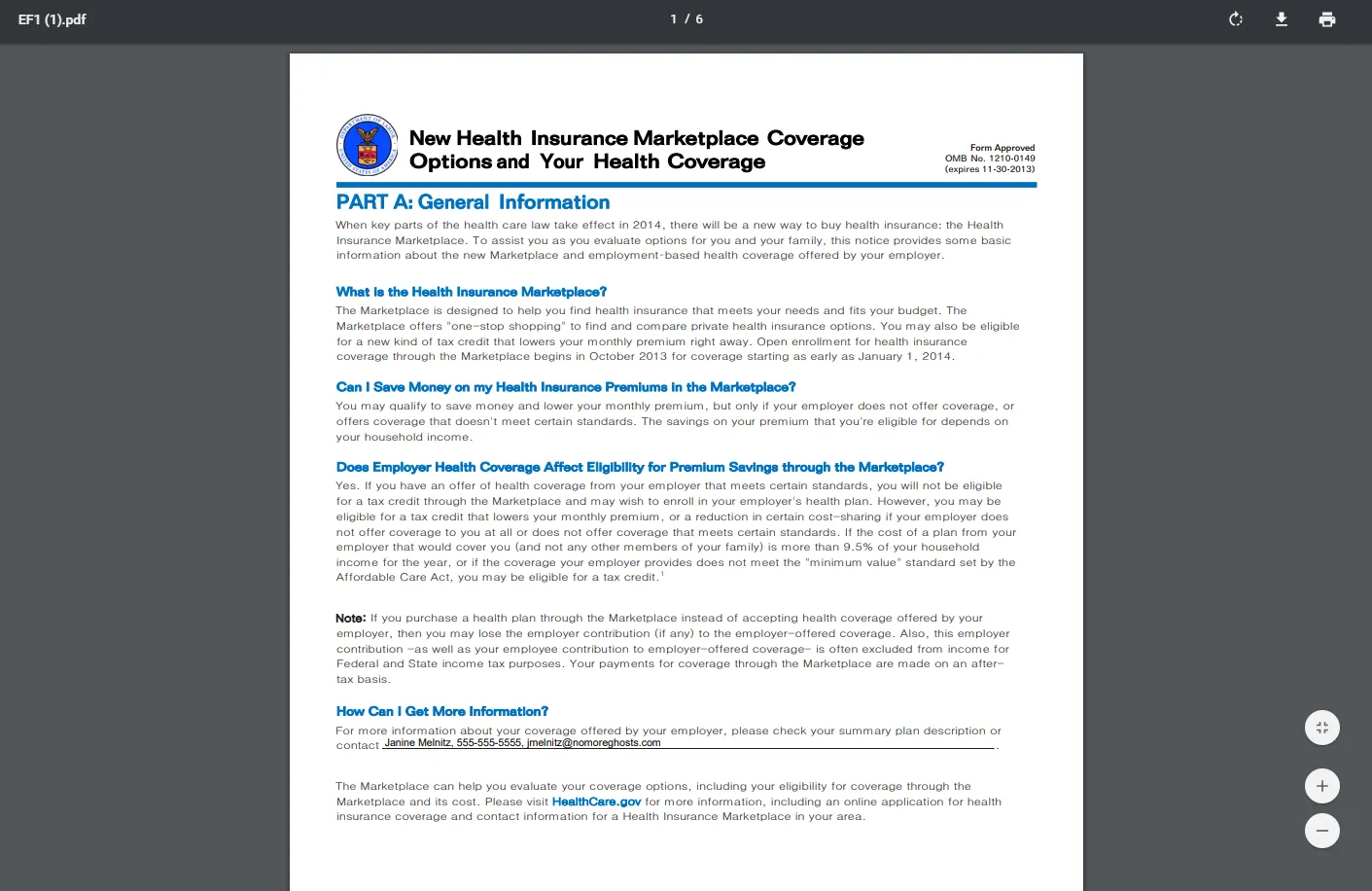
Review the PDF form
Section titled “Review the PDF form”Open the PDF to review the form and make sure everything looks correct.
You can print the form and provide it to your employees manually, or proceed to the next step to send the form through TimeForge.
Send the form to your employees
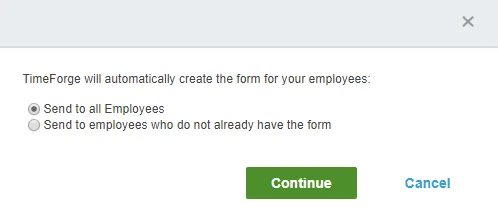
Section titled “Send the form to your employees”TimeForge will send an email and message to your employees, with the form attached.
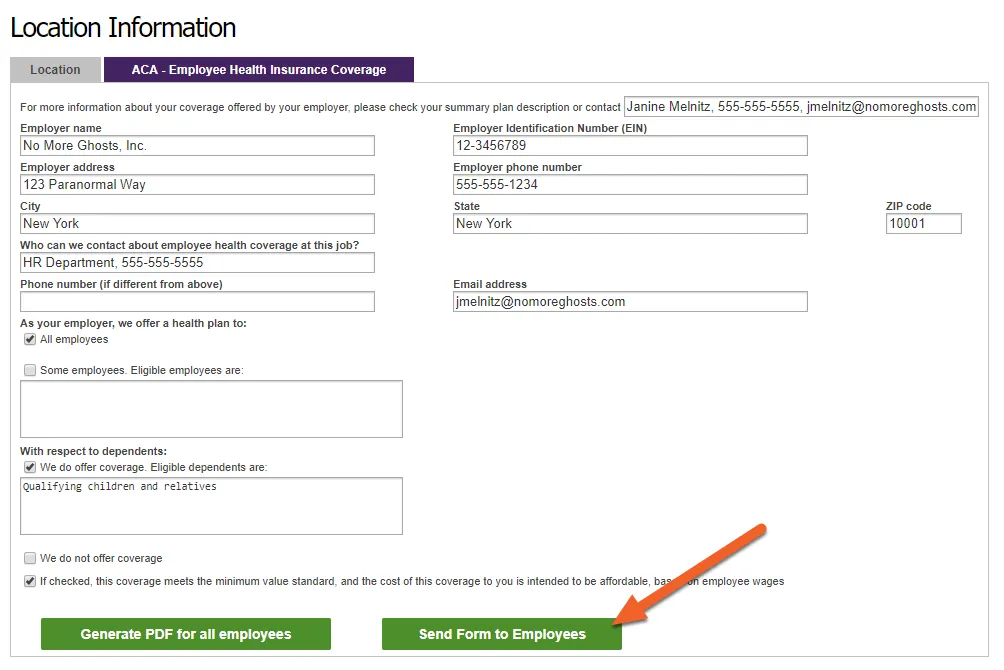
You can choose to send it to all your employees or only those who have not yet received the form.