

Schedule an employee with multiple pay rates
With TimeForge, you have access to the most powerful labor management tool around. One of the most helpful tools in TimeForge is the capability to efficiently and effectively create an employee schedule. Since employees often work different positions, and those positions sometimes have different pay rates, TimeForge gives you the ability to schedule an employee with multiple pay rates.
Multiple pay rates are approached just like a regular work schedule. The only difference is an extra step during set up. The employee will need to already have multiple positions and pay rates set up. Then, it is just a matter of scheduling that employee to work multiple shifts with different jobs.
Here’s an easy approach to setting up and creating a schedule for employees with multiple pay rates.
Check your employee’s pay rates
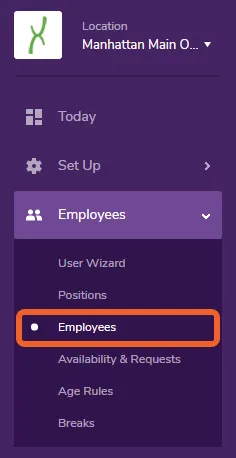
Section titled “Check your employee’s pay rates”Start by navigating to your employee list. Open the Employees tab and select Employees.
Select the employee with multiple pay rates
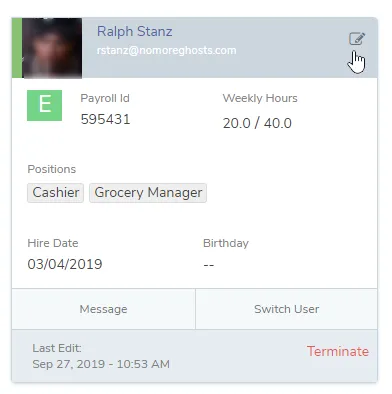
Section titled “Select the employee with multiple pay rates”Select the appropriate employee from your employee roster.
Check employee pay rates
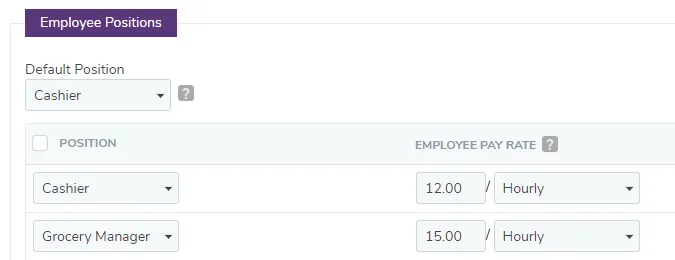
Section titled “Check employee pay rates”The employee should have multiple pay rates for different positions in TimeForge. Notice the two positions and their differing rates below:
Go to the Schedules page
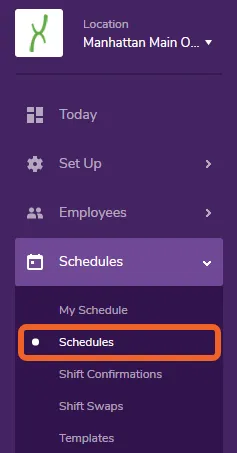
Section titled “Go to the Schedules page”Next, it’s time to make a schedule. Open the Schedules tab and select Schedules.
Add or edit an employee schedule
Section titled “Add or edit an employee schedule”Start by adding a new schedule or editing one that hasn’t been posted yet (shown below).
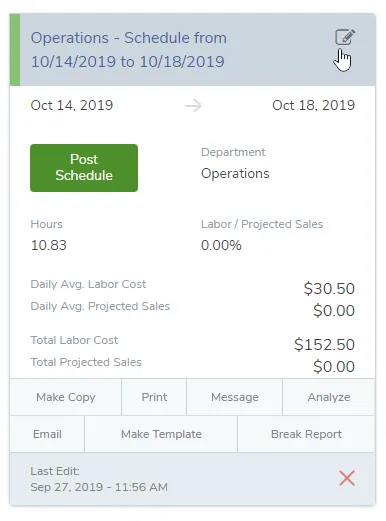
Create the employee schedule with different pay rates
Section titled “Create the employee schedule with different pay rates”In the example below, the employee is working from 8AM-12PM as an Cashier, which is at a rate of $12 an hour. Then, from 1:00-5:00PM as a Grocery Manager at a rate of $15 an hour.
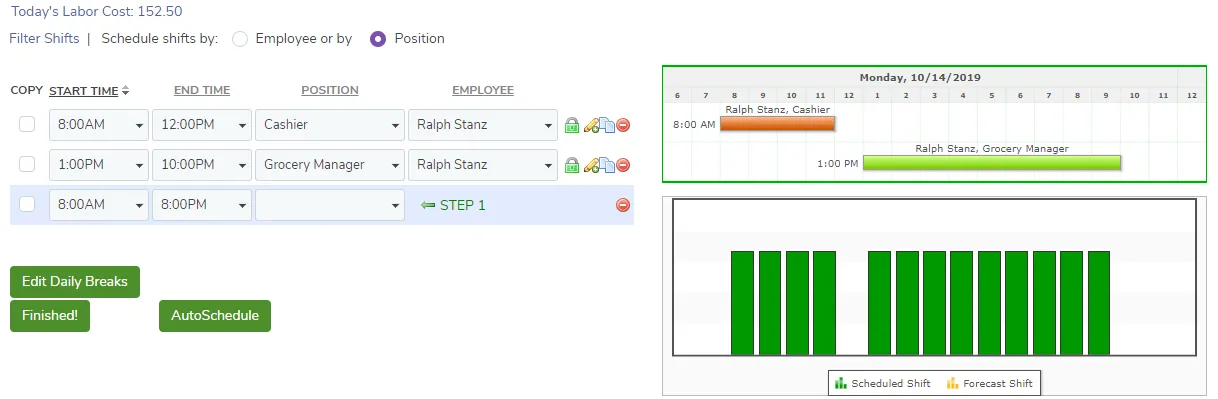
View the attendance options
Section titled “View the attendance options”TimeForge Attendance is a powerful system designed to help manage staff clocking in and out. One setting under the Attendance Options controls whether employees should automatically be swapped into different positions based on how they’re scheduled.
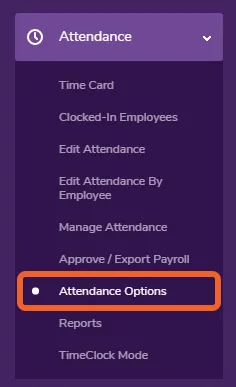
To view and change this setting, open the Attendance tab and select Attendance Options.
If set to Yes, the option below allows you to automatically swap employees’ positions based on the schedule without requiring them to clock out and back in again.
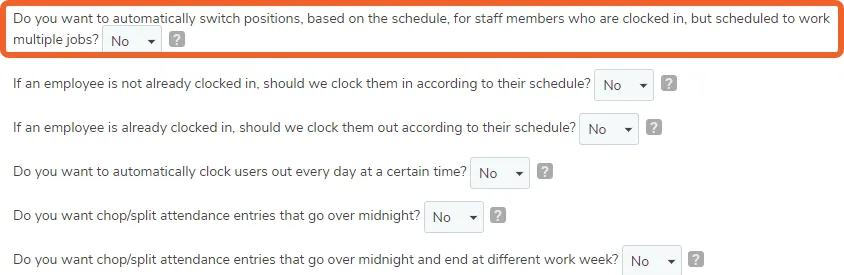
If you make any changes to these settings, don’t forget to click Save at the bottom of the page when you’re finished.