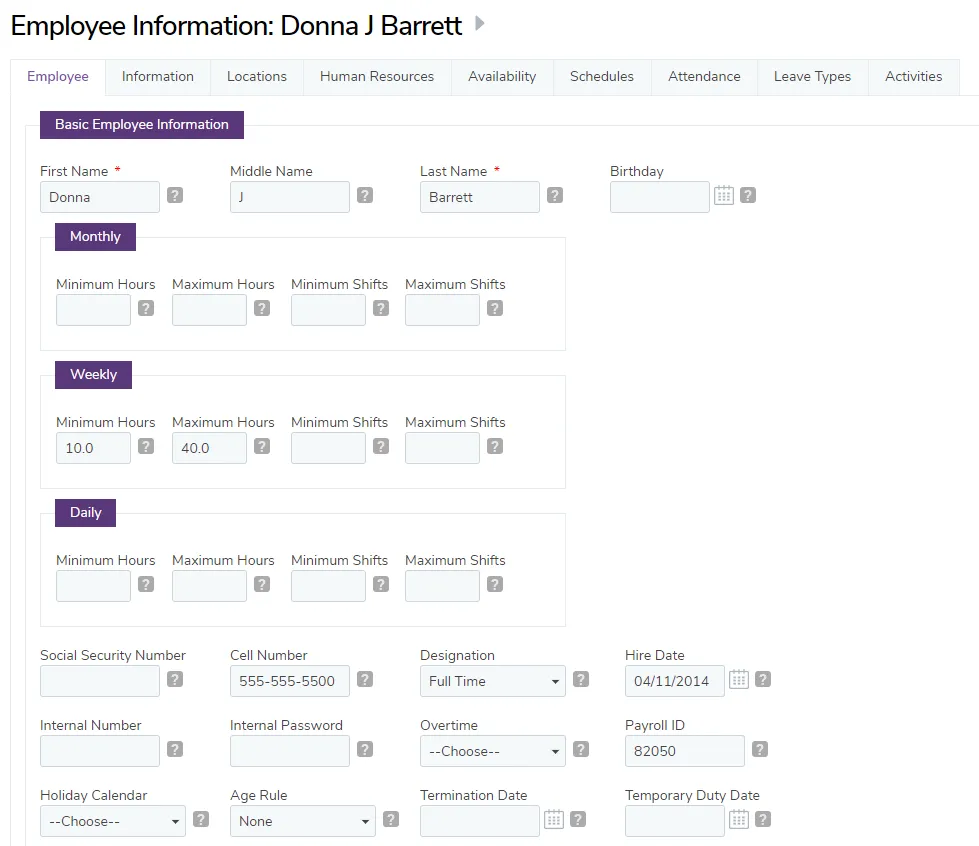
View an employee's information
The Employees area of TimeForge houses important information about your employees, including basic info (name, address, date of birth, etc.), what departments they’re in, their job positions, login information, and security level. Additional tabs allow access to historical pay rate/wage changes, PTO changes, notes, what locations they work at, human resources documents, their availability, schedules, attendance, and more.
Employee profiles can be viewed at both the Corporate and Location levels, but the availability of certain information may differ between these levels or may be limited by security settings.
The steps below will show you how to view an employee’s details using either method.
Go to your employee list
Section titled “Go to your employee list”From the Corporate level
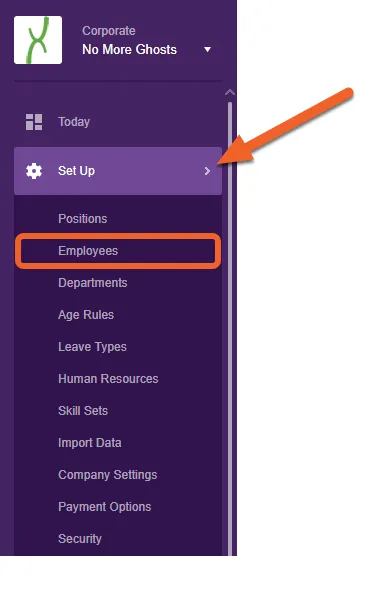
Open the Set Up tab, then select Employees from the sub-menu.
From the Location level
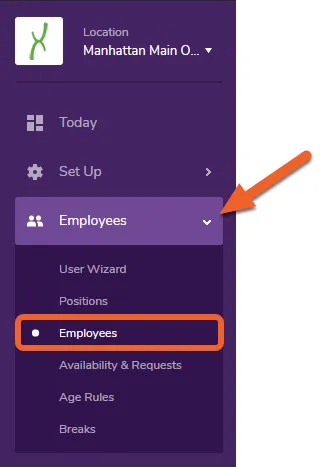
Open the Employees tab, then select Employees from the sub-menu.
Select an employee from the list
Section titled “Select an employee from the list”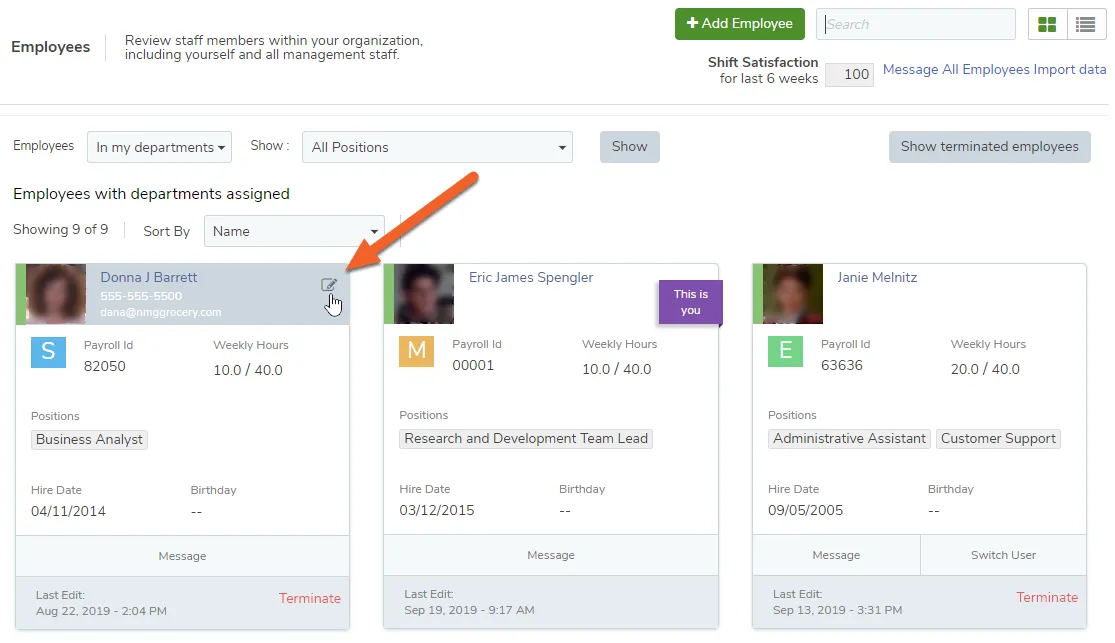
View the employee’s information
Section titled “View the employee’s information”Scroll down the page to view additional details, such as departments and positions. Switch tabs to view other areas of the employee’s account, such as HR documents attached to their record, their schedule information, and attendance.
You can also make changes to the employee from some of these screens; just remember to scroll down and hit the Save button to save your changes!