How to use Earned - TimeForge's same day pay feature
TimeForge’s Earned feature give employees early access to a portion of their earned wages. This feature comes in handy when an unexpected expense occurs and an employee needs access to their wages prior to their payday. This guide outlines how employees can sign up for Earned and how to submit an on demand pay request.
Review and sign Earned service disclosure
Section titled “Review and sign Earned service disclosure”You must review and sign the Earned service disclosure form before you can gain early access to your Earned wages. To review the form follow the next four steps.
- Log into your employee portal.
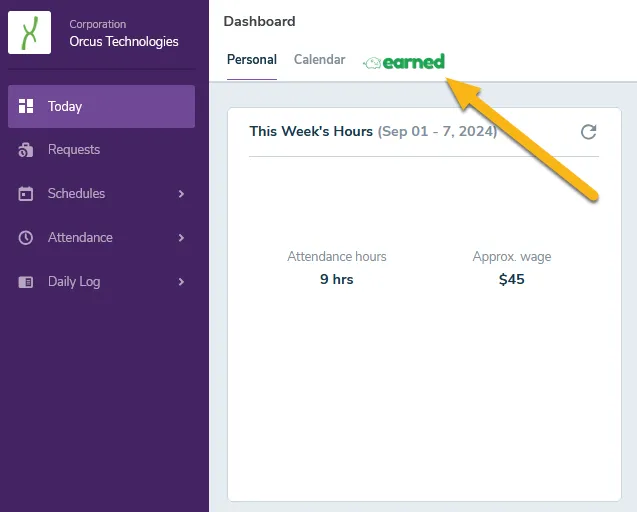
- Click the Earned tab found at the top of the Today page.
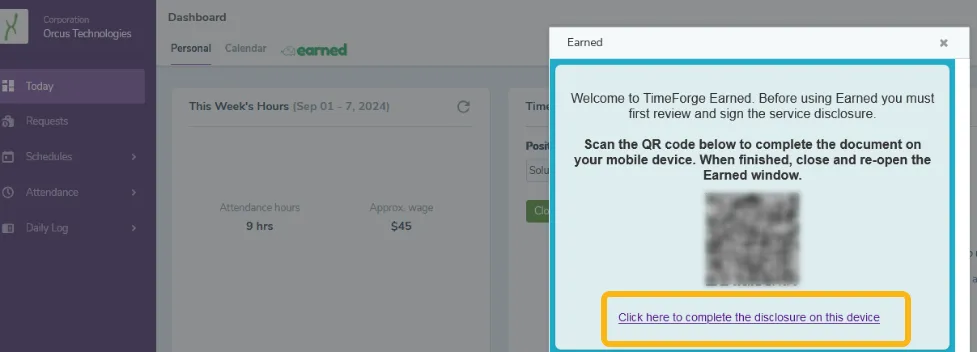
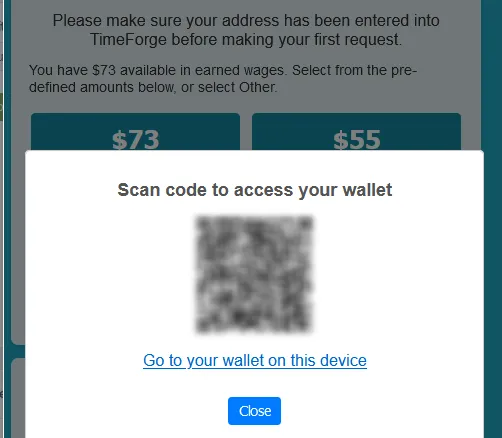
- Scan the QR code or click the link below the QR code to fill out the disclosure form.
- After you review the Earned terms and conditions, enter your name, signature and click the “Send” button to submit your form.
Once you submit your signed form, you’ll be redirected back to the Today page.
Requesting early access to your wages
Section titled “Requesting early access to your wages”After signing the disclosure of service form, you can begin accessing your wages. To request an amount from your Earned digital wallet, first visit the Today page and click on the Earned button.
Next, the page will present a dialog box where you can select a predefined amount of your available wages to request. If you’d like to request a specific amount, select the “Other” option.
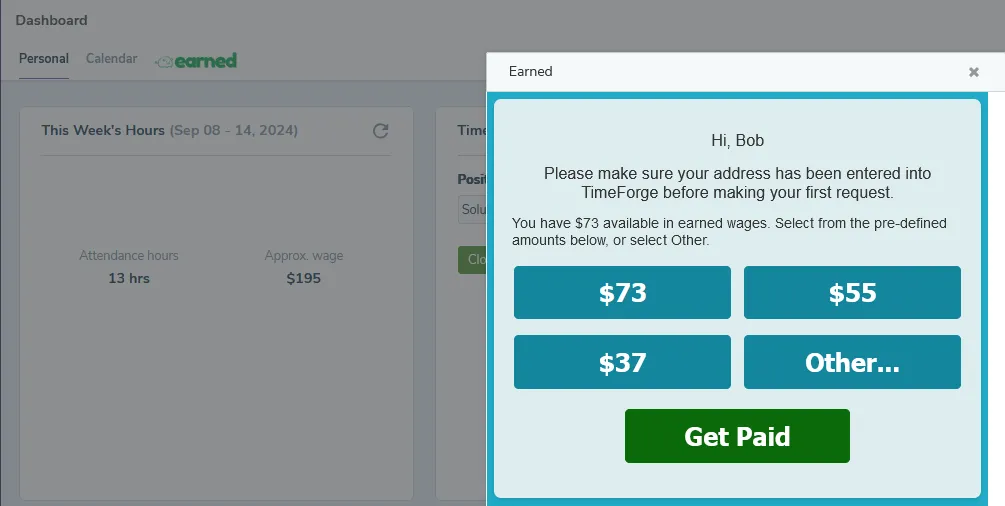
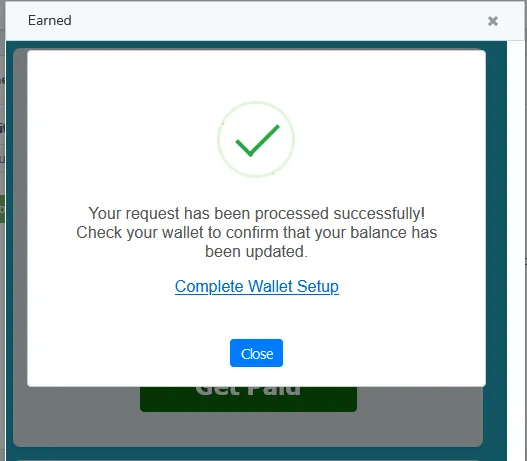
Once you enter the amount you’d like to request, select the “Get Paid” button. Next confirm your request by clicking on the “Submit Request” option. A message notifying you the request went through successfully, should then appear. Click the “Complete Wallet Setup” link to move the final step in accessing your wages.
Finish setting up your digital wallet
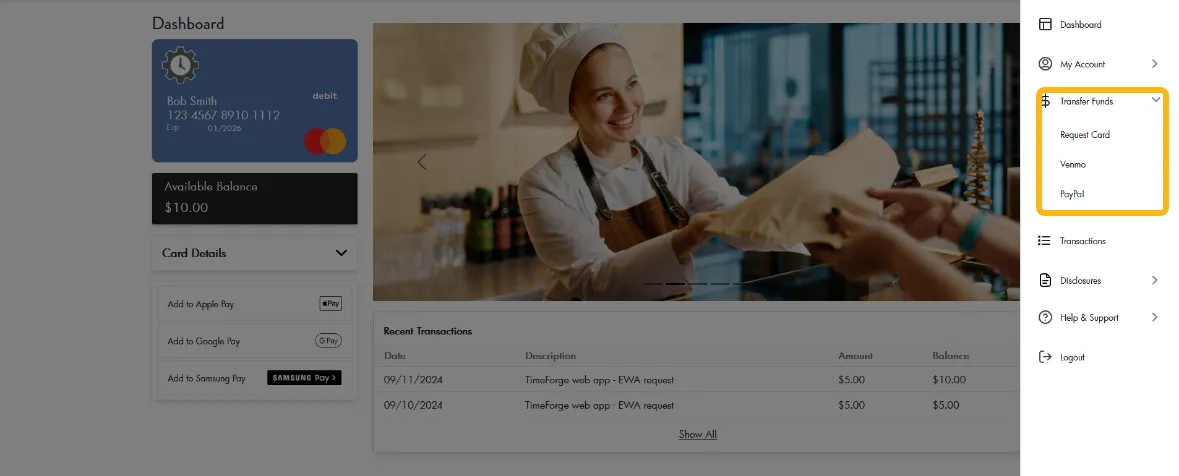
Section titled “Finish setting up your digital wallet”When you select the “Complete Wallet Setup” link, your browser will open a separate tab to your Earned dashboard. From this page view instructions on how to add your Earned card into your Apple, Google or Samsung Pay account by clicking the tabs highlighted below.
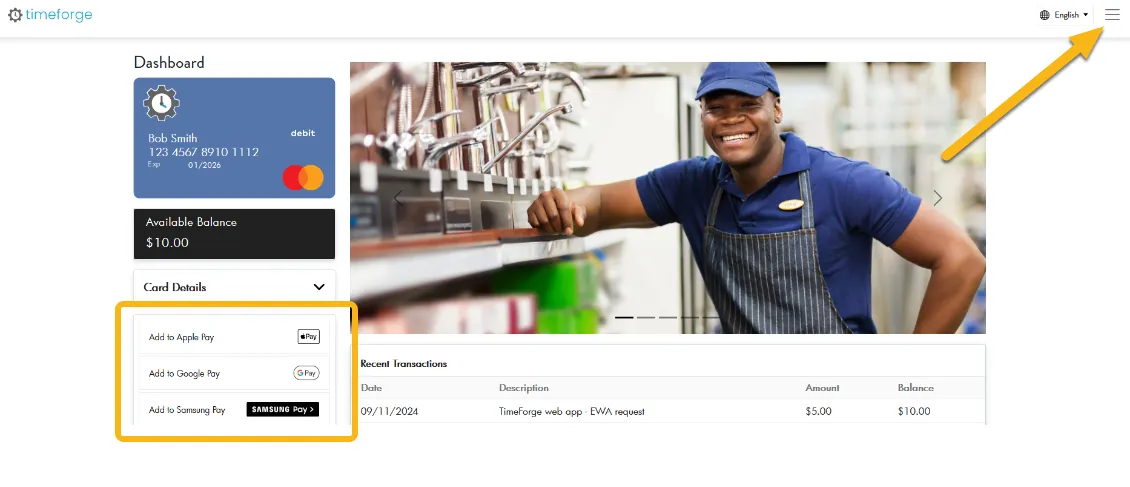
If you click the menu icon (see the screenshot above) at the top right corner, you can select to transfer your funds to a Pay Pal or Venmo account as well as request a physical card.
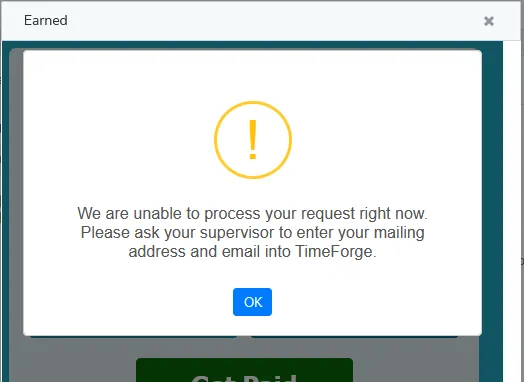
What do I do if I receive a “We are unable to process your request right now” message?
To access the Earned, your profiles must have the next three fields entered.
- Cell phone number
- Address
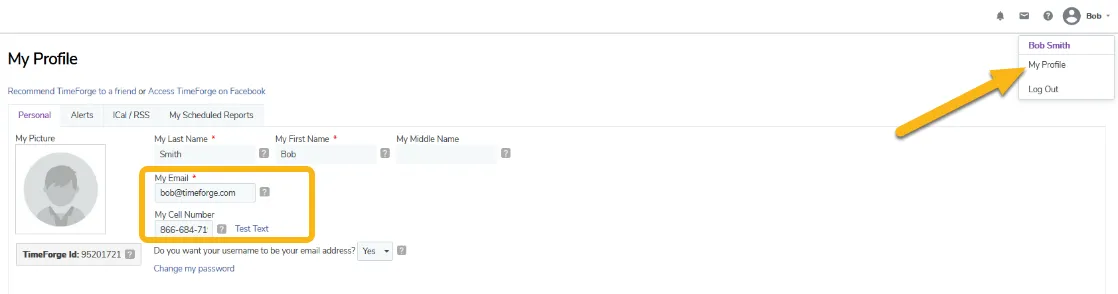
You can check the cell phone number and email assigned to your profile by clicking on your name at the top right corner and selecting “My Profile.”
If you need to update your cell phone number or email, click on the corresponding field, enter your contact information, and select the save button at the bottom of the page.
If you need to update your home address, reach out to your manager directly. Your manager has access to update your address.
What does a “you do not have enough earned wages to make a request” message mean?
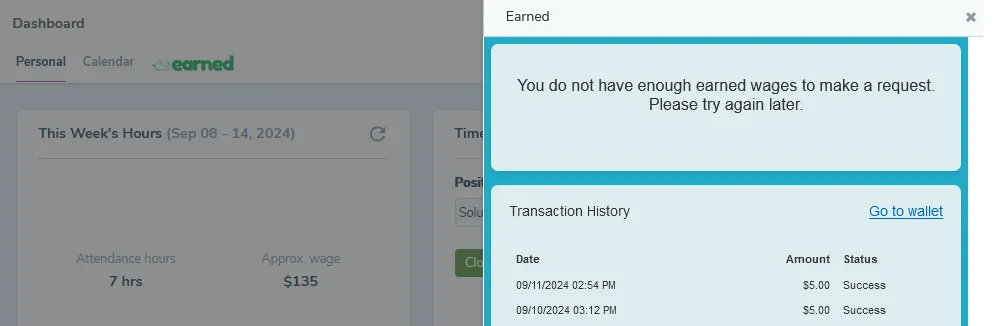
Earned allows you to request same day pay for wages you’ve accrued for the current pay period. You may see the message below if one or more of the scenarios below occurred.
- A new pay period has begun and you have not yet accrued the minimum amount of wages you can request.
- Your profile is missing pay rate information